Open source · Local projects · Your choice of AI

Install CodeAlta Desktop
dotnet tool install -g CodeAlta
alta

Windows, macOS & Linux · Requires .NET 10 · Prefer a terminal?

Your agents. One workspace.

Run AI coding agents on your local projects, and follow them from your phone. Keep conversations, code, terminals and git changes together - with the models and tools you choose.

No telemetry Your files stay yours BSD-2-Clause licensed

CodeAlta does not send usage analytics to its developers.

See it in action

A place for the whole workflow.

From the first prompt to the final diff. Scroll to step inside CodeAlta Desktop.

01 Sessions & delegation

More minds.
One clear view.

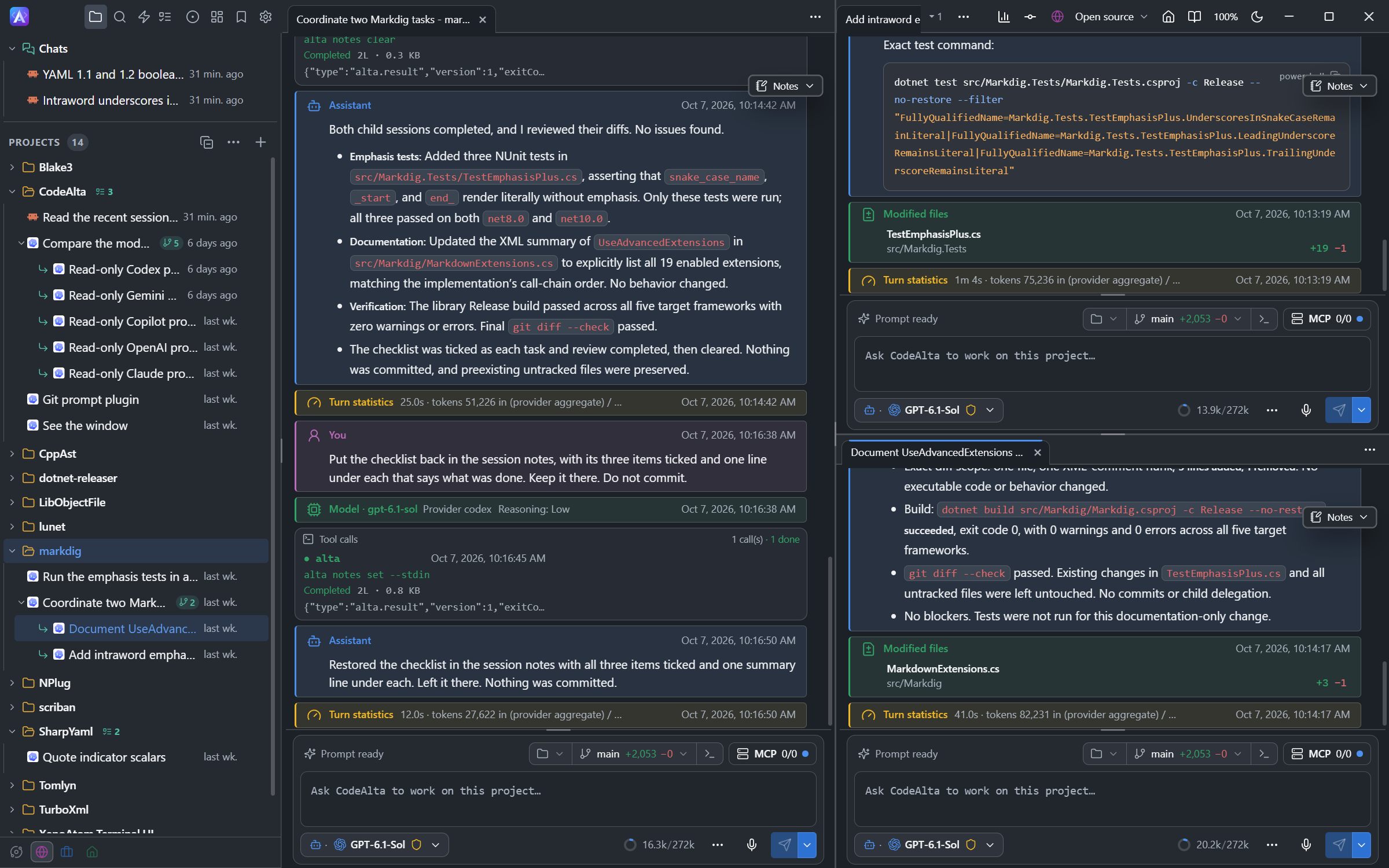
CodeAlta’s agent harness holds its own against Claude Code and Codex on hard tasks of real projects, and coordinates multiple agents and their tools for efficient, reliable parallel work. Delegate to child sessions, follow progress side by side, and keep the details in view. Archive what is done and bring it back when you need it.

Meet your agents
A parent Markdig session and two delegated sessions arranged in three CodeAlta panes

02 Workflows & Code Mode

One prompt.
A whole workflow.

Agents write short programs that call their tools in loops and in parallel, and run whole workflows: a step plans, sub-agents explore at once, another writes, and you watch the graph fill in live. A workflow can go on in the background, sleep, ask you and resume, then return Markdown with pictures. Keep one that went well as a script, and run it again from the Workflows tab or an automation.

Run your first workflow

03 Sandbox

Let agents run.
Keep your secrets.

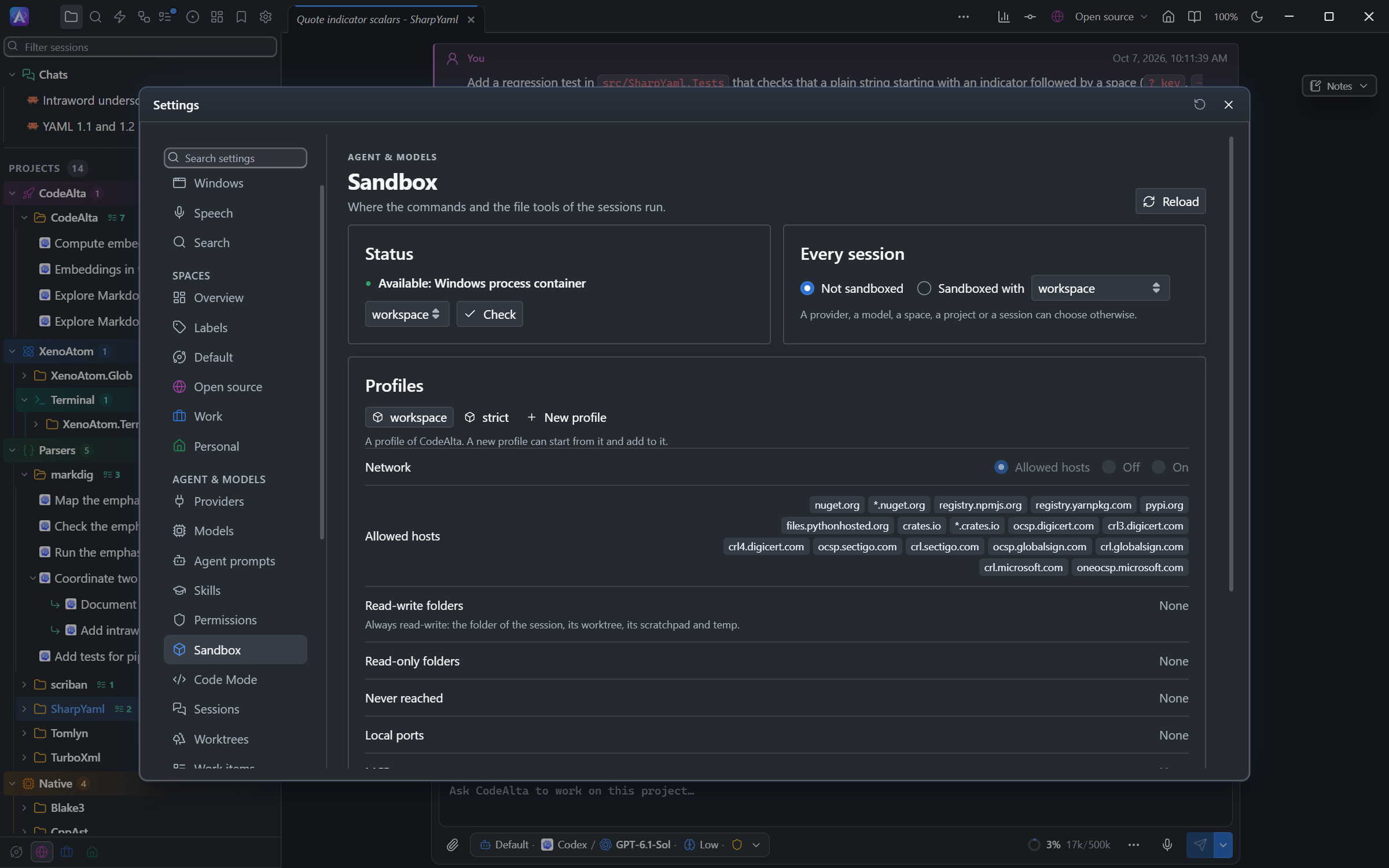
Run a session in a sandbox of the operating system, built on Microsoft's MXC: its commands and file tools reach the project and your developer tools, never your credentials, your SSH keys or the rest of your home folder, and only the hosts its profile allows. Turn it on for every session, a provider, a project or one session. Claude Code and the ACP agents run in it too, and when a command needs more, the agent asks you first.

Sandbox your sessions
Settings > Sandbox: the sandbox of Windows passes its check, with the choice for every session and the workspace and strict profiles

04 On your phone

Step away.
Stay in the loop.

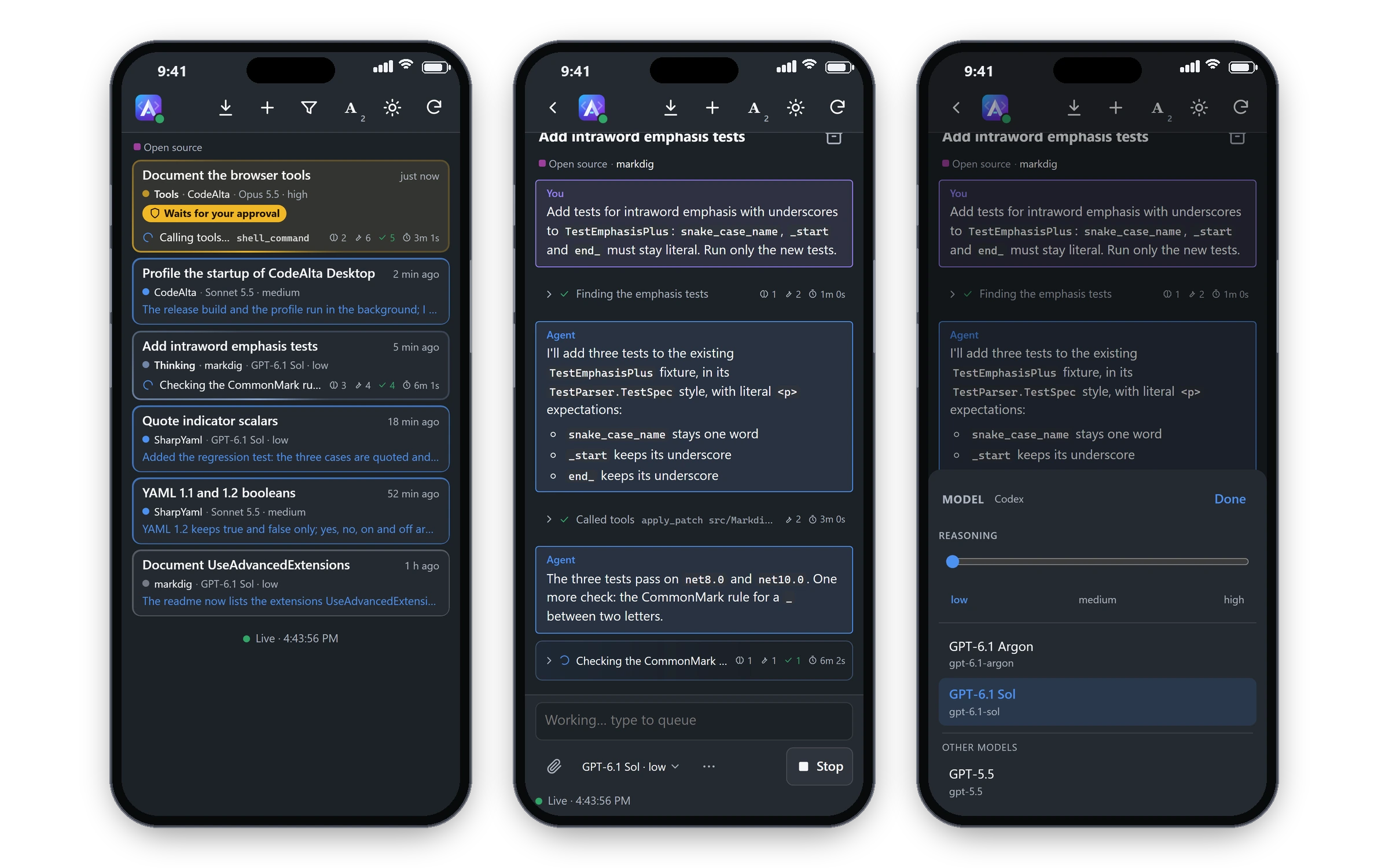
Scan a QR code and your sessions are on your phone: follow each one live, read its timeline, then answer, steer or stop it, allow or deny what its agent asks permission for, follow its background jobs, change its model and its effort, or start a new session. The phone reaches your computer over your own Tailscale network, and nothing else of your computer is published.

Connect your phone
Three phones showing the sessions of CodeAlta live, the timeline of a session with its prompt, and the choice of a model and its reasoning effort

05 Windows

Every monitor.
One workspace.

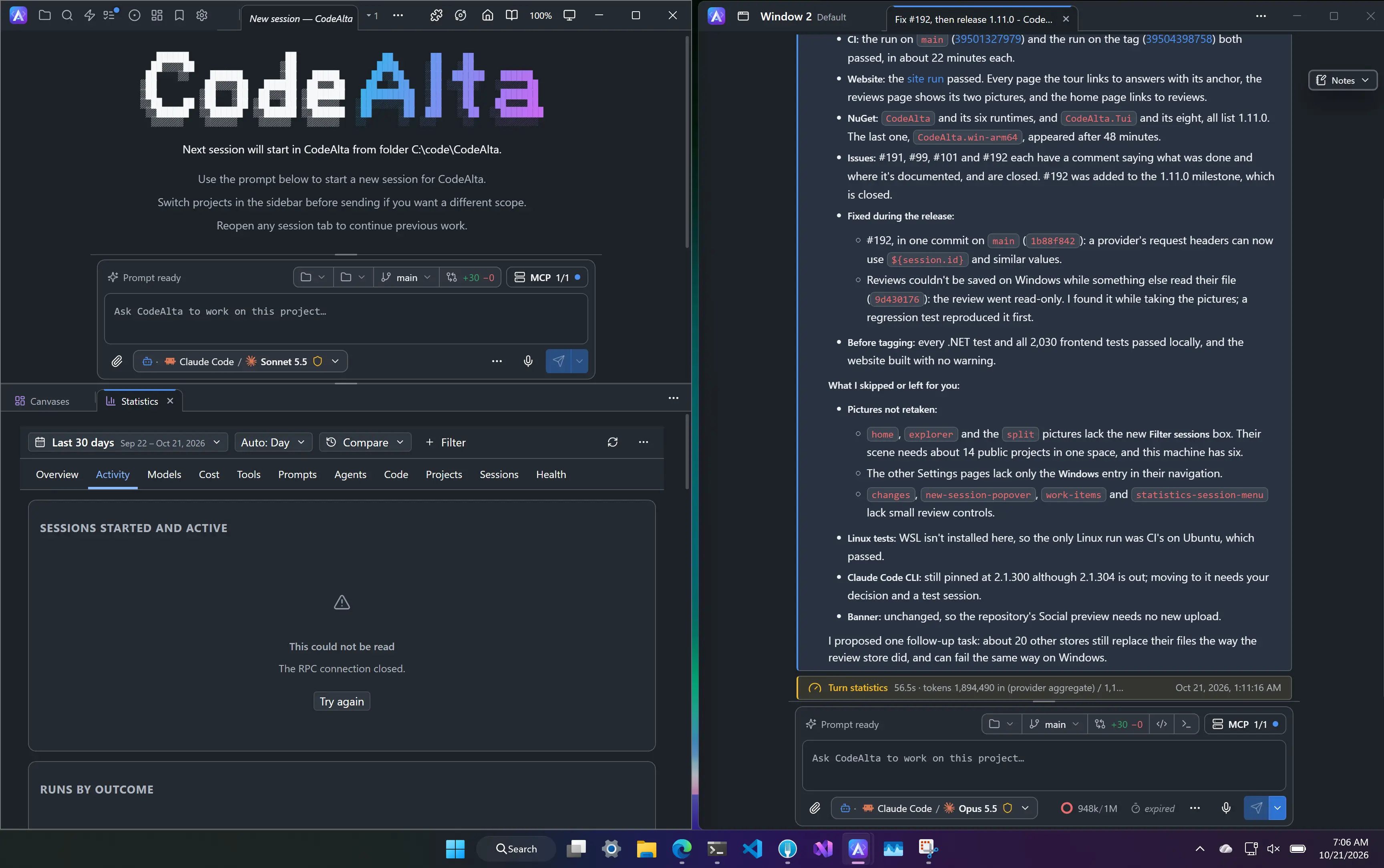
Drag a tab out of the main window and it opens in a window of its own: a session on one monitor, its code or a review on another. Drag it back, or between windows, and it joins the pane under the pointer. Name and color a window, and it opens again where it was at the next start.

Spread out your work
Two CodeAlta Desktop windows side by side on Windows: the main window with a new session and Statistics, and Window 2 with the session of a release

06 Fork & rewind

Go back.
Branch out.

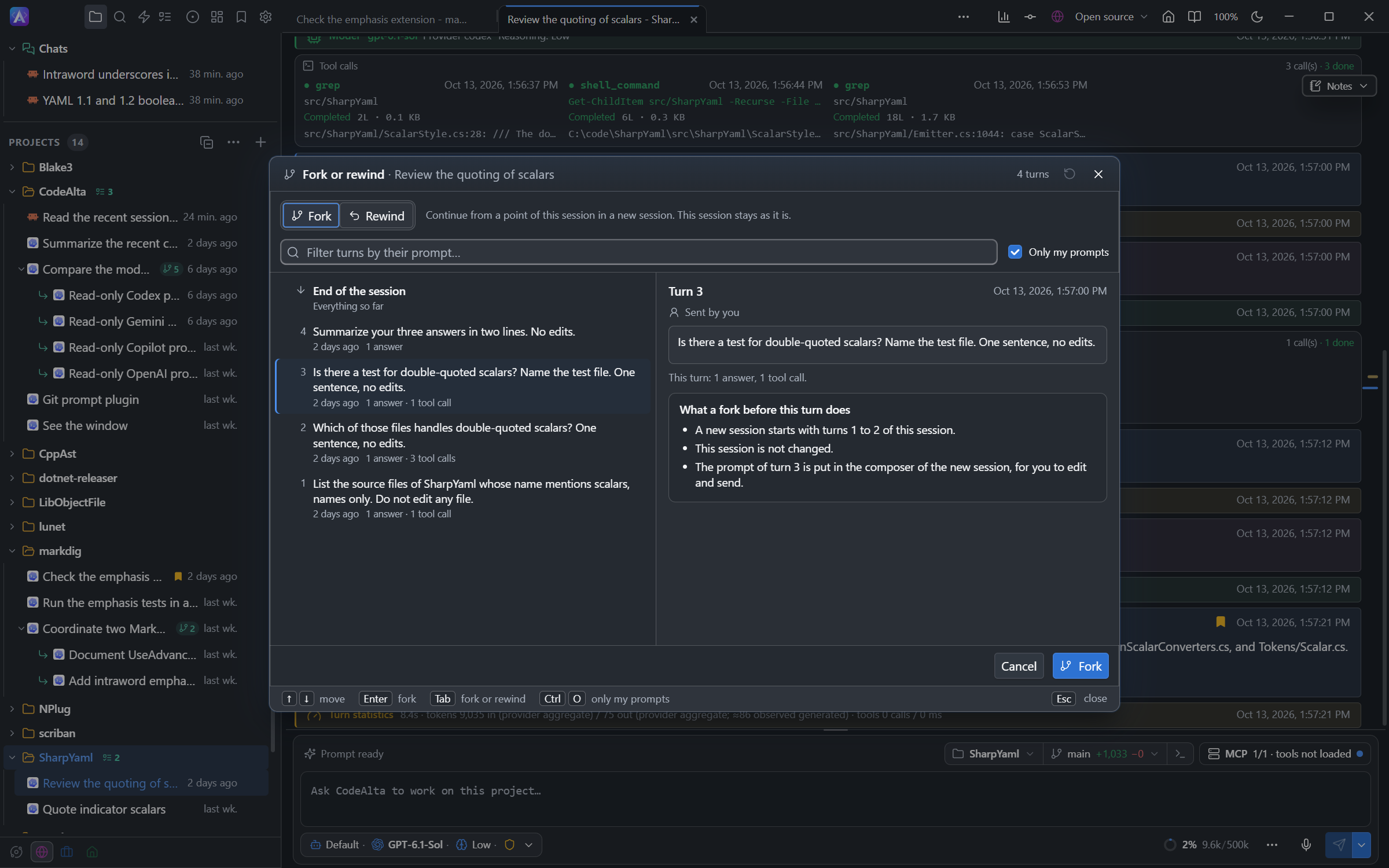
Continue from any turn of a session in a new one, or take the session itself back and try again. Nothing is lost by default: a rewind keeps the turns it removes in a session of their own.

Fork or rewind a session
The Fork or rewind window listing the turns of a session, with what a fork at the selected turn does

07 Code & git

Stay close
to the code.

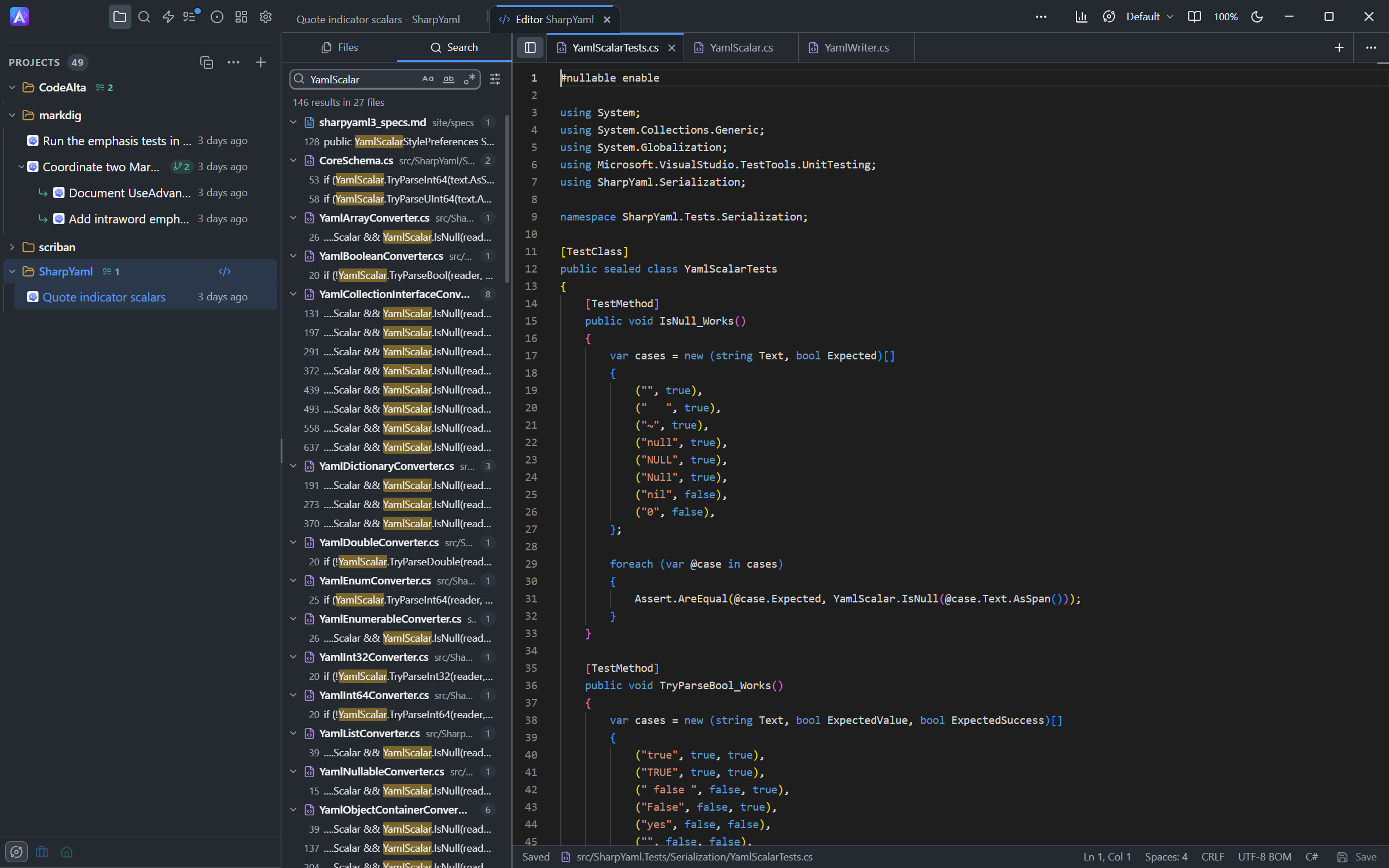
Search a project, edit files, run a terminal and inspect git diffs without leaving the workspace. Open any tool call to see what the agent did. Let agents drive Chrome, Edge, Firefox or Safari to check the page they build, in a private profile or, once you agree, in your own browser.

Explore the editor
The SharpYaml code editor with a search across files and matching source lines

08 Parallel worktrees

Work together.
Change apart.

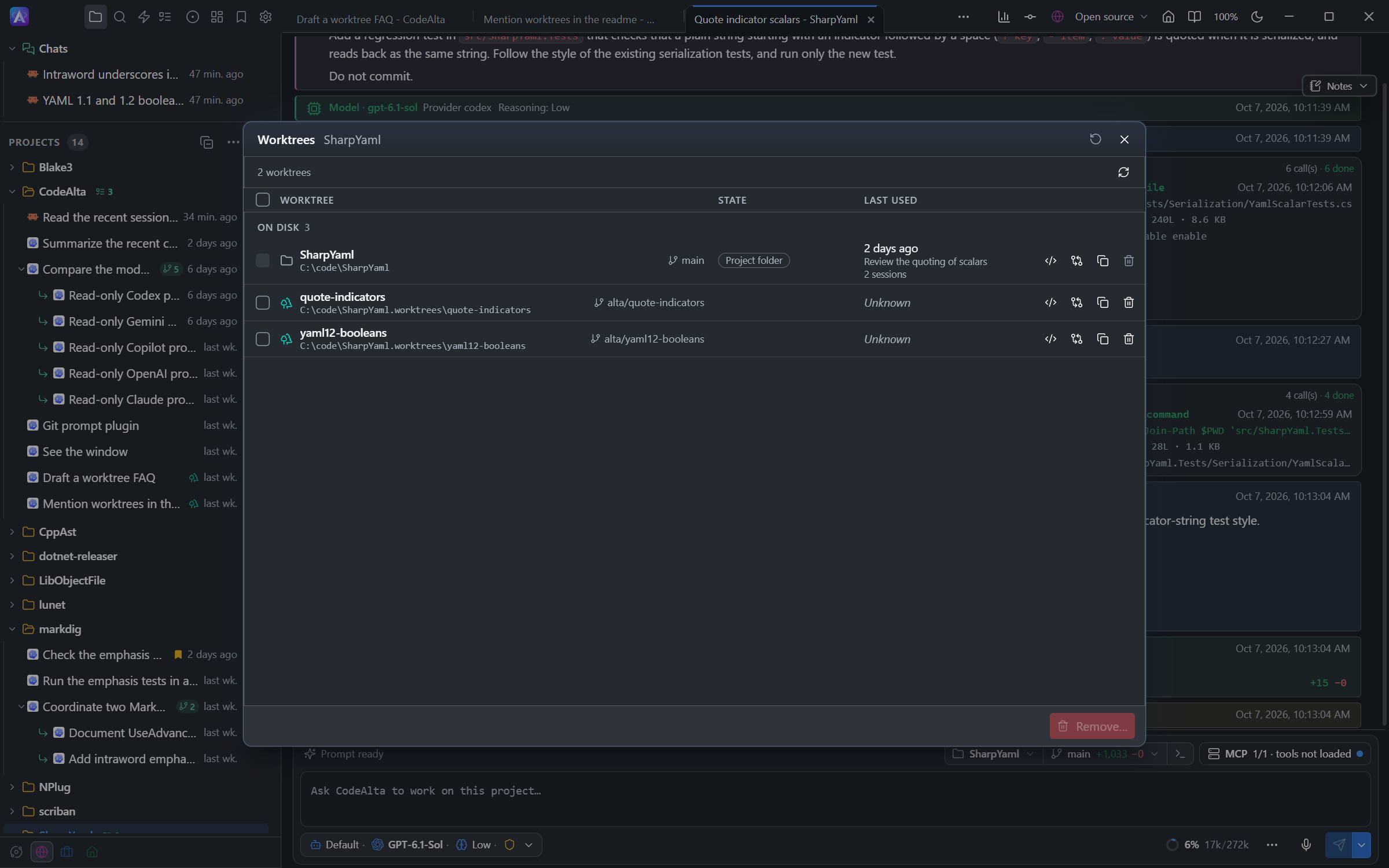
Give each session its own checkout and branch. See which worktrees are in use, open their code or diffs, and clean up when the work is done.

Manage worktrees
The Worktrees window listing project checkouts, their branches, last-used sessions and actions

09 Work items & reviews

Nothing falls
through the cracks.

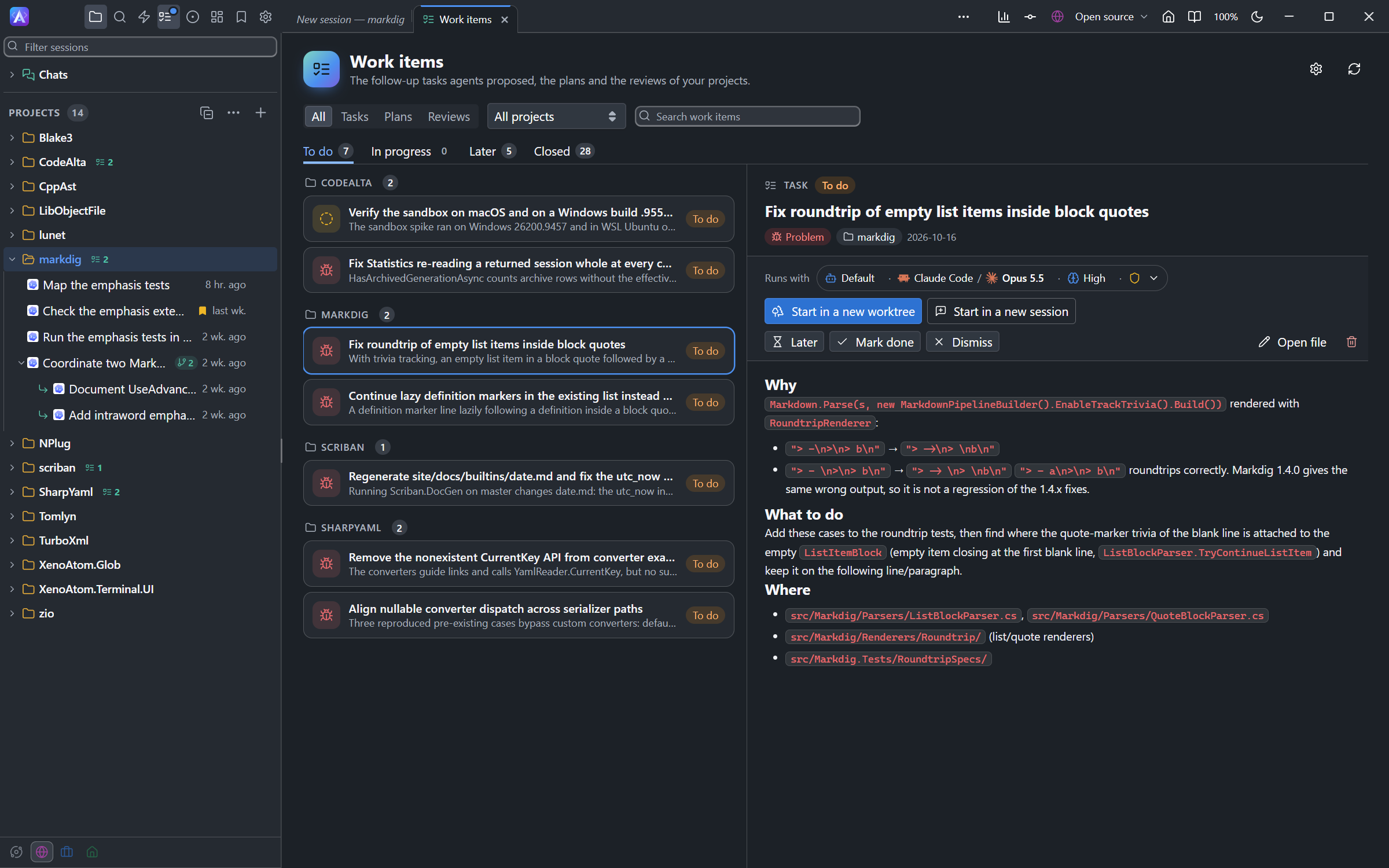
Agents propose follow-up tasks for what they find along the way, and Plan mode writes plans for you to review. Nothing starts until you choose: run an item in a new session or its own worktree, keep it for later, or dismiss it. Comment on a plan or on the changes as in a pull request, and have agents wait for your approval before they commit.

Review your work items
The Work items tab with the follow-up tasks of a project, one of them open with its Runs with model and its Start buttons

10 Issues & pull requests

From issue
to pull request.

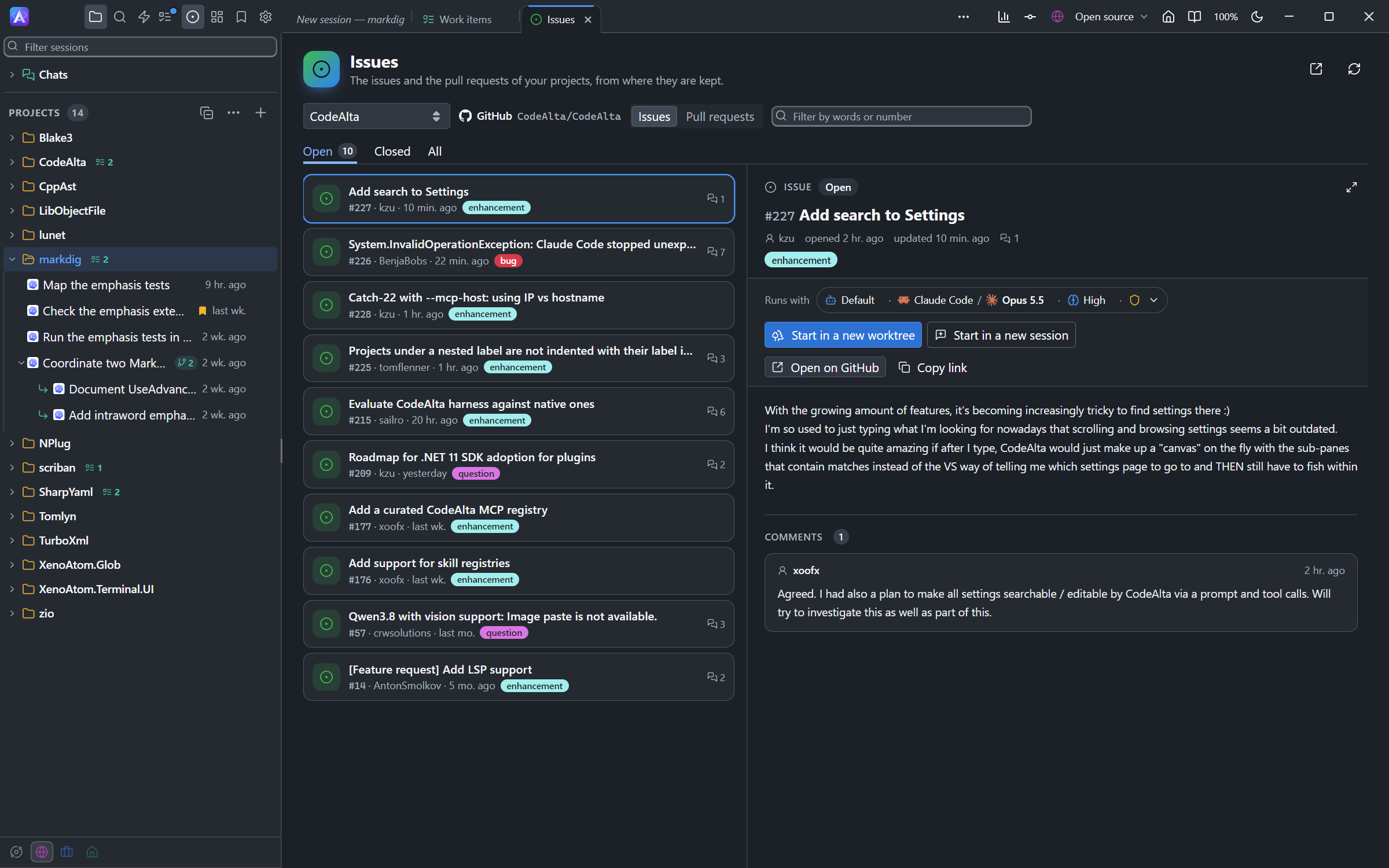
Browse the issues and pull requests of your GitHub, GitLab, Azure DevOps or Bitbucket projects, and your Jira issues, beside your work, with views of your team and sprint on Azure DevOps. Start a session on one in a click, then let it open the pull request when the work is done.

Work from your issues
The Issues tab with the open issues of a GitHub repository and one issue open with its Start buttons

11 Automations

Work that starts
by itself.

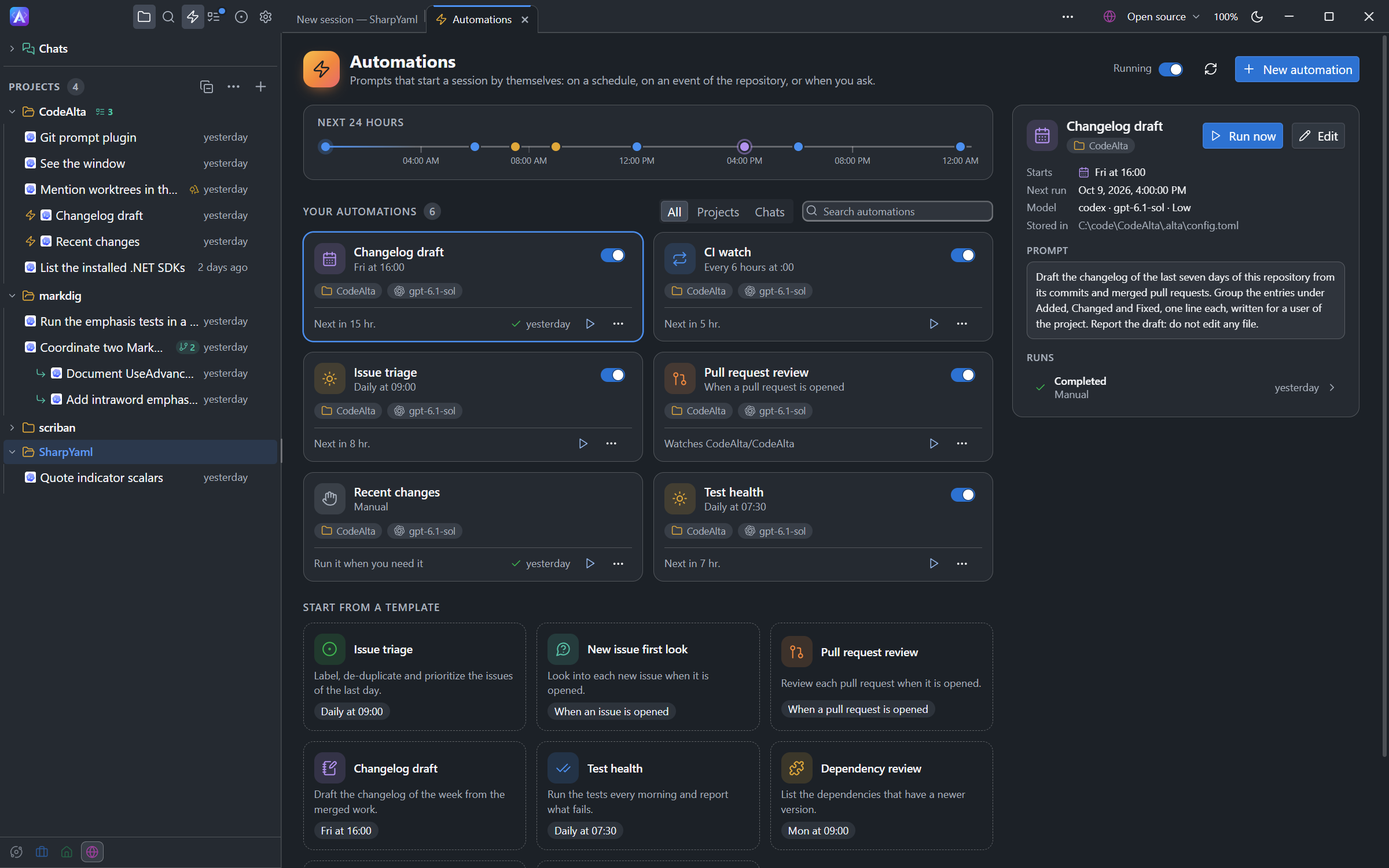
Schedule a prompt or a workflow script, or run it when an issue or a pull request is opened. Each run starts a new session you read like any other work - from a morning test report to the first look at a new issue.

Automate your routines
The Automations tab with the next 24 hours, six automations of a project, templates and the details of the selected one

12 Interactive canvases

Beyond
the conversation.

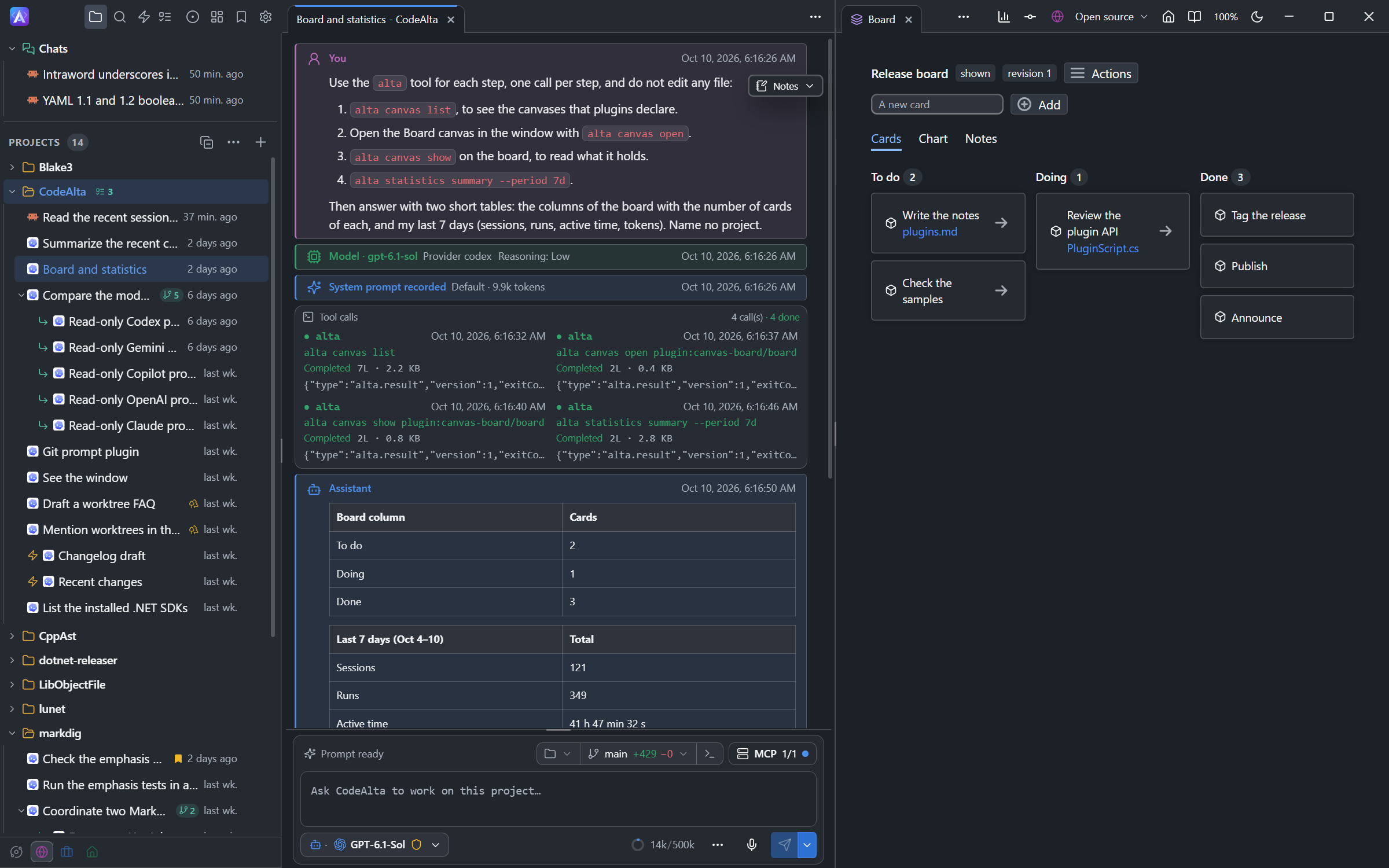
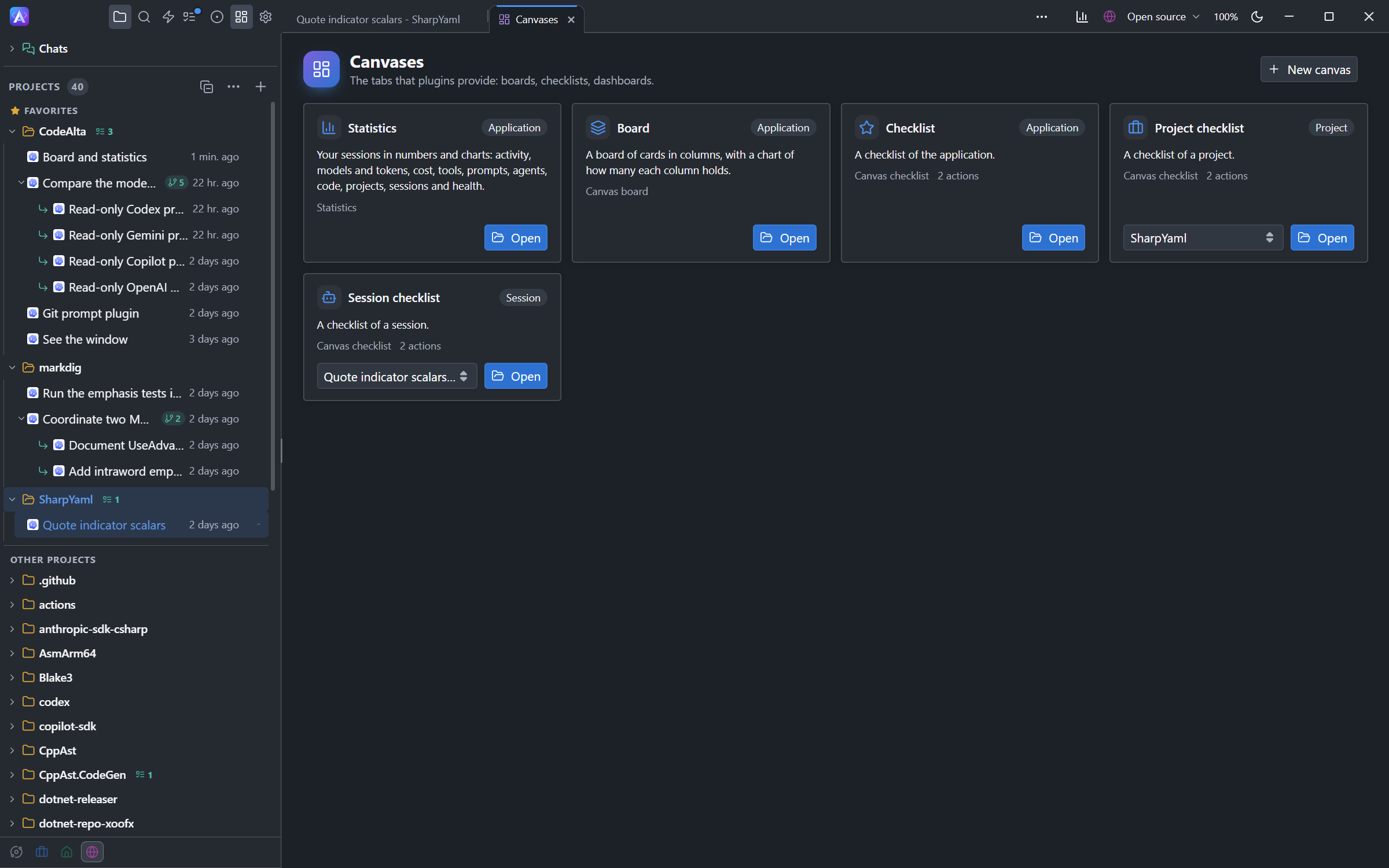
Boards, checklists, graphs and custom tools become interactive tabs. Ask an agent to build a plugin, then use its canvas right beside the conversation.

Discover canvases
An agent session beside an interactive Board canvas with To do, Doing and Done columns

13 Plugins

Imagine it.
Ask your agent.

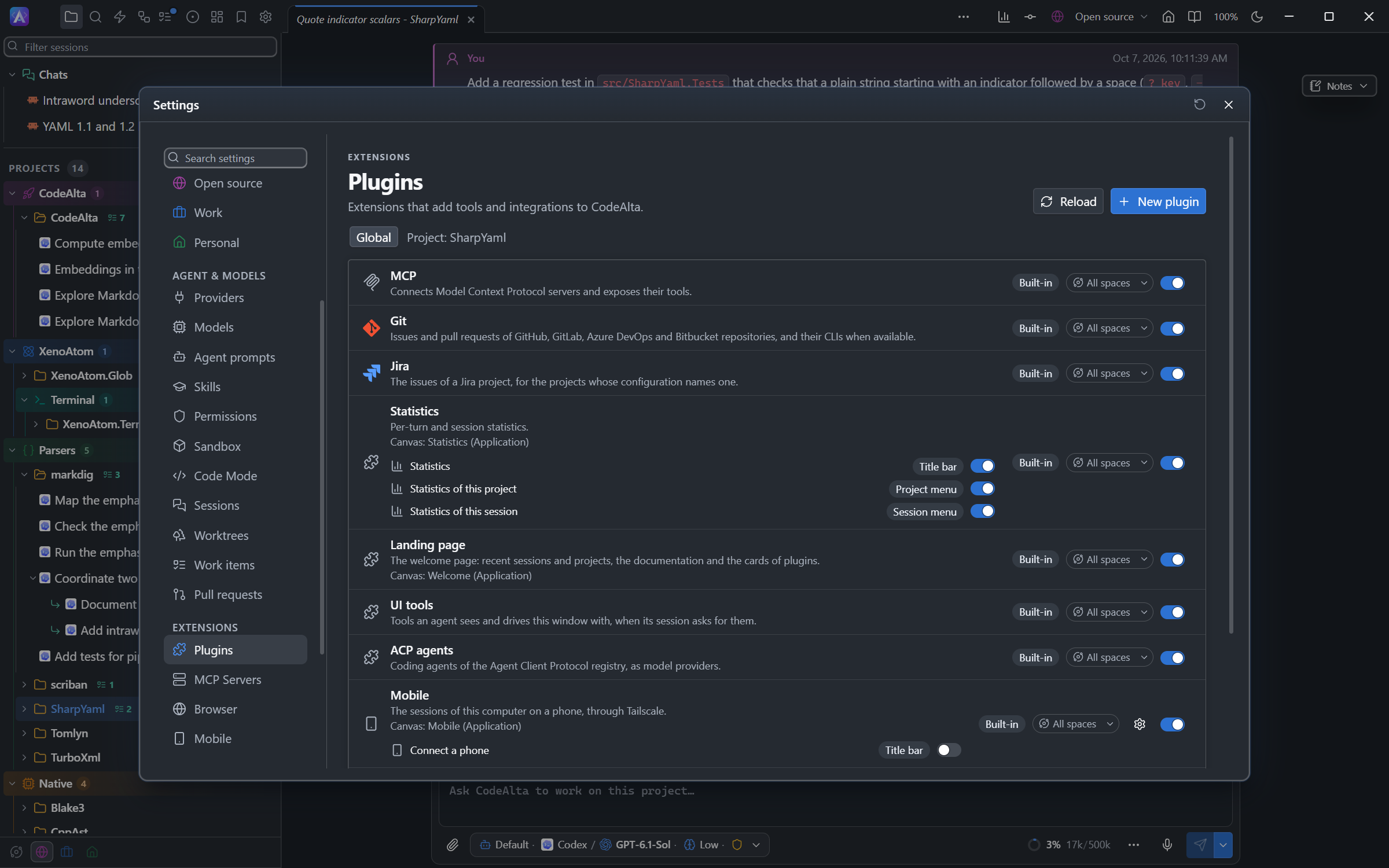
Ask your agent to create a plugin - a canvas, a dialog, a tool, a command or a button. Add it to one project or your whole workspace. Turn your ideas into the tools you want to use.

Explore plugins
The Plugins window with built-in integrations and the configurable Statistics buttons

14 Local statistics

A clearer picture
of your work.

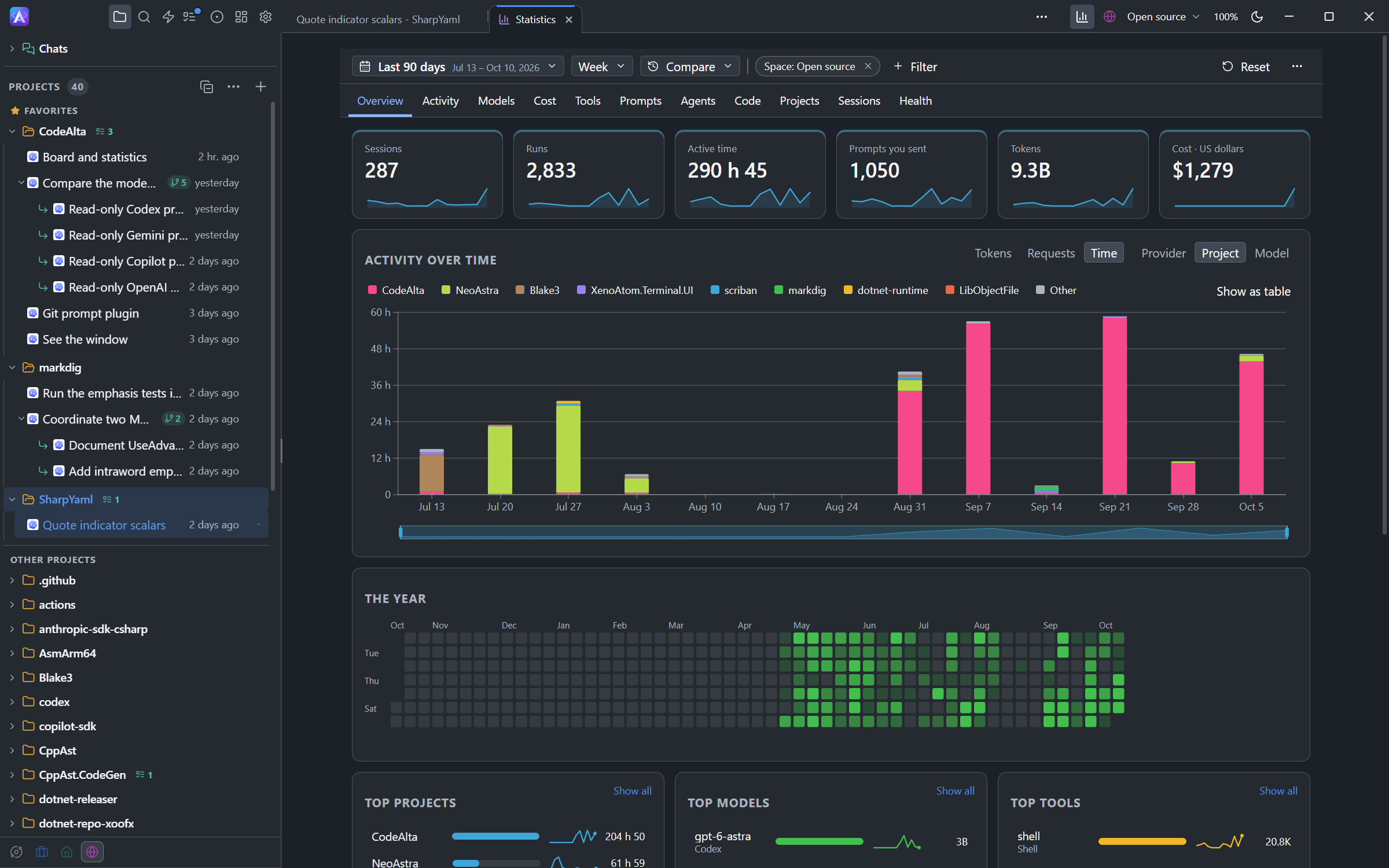
Explore activity, models, tokens and tool use across your projects - or focus on one session and its sub-agents. Statistics stay on your computer.

Explore Statistics
The Statistics dashboard showing session activity, token usage and time by project

15 Spaces

A setup for
each kind of work.

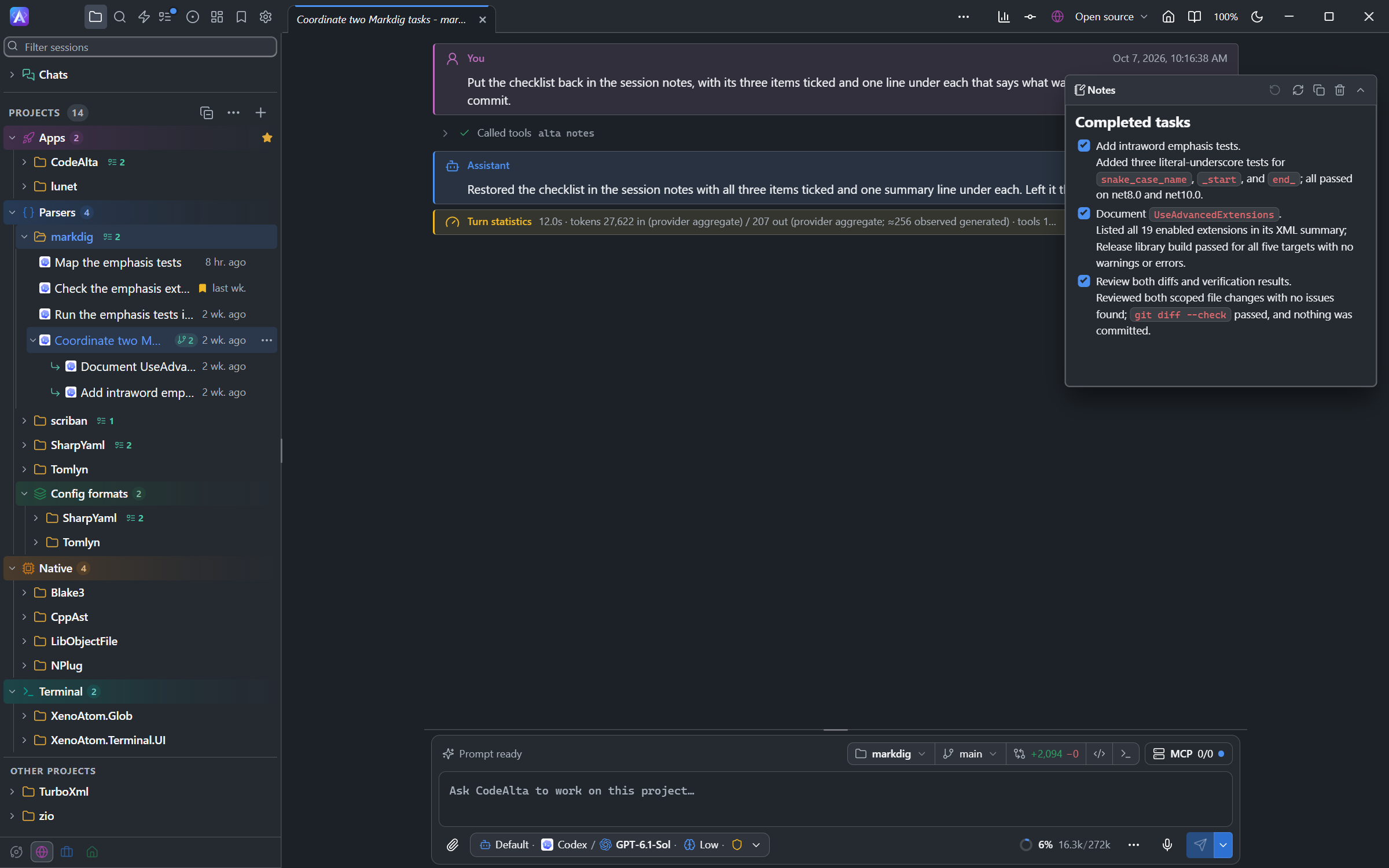
Keep work, personal and open-source projects in their own spaces, each with its own chats, providers and accounts, MCP servers, skills and agent prompts, and the Git, GitHub, Jira and command line identity its agents use. Inside a space, labels group its projects in the Explorer: one title per label, nested when you need it. Switch spaces while your agents keep working in the background.

Organize your spaces
The Open source space in CodeAlta Desktop: its projects grouped under the labels Apps, Parsers, Config formats, Native and Terminal in the Explorer, beside a Markdig session

16 Welcome home

Pick up where
you left off.

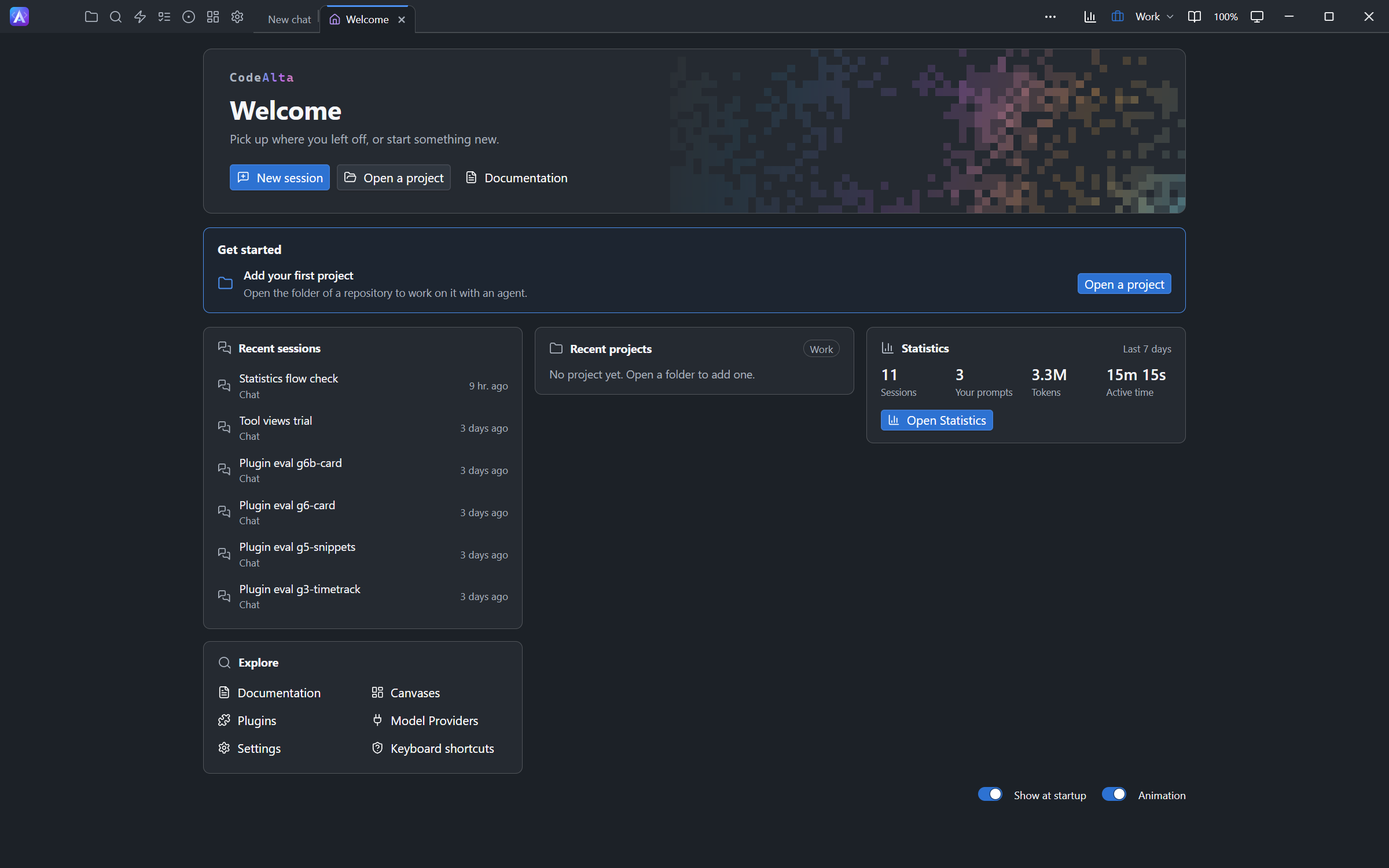
Start from recent sessions, projects and useful shortcuts. Press Ctrl+P to find any earlier conversation, plan, tool or setting by its words, or by its meaning with a model that runs on your computer. The built-in documentation is always nearby, with an agent ready to answer your questions.

Meet your workspace
The Welcome page with recent projects and sessions, Statistics and quick access to the documentation

17 Built-in documentation

The guide is
already here.

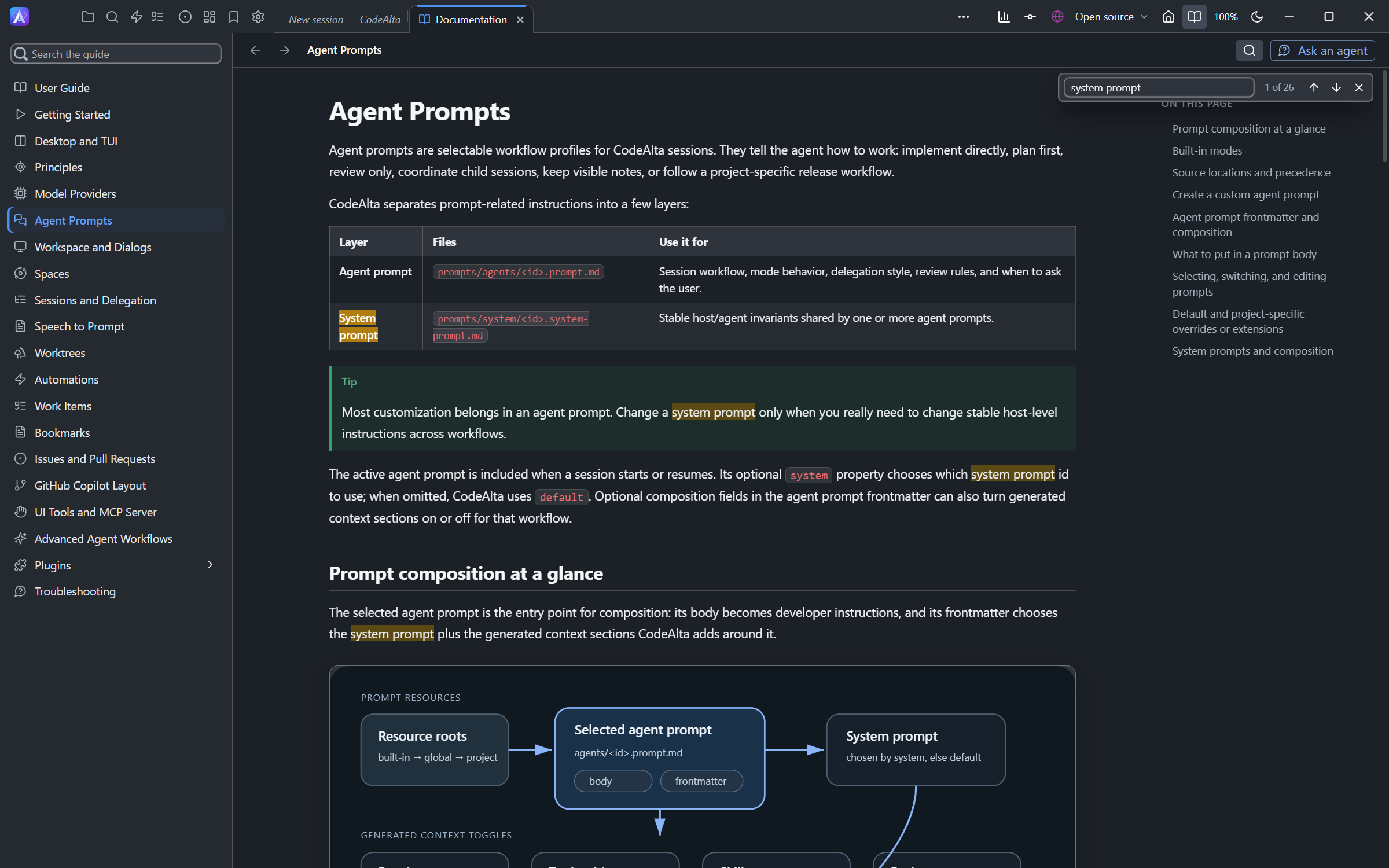
Read the documentation right inside CodeAlta, beside your work. Your agent can consult the same guide to help you find a feature, understand a setting or learn a new workflow.

Explore the guide
The built-in Documentation tab with the CodeAlta user guide and its navigation

18 Your choice of AI

Your AI.
Your choice.

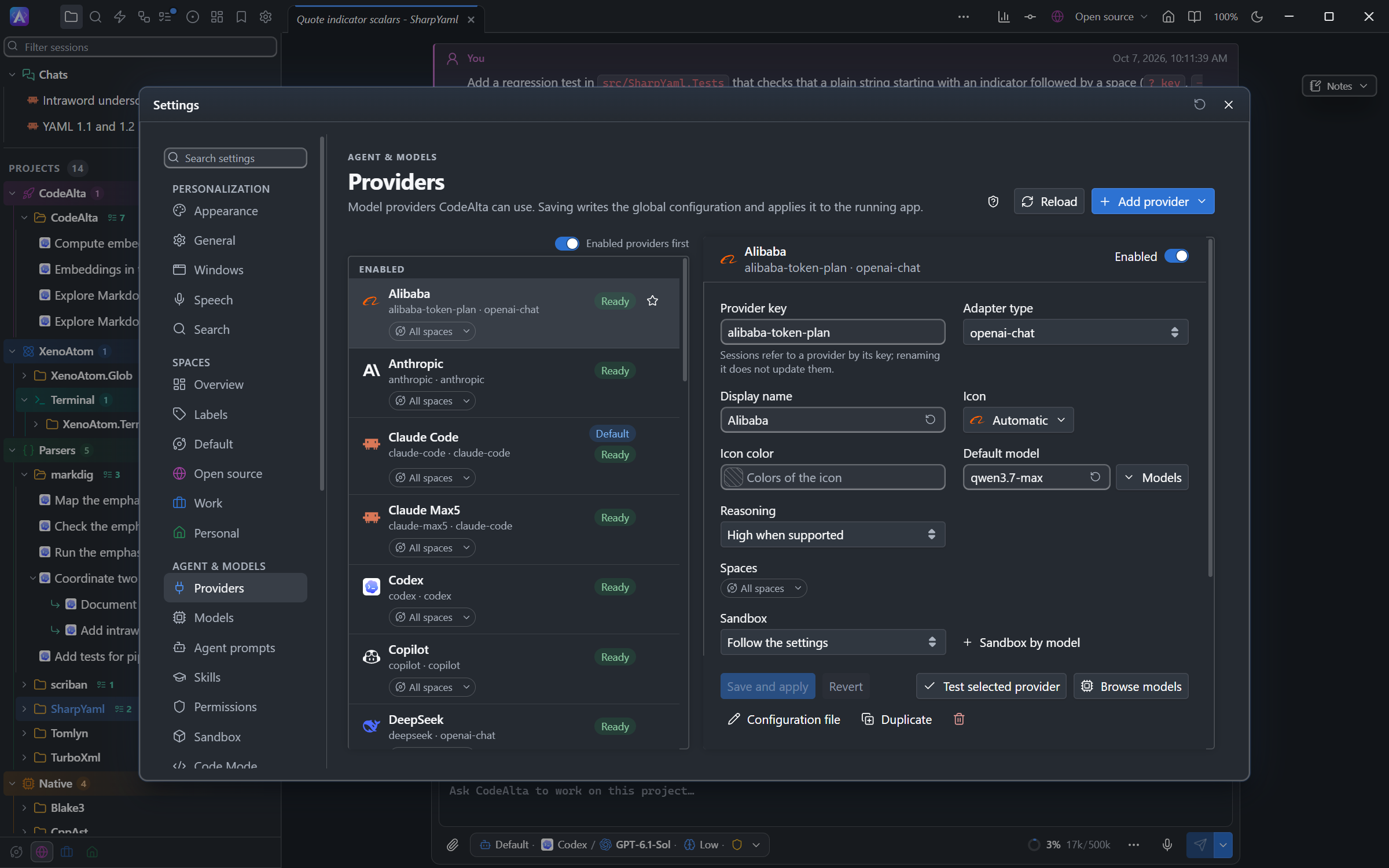
Use your Claude Code, Codex, GitHub Copilot or Mistral Vibe subscriptions, even several accounts, run OpenAI's Codex agent itself with Codex CLI (ChatGPT Business and Enterprise included), or connect an API-based provider or a llama.cpp server of your own, continue in CodeAlta the Claude Code sessions you started in VS Code or a terminal, and send one to the cloud to follow it from claude.ai or your phone. Add any agent of the ACP registry, such as Cursor, Gemini CLI or Qwen Code, in one click: it works with the tools and permissions of CodeAlta. Choose a model for each session, or a tier (Complex, Standard, Quick), and let CodeAlta go on with the next model of the tier when a provider runs out of quota. Or try Adaptive: CodeAlta chooses the model of each turn, close to the best model for a fraction of its cost.

See model providers

The Model Providers window listing Claude Code, Codex, GitHub Copilot and API-based providers
Built around your work

Not another chat box.

A workspace you can inspect, extend and make your own.

Transparent by design

See the work, not just the answer.

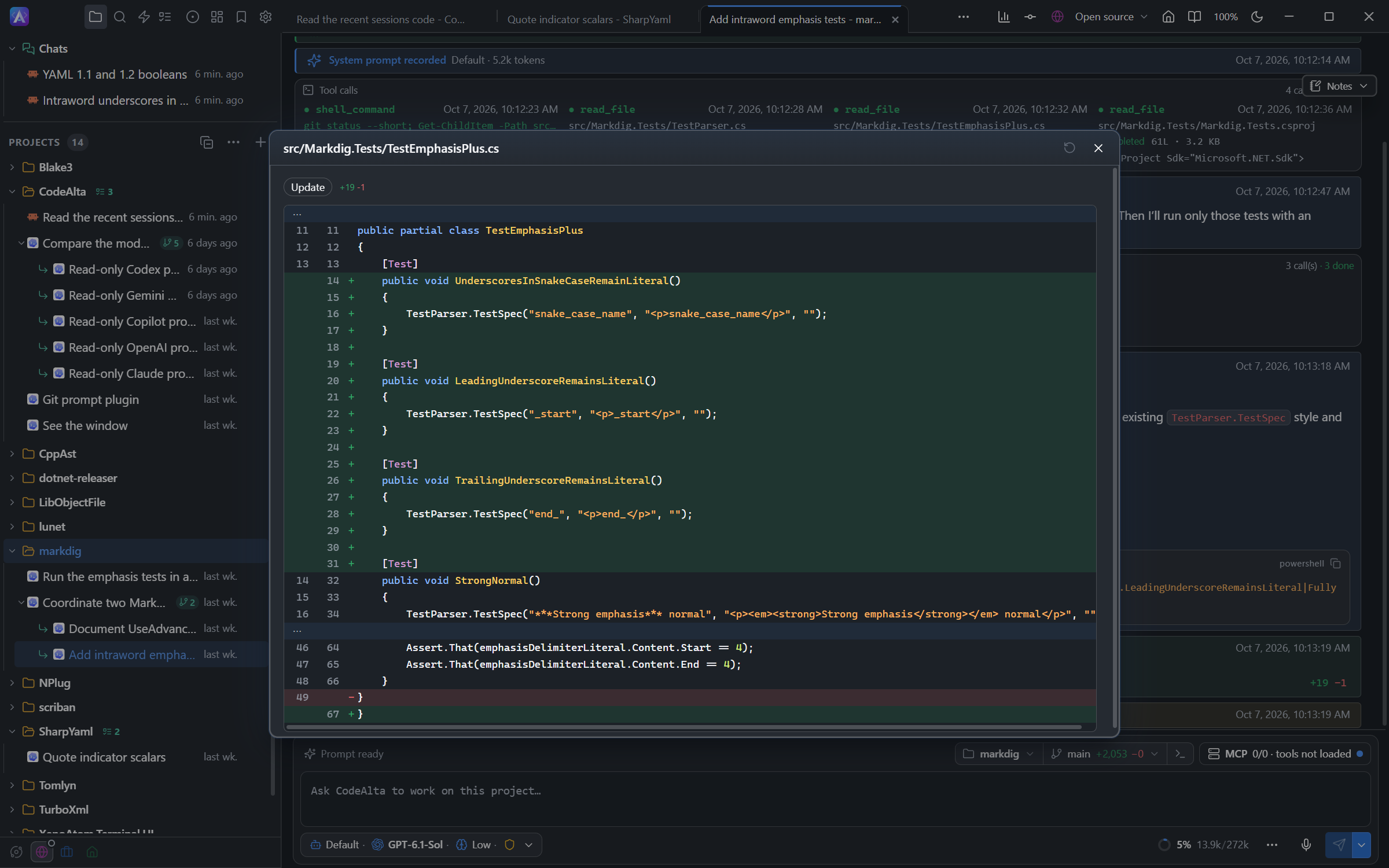
Choose how much each session may do on its own: ask first, accept edits or run freely, and turn off the tools it should not use. Read tool inputs and outputs, review modified files and follow live commands.

Inside the timeline
A source diff showing the exact lines an agent changed
Extensible by design

Your tools belong here, too.

Bring in MCP tools, skills of your own or published by your MCP servers, the views of MCP Apps right in the conversation, and the coding agents of the ACP registry as providers. Add trusted .NET plugins with their own canvases, commands and buttons - or ask an agent to build one.

Make it your own
The Canvases page with interactive Board and Checklist plugin tools
Desktop first. Terminal ready.

The same agents.
A different kind of window.

Prefer the terminal? CodeAlta TUI shares the same profile, providers and sessions. Start in one app and continue in the other.

Install CodeAlta TUI
dotnet tool install -g CodeAlta.Tui
altatui
Compare Desktop and TUI

No window at all? altacli runs the same harness from a script, a CI job or a container: a prompt to its end, with text or JSONL output and exit codes, or CodeAlta as an ACP agent for your editor. Its sessions show in CodeAlta Desktop and TUI.

Install altacli
dotnet tool install -g CodeAlta.Cli
altacli run "Fix the failing test"
Run CodeAlta from the command line

Your next idea starts here.

Install CodeAlta. Connect a provider. Open a project.

Open source, BSD-2-Clause licensed, and built with .NET. Contributions welcome.