Disk usage
Projects, their worktrees and their sessions grow without anyone seeing it. Disk usage in CodeAlta Desktop measures them all, shows what takes room, and frees space by cleaning build output and removing worktrees. What the CodeAlta profile itself holds is on the Storage page.
Open it
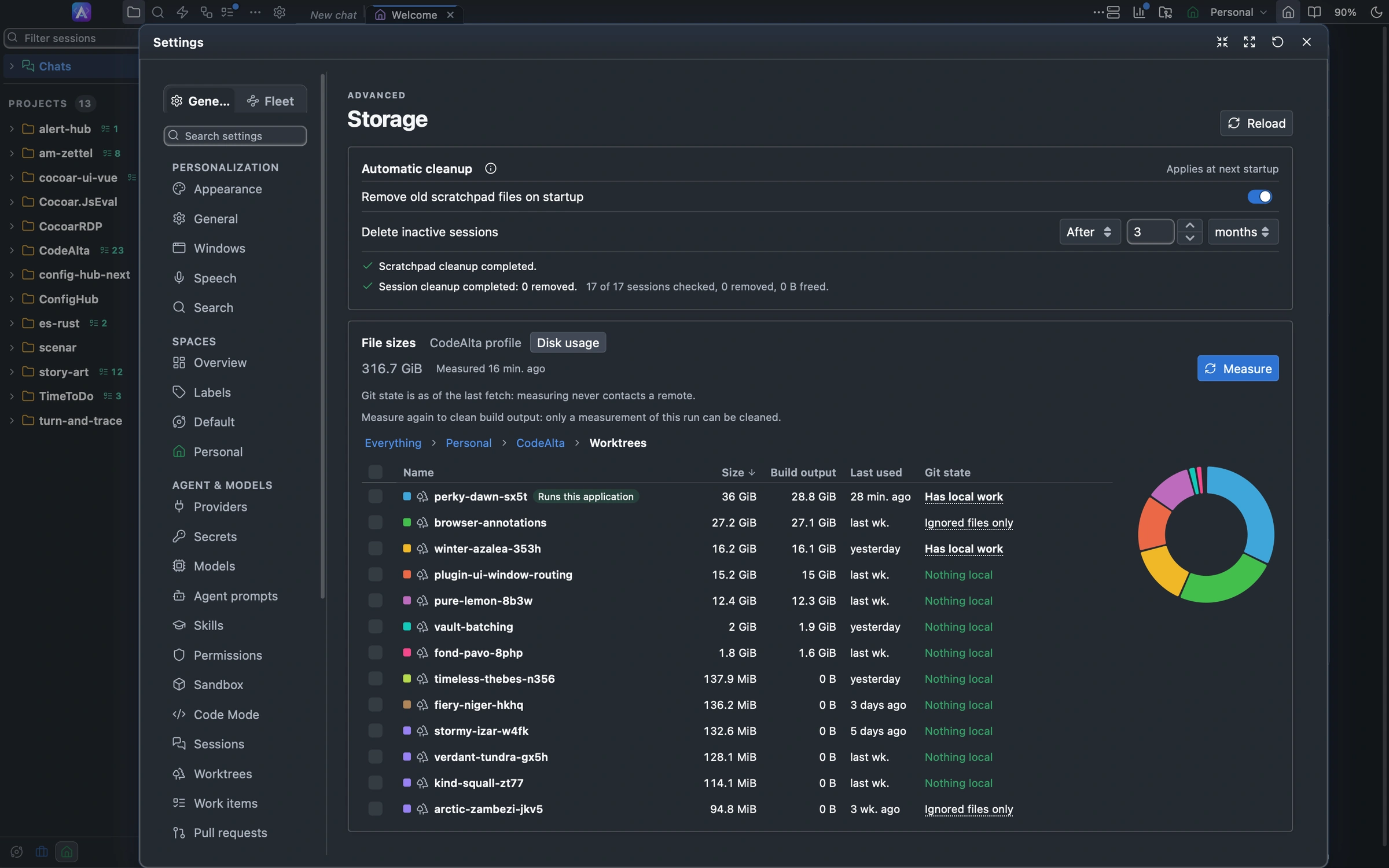
In Settings > Advanced > Storage, switch the File sizes card to Disk usage. The measurement is kept when you close Settings.
What it shows
The view goes from the whole to the parts. Click a name, or a segment of the donut, to go one level down; the path above the table goes back up.
| Level | Holds |
|---|---|
| Everything | Your spaces. Default holds every project, including projects with no additional space. |
| A space | Its projects. A project in several spaces is in each; the total at the top counts it once. |
| A project | Its project folder, Worktrees, and Sessions. |
| Worktrees | Every worktree git lists for the repository, with the marks of the Worktrees window: In use, Locked, Folder gone, Holds a worktree. |
| Sessions | The sessions of the project, their number beside the name: the 50 largest, with the worktree each works in. Click one to open it. |
- Click a column heading to sort by it: Name, Size, Build output, Last used (the later of the last session and the last commit) or Git state. The donut shows the share of each row.
- The colored square of a row is its segment in the donut. Up to ten rows have a color each; with more, the nine largest do and the others share one segment, Other.
- Projects that share one repository, such as the sub-projects of a monorepo, are measured once: the others say Measured with that project, and show only their sessions.
- The total counts every byte once: the checkouts of your projects, and their sessions that no checkout holds. A checkout inside another, such as a worktree inside a project folder, is not counted again in the folder that holds it, which is marked Holds checkouts.
Measure
The view shows the last measurement at once, with its age (Measured 2 hr. ago), also after a restart. Measure measures again; Stop stops it, and the last measurement stays. While it runs, the view says what it measures and how many checkouts are done, and fills as each project is done.
- Sizes are the sum of the sizes of the files. Links are not followed.
- at least before a size means that something could not be read; Unknown means that nothing of it could be measured.
- The git state is the one of your local repositories as of the last fetch: measuring never contacts a remote.
- A project that could not be read, or a measurement that is incomplete, is said above the table.
Git state
Each checkout gets one verdict. A verdict with reasons is underlined: click it to see them.
| Git state | Meaning | Deleting the folder |
|---|---|---|
| Nothing local | Everything is on a remote, and git ignores nothing but build output. | A clone and a build bring it back. |
| Ignored files only | Everything is on a remote, but git ignores files outside build folders, such as a .env or a local database. Their size is in the reasons. |
A clone does not bring those files back. |
| Has local work | Such as changed or untracked files, branches with commits on no remote, stashes, commits only a detached HEAD or a tag holds, git notes and other references, a merge or rebase in progress, no remote, or the same in a submodule. | It loses that work. |
| Git state unknown | Git could not read the checkout, or part of it could not be read. | Not known. |
For a worktree, git looks at its own files and its branch. For the project folder, it looks at the whole repository: every local branch, the stashes, the tags and the other references.
A folder that holds other checkouts takes the worse of its own verdict and theirs, and its reasons name the checkout that made it worse: deleting the folder deletes them too. A worktree that holds another worktree in its folder is marked Holds a worktree and cannot be removed.
Clean build output
Click the eraser of a checkout, or tick several checkouts and click Clean the build output of … at the bottom.
- The confirmation lists the build folders of each checkout with their size, their number of files and their last write, all ticked. Untick what should stay.
- Click Clean: the checkouts are cleaned one after the other, and each is measured again.
- The result says how much was freed, and for each folder that stayed, why.
Only these folders go, and only when a .gitignore of the repository ignores them and they hold no repository: bin, obj, node_modules, dist, build, target, .gradle, .next, .nuxt, .turbo, DerivedData, __pycache__, .pytest_cache and .venv. Git deletes them (git clean), and a build brings them back. A folder you ignore only in .git/info/exclude or in your global git ignore file is not build output.
A checkout cannot be cleaned, and its eraser says why, when:
- a session works in it now (In use);
- the application runs from it (Runs this application), or another program does;
- it was measured in an earlier run of CodeAlta: Measure first;
- it has no build output, or its folder is gone.
A session that starts to work in a checkout during its clean stops what remains of it. When the checkouts inside a folder changed since the measurement, its clean says the measurement is out of date: measure again.
Remove a worktree
Click the trash button of a worktree. CodeAlta reads the worktrees of the project again and asks with the confirmation of the Worktrees window, with the same rules: a worktree with uncommitted changes is asked about by itself, and branches are kept unless you choose otherwise.
The project folder, the main checkout of a repository and a worktree that holds another are never offered. A worktree removed here, or in the Worktrees window, stays in the table marked Removed, and its project Changed, until you measure again.
The buttons of a row show when the pointer is over it: besides cleaning and removing, one opens the folder in your file manager.
Good to know
- The sessions of another CodeAlta instance on this computer are not seen: a checkout one of them works in is not protected by them.
- Cleaning and measuring wait for each other: a measurement does not run during a clean, and a clean is refused while a measurement runs.
- Deleting sessions is done by Delete inactive sessions in Storage, not here.