Worktrees
A session can work in a git worktree: a second folder of the same repository, on a branch of its own. The agent changes files there, and your project folder stays as it is, so several sessions can work on one project at the same time.
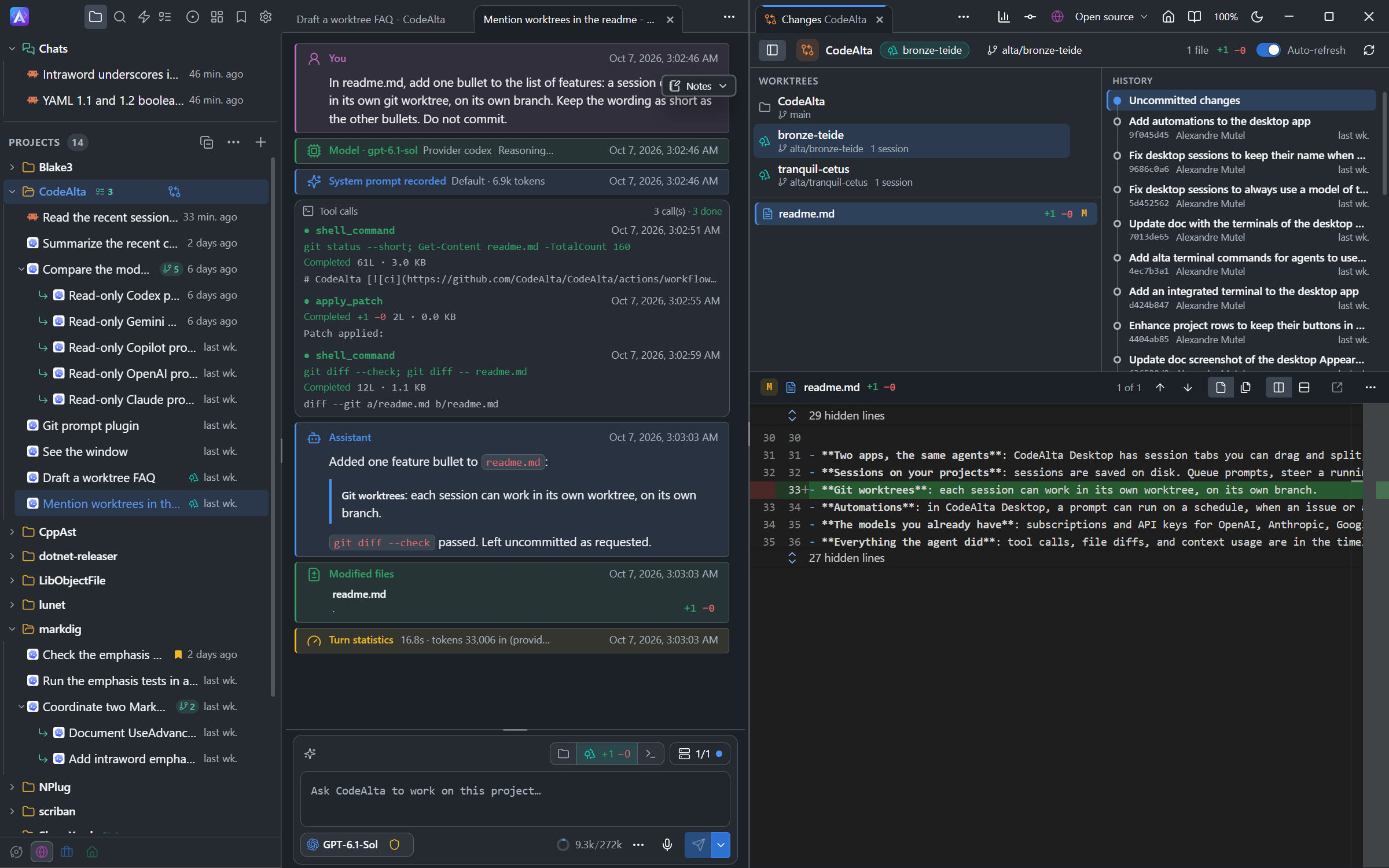
You create and remove worktrees in CodeAlta Desktop. A session that works in one also runs in CodeAlta TUI.
Start in a worktree
- Open a new session in a project that is a git repository.
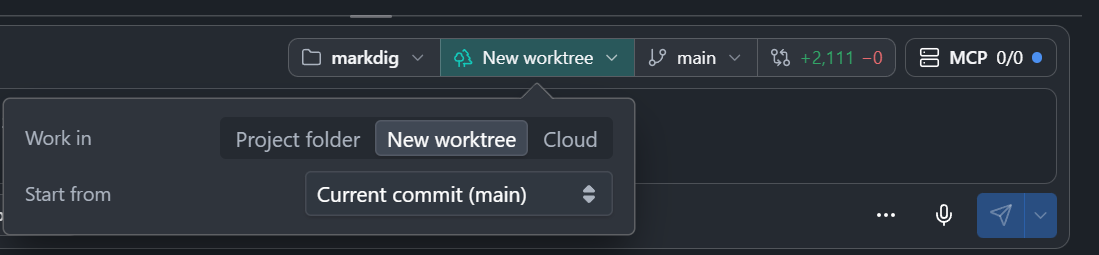
- Above the prompt, click Project folder in the Workspace chip and choose New worktree.
- Keep Current commit, or choose the branch to start from.
- Write your prompt. CodeAlta starts making the worktree as soon as you type.
- Send it: the session starts once the worktree is ready.
The form opened by + on the row of a project has the same choice: see Starting and reopening work. The third choice, Cloud, has Claude Code run the session on Anthropic's machines: see Run in the cloud.
- The worktree is on a new branch,
alta/<name>, and starts from a commit: changes you have not committed stay in the project folder. - Submodules are checked out in the worktree too, with their own submodules.
- While it is made, a card under the welcome of the tab shows the step git is at, its last line, a progress bar and the time so far. You can work in other tabs meanwhile.
- If git fails, the card says why, with Retry and Close; after Close, sending makes the worktree then. If only a submodule fails, the worktree is ready anyway and the card shows what git said.
- Choosing Project folder again, another branch, or closing the tab removes the prepared worktree and its branch.
- The choice is kept for the project: the chip shows New worktree in turquoise while it is chosen.
Where a session works
- The Workspace chip above the prompt shows Worktree and its name in turquoise. Hover it for the project, branch and folder; click it for the Workspace popover. Beside it, the
+/−numbers open the changes of the worktree, and the code editor button opens the code editor on it. - In the Explorer, a session in a worktree has a tree mark.
- Session info shows the folder of the worktree.
Move a session to another worktree
A session you already started, to discuss or plan the work, can go on in another place of the same repository, with its conversation:
- Click the project or the worktree in the Workspace chip above its prompt.
- In the Workspace popover, click Change worktree….
- In Work in, choose Project folder, a worktree of the repository, or New worktree with the branch to start from.
- Click Switch.
- Any worktree git lists for the repository can be chosen, also one you made yourself outside CodeAlta's folder with
git worktree add. A separate clone of the repository is another repository: it cannot be chosen. - No file moves. Changes you have not committed stay in the folder the session leaves: commit or stash them first if they should come along.
- The next prompt tells the agent where it works now, so that it does not take what it saw in the old folder for the new one. The timeline of the session shows the change too.
- A session that is working, has background commands running or waits for an answer cannot change: wait until it is idle.
- A Claude Code session keeps its conversation: CodeAlta moves it where Claude Code looks for it in the new folder.
You can also ask an agent, in your own words, to move a session, or itself, for example:
Move this session to the worktree C:\code\MyProject-feature.
The agent runs alta session set_worktree. A session that moves itself changes folder when its turn ends.
Manage worktrees
Run /worktree, or right-click a project in the Explorer and choose Worktrees…. The window lists every worktree git knows for the project, also those whose session you deleted.
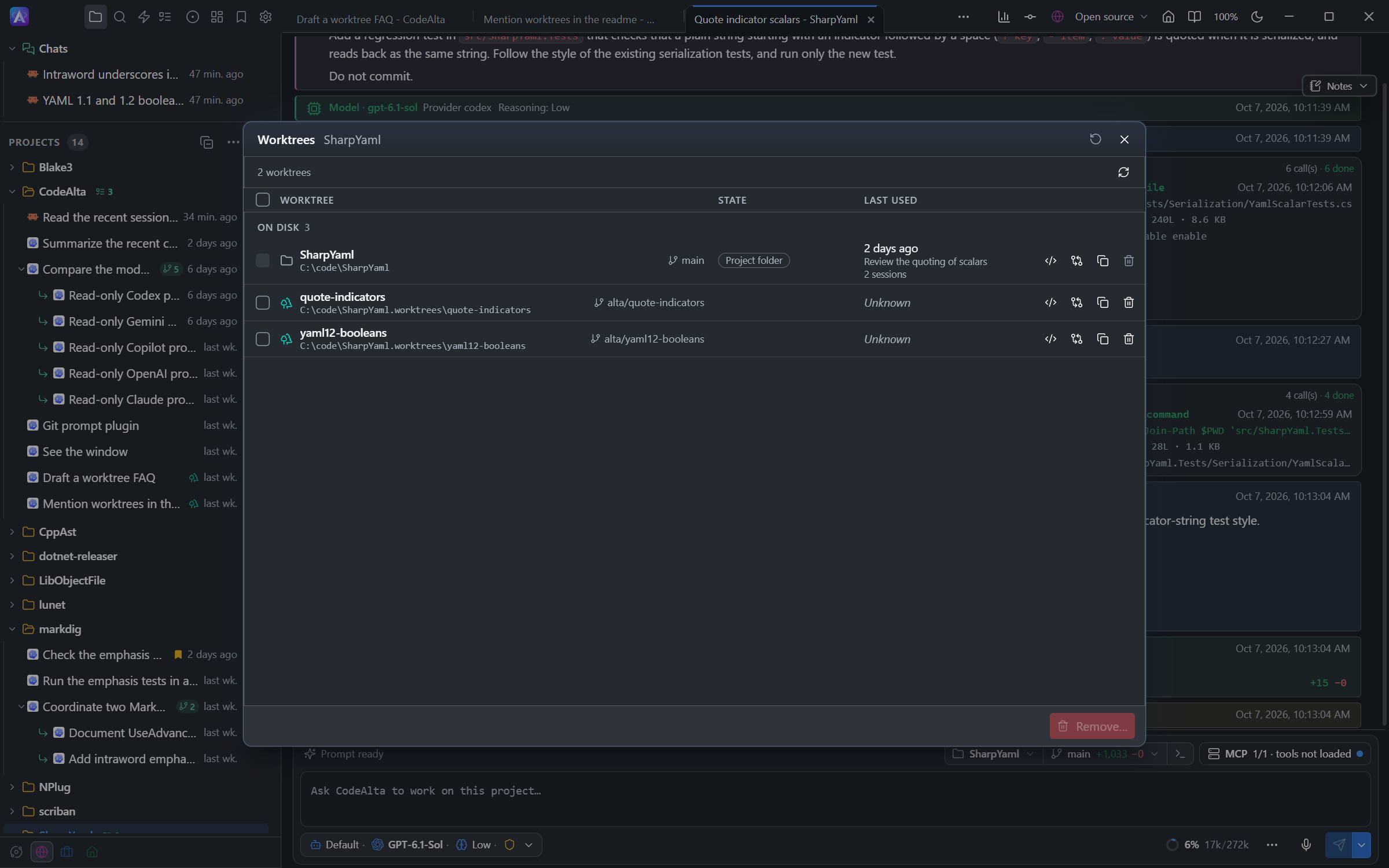
| You see | What it means |
|---|---|
| Project folder | The folder of the project. It is never removed. |
| In use | A session is working there now. Wait for it to finish, or stop it. |
| Locked | Git keeps this worktree. Run git worktree unlock to remove it. |
| Folder gone | Git still lists the worktree, but its folder was deleted. Removing it makes git forget it. |
| Last used | When the last session of the worktree was active, or Unknown when none is left. |
- To remove worktrees, tick them (the header box ticks all), then click Remove. CodeAlta shows the list again before it removes anything.
- A worktree with uncommitted changes, also in a submodule, is kept, and CodeAlta asks about it separately. Files that git ignores are deleted with the folder.
- Branches are kept, unless you tick the box of the confirmation that also deletes the
alta/branches with no commit of their own. - Outcome unknown means CodeAlta could not confirm what happened: check the refreshed list before trying again. Stop lets the current removal finish without starting the next.
- The buttons of a row open the worktree in the code editor or your external editor, show its changes, copy its path, or open its folder.
You cannot remove a worktree, or change its branch, while a session works in it.
Deleting a session keeps its worktree and branch, unless you tick Also remove the worktree in the question, which follows the same rules. Its alta/ branch goes only when it has no commit of its own.
In the Changes tab
The Changes tab lists the worktrees of the project above the files.
- Click a worktree to see its changes and commits.
- Click its trash button to remove it. CodeAlta asks first, and again when it has uncommitted changes. Its
alta/branch goes with it when it has no commit of its own. - Click the branch, there or in the Workspace popover, to switch to another branch or create one.
Where worktrees are stored
Choose in Settings > Worktrees:
| Choice | Folder |
|---|---|
| In your CodeAlta folder | ~/.alta/worktrees/<project>/<name> |
| Inside each project | <project>/.alta/worktrees/<name>, which git ignores |
| In a folder you choose | <folder>/<project>/<name> |
A worktree gets a name of two words and four random characters, such as quiet-heron-7k2m, and its branch is alta/ and that name. The random characters keep apart worktrees created at the same time by agents that do not see each other.
Good to know
- When a worktree is removed, its sessions continue in the project folder.
- The code editor of a project shows the project folder. To edit the files of a worktree, use the code editor button of the Workspace chip, Open editor in the Workspace popover, or the button of its row in the Worktrees window: it opens a tab named after the worktree.
- A branch with commits that are in no other branch is always kept.
- A session started by an agent that works in a worktree works in the same worktree.
- An agent can start sessions in worktrees. Ask in your own words, for example:
Start two sessions, each in its own worktree: one adds the tests, the other updates the documentation.