Sessions
A session is one conversation with an agent: its provider, model and reasoning, its prompts and answers, and its queue. CodeAlta keeps every session in a journal under ~/.alta/sessions/yyyy/mm/dd/<session-id>.jsonl, whatever the provider.
- Delegation: sub-agents, background jobs, reminders and what agents can do with CodeAlta.
- Claude Code sessions: sessions shared with VS Code and
claudein a terminal.
Global vs project sessions
- Project sessions belong to one project. They work in the project folder, or in a git worktree of their own, and read the project's
.alta/config.toml. - Global sessions belong to no project. Use them to plan, triage or coordinate work across projects. CodeAlta Desktop calls them Chats and lists them first in the Explorer.
Every session also belongs to one space.
Closing a tab does not stop a session: running sessions stay in the Explorer, and their queued prompts are still sent. Unsent drafts are saved under ~/.alta/saved_prompts/.
Starting and reopening work
Open a project with Ctrl+O, choose a provider, a model and a reasoning effort, and send a prompt.
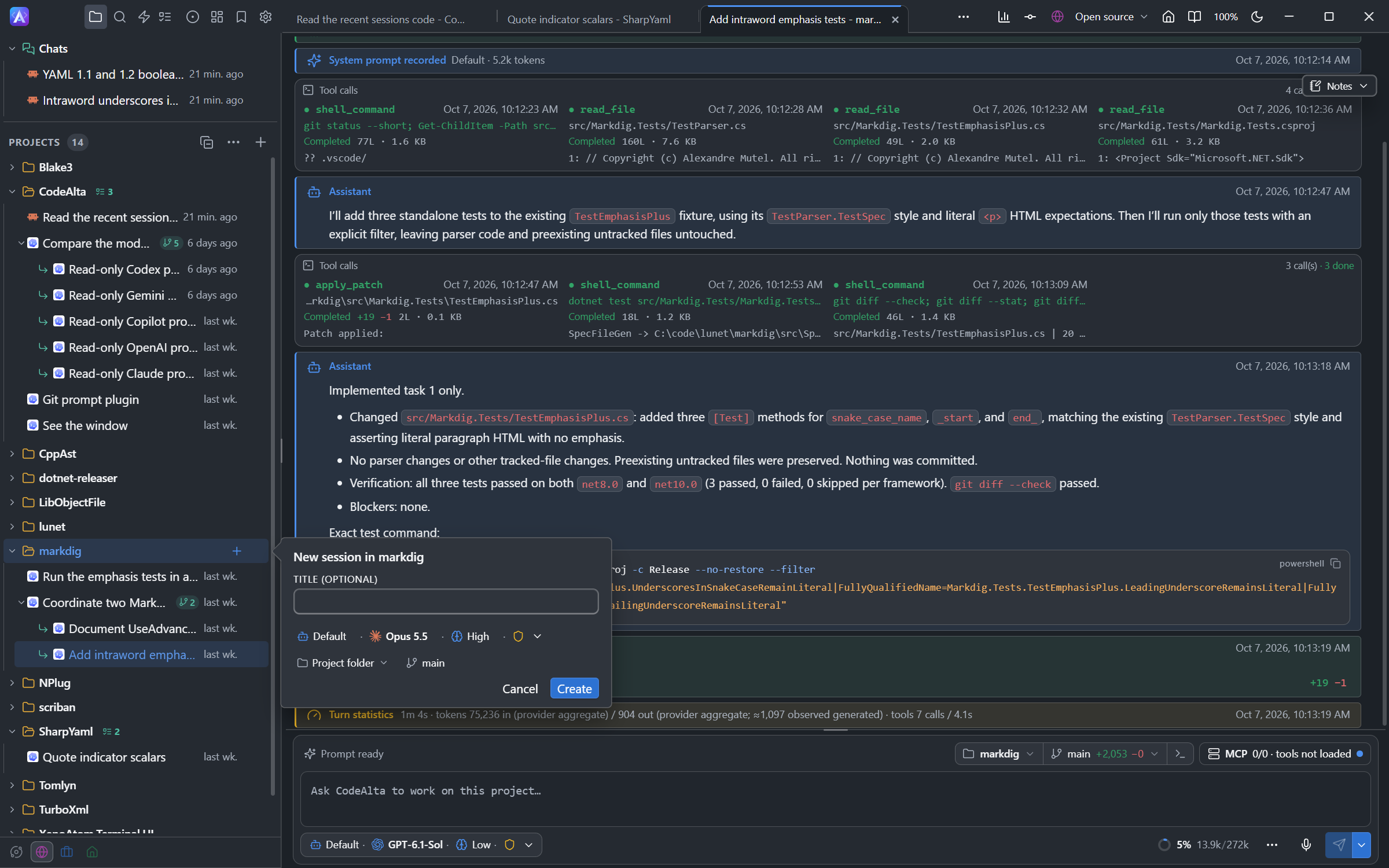
To create a session without sending a prompt, click + on the row of a project in CodeAlta Desktop, or New session… in its … menu (Chats has the same button). A form opens beside the row:
- a title, if you want one;
- the agent, the model (or a tier), the reasoning and the permissions;
- Review before commit (see Reviews);
- the project folder or a new worktree.
Click Create. The session opens in its own tab, titled Starting… until it is ready, and you can keep working meanwhile. For a new worktree, the tab shows each step with its time, and Retry or Close if a step fails. The form remembers your choices for the next session of that project.
A session you reopen shows its history at once, before its provider is ready. While it is idle, you can switch it to another compatible provider.
Links in messages
In CodeAlta Desktop, the links of your messages and of the agent's answers work:
- A web link opens in your browser.
- A link to a file opens it in the code editor, at the line it names (
src/Program.cs#L42orsrc/Program.cs:42). A relative path is read from the folder the session works in. A file outside every project opens with its folder in the editor. Pictures open; other files that are not text do not. - A
file://link to an HTML page or a PDF opens in the program your system uses for it.
Click a link, or press Enter on it after moving to it with Tab. Ctrl-click (Cmd-click on macOS), Shift-click and middle click work too. A link of more than 2,048 characters, such as a prefilled GitHub link that carries a whole text, does not open: CodeAlta says so and offers to copy its address, which you can paste in your browser. Agents are asked to write file names as such links. The same links work in session notes, issues, pull requests, work items and the Markdown preview of the code editor.
Session titles
A title you give stays: set it when you create the session, or with Rename in its menu.
A session you did not name takes a short title from its first prompt. Then it follows your choice in Settings > Sessions:
| Choice | The title |
|---|---|
| First prompt | Stays the title of the first prompt. |
| Last message | Follows the first line of the last answer. |
| Chosen by the model | Is chosen by the model, and changes with the subject of the session. This is the default. |
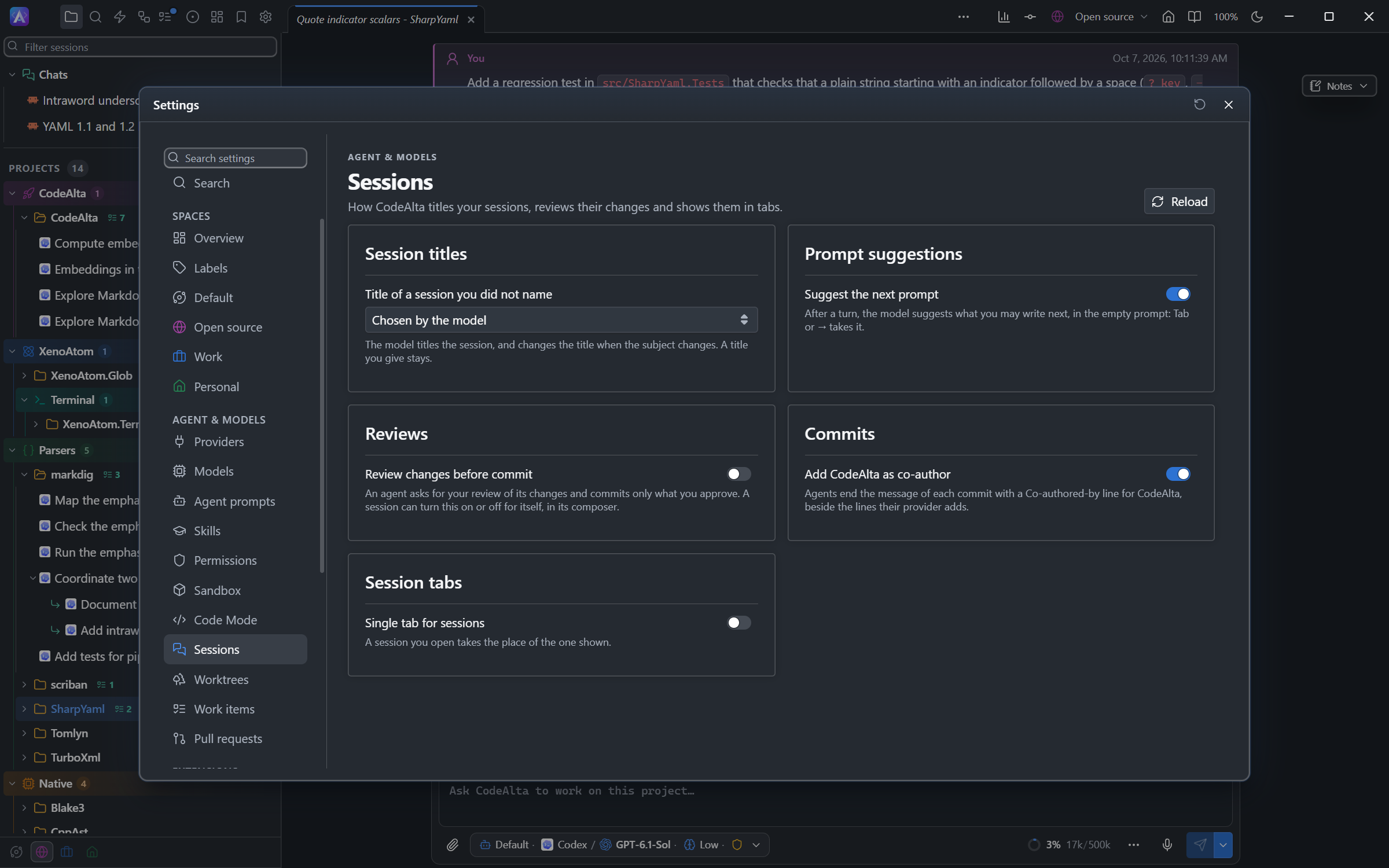
The same page has Suggest the next prompt, Review changes before commit, Add CodeAlta as co-author and Single tab for sessions. The title choice is saved in ~/.alta/config.toml, and a session takes it with its next prompt:
[sessions]
title = "first_prompt" # or "last_message", or "model"
A session can have a choice of its own: ask its agent to name it or to change how it is titled. The agent uses alta session title:
alta session title                          # the title, who chose it and how the session is titled
alta session title --set "Parser rewrite"   # name the session
alta session title --mode last_message      # the title of this session follows its last message
alta session title --mode default           # this session follows your choice in Settings again
A session started in CodeAlta TUI keeps the title of its first prompt.
Busy sessions and queues
Enter sends the prompt when the session is idle, and adds it to the queue when the session is busy, whatever the send options of the prompt. The queue is shown above the status line.
Queued prompts can be edited, repeated, deleted, cleared with F10, or turned into steering when the provider supports it. Enqueue until idle sends at once when the session is already idle.
Steering
Steering adds a message to the running turn without waiting for it to end:
Focus on the parser only. Do not refactor unrelated files.
| To steer | CodeAlta Desktop | CodeAlta TUI |
|---|---|---|
| Send the prompt now | Ctrl+Enter (Cmd+Enter on macOS), or Send now (steer) |
Ctrl+Enter |
| Send the first queued prompt now | Steer the running turn in the ⋯ menu of the prompt, with an empty prompt |
- When no turn runs, steering is a normal send.
- When the provider cannot steer, the prompt waits in the queue for the next turn.
- Steering takes text only. A prompt with pictures stays in the queue, and its Steer now button is disabled: send a separate text prompt to adjust the running turn.
Compaction
Compaction replaces the conversation of a long session with a summary, so that it can go on without reaching the context limit. To compact an idle session, press Ctrl+F11, run /compact, or choose Compact the conversation in the ⋯ menu of the prompt.
- It uses the provider, model and reasoning of the session, and the timeline shows when it starts and ends.
- It needs a session that has started and is idle. Otherwise Compact the conversation is disabled and its tooltip says why,
/compactis shown dimmed with the reason, andCtrl+F11shows the reason in a notice. - A compaction that fails says so in the status line under the prompt, and the timeline shows the error of the provider.
- The summary is a request like any other, billed by the provider. The details of the completion notice show what it used (input, cached input, output, and AI credits for Copilot), and the context usage shows it until the next request.
- It aims at a context much smaller than the limit, so the session does not reach it again soon.
See Context usage and compaction for automatic compaction and its settings.
Fork and rewind
In CodeAlta Desktop, a session can continue from an earlier point:
- Fork creates a new session that starts with the turns before that point. The original session is not changed, and may even be working: a running turn is never part of a fork. For example, fork a review once per finding and treat each finding in its own session.
- Rewind takes the session itself back: the chosen turn and every later one are removed. The session must be idle.
A point is just before the prompt of a turn, or the end of the session (fork only). The prompt of that turn is put in the composer, so you can edit it and send it again.
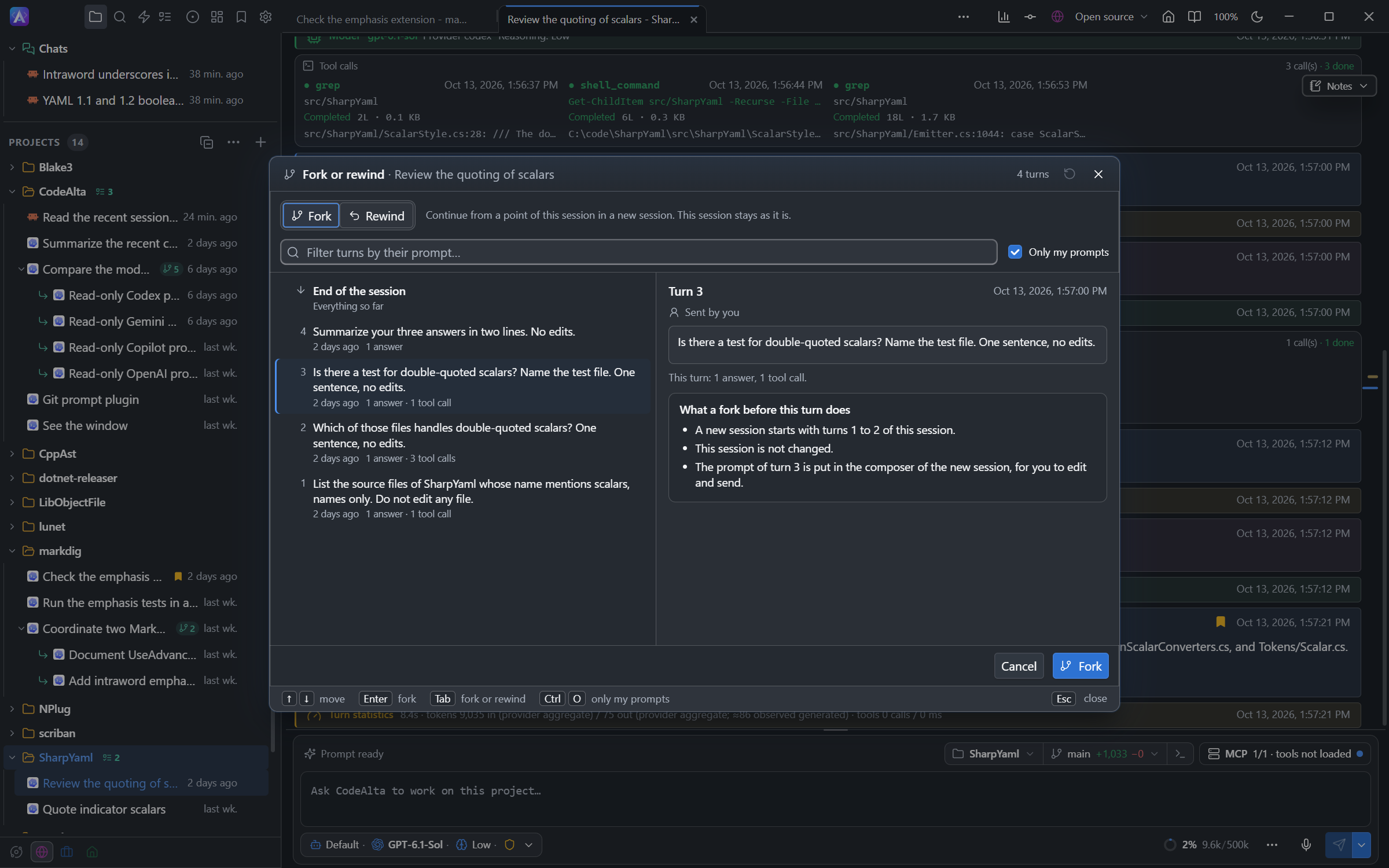
Open the Fork or rewind window with:
/forkor/rewind, from the search or by typing/in an empty prompt;- Fork from here or Rewind to here on one of your prompts in the timeline (beside Copy, or in its right-click menu);
- Fork… in the Actions menu of a session in the Explorer.
The window lists the points, newest first: End of the session, then one row per turn. Select one and the window says what the action does there, for example "Turns 4 to 9 (6 turns) are removed from this session". Only my prompts is on at first: it hides the turns started by another agent, an answer to a question or a background job.
| Key | Action |
|---|---|
| type | Filter the turns by the text of their prompt |
Up / Down, PageUp / PageDown |
Move the selection |
Tab (in the filter) |
Switch between Fork and Rewind |
Ctrl+O |
List every turn, or Only my prompts |
Enter |
Fork or rewind at the selected point |
Esc |
Close without changing anything |
After a fork, the new session opens in a tab. A line above its timeline names the session it came from (click it to open it) and how many turns it started with. A fork is a session of its own, not a sub-agent of its source. It reuses the provider's prompt cache of its source, so its first request does not pay for the copied turns again.
After a rewind, a message says how many turns were removed.
- Files are not restored. Undo the edits of the removed turns with git or the Changes tab.
- Nothing is lost by default. With Keep the removed turns in a separate session checked, the session as it was is kept as "title (before rewind)". Clear it to delete the removed turns: the button becomes Rewind and delete. Your choice is remembered.
- If the composer already holds a draft, the draft is kept and the message offers the removed prompt to copy.
When a rewind is not possible now (the session works, a question waits for you, or a command or task runs in its background), the window says why. A fork is still possible.
Agents can fork and rewind too: see Fork or rewind by an agent.
Archive a session
Archive a session you are done with for now but may come back to. In CodeAlta Desktop, choose Archive in the menu of the session: it leaves the Explorer and its tab closes. Its history, project and space are kept.
- A session with child sessions asks first: Archive with its N child sessions, or Archive this session only.
- Only an idle session can be archived, with idle sessions below it: none may run, wait for an answer or have queued prompts.
- Find archived sessions with Archived in the session browser (
Ctrl+Alt+B), or in the search (Ctrl+P), where they come last. - Restore, in the session browser or in the message shown just after archiving, puts the session back where it was, with the sessions archived below it.
- In the session browser, Info… shows what is recorded of an archived session, and Delete deletes it.
- A prompt sent to an archived session by an agent, a reminder or an automation restores it first, with a message Restored to run ….
- Statistics keep counting archived sessions.
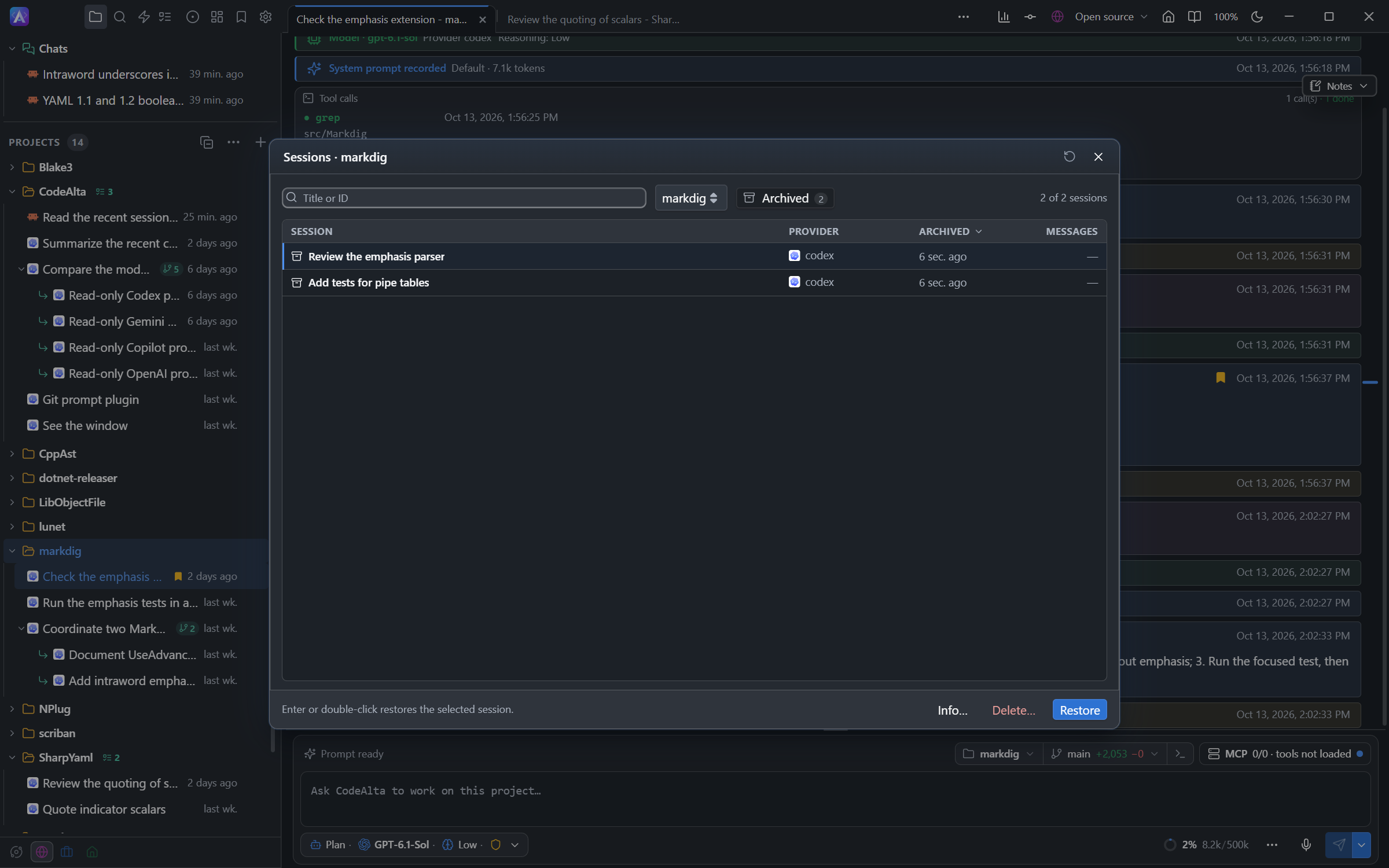
Agents use alta session archive <id> and alta session restore <id> (with --with-children for the sessions below), for sessions of their own space only. alta session list shows archived sessions only with --archived. CodeAlta TUI does not list archived sessions.
Move a session
In CodeAlta Desktop, a project session can move to another project, for example from one worktree of a repository, added as a project, to another one. To keep it in its project and only change the worktree it works in, see Move a session to another worktree. To move it to another space, see Move a session to another space.
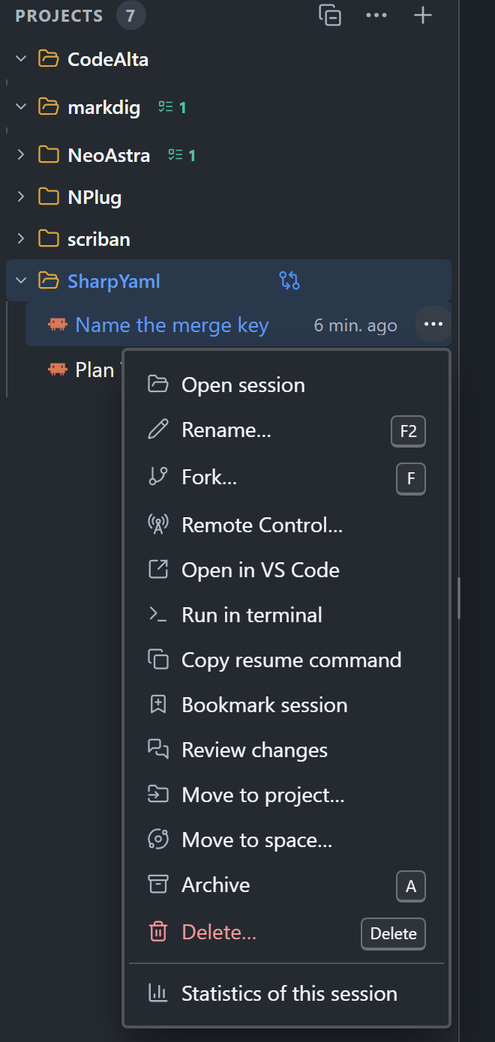
Choose Move to project… in the menu of the session (or /move_to_project), then the project, or drag the session onto the project in the Explorer.
- Its sub-agents move with it.
- Only an idle session can move: not while it runs, waits for an answer, or has queued prompts or background tasks.
- It then works in the folder of its new project. A session in its own worktree keeps working there when the new project is another checkout of the same repository.
- Its history moves with it, and its agent is told where it comes from. Earlier messages still name the old folder.
- A Claude Code session keeps its conversation: CodeAlta moves it under
~/.claude/projects/. If that fails, a message says so, and the session continues in a new Claude Code conversation that starts with the history. - A session with Remote Control restarts it in the new folder.
- A session you never named takes the name of its new project.
Chats cannot move to a project, and a project session cannot become a chat.
Branches and commits
In a git repository, an agent about to commit on the main branch first creates a branch named for the work, such as fix/quoted-keys, and commits there.
- Work that is not committed gets no branch.
- On another branch, or in a worktree, the agent stays on that branch.
- The agent does not merge, push or open a pull request unless you ask. You can also use the pull request button.
- Once its branch is merged and no session uses it, the agent removes the worktree it or its sub-agents created and deletes the branch, unless you ask it to keep them. It never removes a worktree with uncommitted changes, nor a branch that is not merged.
Say "commit on main" or "no branch" in a prompt to keep the work where it is. The repository's instructions, such as AGENTS.md, can say it for every session.
CodeAlta as co-author
Agents end each commit message with this line, beside the lines their provider adds, such as the co-author line of Claude Code, or of Codex when your ChatGPT workspace asks for it:
Co-authored-by: CodeAlta <noreply@codealta.io>
GitHub then shows CodeAlta as a co-author. To turn it off, clear Settings > Sessions > Commits > Add CodeAlta as co-author, or write in ~/.alta/config.toml:
[commits]
co_author = false
A session takes the change with its next prompt. Commits you make yourself do not get the line.
Prompt suggestions
After a turn, the model suggests what you may write next, such as go ahead or run the tests. CodeAlta Desktop shows it in the empty prompt, with Tab or → takes the suggestion above it.
- Press
Tabor→to put it in the prompt. Nothing is sent until you pressEnter. - Type something else and the suggestion goes away; empty the prompt and it comes back. Each turn brings a new one, or none.
The model writes the suggestion at the end of its answer, so it costs no extra request, and CodeAlta removes it from the answer you read. It works with every provider.
Suggestions are on by default. To turn them off, clear Settings > Sessions > Prompt suggestions > Suggest the next prompt, or write in ~/.alta/config.toml:
[sessions]
prompt_suggestions = false
Sub-agents never get suggestions, and CodeAlta TUI shows none.
Long instructions
When you give an agent many instructions at once, such as a list of tasks, it first writes them in a file under ~/.alta/scratchpad/. It reads that file again after a compaction and before it reports the work as done, so your instructions survive a long session.
- The file is the agent's own record: it is not part of your project and is never committed.
- A developer instance (
--dev) uses~/.alta/dev/scratchpad/instead. - Scratchpads are temporary: by default, CodeAlta removes at startup the files of the scratchpad not changed for a week. See Storage for this cleanup and for the deletion of inactive sessions.