Issues and pull requests
CodeAlta Desktop shows the issues and pull requests of your projects, and starts a session on one in a click.
The service is found from the project's git remote, as written: an insteadOf rule that sends github.com to an SSH host alias does not hide it. Nothing has to be configured, except Jira.
| Service | Issues | Pull requests | Sign-in |
|---|---|---|---|
| GitHub | Issues | Pull requests | gh auth login, or GITHUB_TOKEN |
| GitLab | Issues | Merge requests | glab auth login, or GITLAB_TOKEN |
| Azure DevOps | Work items | Pull requests | az login, or AZURE_DEVOPS_EXT_PAT |
| Bitbucket | Issues | Pull requests | BITBUCKET_ACCESS_TOKEN |
| Jira | Issues | The Jira plugin |
Public repositories are read without signing in; private ones need the service's sign-in (see the Git plugin).
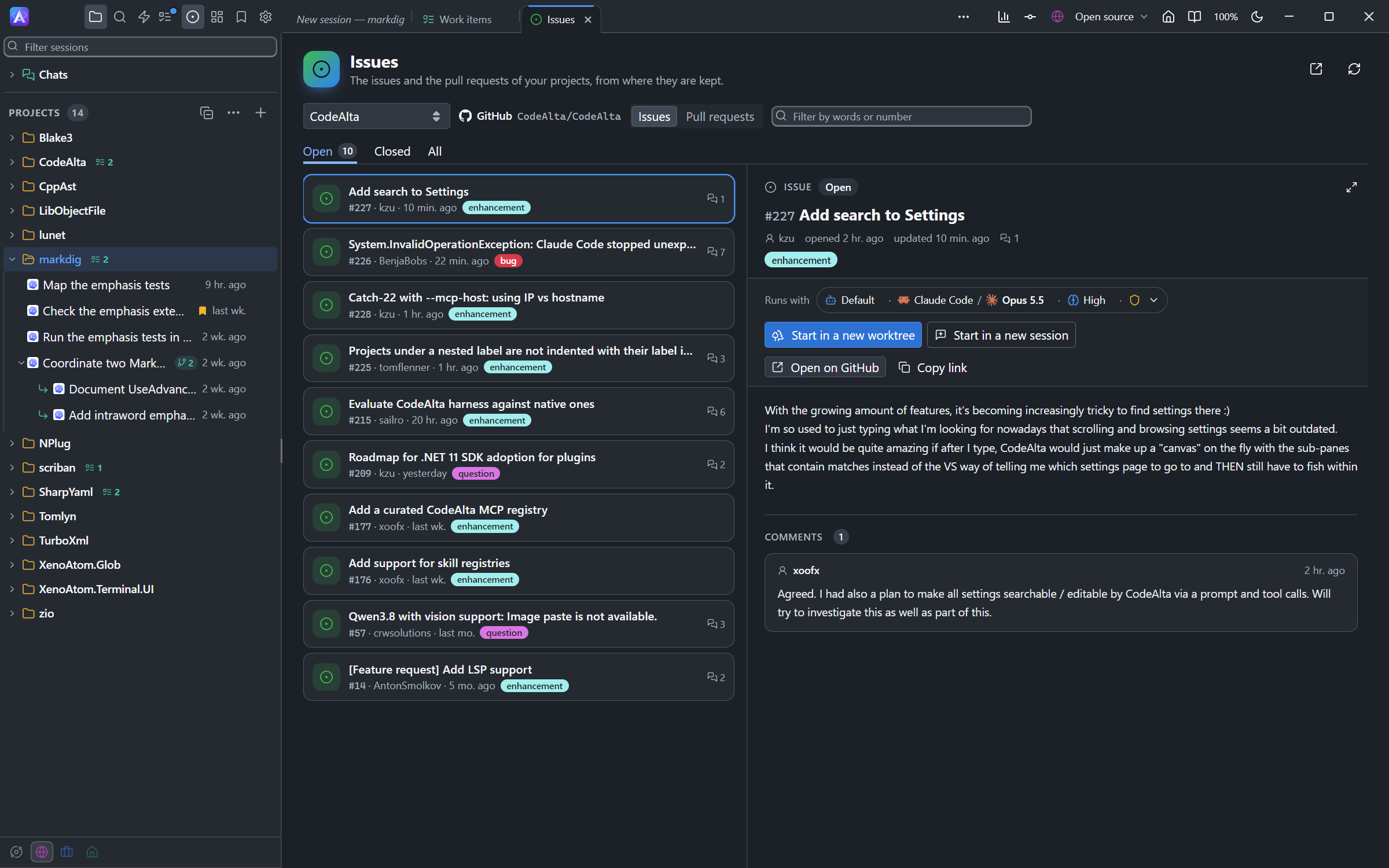
The Issues tab
Open it with Issues in the title bar (in its … menu when the window is narrow), or Ctrl+G Ctrl+B.
- Choose the project, then Issues or Pull requests. The list has the projects of the window's space.
- Open, Closed, Merged and All are separate lists, most recently updated first.
- Type words or a number to filter.
- The icon of an item tells its type when the service gives one (a bug, a user story, a task, a feature, an epic), and its color tells whether it is open or done; a bug is always red. The tag of its state has the color Azure DevOps gives that state.
- The people an issue is assigned to are named at the right of its row, below its state; their tooltip says that they are its assignees.
- Select an item to read its description and comments; for an Azure DevOps bug, its repro steps, system info and acceptance criteria. Double-click it, or use the expand button, for a larger window.
- What the tab read is kept 5 minutes: going back to a list or an item shows it at once. Read 3 min ago says how old it is; the refresh beside it reads it again, and Reload in the header reads everything again.
- The images of descriptions and comments are shown (Azure DevOps for now), read with the same sign-in. An image that cannot be read stays a link with its name; click a shown image to see it larger.
When a service cannot be read, the tab says so in place of the list, and the log says why: see An issue tracker shows an error.
A project with its code on one service and its issues in Jira shows both: choose the tracker beside the project. With several Jira projects, a list beside the tracker shows one alone.
Filters
On Azure DevOps, the tab can show only the work items of your team, a sprint, assigned to you, or with any field value, and only the pull requests that wait for your review (see Pull requests). Filters are those of Azure DevOps for now; on other services the tab lists every item.
| Filter | Its values |
|---|---|
| Team | The teams of the project, yours first. |
| Sprint | Current sprint, Next sprint, Previous sprint, and recent and upcoming sprints of the chosen team. |
| Assigned to | Me or Nobody. |
| Type | The work item types: Bug, User Story, Task... |
| Order | Last changed first (default), Backlog order, Highest priority first, Newest first. |
| A field you add | Priority, Severity, State, Tags, Area Path, a custom field such as Customer... |
- Type and fields with a list of values take several values: the work items in any of them are listed.
- Backlog order is the order you drag items into on Azure DevOps boards (Stack Rank, or Backlog Priority in Scrum).
- A filter is used only when a view turns it on.
- When values cannot all be read, or a field has more than 300, the filter says so; a view still lists by the value it writes, never everything.
Views
Filters are kept in views: a named set of filters with their values, such as My sprint and Bugs. You switch views in the tab.
| Group | Kept in | Who sees it |
|---|---|---|
| For me | <project>/.alta/local/issues.toml |
You only: CodeAlta writes a .gitignore so git ignores the folder. |
| For the team | <project>/.alta/issues.toml |
Everyone with the repository, once you commit it. |
The same files hold the Jira plugin settings: the site and projects in the team's file, your account in yours.
The chosen view is remembered for the project. Without a choice, the tab shows your first view, else the team's first, else every item.
In the tab
- The list beside the project switches views.
- The line under the toolbar shows the filters the view lets you change for a while (such as the sprint, with each sprint's dates). ↺ restores the view's value; the view itself is not changed.
- The other filters are counted (+ 5 filters): hover to see them, click (or the gear) to open Manage views.
- The text field still narrows by words or number.
- Work items and Pull requests each have their own views.
Manage views
The gear (Manage views…) opens a window for the project and tracker shown. Choose the View (For me or For the team). New view asks for a name, who it is for, and whether to start from the current filters. Rename and Remove act on the view shown.
Each filter is a row:
| Column | What it is |
|---|---|
| Active | Whether the view uses the filter. Off keeps its value and name. |
| Name | The name shown; empty uses the Azure DevOps field name. |
| Field | The Azure DevOps field, such as Microsoft.VSTS.Common.Priority or Custom.Customer. |
| Field type | List, number, person, tags, path, yes/no, or text. |
| Value | The value the view lists by. |
| In the tab | Lets the tab change the value for a while. |
| ✕ | Removes the filter. |
Add a filter offers CodeAlta's filters the view lacks, then your work item fields, with a search. A list field takes one of its values; a person is Me or Nobody; a text field lists items that contain the text. Use Current sprint, which follows the sprints; for another sprint, make a second view.
Save writes the view to its file, where you can also edit it:
# <project>/.alta/local/issues.toml: your views
[azure_devops]
current = "My sprint"

[azure_devops.views."My sprint".team]
value = "Platform"

[azure_devops.views."My sprint".sprint]
value = "@current"
pick = true

[azure_devops.views."My sprint"."System.State"]
value = ["Ready", "Active"]

[azure_devops.views.Bugs.type]
value = "Bug"

[azure_devops.views.Bugs."Microsoft.VSTS.Common.Priority"]
mode = "off"
value = "1"
label = "Prio"
- Each table is a filter:
mode = "off"keeps it unused,pick = trueoffers it in the tab, and an unnamed filter is off. - Team views use the same tables in
<project>/.alta/issues.toml, withoutcurrent. - A
valueis a team, sprint, type or field value, a list of them, or@current,@next,@previous(sprints),@me,@none(people).""lists everything. Order is the filtersort, as invalue = "Backlog order". - Write each filter as its own table: views written inline or with dotted keys are read but cannot be saved, renamed or removed.
- A file holds at most 64 views. An invalid file shows none of its views: the tab names it and lists every item.
- When the repository ignores
.alta, add an exception for.alta/issues.tomlto share team views.
Pull requests
On Azure DevOps, pull requests have their own views, in the same files, with these filters:
| Filter | Its values |
|---|---|
| Scope | This repository (default), This project (every repository of the project), Organization (every project). |
| Reviewer | Me, or Me or my groups: you, or a group or team you are in, also through groups in groups. |
| Required | Required or Optional: the review of that reviewer, as a branch policy asks for it. |
| Vote | No vote yet, Approved, Approved with suggestions, Waiting for author, Rejected. |
| Author | Me or Not me. |
| Target branch | The target branches of the open pull requests. |
| Drafts | Hide drafts or Only drafts. |
| Order | Newest first (default) or Oldest first. |
- Required and Vote are those of your review: yours, or one of your groups. A required review of a group that a colleague already approved no longer waits.
- Turn on In the tab for Scope to switch between the repository and the whole project under the toolbar.
- A row shows your reviews, and the repository of a pull request of another one. The reviewers of a pull request are listed with their votes;
*marks a required review. - A pull request of another repository is read and opened on Azure DevOps; no session is started on it from this project.
- These filters search the 1,000 most recent pull requests of the list; the tab says when there are more.
- Your groups are read with the same sign-in as the work items. When they cannot be read (a personal access token without Identity (Read)), the filter says so and lists nothing.
A view that lists the pull requests that wait for your review, in every repository of the project:
# <project>/.alta/local/issues.toml
[azure_devops.pull_requests]
current = "Waiting for me"

[azure_devops.pull_requests.views."Waiting for me".scope]
value = "@project"
pick = true

[azure_devops.pull_requests.views."Waiting for me".reviewer]
value = "@me_groups"

[azure_devops.pull_requests.views."Waiting for me".required]
value = "@required"

[azure_devops.pull_requests.views."Waiting for me".vote]
value = "@none"
Values: @project, @organization (scope); @me, @me_groups (reviewer); @required, @optional; @none, @approved, @suggestions, @waiting, @rejected (vote); @me, @not_me (author); @hide, @only (drafts); @oldest (order).
Work on an item
An open item has two buttons:
| Button | What happens |
|---|---|
| Start in a new worktree | A new session works on it in its own worktree, on a new branch. |
| Start in a new session | A new session works on it in the project folder. |
The session gets the item's title, link and description. For a pull request it is asked to review, not merge; you can change what it is asked in its start prompt.
Runs with, above the buttons, is the Agent chip of the new session. With Use the defaults on, it takes the default provider and your settings; turn it off to choose the agent prompt, the model, the permission mode, review before commit and the sandbox. More options turns sub-sessions off for the new session.
You can start several items at once: each shows Starting… while its worktree is made. A ready session opens if you are still on that item; otherwise a notification offers it with Show.
Open on GitHub (or the service's name) opens the item in your browser; Copy link copies its address.
Create a pull request
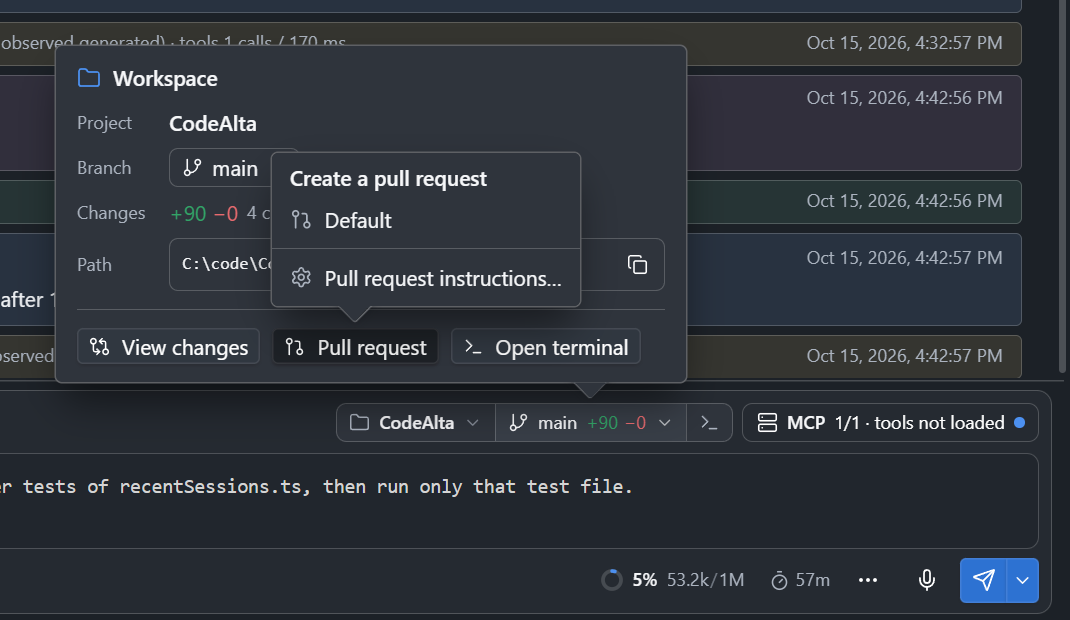
When a session is done, Pull request in the Workspace popover of its prompt (click the project or branch above the editor) asks it to open a pull request. The session commits its work on a branch, pushes it and answers with the link. It never merges. The button waits until the session is idle and the prompt is empty.
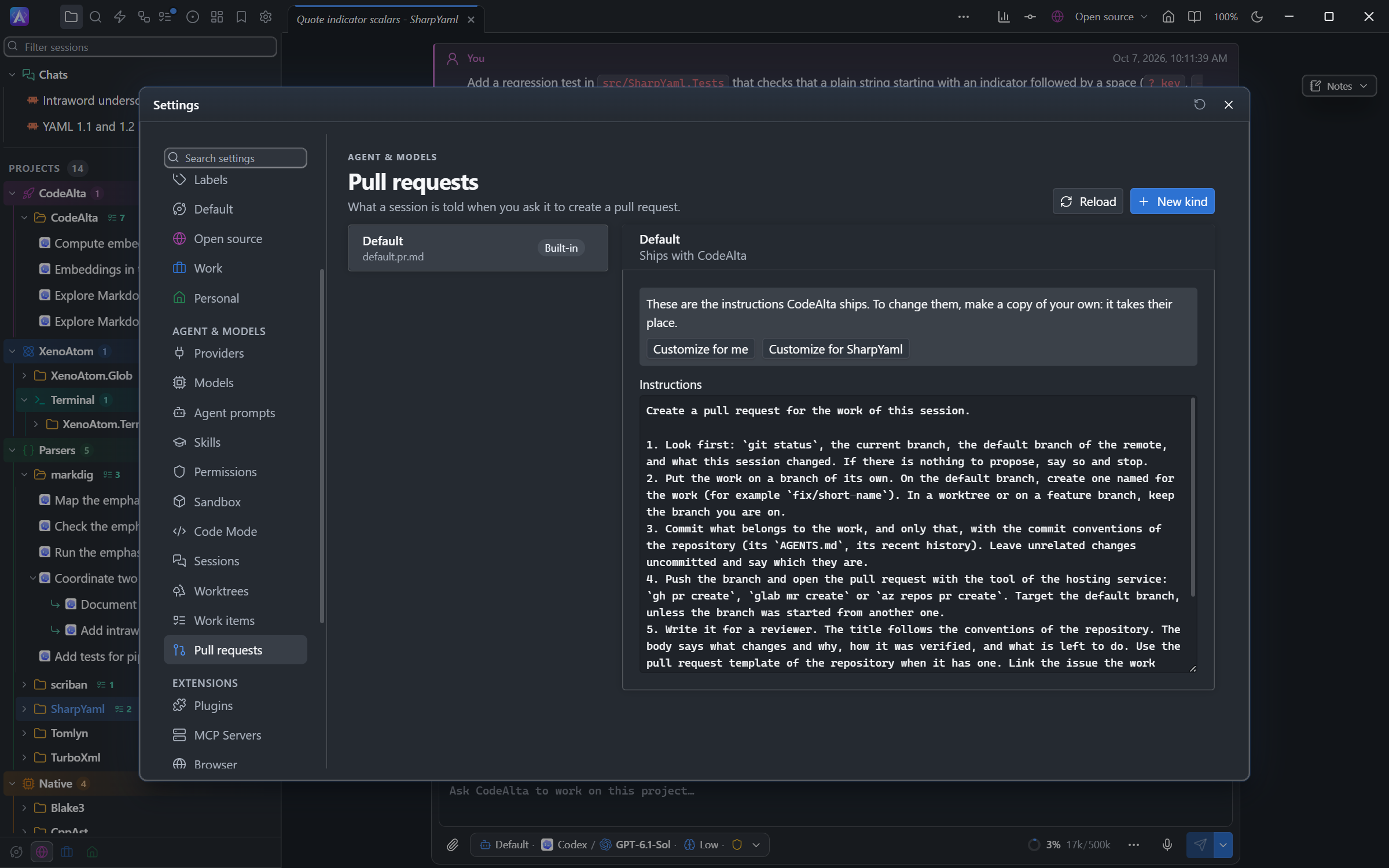
The instructions the session gets are in Settings > Pull requests. CodeAlta ships Default; add your own kinds (a release, a hotfix, a team checklist), and the button lets you choose:
| Kind | File |
|---|---|
| Yours, for every project | ~/.alta/prompts/pull-requests/<name>.pr.md |
| Of one project | <project>/.alta/prompts/pull-requests/<name>.pr.md |
default.pr.md replaces the built-in instructions, and a project kind replaces one of yours with the same name.
For agents
A session reads the same issues and pull requests with alta issue, wherever they are kept, with the same filters:
Take the work items of my current sprint that are Ready, in the order of the backlog, and start with the first.
It can also set the tab's filters: in your current view, or in a copy of the team's view, unless you name one. It switches, makes, renames and removes views, and changes a team view only when asked. The tab shows what it set.
In this project I only want to see the items assigned to me, of my team, in the current sprint. Then make a second view "Bugs" with only the bugs.
Change the issue filter so that I only see Ready and Active items.
Make a pull request view "Waiting for me" with the pull requests of the whole project where I or one of my groups is a required reviewer and nobody voted yet.
A value you changed under the toolbar stays until ↺, whatever an agent sets.
In a prompt
Type # in a prompt to insert a link to an issue or pull request of the project. See the Git plugin.