Spaces
A space is a named group of projects you work on together: your job, your personal projects, the open source you contribute to. CodeAlta Desktop shows one space at a time, with its projects, sessions and tabs. A window you move tabs into keeps its own space, so you can see two spaces side by side.
A space is also a setup: the providers, MCP servers, skills, agent prompts and plugins its sessions use, how its new sessions start, the tools they do without, and the Git, GitHub, Jira and command line identity they work under. Switch from Work to Personal and all of it switches.
- The Default space always exists. Every project is in it, but it shows only the projects and chats that belong to no other space. To see everything there, turn on Show what belongs to other spaces in Settings > Spaces, or click Show all in the message shown the first time Default hides something.
- You create the other spaces. A project can be in several spaces. Inside a space, labels group its projects.
- A space has a name, an icon, a color and a line that says what it is for.
- Every session belongs to the space you created it in. A chat is listed in its space only. A project session is listed in its space, also after its project moved to another space: the project is then shown in both.
- A session from before spaces existed is listed in every space of its project, or in Default for a chat. Move to space… puts it in one space.
On its first start, CodeAlta Desktop creates two empty spaces, Work and Personal. Fill them, rename them or delete them.
The space switch
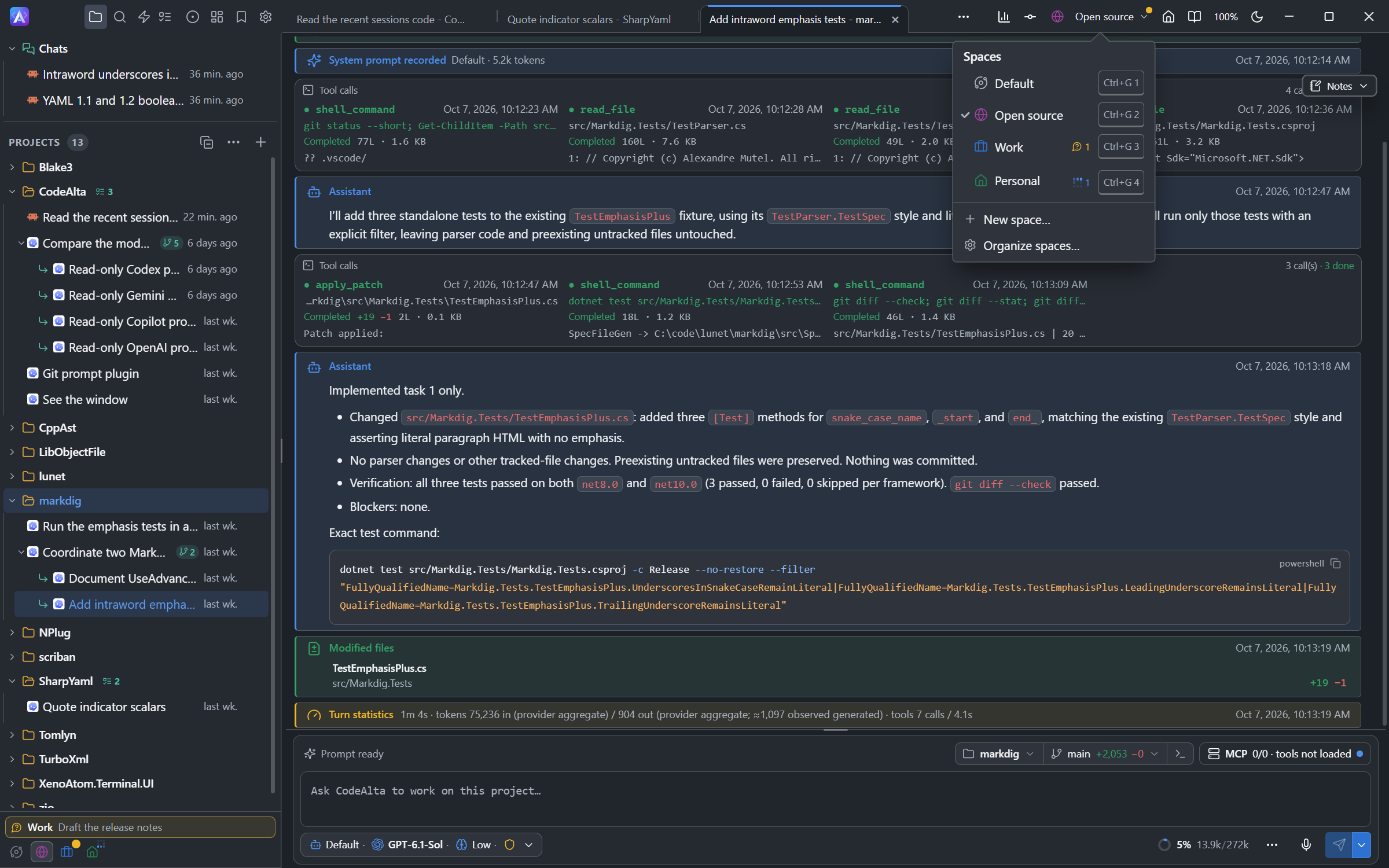
The space switch is in the title bar of the main window, before the zoom and the theme switch. It shows the icon and name of the space the window shows (only an icon while Default is the only space), and changes the space of the main window only. Click it, or press Ctrl+G Ctrl+V:
- choose a space to show it. Each space has its key,
Ctrl+G 1toCtrl+G 9, and marks that say what its sessions are doing; - New space… creates a space;
- Organize spaces… opens Settings > Spaces.
When you show another space, the Explorer lists its projects and the tabs you left there come back (sessions, code editors, Changes, terminals, Work items, Issues, Automations), with their layout, also after a restart.
- Sessions keep running while their space is not shown.
- A prompt you were typing is kept.
- If code editors hold unsaved changes, CodeAlta asks first: Save, Discard or Cancel.
Create a space
Choose New space… in the space switch, or run /new_space.
- A ready-made space sets the name, icon and color in one click: Work, Personal, Open source, Experiments, Learning or Clients. Or type a Name and choose an Icon (general icons and brand logos) and a Color.
- What it is for is a line for you and for the agents, such as "Projects of the Contoso contract".
- Start from is Empty, or Copy the setup of another space: its resources, the agent prompt, model tiers and fallback of its new sessions, and the tools it turns off. Its identity and projects are not copied.
- Tick the projects of the space.
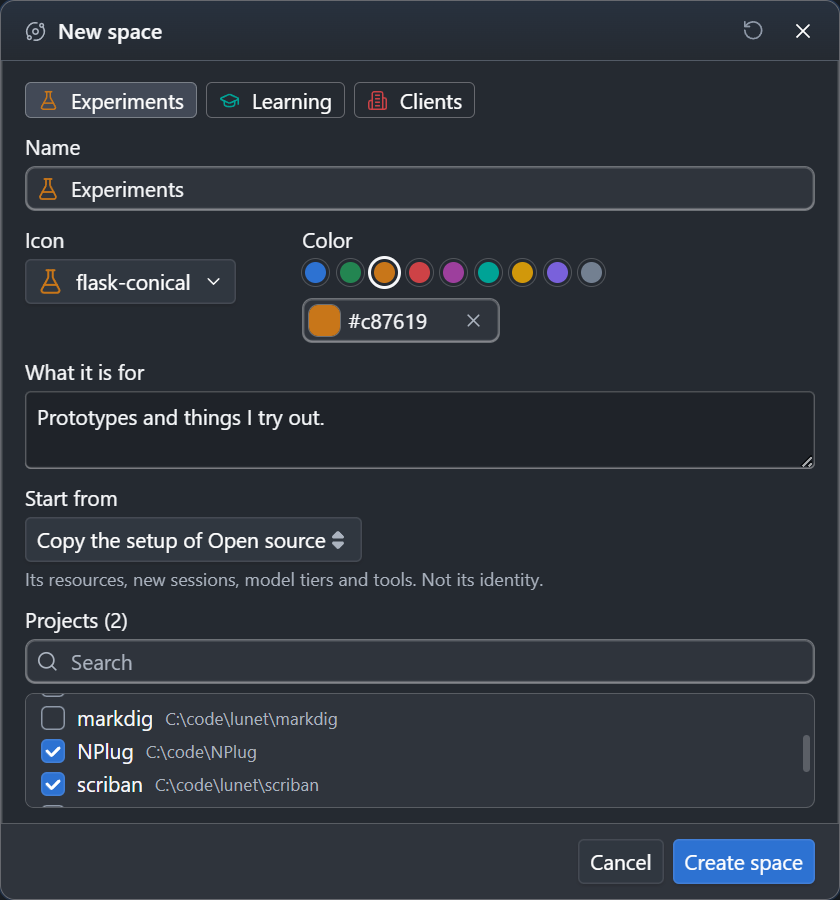
A space created from the title bar is shown at once. An empty space has an Add projects… button, which opens the folder picker.
Add a project
A folder you add with the + of the Explorer, or with Open project, joins the space the window shows, also when it is already a project of another space.
Organize spaces
Settings > Spaces opens with Organize spaces… in the space switch, or /spaces. Its Overview is a map of your setups:
- On the left, the Default space lists every project, with the icons of the spaces it is in.
- On the right, each space has a card: its icon, name, description, projects, and a line that sums up its setup, such as
2 projects · Claude Business · 3 MCP · alex@contoso.example.
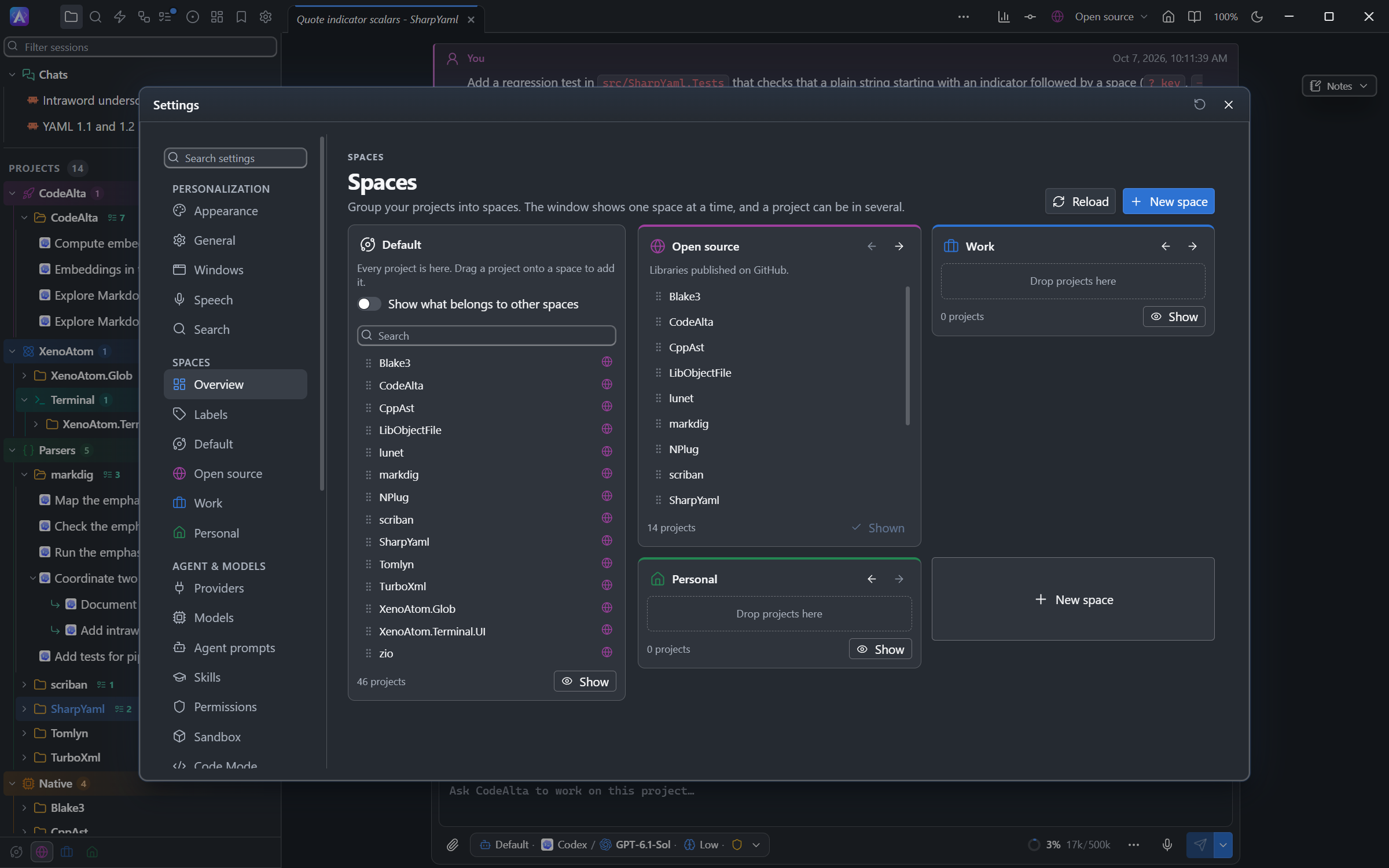
Drag projects to choose the spaces they are in:
| Drag a project | What happens |
|---|---|
| From the list onto a card | The project joins that space. |
| From a card onto another card | The project moves to the other space. With Ctrl or Alt held, it stays in both. |
| From a card back to the list | The project leaves that space. |
The × of a project on a card also removes it. A card has Show, and arrows that move the space up or down the list.
Click a card to open the page of its space. Each tab of the page says what its section sets:
| Section | What you set there | What its tab says |
|---|---|---|
| General | Name, icon, color and What it is for | |
| Projects | The projects of the space | How many |
| Resources | The providers, MCP servers, skills, agent prompts and plugins its sessions can use (see What a space has) | What it has, or All shared |
| New sessions | The agent prompt, model tiers and fallback of its new sessions | The prompt, Own model tiers, or Usual settings |
| Tools | The built-in tools its sessions do without | How many are off |
| Identity | Its Git, GitHub and Jira identity and its CLI profiles (see Identity) | The email, or Usual settings |
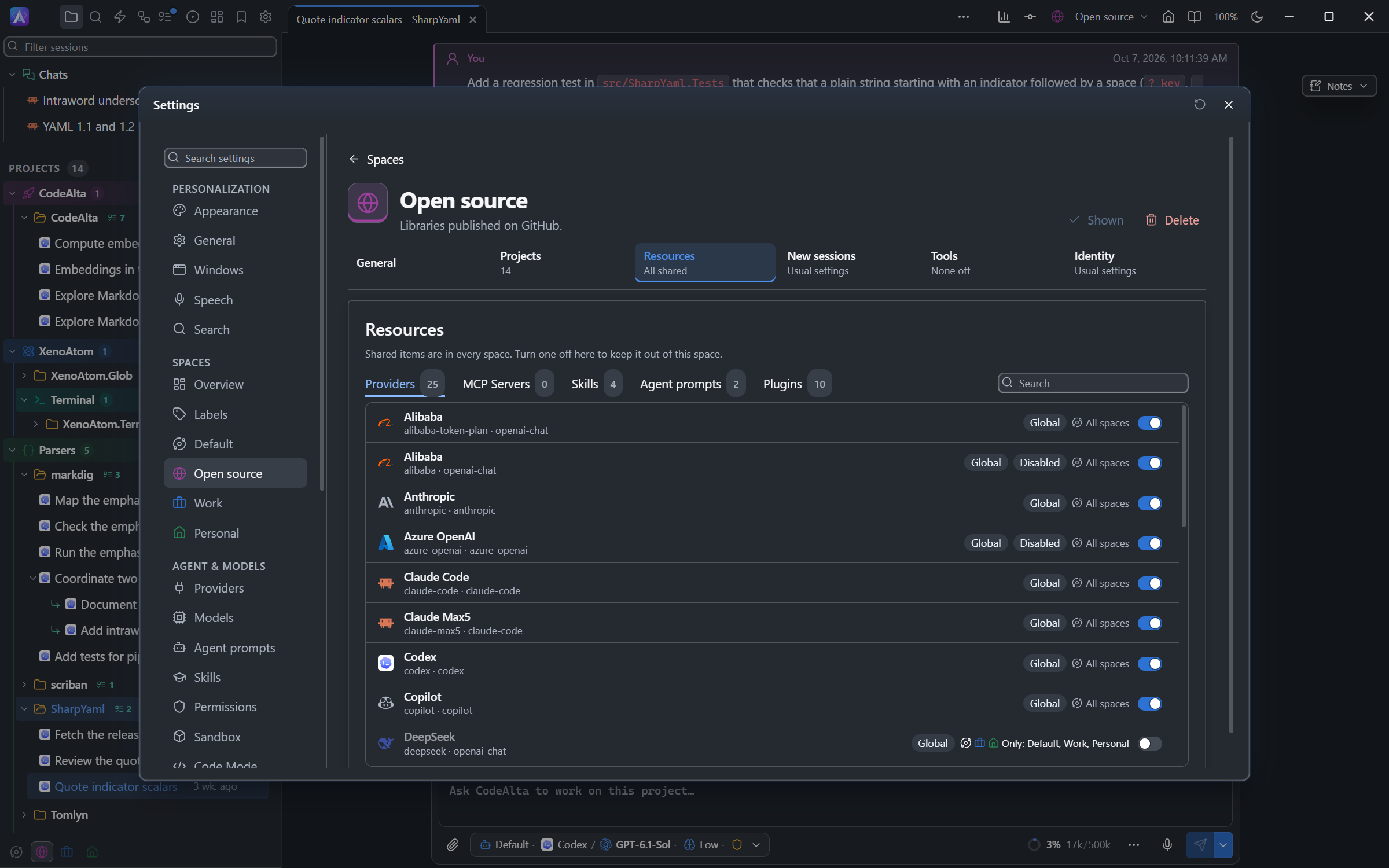
Changes are saved at once. Show shows the space in the window, and Delete deletes it after a question. Deleting a space keeps its projects, folders and sessions: projects stay in Default and in their other spaces, and its chats go to Default.
Move a session
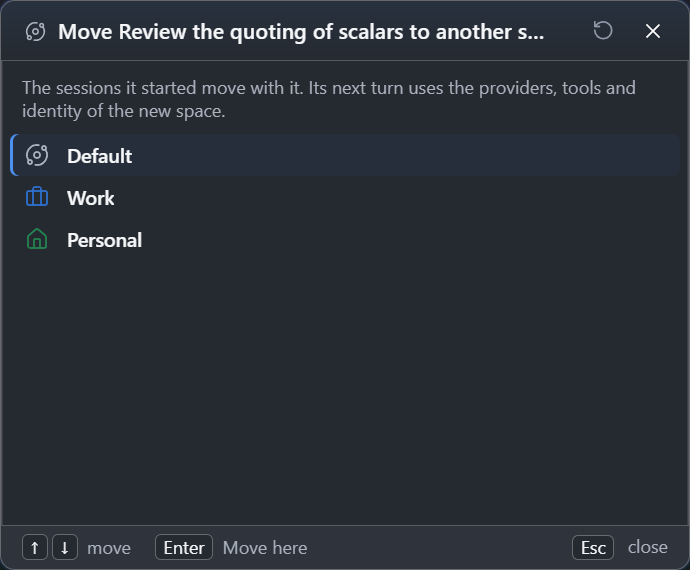
Move to space… in the menu of a session lists the other spaces. The session moves with the sessions it started, and its next turn uses the setup of the new space. A session that runs or waits for an answer moves once it is idle.
What a space has
A session uses the providers, MCP servers, skills, agent prompts and plugins of its own space, whatever space the window shows.
A resource is in every space until you choose its spaces, in either place:
- on its page of Settings (Providers, MCP Servers, Skills, Agent prompts, Plugins): the chip of its row says All spaces or Only: and its spaces. Click it to choose. The provider form has the same chip, under Spaces;
- in Resources on the page of a space: a tab per kind and a switch per resource. Turn a shared resource off to keep it out of this space: the other spaces keep it, and spaces you create later will not get it. When it would be left in no space, CodeAlta offers to turn it off instead.
A resource you give every space again is shared again, also with spaces you create later.
| Spaces of a resource | Available in |
|---|---|
| All spaces | every space, the ones you create later too |
| Business | Business only, not Default |
| Business, Default | Business and Default |
What a session's space does not have:
- is not in the instructions of its agent: no MCP servers, skills or agent prompts listed, nothing its plugins add;
- is refused to its agent:
alta mcp activate,alta skill activateandalta session set_agentsay why. Only you change the spaces of a resource; - leaves the session when you take it out of the space: an MCP server it activated is gone at its next turn.
An agent creates, forks, archives and sends prompts only to sessions of its own space, plus the sessions it created. You reach every session. A resource of a project (in its .alta folder) cannot bring into a space what the space excludes. Session info shows the space of a session and what it can use there.
Providers of a space
A space can have its own provider, such as a Claude Code account for Business and another for Personal (see several accounts).
- New sessions, tasks, issues you start and automation runs use the default provider when it is in the space, else the first provider of the space. The provider chooser lists the providers of the space the window shows.
- A provider of another space is refused, also to an agent.
- A session whose provider leaves its space sends nothing more: its status line says why, and the provider chooser opens. A failed run never falls back to a provider of another space.
- The composer reports the errors of the providers of its space only.
New sessions and tools
- New sessions sets the agent prompt a new session of the space starts with, from the window, an agent, a work item, an automation or a question about the guide. A prompt you or the agent choose still wins.
- Model tiers there uses the global tiers and fallback of Settings > Models, or tiers and a fallback of its own with Customize (see Tiers of a space).
- Sandbox there runs the sessions of the space in a sandbox profile, or in none, unless their project, provider or model chooses otherwise. See Sandbox.
- Tools turns off built-in tools, such as
shell_command, for the sessions of the space. What Settings > Permissions turns off for every session is shown beside them. See Tools turned off.
Identity
A space can have its own Git, GitHub and Jira identity, so the sessions of Work commit as you do at work and those of Personal as you do at home, and its own profiles of other command line tools. The Identity section of the page of a space has three cards and the CLI profiles:
| Card | Fields |
|---|---|
| Git | Name and email of your commits, the SSH key to fetch and push, how commits are signed (SSH or GPG, with the key), and Signed-off-by |
| GitHub | The folder of a profile of the GitHub CLI (gh), with the command that signs it in |
| Jira | The site, your account email, and the environment variable that holds your API token |
- An empty field keeps your usual settings, shown in gray. The Default space can have an identity too. Each card saves when you leave a field.
- Signed-off-by makes the agents of the space commit with
git commit --signoff. - Check tries a card: who Git commits as and whether the keys exist, which GitHub account the profile uses, whether Jira accepts your account. For a new GitHub profile, run the command of the card in a terminal and follow
gh auth login.
A session works under the identity of its space: its commands, the Claude Code CLI, its background jobs, gh and az, the MCP servers it starts and the Jira commands. A running session keeps its identity until it starts again. Terminals, and the issues and pull requests the window looks up, use the identity of the space the window shows. Session info shows the identity of a session.
In the file of the space:
---
id: work
kind: space
name: Work
identity:
  git: { name: A. Mutel, email: alex@contoso.example, ssh_key: ~/.ssh/contoso, sign: ssh, signing_key: ~/.ssh/contoso.pub, signoff: true }
  github: { config_dir: ~/.config/gh-contoso }
  jira: { site: contoso.atlassian.net, email: alex@contoso.example, token_env: CONTOSO_JIRA_TOKEN }
  cli:
    azure:
      env: { AZURE_CONFIG_DIR: ~/.azure-contoso }
      check: az account show --query "{user:user.name, subscription:name}" -o tsv
      login: az login --tenant contoso.onmicrosoft.com
    aws:
      env: { AWS_PROFILE: contoso-sso }
      check: aws sts get-caller-identity
      login: aws sso login
---
Only paths and variable names are kept, never a token. A project that names its Jira in its .alta/config.toml keeps it; the space fills in what it leaves out.
Command line tools
Cloud tools keep their login and current context in your home folder: az login in ~/.azure, AWS profiles in ~/.aws, kubectl config use-context in ~/.kube/config. Without a profile, every space and your own terminals share one login and one context, so a session of Work could run terraform plan against the subscription you switched to elsewhere.
A CLI profile sets the environment variables that choose a tool's configuration for the sessions of the space. Under Command line tools, Add a CLI profile… fills in the variables for a tool, using the name of the space; Other tool starts an empty profile.
| Tool | Variables |
|---|---|
Azure CLI (and az devops) |
AZURE_CONFIG_DIR |
| AWS CLI | AWS_PROFILE, or AWS_CONFIG_FILE and AWS_SHARED_CREDENTIALS_FILE |
| Google Cloud CLI | CLOUDSDK_CONFIG or CLOUDSDK_ACTIVE_CONFIG_NAME |
| kubectl | KUBECONFIG |
| Helm | HELM_CONFIG_HOME, HELM_CACHE_HOME, HELM_DATA_HOME |
| Terraform | TF_CLI_CONFIG_FILE |
| Docker | DOCKER_CONFIG |
| GitLab CLI | GLAB_CONFIG_DIR |
A profile has a Name (such as azure), its Variables, and optionally a Check command (such as az account show) and a Login command (such as az login). Profiles save when you leave a field.
~at the start of a value, or of each path of a list such asKUBECONFIG, is your home folder.${env:NAME}is the value of a variable of CodeAlta's environment. When that variable is not set, the tool keeps its own value, and Check and Session info say so.- A variable named like a secret (token, password, secret or API key, such as
AWS_SECRET_ACCESS_KEY) takes only${env:NAME}. A name ending inFILE,PATH,DIRorHOMEtakes a path. - Git and GitHub variables (
GIT_AUTHOR_NAME,GIT_SSH_COMMAND,GH_CONFIG_DIR…) are set by their cards, not by a profile. - Two profiles of a space cannot set the same variable.
Check on a profile shows its variables, runs its check command in the shell of the sessions and shows the output. For a new profile, run the command under Sign in with this profile in a terminal.
A project can give its sessions other profiles than its space, for example infra-prod and infra-dev on two clusters. Its .alta/config.toml adds profiles, or replaces variables of a profile of the same name:
[identity.cli.kubectl.env]
KUBECONFIG = "~/.kube/contoso-prod-readonly"

[identity.cli.aws]
check = "aws sts get-caller-identity"

[identity.cli.aws.env]
AWS_PROFILE = "contoso-prod"
The project comes first, then the space, then your usual environment. A terminal listed under a project uses its profiles too. Since a project can set any variable this way, open only projects you trust, as for their AGENTS.md and plugins.
A profile separates logins; it is not a sandbox: an agent can still set another value in a command. A tool that keeps its credentials in the system keychain (Docker's osxkeychain helper, the Atlassian CLI) keeps one login for your computer, and a variable of your environment that a tool reads first (such as AWS_ACCESS_KEY_ID before AWS_PROFILE) still applies unless the profile sets it.
What it does not change
- the settings a repository writes in its own
.git/config; - an
envblock in thesettings.jsonof a Claude Code profile, which can override what CodeAlta gives the CLI; - a
GITHUB_TOKENorGH_TOKENof your environment, which comes before the GitHub profile; - the HTTPS accounts of Git Credential Manager;
- the issues and pull requests an automation trigger watches, read with your usual GitHub profile;
- the Atlassian CLI, which keeps one login for your computer: two spaces with two Jira accounts take turns.
The shown space
The window lists what the shown space has:
- the Explorer, with the sessions, terminals and work item marks of its projects;
- the search (
Ctrl+P): projects, sessions and files; - Open project and the browser of saved sessions;
- All projects in the Work items tab, and the projects of the Issues tab;
- the previous and next project keys.
Automations are not in a space: their tab lists every project. When you open a session whose project is not in the shown space, from a link, a work item or an automation, the window shows the Default space first.
Activity in other spaces
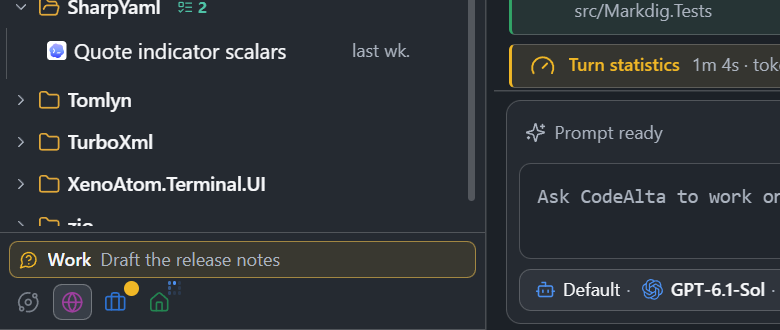
With more than one space, the foot of the Explorer has a button for each space. Click one to show its space. A mark on a button says what its sessions are doing:
| Mark | Meaning |
|---|---|
| Waiting | A session waits for you: a question, a command to review, or a form to fill. |
| Failed | The last run of a session failed. |
| Running | Sessions are running. |
| Background | A provider works in the background. |
When a session waits for you or fails in a space that is not shown, a line above the buttons names it (click it to open the session), a dot appears on the space switch, and a message with Show says so once.
Keys and commands
| Action | Shortcut or command |
|---|---|
| Open the space switch | Ctrl+G Ctrl+V or /space |
| Show the space at a place of the list (Default is 1) | Ctrl+G 1 to Ctrl+G 9 |
| Previous space / next space | Ctrl+Alt+PageUp / Ctrl+Alt+PageDown, or /space_prev / /space_next |
| Create a space | /new_space |
| Organize spaces | /spaces |
The previous and next space keys also work in a terminal. All these commands are in the search (Ctrl+P) and the help (F1).
Agents and spaces
Agents read and change spaces with alta space. Ask in your own words:
Create a space named Clients for the two Contoso projects, and show it.
- An agent reads What it is for of each space to choose the right projects.
- When it lists projects, it gets those of the shown space, unless you ask for another space or all of them.
- It shows another space only when you ask.
- When it wants to show you a file or changes of a project the shown space does not have, the window stays where it is: a message names the space, with Show.
Files
Each space is a Markdown file in ~/.alta/spaces/, named after its id. The id comes from its first name (lower case, - between words) and does not change when you rename it. The Default space has a file, default.md, only once you change it.
---
id: open-source
kind: space
name: Open source
icon: globe
color: "#9d3f9d"
order: 3
new_sessions:
  agent_prompt: reviewer
  tiers:
    quick: ["claude-code:haiku", "codex:gpt-6.1-mini@low"]
  fallback: { enabled: true }
tools:
  disabled: [shell_command]
---

Libraries I maintain and the projects I contribute to.
| Key | What it is |
|---|---|
| text under the header | What it is for |
order |
The place of the space in the list |
new_sessions.agent_prompt |
The agent prompt of New sessions |
new_sessions.tiers |
Its own complex, standard and quick tiers, as in Model tiers |
new_sessions.fallback |
Its fallback: enabled, on with quota or unavailable to fall back on one failure only, and resume with max_resumes to resume when the limit resets |
new_sessions.sandbox |
The sandbox of its sessions: a profile, or off |
tools.disabled |
The tools of Tools |
The spaces of a project are one line of its file, ~/.alta/projects/<name>.md: spaces: [work, open-source]. A project only in Default has no spaces line, and an unknown id is ignored. Its sandbox is another line, sandbox: "strict".
The spaces of providers, MCP servers, skills, agent prompts, plugins and scripts of Code Mode are in ~/.alta/config.toml. A resource without a spaces list is in every space:
[providers.claude-business]
type = "claude-code"
config_dir = "~/.claude-business"
spaces = ["business"]

[plugins.mcp.servers.atlassian]
spaces = ["business"]

[plugins.jira]
spaces = ["business"]

[skills.spaces]
terraform = ["business", "default"]

[prompts.spaces]
reviewer = ["business"]

[scripts.spaces]
review-pr = ["business"]
Only the global config.toml assigns spaces: a spaces list in a project's config.toml is ignored. The space each window shows, and the tabs of each space, are kept with the window.
CodeAlta TUI does not show spaces: it lists every project. Its sessions record no space, so CodeAlta Desktop lists them in every space of their project, and they use no space identity or CLI profile. Its agents still have alta space.