Workspace
The CodeAlta window holds your projects, your sessions and the tools around them. It is keyboard-first: most popups close back to the prompt. In CodeAlta Desktop, a character typed while nothing that takes text has the keyboard (after a click on the timeline, a button or a row, or Esc) is written in the prompt, which takes the keyboard. / there opens the search of the commands when the prompt is empty, as it does in the prompt. The Desktop / TUI switch on a screenshot shows each app; Desktop and TUI lists the differences.
See also the prompt and the timeline, code, changes and terminals and Settings.
The window
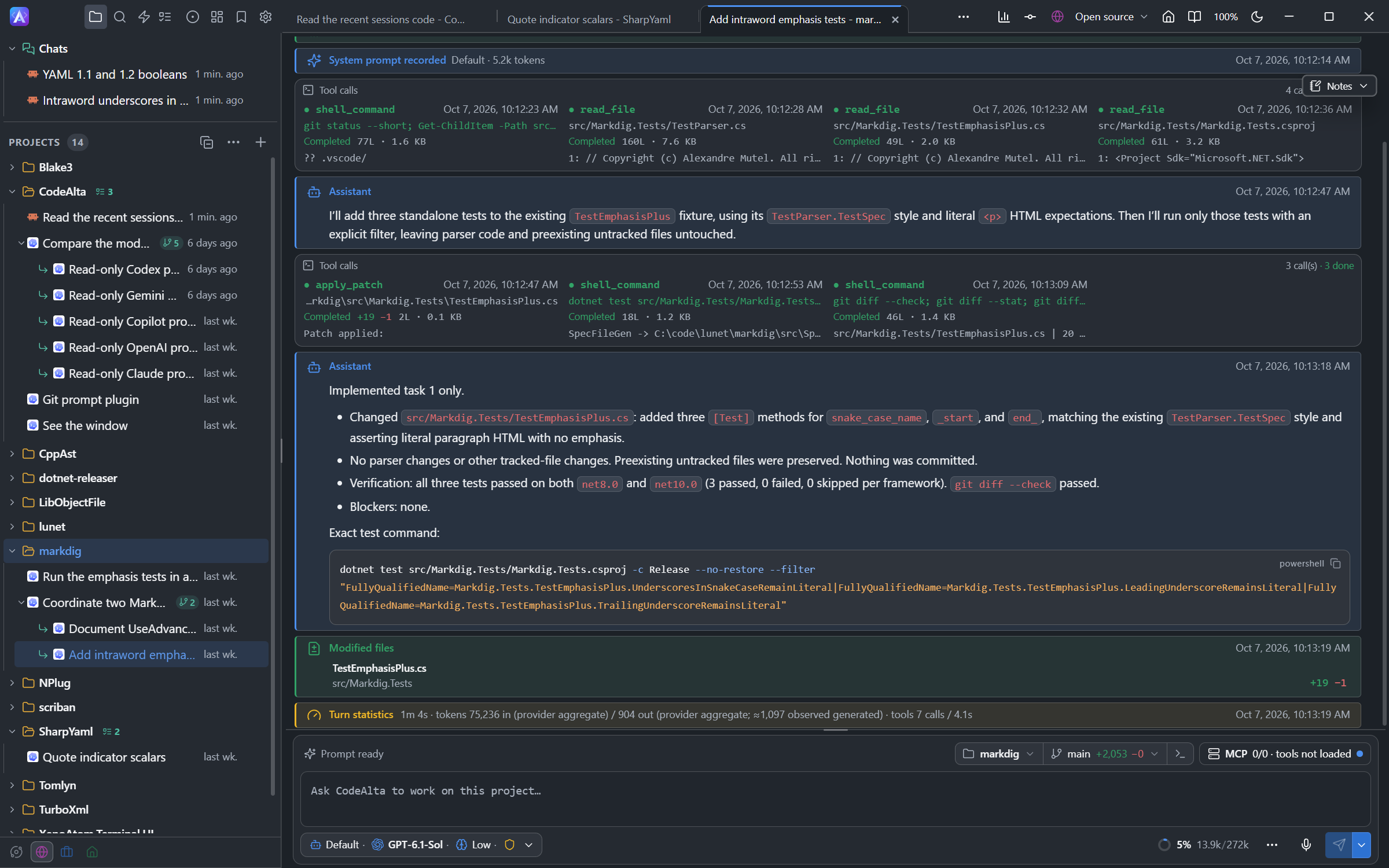
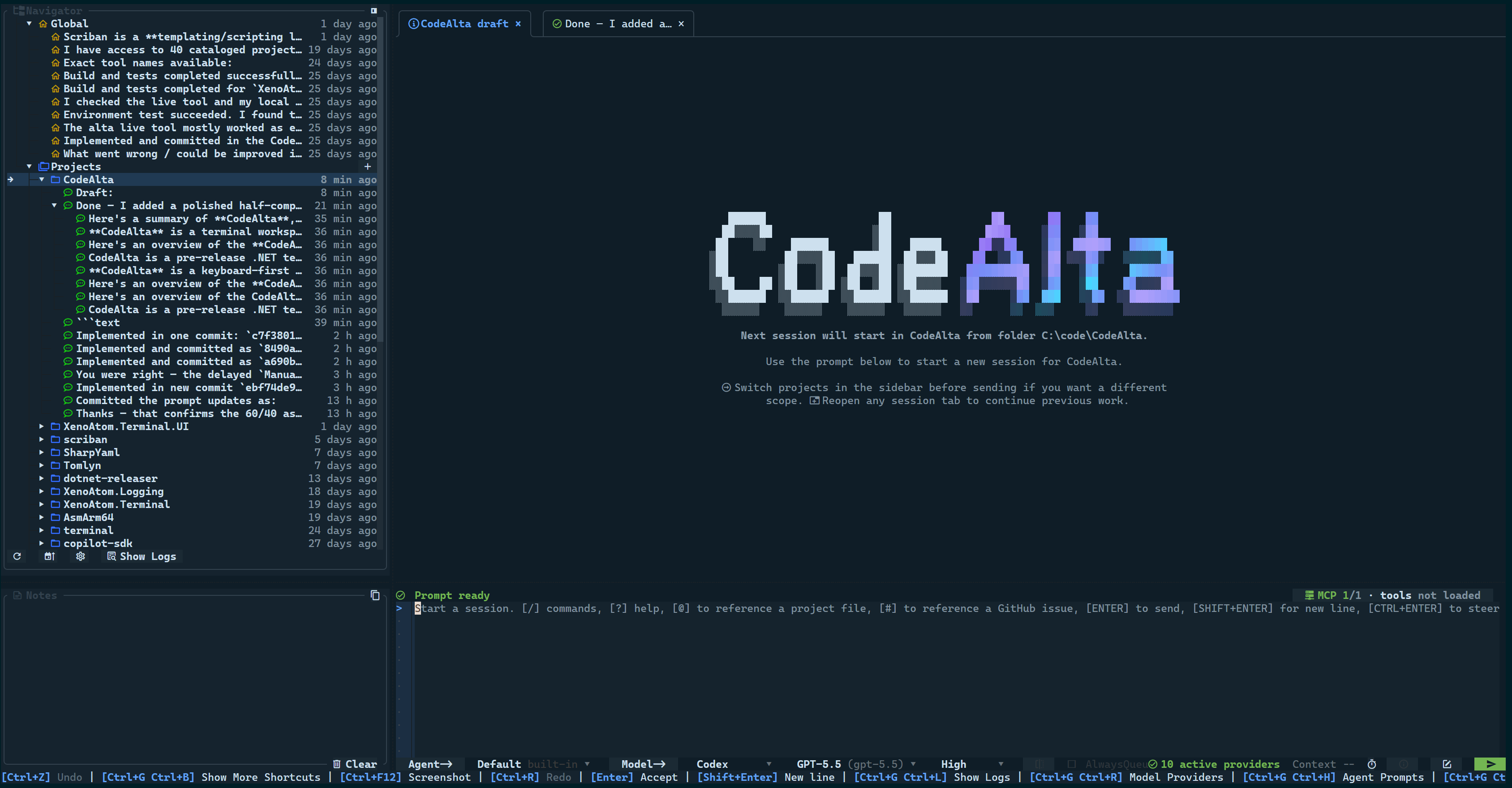
The window has four areas:
- Explorer (the sidebar): projects, their sessions and sub-agents, and running work.
- Tabs: sessions, code editors, changes and terminals share one tab strip.
- Timeline: messages, reasoning, tool calls, results and statistics of the session. See Timeline.
- Prompt: the editor, with the session status above it and the agent, model, context and Send below it. See The prompt.
Press F1, type /help or type ? when you are unsure where an action lives.
In CodeAlta Desktop, the title bar has the buttons of the Explorer, the search, Automations, Work items, Issues, Canvases, Bookmarks and Settings; those that do not fit go in the … menu. It also has the space switch, the zoom and the theme switch. A space is a group of projects with its own setup: the window shows one space at a time.
| Shortcut | Action |
|---|---|
Ctrl+Tab / Ctrl+Shift+Tab (also Ctrl+PageDown / Ctrl+PageUp) |
Next / previous open tab, in the order of the tab strip (desktop). In a code editor, they go through its files instead |
Ctrl+Alt+Right / Ctrl+Alt+Left |
Next / previous tab |
Ctrl+T or /next_prompt |
Switch the session or draft to the next agent prompt |
Ctrl+G Ctrl+G |
Collapse or expand the Explorer |
Ctrl+G Ctrl+S / Ctrl+G Ctrl+P |
Go to the Explorer / back to the prompt |
If these shortcuts do not work in Windows Terminal, see Troubleshooting.
Explorer
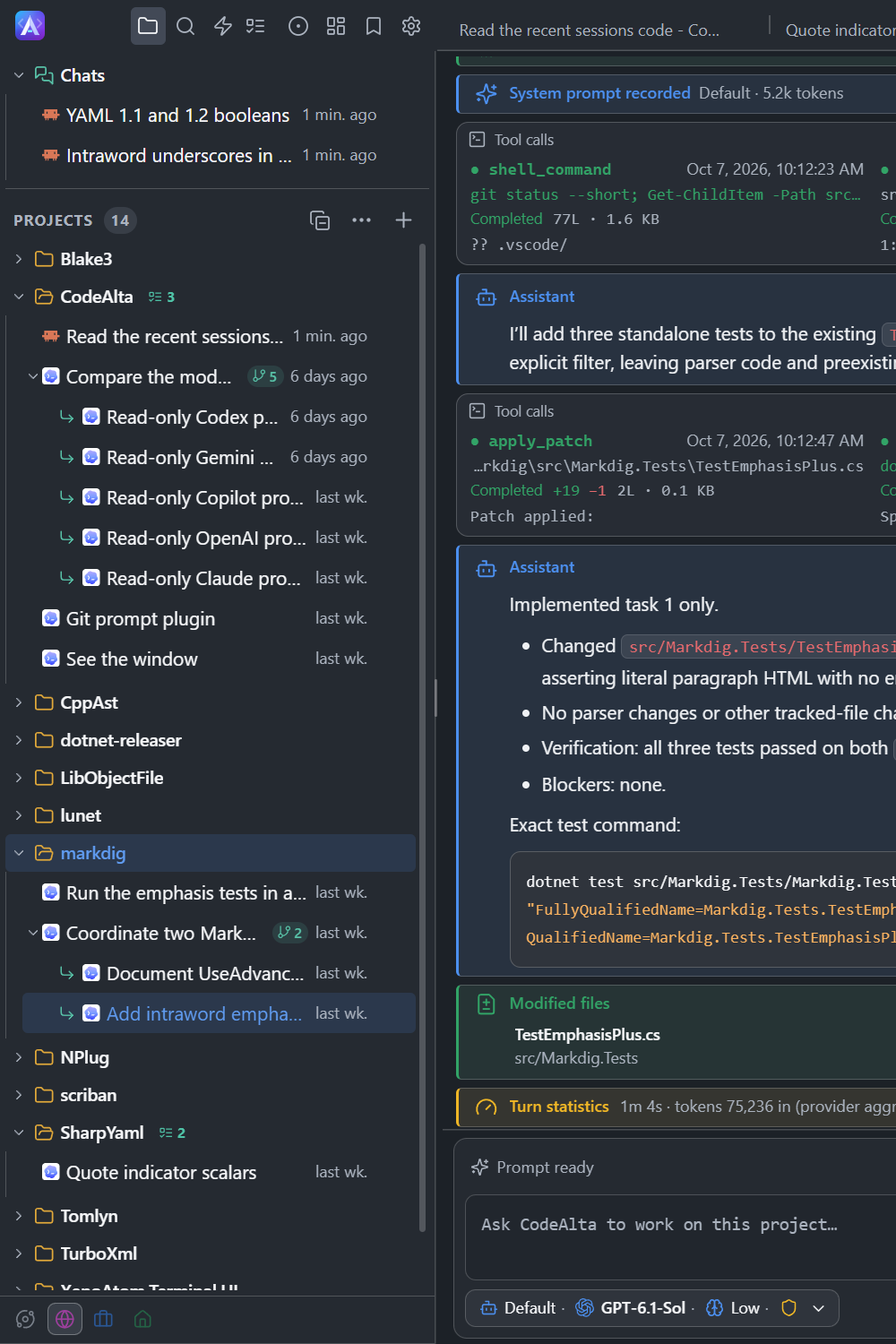
The Explorer lists the projects of the space the window shows. Chats, at the top, are sessions of no project. With several spaces, its foot has a button for each space and says what its sessions are doing.
- Filter sessions, at the top, keeps the sessions, chats, projects and Claude Code conversations whose title has every word you type.
Escor × clears it. - Click the arrow of a project to show or hide its sessions; Collapse all closes them all. Open projects stay open at the next start.
- A project or a label shows a spinner while sessions run in it, with their number when there are several, and a yellow mark with the number of sessions that wait for you: a folded one tells it without being opened. A project with no session or terminal has no arrow.
- Click a project to write the prompt of a new session in it. Click a session to look at it; double-click it to keep its tab (see Tabs). After a click, the prompt has the keyboard;
Enteron a row keeps it in the Explorer, where the arrow keys go from row to row. - Point at a project for its buttons: the star (adds it to Favorites), its changes, its code editor and a terminal.
- The
…button or a right-click (Ctrl+click on macOS) opens the menu of a project or a session. - The
+button adds a folder as a project (see Open a project).
On the row of a session, F2 renames it, F forks it, A archives it, and Delete or Backspace deletes it, as Rename…, Fork…, Archive and Delete… of its menu do.
The menu of a session also has:
- Delete…: deletes the history of the session, not the files of the project, after a small question beside the row (
Enterdeletes,Esckeeps). Also remove the worktree removes the worktree of the session too; a session with child sessions asks about them (see Delete a session and its child sessions). - Move to project… (also drag the row onto a project) and Move to space…: see Move a session to another project and to another space.
- Archive: takes the session out of the Explorer; the search and the session browser restore it. See Archive a session.
The menu of a project has Open in your external editor, Open in File Explorer (Open in Finder on macOS), Search sessions…, Archive project… (read-only until you unarchive it) and Delete project… (deletes its sessions for good, keeps its folder; stop its running sessions first).
A session lists its sub-agents under it. A bolt marks a session an automation started, a tree one in a worktree.
From Claude Code (N), at the end of a project, and From Claude Code, no project (N), after the projects, list the Claude Code conversations started in VS Code or a terminal. Drag one onto a project to continue it there. See Claude Code sessions.
Search
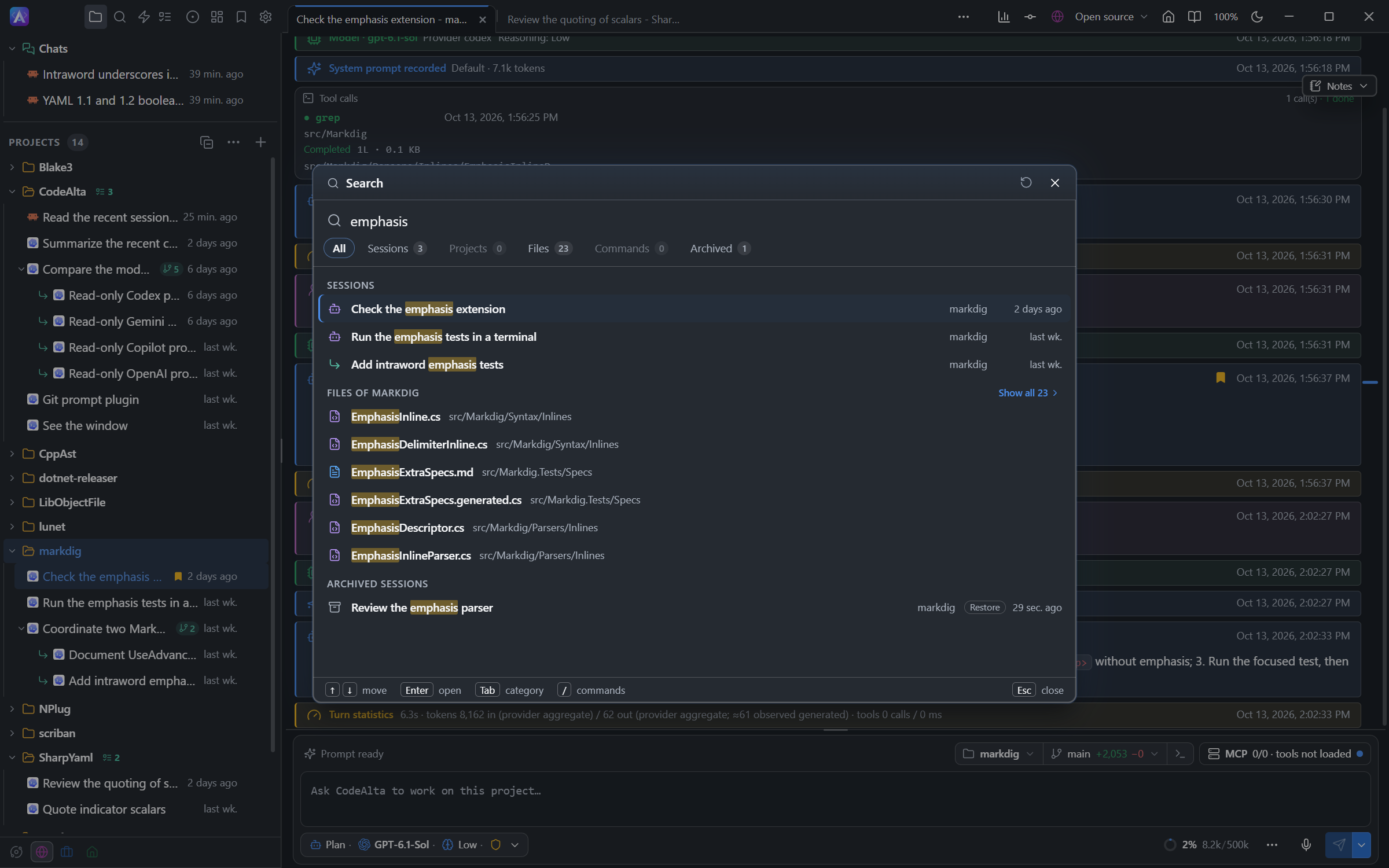
Press Ctrl+P to search and run any command. In CodeAlta Desktop, Ctrl+P or the search icon of the title bar searches:
- the sessions of every project and your chats, then the Claude Code conversations not in CodeAlta yet;
- the projects, and the files of the current project;
- the commands, each with its slash command and its shortcut. A command that cannot run now is dimmed, and when the session in front knows why, the reason replaces its description;
- the skills of the current project.
Tab switches between All, Sessions, Conversations, Projects, Files, Commands, Skills, Docs, Tools and Archived (Enter restores an archived session). Conversations, Docs and Tools come from the search index. Start with / for a command or a skill.
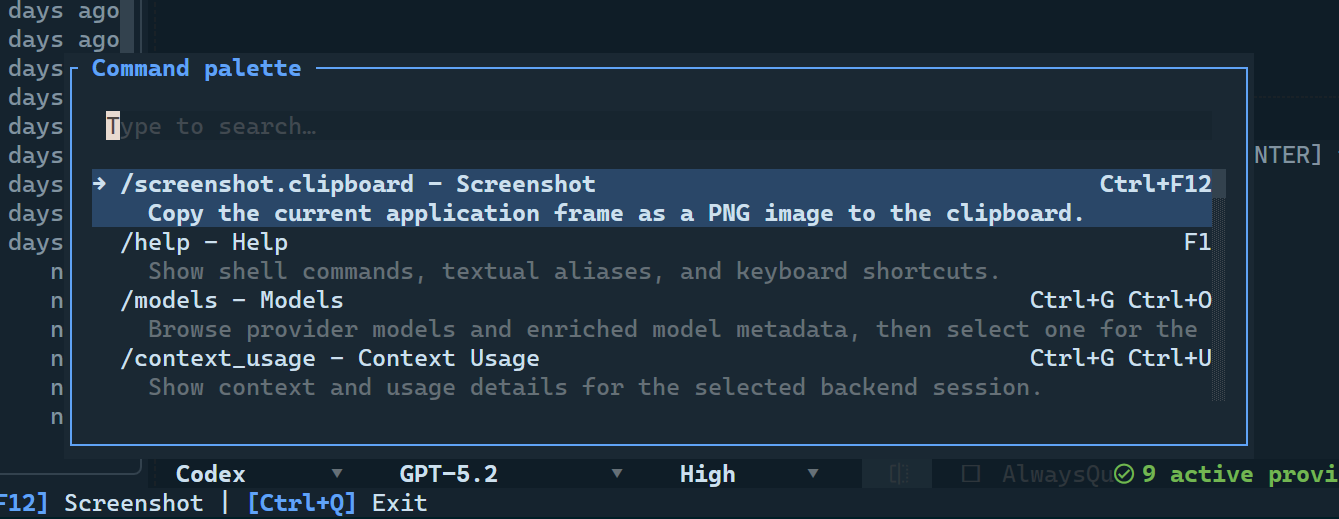
Use a skill
Type / and the name of a skill in the empty prompt of a session, such as /handoff for the review session, and press Enter: the agent is asked to follow that skill, with your text. A skill is offered when it is enabled, valid and trusted for the project.
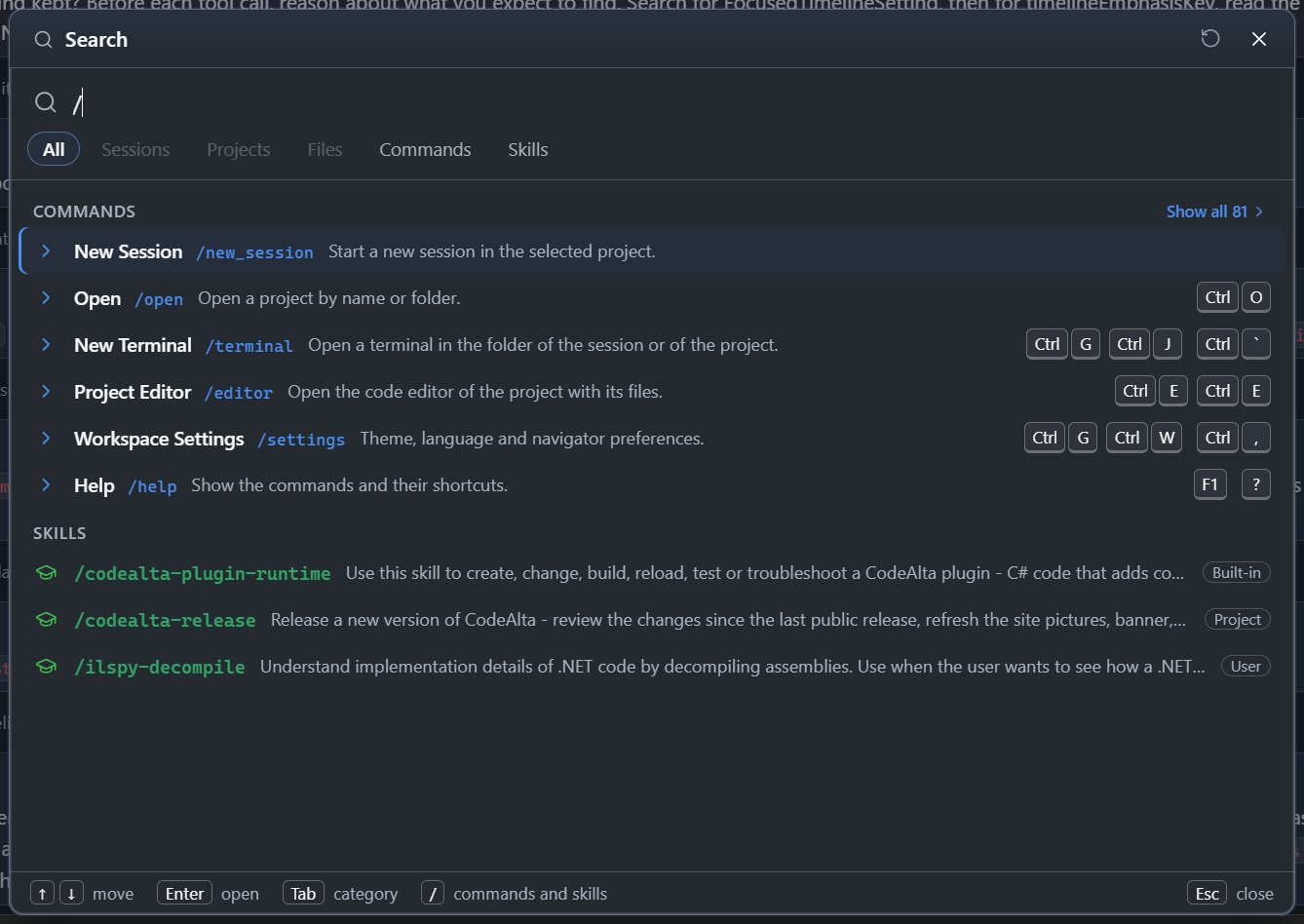
Session browser
In CodeAlta Desktop, Ctrl+Alt+B opens the session browser: a searchable table of the sessions of a project or of the global scope, with their provider, last update and message count. Archived shows the archived sessions instead: Restore (or Enter, or a double-click) restores and opens one, Info… shows what is recorded of it, and Delete deletes it.
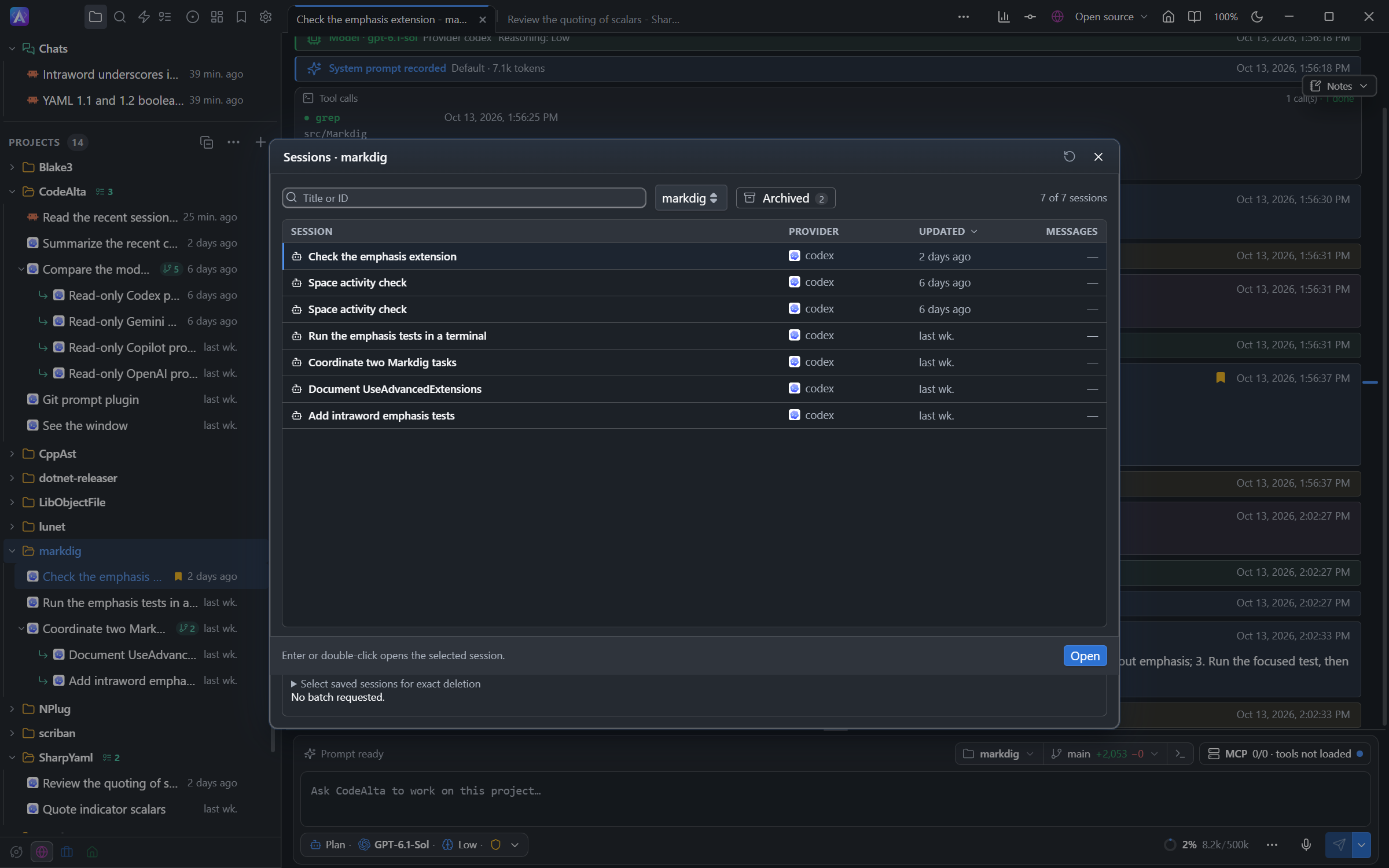
Tabs
In CodeAlta Desktop, a session you click opens in one tab whose title is in italics: the next session you click takes its place.
| To | Do this |
|---|---|
| Look at a session | Click it |
| Keep a session open | Double-click it, or the title of its tab, or type in its prompt |
| Start a new session in a project | Click the project: its new-session prompt takes the italic tab |
| Keep that prompt open | Double-click the project or the tab. A prompt you typed in is kept too, in a tab named after its project |

A session you create is kept from the start. Closing a tab never deletes a session. Ctrl+W (Cmd+W on macOS) or a middle click closes a tab: Ctrl+W closes the tab of the pane you last clicked in, such as a pane docked on the right. Ctrl+Shift+T reopens the last closed one. A pane at the top too narrow for its tabs beside the buttons of the title bar shows them below it.
Right-click a tab, or press Shift+F10 on it, for Close, Close others, Close to the right and Close all (in the same pane), Keep open on an italic tab, and Move to window (see Windows). The … menu of a pane has Close others, Close all and Reopen closed tab. A code editor with unsaved changes asks before it closes.
Single tab for sessions
Turn on Single tab for sessions in Settings > Sessions (off by default) to show every session you open, and the new-session prompt of a project, in one tab. A session that leaves the tab keeps working; other tabs, such as editors, are not concerned.
Split panes
In CodeAlta Desktop, tabs can be arranged in panes:
- drag a tab along the tab strip to reorder it;
- drag it to an edge of a pane to split side by side or stacked, or to the center of another pane to move it there;
- or use Split right and Split below in the
…menu of a pane.
Each pane has its own timeline and prompt. Sessions of different projects stay open together, and the layout comes back at the next start. Each space has its own tabs and layout.
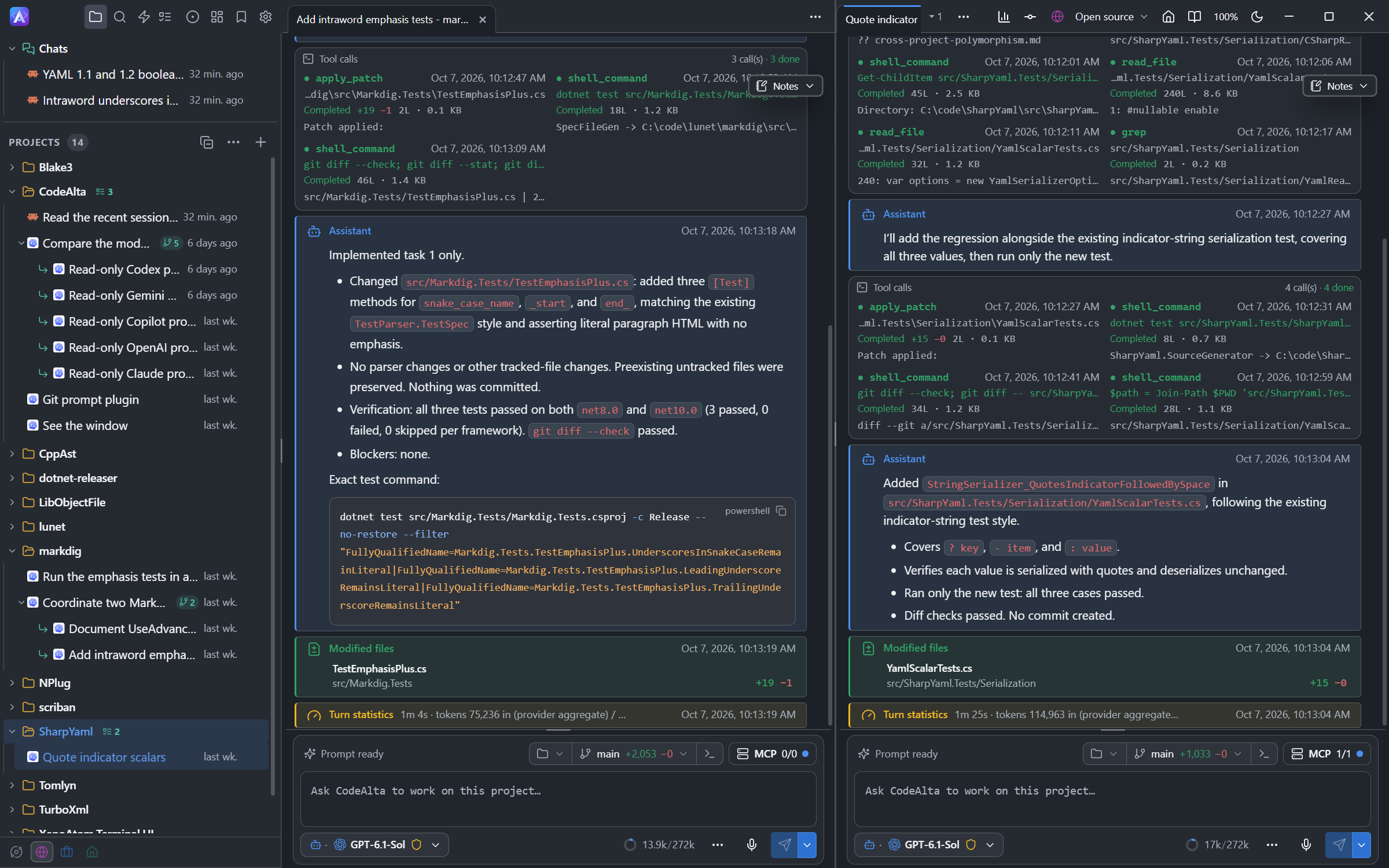
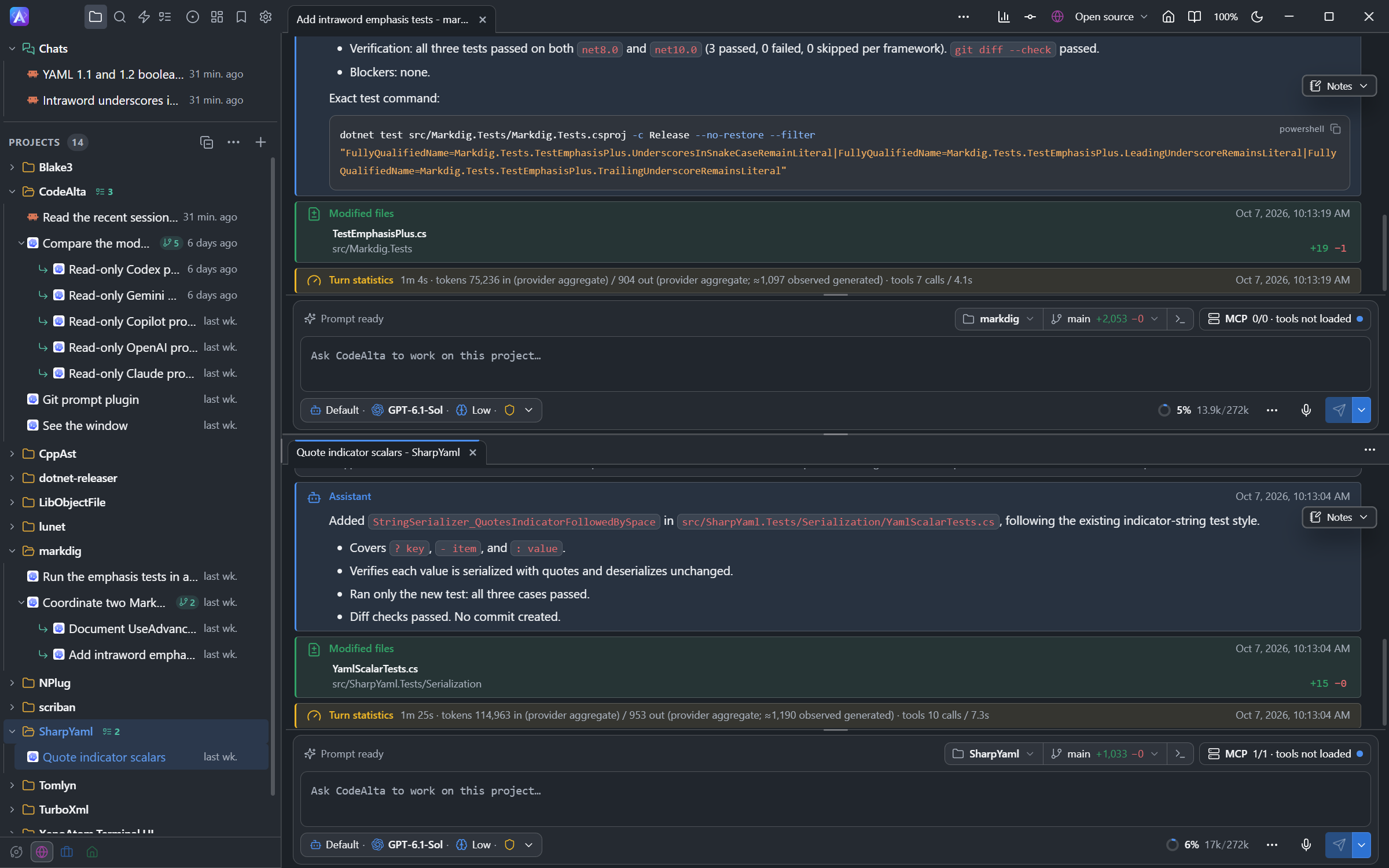
Windows
In CodeAlta Desktop, you can move tabs out of the main window into windows of their own, for example to keep a review on a second monitor. Such a window has the same tabs and panes, but no Explorer and no title-bar buttons.
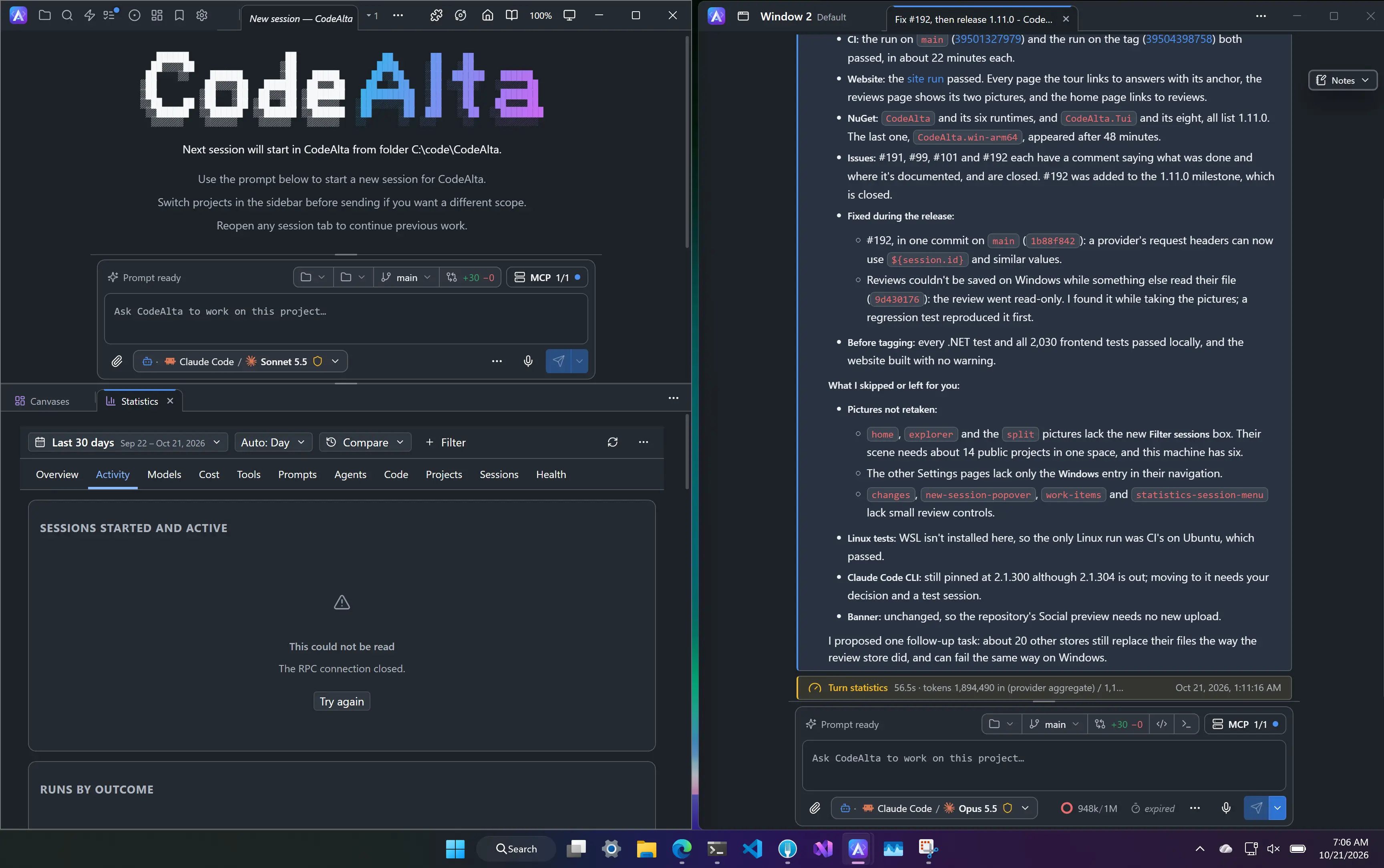
Move a tab to another window:
- right-click it and choose a window under Move to window, or New window;
- use Move tab to new window in the search, or
/move_tab_to_window; - drag it out of its window: onto another window to join the pane under the pointer, or anywhere else for a new window (on Linux, a tab is dragged only inside its window);
- ask an agent, which uses
alta window tab move.
A tab is in one window at a time: opening something another window shows brings that window to the front. The badge at the left of the tabs names the window and its space; click it to change its name, icon and color, keep it or close it.
- A window closes with its last tab. Closing a window closes its tabs; the sessions keep running.
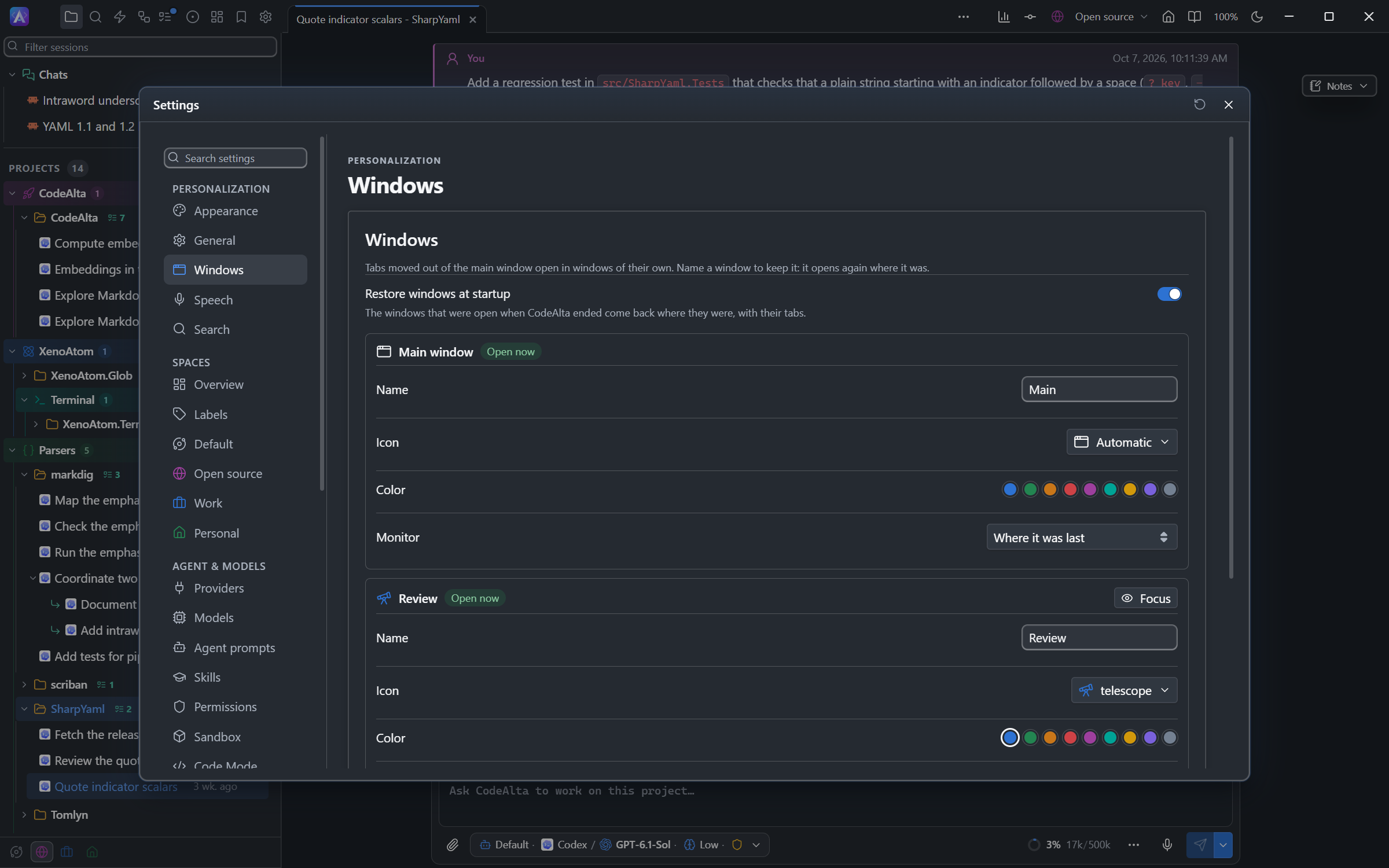
- A window you name, or mark Keep this window in its badge, is kept: once closed, it is listed closed in Move to window and in Settings > Windows (Open, Forget), and opens again where it was.
- Open windows come back at the next start, unless you turn off Restore windows at startup in Settings > Windows.
- A window keeps the space of its first tab: sessions and project tabs do not go to a window of another space.
- A window opens again on its monitor (on Windows, on its virtual desktop too), or on a connected one. Monitor, in Settings > Windows, pins it to one.
Welcome page
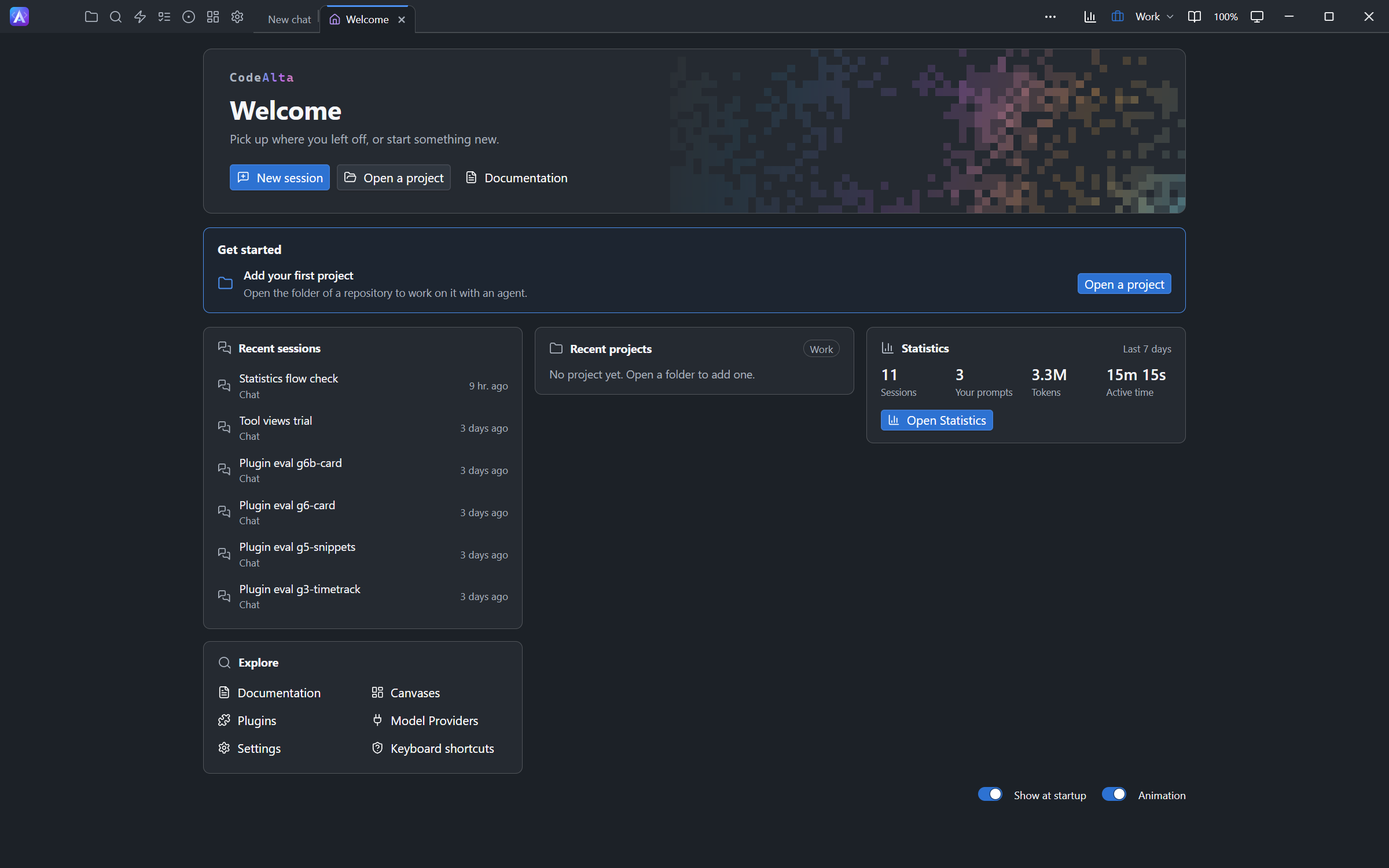
CodeAlta Desktop starts on a Welcome tab with:
- New session, Open a project and Documentation;
- Get started, while a model provider or a first project is missing;
- Recent sessions and Recent projects of the space;
- the cards of your plugins, such as the Statistics of the last seven days;
- Explore: the documentation, Canvases, Plugins, Model Providers, Settings and the keyboard shortcuts.
Open it with the Home icon of the title bar, Welcome in the search or /landing; an agent uses alta landing open. The switches at its bottom, also in Settings > General > Welcome page, choose whether it opens at startup and whether it is animated (it never moves when your system asks for reduced motion). To remove it, turn off the Landing page plugin in Settings > Plugins. A plugin can add its own card.
Open a project
Open the Open Project dialog with Ctrl+O or /open. Type a name to filter known projects, or a path to open a folder: rooted paths such as /, C: and ~ complete folders. In CodeAlta TUI, Include hidden includes archived projects. The project opens on its prompt, and a folder you add joins the space the window shows.
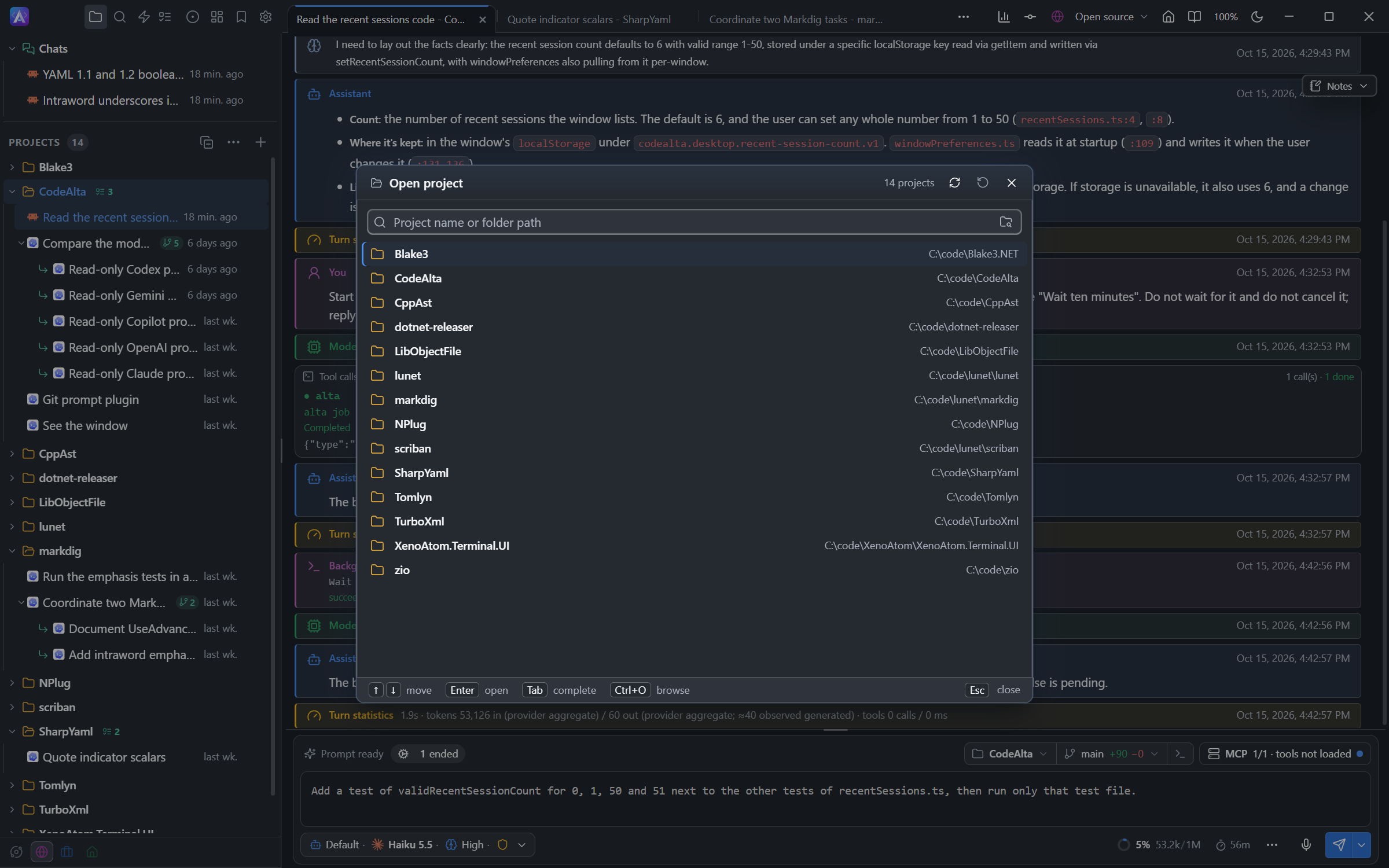
In CodeAlta Desktop, the folder dialog of your system opens with the + button of the Explorer, the button at the end of the field, or Ctrl+O Ctrl+O. Then Trust and open folder (Enter) adds the folder as a project.
Documentation tab
CodeAlta Desktop ships this guide and shows it in a tab, without a connection. Open it with the book icon at the top right, or /documentation.
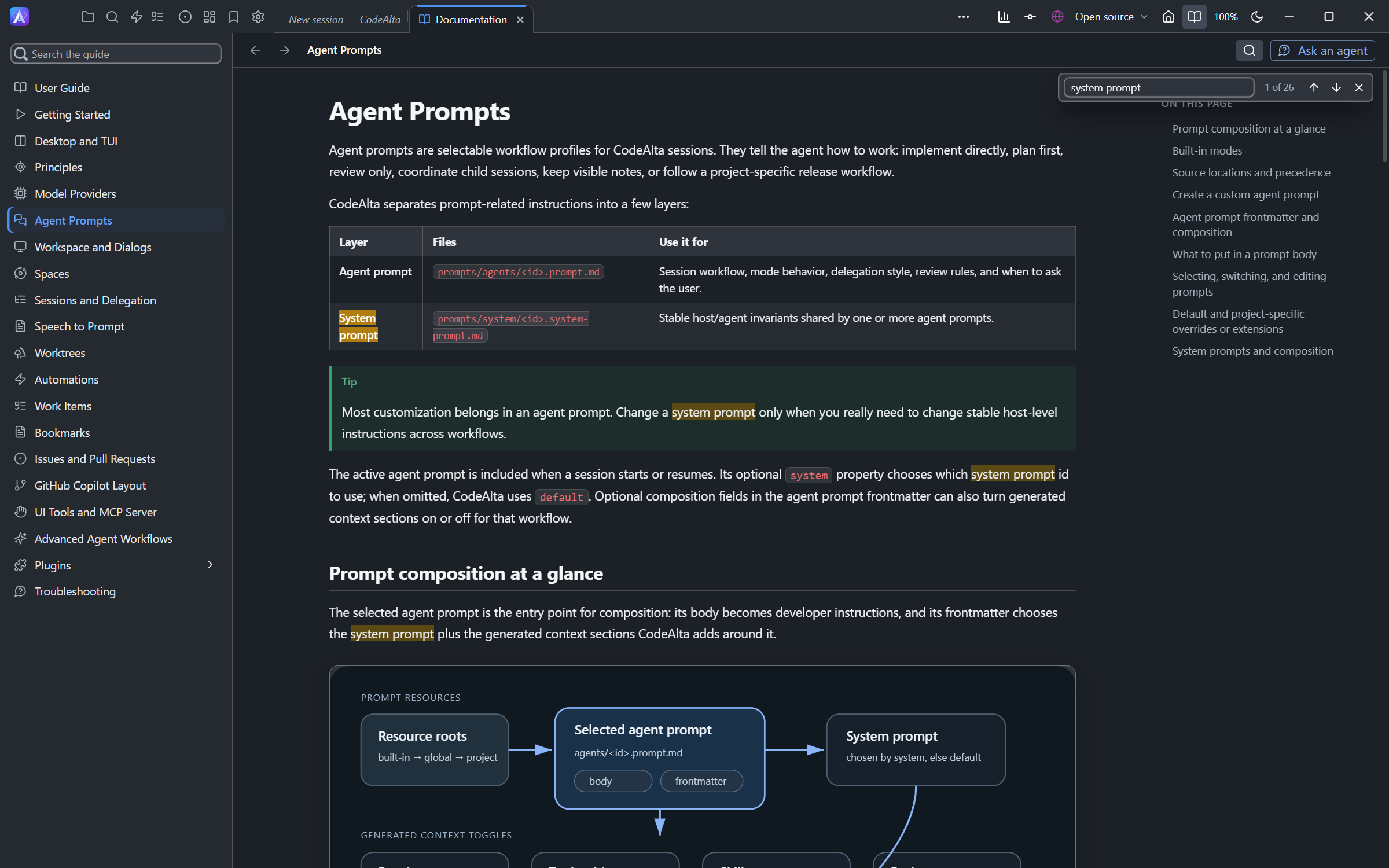
- The pages are on the left and the headings of the page on the right.
- Search the guide (
/) finds a text in every page. Ctrl+F(Cmd+Fon macOS) finds a text in the page:Enter/Shift+Entergo to the next / previous match, andAlt+C,Alt+WandAlt+Rmatch the case, whole words and regular expressions.Alt+LeftandAlt+Rightgo back and forward. Click a picture to enlarge it.
Ask an agent, above the page, sends a question about the page or the whole guide to a new chat with your default provider. The agent answers with links to the pages it used. Agents in any session read the guide with alta documentation list, search, read and open.
About and updates
Open About with Ctrl+G Ctrl+A or /about: it shows the version and whether a newer one exists.
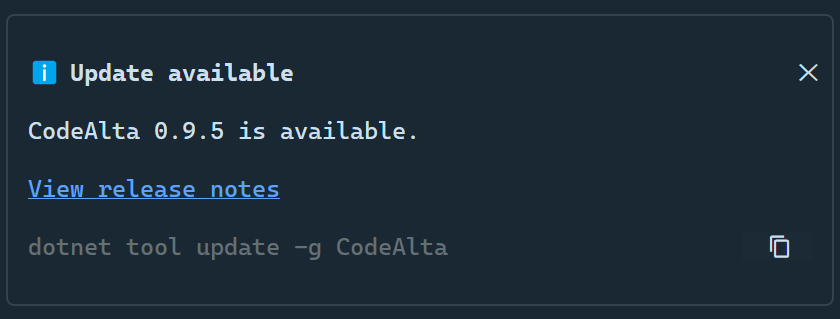
CodeAlta checks NuGet for a newer package at startup; CodeAlta Desktop checks again every ten minutes and when you open About. A notice gives the new version and its release notes:
- CodeAlta Desktop: Update and restart runs
dotnet tool update -g CodeAltaand starts again. - CodeAlta TUI: the notice shows
dotnet tool update -g CodeAlta.Tuito copy, and prints it again when you exit.
Close or keep running
CodeAlta Desktop opens its windows where you left them: same position and size, maximized or full screen, on a connected display.
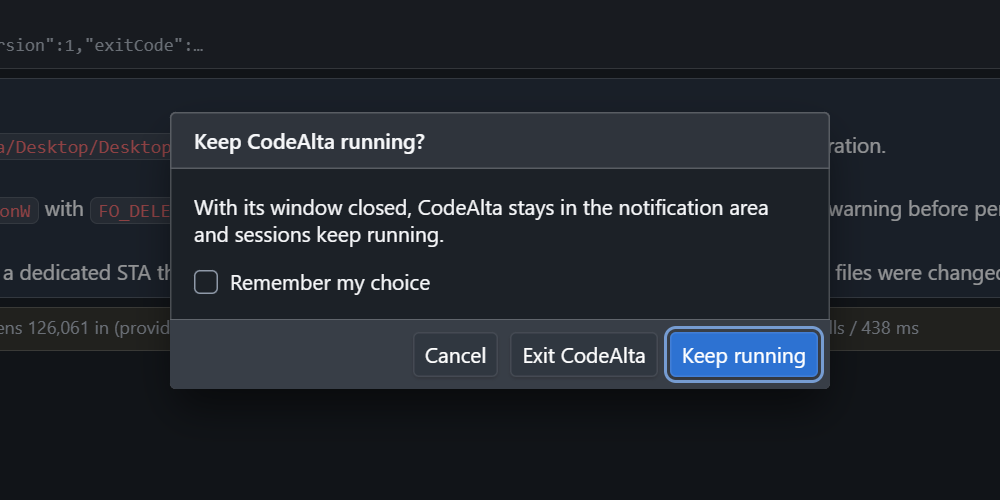
Closing the main window asks whether CodeAlta keeps running or exits. Keep running hides the windows and keeps the sessions running, with an icon in the notification area (in the Dock on macOS) to show them again or exit. Remember my choice stops the question; Settings > General > Startup and closing changes it later. Ctrl+Q exits, after a question when sessions are running.
While CodeAlta Desktop runs, your computer does not go to sleep on its own, so sessions, automations and reminders keep going; the display still turns off and the lid still sleeps. Turn off Keep computer awake when CodeAlta is running in Settings > General > Startup and closing to change that. On Linux this needs systemd-inhibit.