Desktop and TUI
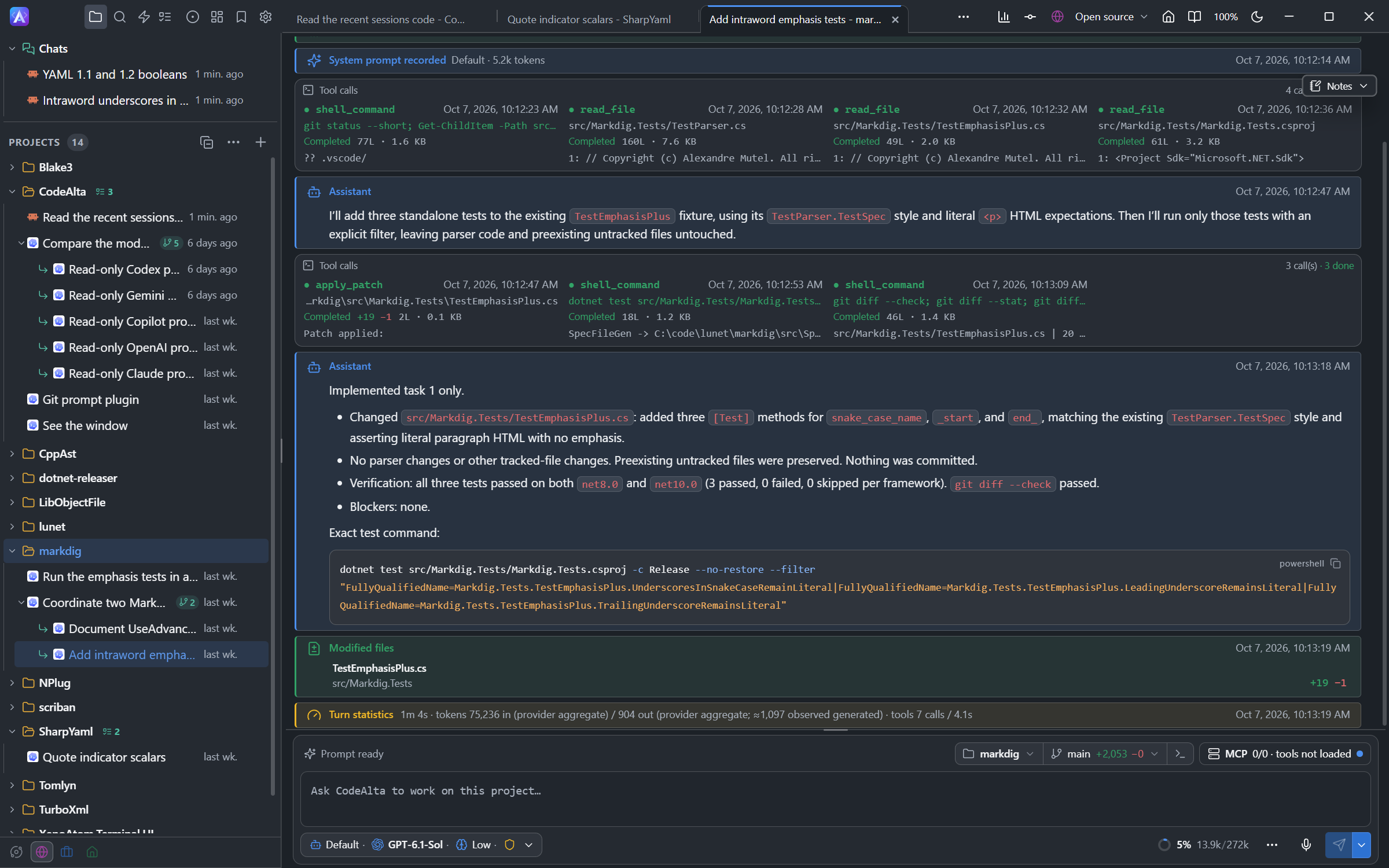
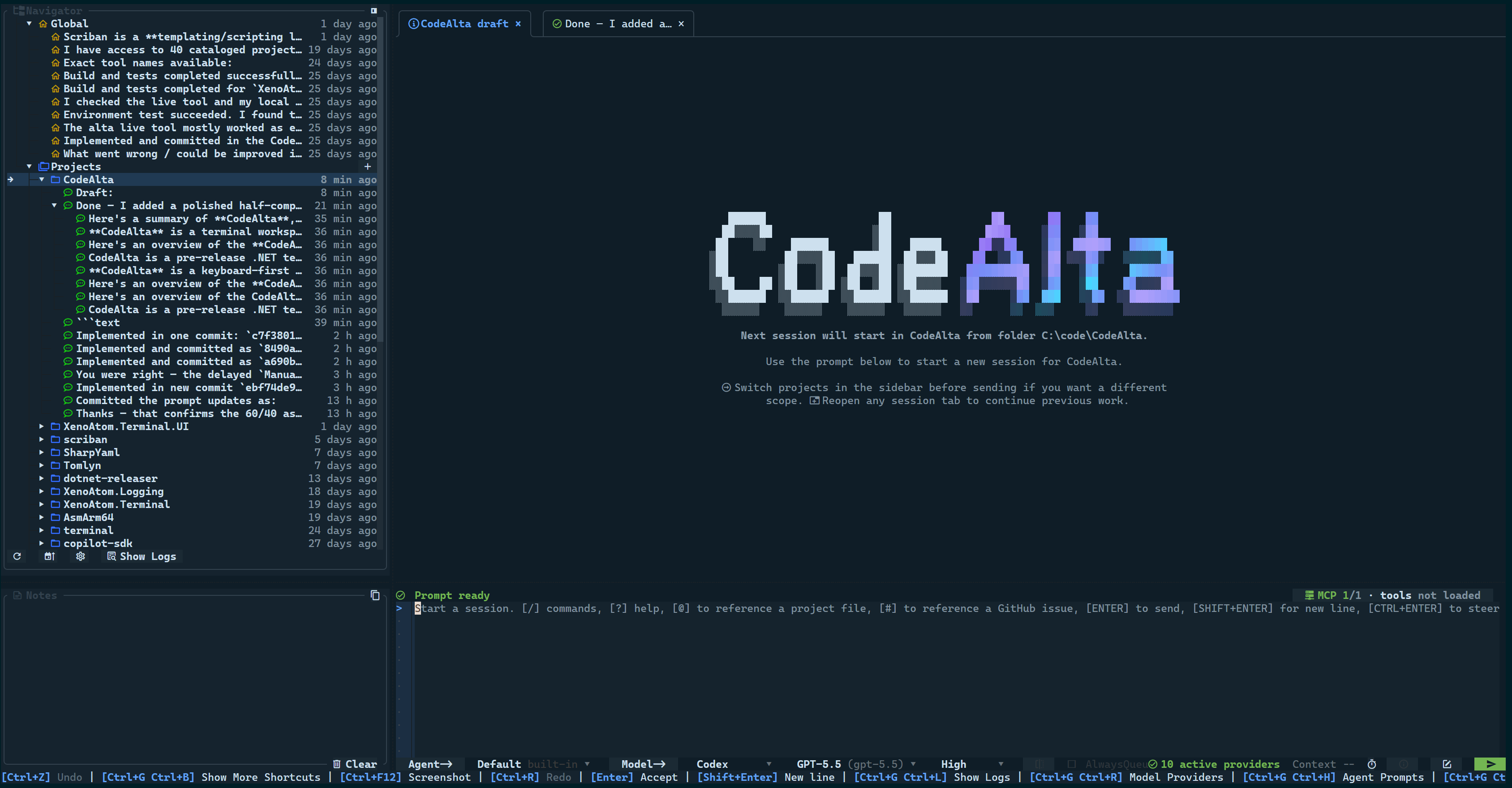
CodeAlta has two apps:
- CodeAlta Desktop (
alta) is the app we recommend. It has session tabs you can arrange or move to windows of their own, a code editor, terminals and git changes for your projects, automations, and a single Settings window. - CodeAlta TUI (
altatui) is a keyboard-first terminal UI, for when you want to stay in a terminal.
Both apps run the same agents: the same providers, tools, agent prompts, skills, MCP servers and plugins, on the same ~/.alta profile. This documentation applies to both. A third program, CodeAlta CLI (altacli), runs these agents without a window, for scripts and editors: see Command Line. Where the two apps differ, the page says so, and screenshots have a Desktop / TUI switch.
Install
dotnet tool install -g CodeAlta installs CodeAlta Desktop (alta); dotnet tool install -g CodeAlta.Tui installs the TUI (altatui). You can install both. See Getting Started for the requirements and the first launch.
Compare the two apps
| Desktop | TUI | |
|---|---|---|
| Agents | ||
| Model providers, sessions, agent prompts, skills, MCP servers, plugins | Yes | Yes |
| Delegated agents, prompt queue, steering, compaction | Yes | Yes |
| Model tiers: Complex, Standard or Quick instead of a model, with a fallback when a provider fails | Yes | Partly Through the agent |
| Archive sessions and restore them | Yes | Partly Through the agent |
| Dictate a prompt with a local speech model | Yes | No |
| Notes, reminders and asks | Yes | Yes |
| Background jobs: commands an agent starts without waiting for them | Yes Listed in the session, with their output | Partly Through the agent |
| Automations: prompts on a schedule, on a new issue or pull request | Yes | No |
| Issues and pull requests of the repository | Yes A tab, and # in a prompt | Partly # in a prompt, issues only |
| Work items: follow-up tasks and plans | Yes Cards in the session and a tab | Partly Through the agent |
| Reviews: comments on a plan, a file or the changes, sent with a verdict; review before commit | Yes | Partly A file an agent asks you to review, with line comments and a verdict; no review of changes |
| Bookmarks: messages and sessions to find again | Yes In the timeline and a tab | No |
| Worktrees: a session on its own branch, in its own folder | Yes Created, listed and removed in the app | Partly Sessions run in theirs |
| Agents that see and drive the app (UI tools) | Yes | No |
| MCP server for other applications | Yes | No |
| Review each tool permission request | Yes | Yes |
| Claude Code sessions shared with VS Code and a terminal | Yes Continue them, open them there | Partly Asks before continuing one open elsewhere, adds the turns made there |
| Workspace | ||
| Session tabs | Yes Reorder, split and merge panes | Partly One visible at a time |
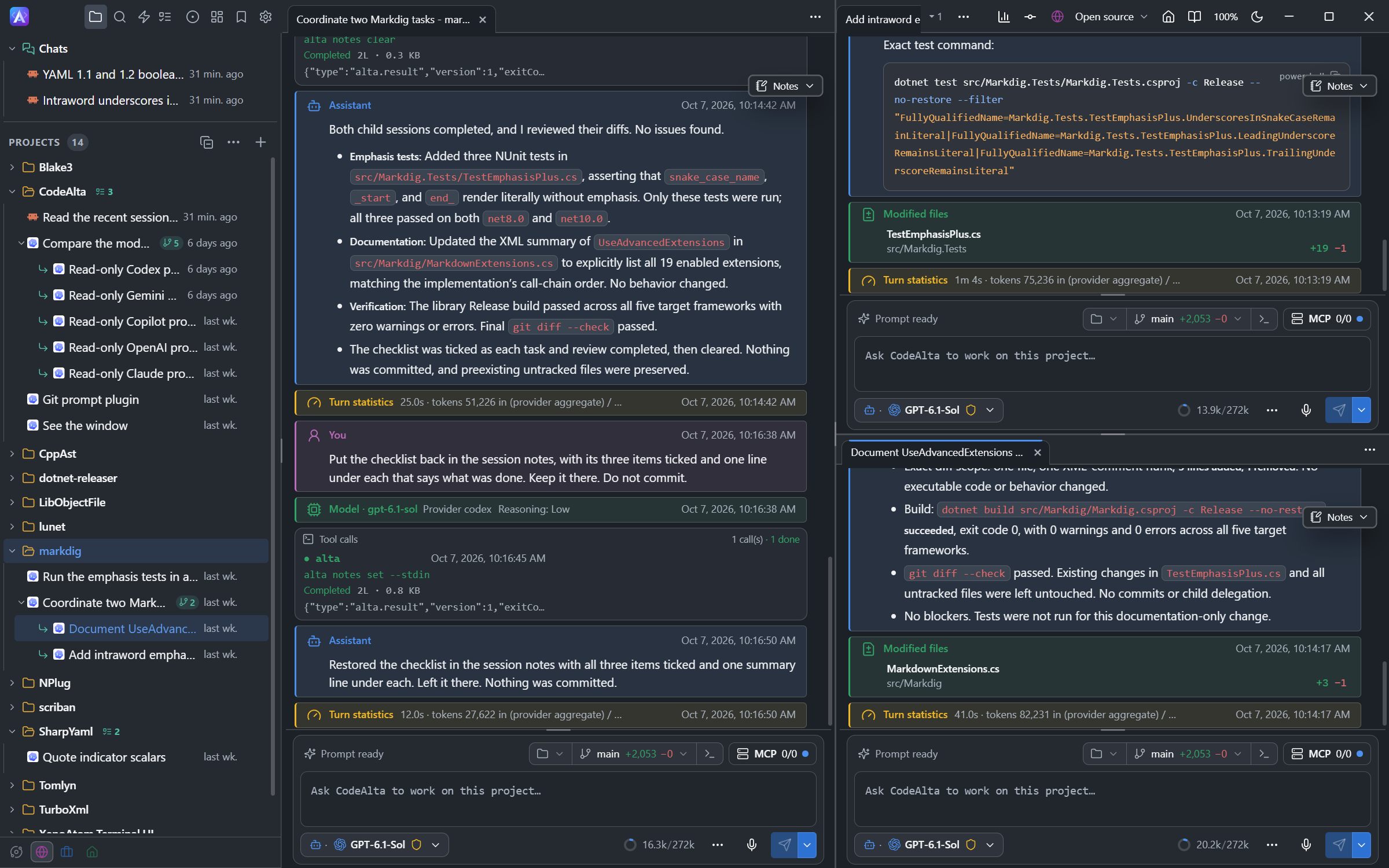
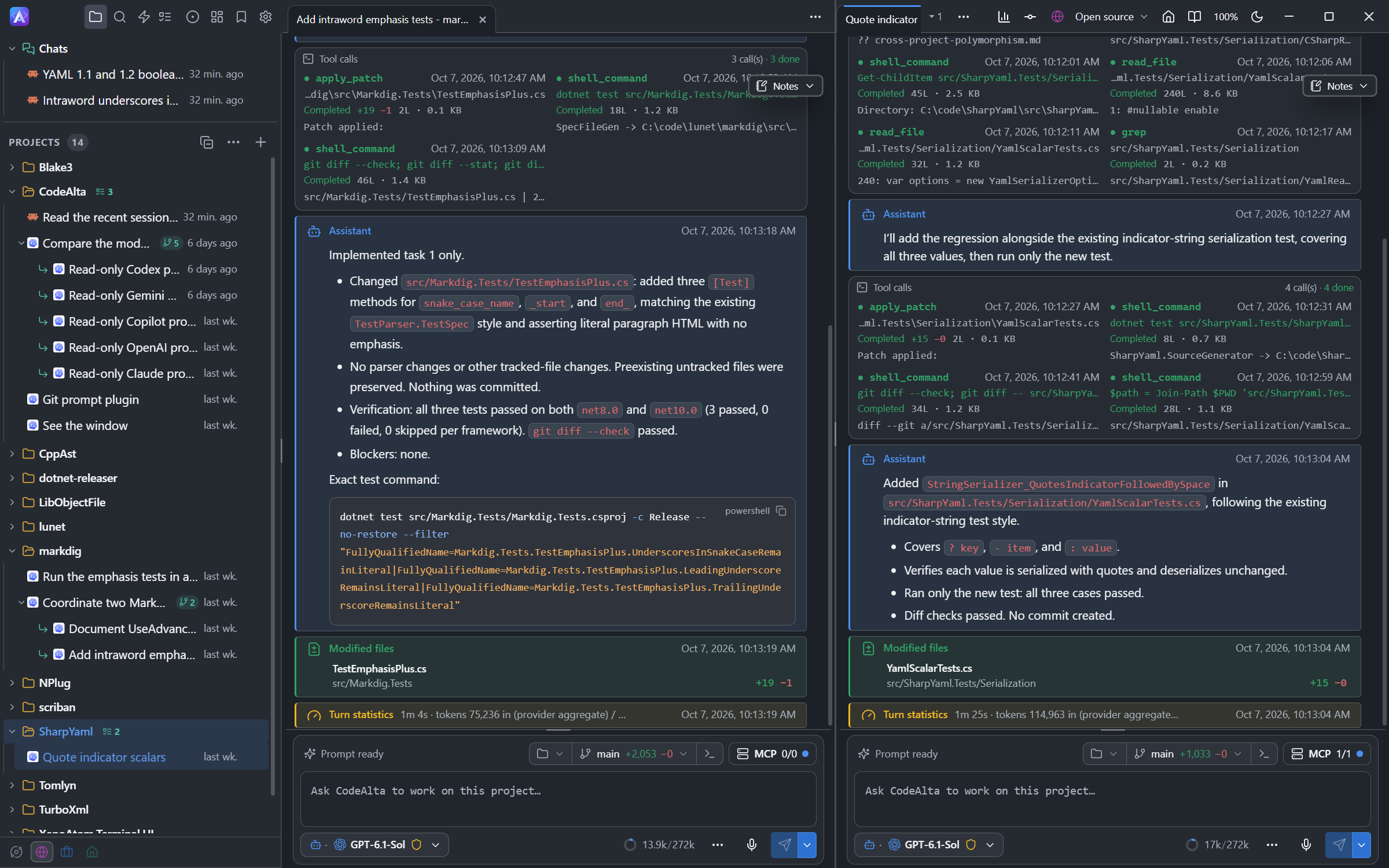
| Several windows: tabs moved or dragged out of the main window, named, colored, and back on their monitor at the next start | Yes | No |
| Several projects open in the sidebar, favorites first | Yes | Partly No favorites |
| Spaces: a setup for each kind of work, with its projects, chats, tabs, resources and identity | Yes | Partly Through the agent |
| One search for sessions, projects, files and commands | Yes | Partly Command palette |
| Code editor | Yes Files, search in files, file tabs | Partly One file per tab |
| Open a folder in your own editor (Visual Studio Code, Cursor, Zed…) or in the file manager | Yes | No |
| Git changes: changed files, commits, diffs, branches | Yes | No |
| Terminals, which agents can use too | Yes | No |
| Tool call details | Yes Live terminal, highlighted files and diffs | Yes Live text output |
| Math: LaTeX formulas, chemistry and footnotes in messages, an equation editor in the prompt | Yes | Partly Shown as written |
| Images pasted in a prompt or read by an agent | Yes Thumbnails and previews | Partly In terminals that show images |
| Statistics: the numbers of all your sessions as dashboards, with the Statistics plugin | Yes A page in a tab | Partly The card of each turn |
| The sessions on a phone, through Tailscale, with the Mobile plugin | Yes | No |
| This guide in the app, with a search and a question for an agent | Yes A tab | Partly Through the agent |
| Notes of a session | Yes Movable window | Yes Sidebar panel |
| Plugins | ||
| Run plugins | Yes | Yes |
| Create, edit and reload a plugin while the app runs | Yes | No Built at start |
| Ask an agent to write a plugin and try it | Yes | No |
| Canvases: tabs that plugins provide, listed in one page and opened by you or by an agent | Yes | No |
| Buttons that plugins add to the window: the title bar, the navigation rail and the menus of projects and sessions | Yes | No |
| Plugin dialogs and content | Yes App components, HTML, Markdown, diagrams | Yes Terminal controls |
| Application | ||
| Settings | Yes One window, a page per area | Yes A dialog per area |
| Appearance | Yes Light, dark or system, 13 color schemes | Yes Terminal themes |
| Keeps running in the notification area | Yes | No |
| Update and restart from the app | Yes | No Shows the command to run |
| Works without a Nerd Font | Yes | No |
| Runs in a terminal | No | Yes |
| Copy the UI as an image | No | Yes Ctrl+F12 |
Which one to use
Use CodeAlta Desktop for daily work: it shows more at once, and it has features that the TUI does not have. Use CodeAlta TUI when you want to stay in a terminal.
What is shared
Everything under ~/.alta/ is common to both apps:
config.toml, model providers and their credentials;- the project catalog, its spaces and all sessions, with their timelines, notes and pasted images;
- agent prompts, system prompts and skills;
- MCP server configuration and plugins.
A session started in one app can be continued in the other. Only one CodeAlta runs on a profile at a time: close one app before starting the other.
Appearance is not shared: the desktop app keeps its theme, color scheme, open tabs and window layout in its own application data, and the TUI keeps its theme and navigator settings in ~/.alta/ui-state.yaml.
What the desktop app adds
Panes and windows
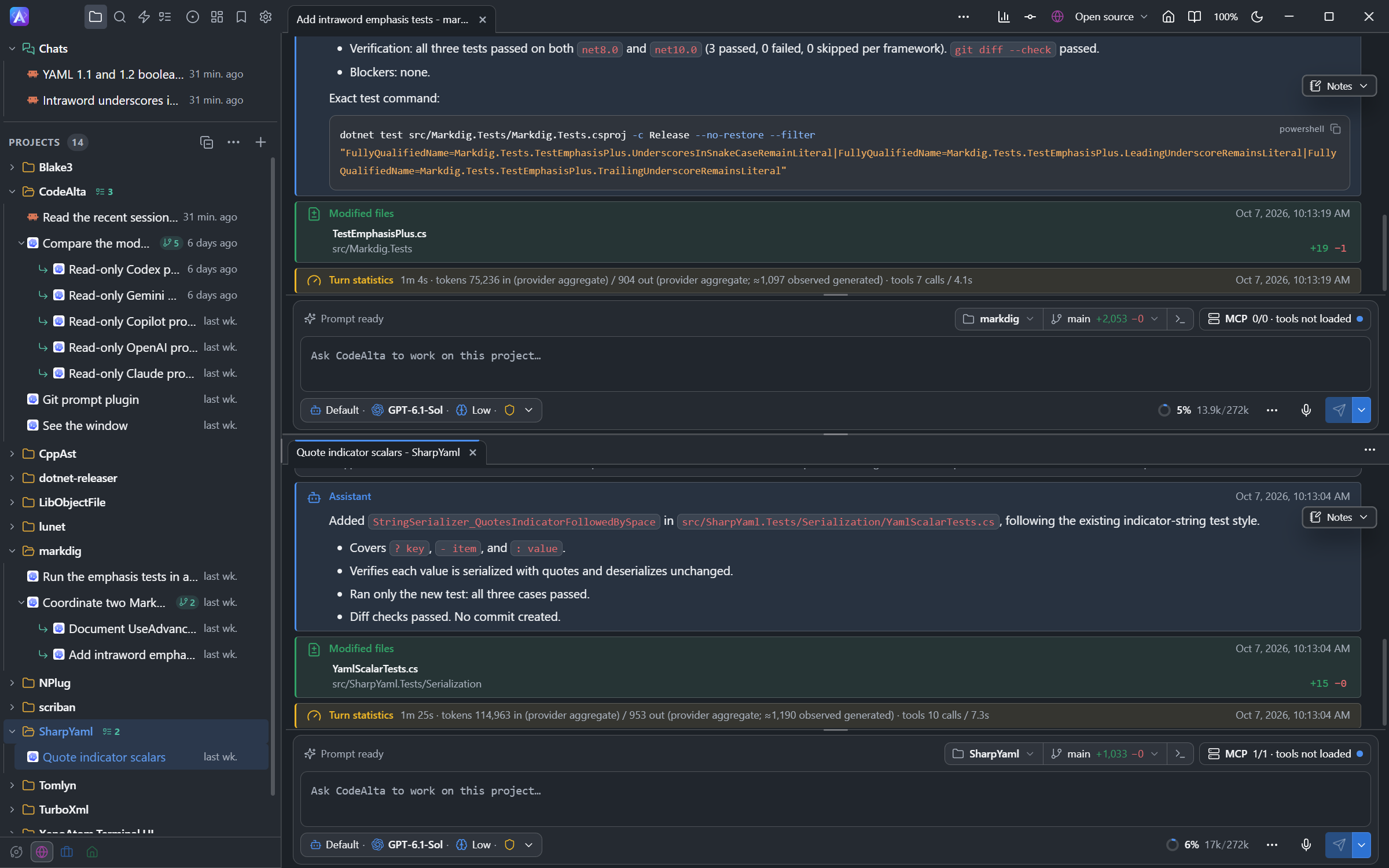
Drag a session tab along the tab strip to reorder it, to the edge of a pane to split the window, or to the center of another pane to merge; the tab menu also has Split right and Split below. Each pane has its own prompt, and tabs of different projects stay open together. A tab can also move to a window of its own, for example on a second monitor: see Windows.
Code editor
The </> button of a project in the sidebar, or Ctrl+E Ctrl+E, opens the code editor of the project: its files, a search in files, and the open files as tabs. You can create, rename, move and delete files there. See Code editor.
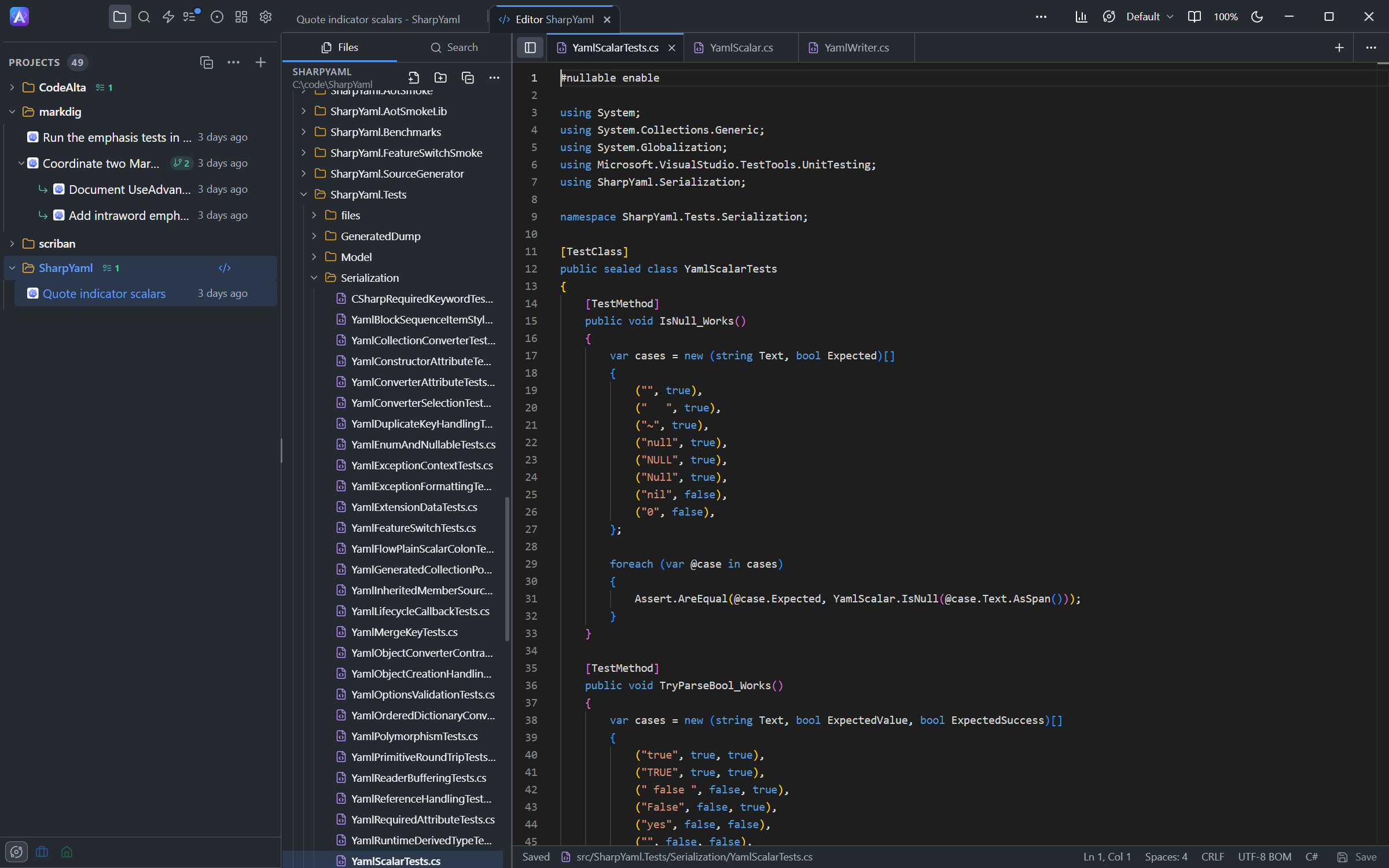
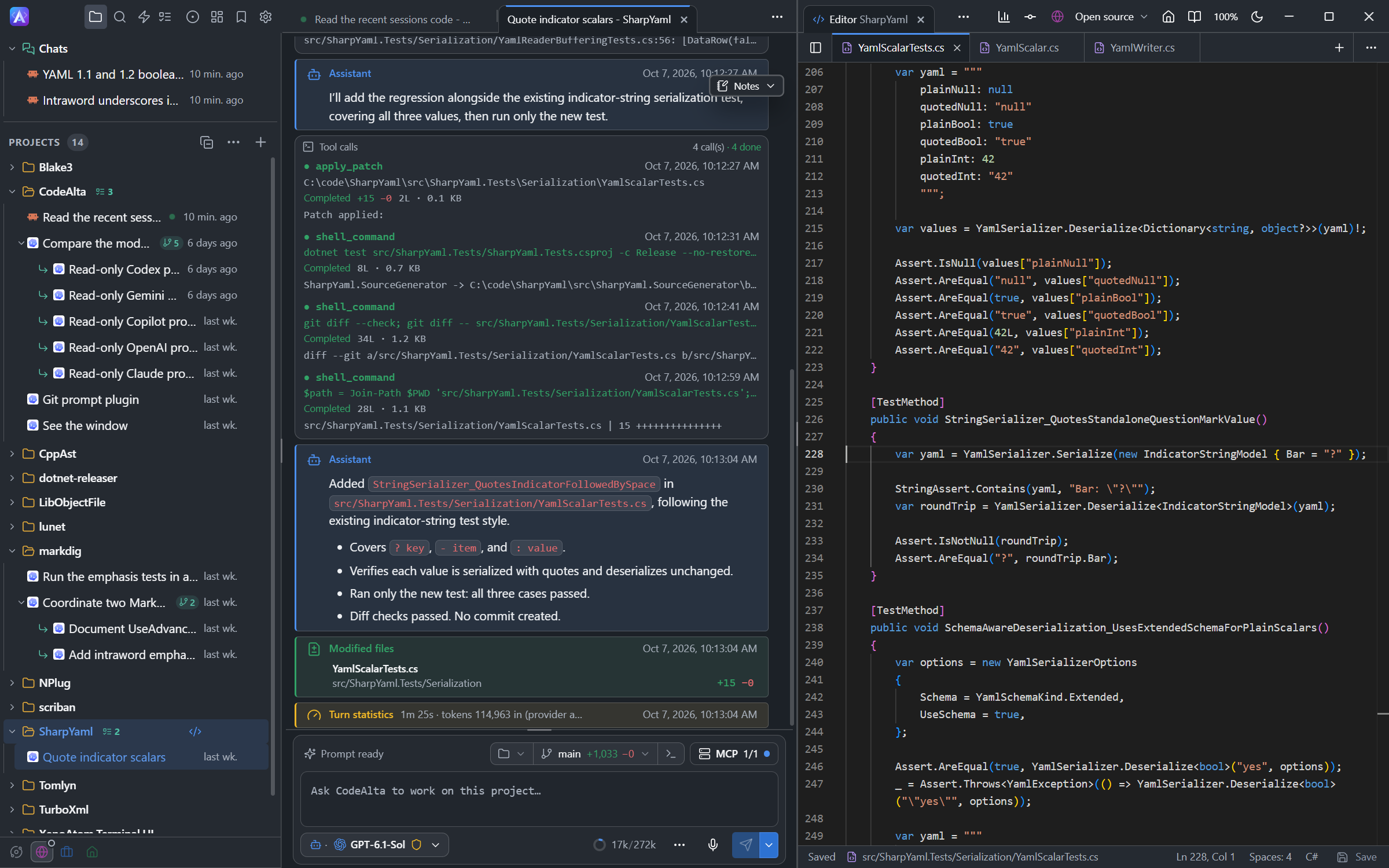
Ctrl+E opens one file with the files hidden. The editor is a tab like a session, so it can stay beside the session that works on the file.
Terminals
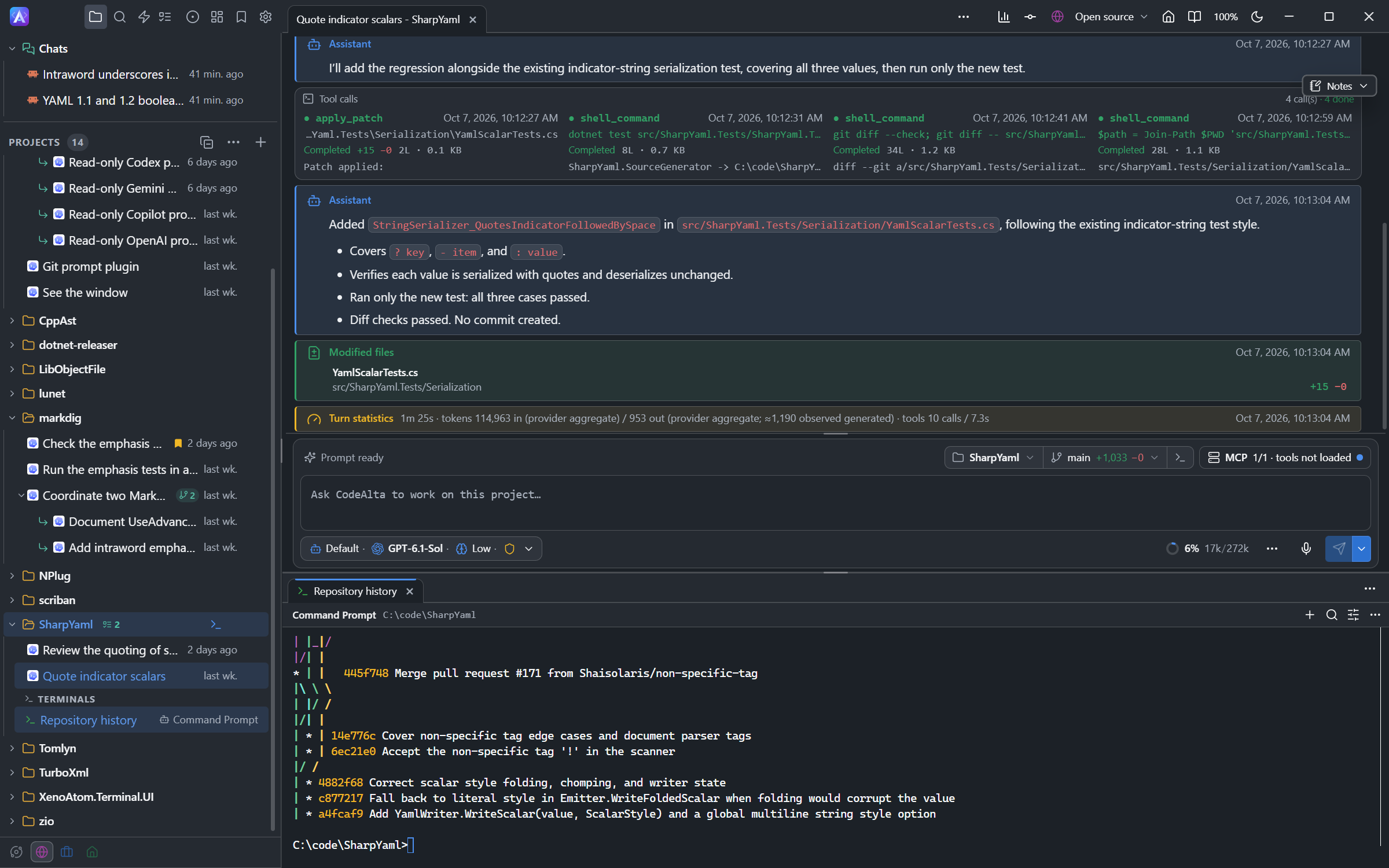
The terminal button of a project in the sidebar, or Ctrl+` , opens a terminal in the folder of the project. It keeps running when its tab is closed, and agents can use it too. See Terminal.
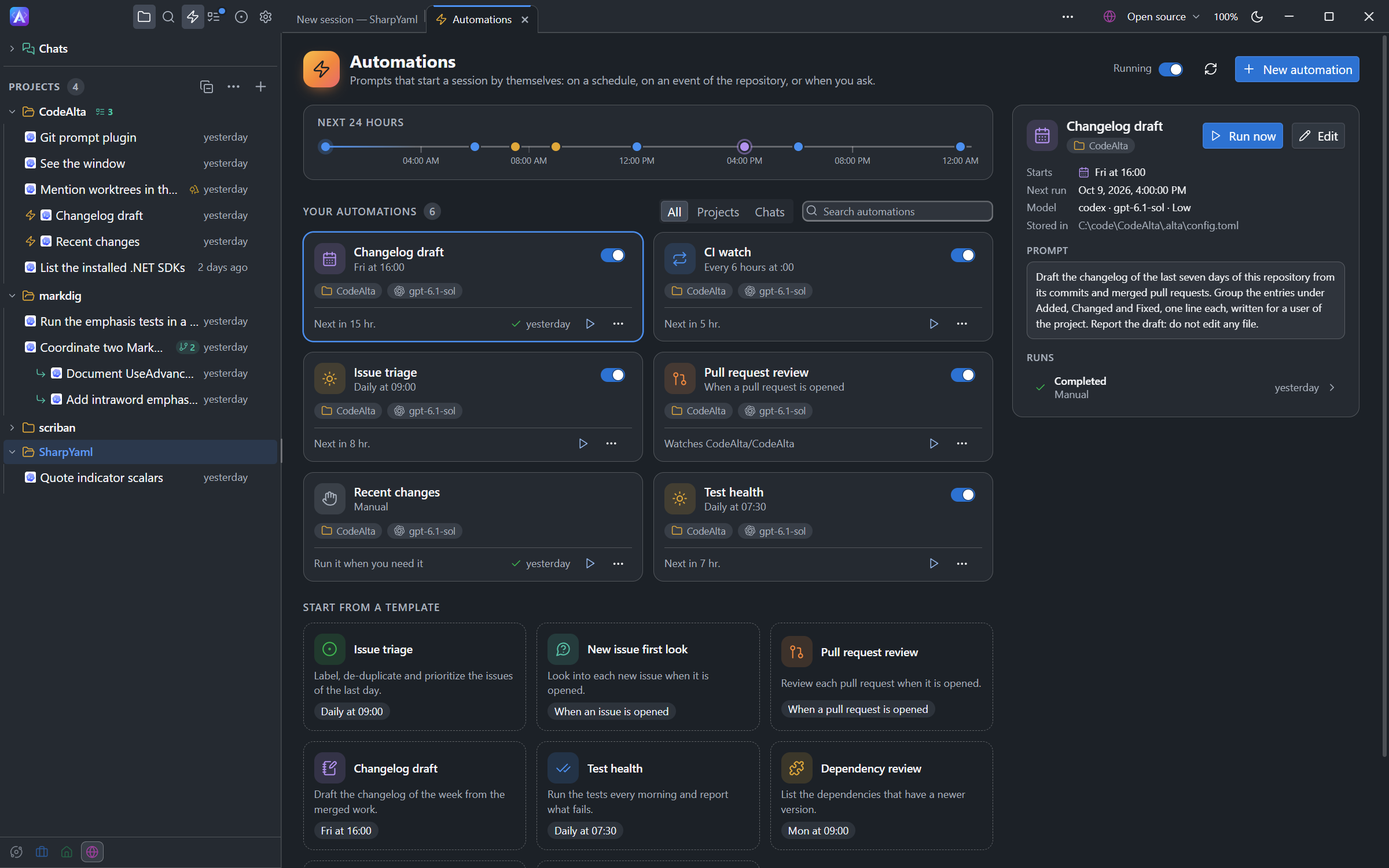
Automations
An automation sends a prompt by itself: every morning, every Friday, or when an issue or a pull request is opened. Each run starts a new session. See Automations.
Worktrees
A session can work in its own git worktree, on its own branch, so that several sessions change the same project at the same time. See Worktrees.
UI tools
An agent can take a screenshot of the window, read what it shows, click and type. Other applications do the same through the MCP server of CodeAlta Desktop. See UI tools and MCP server.
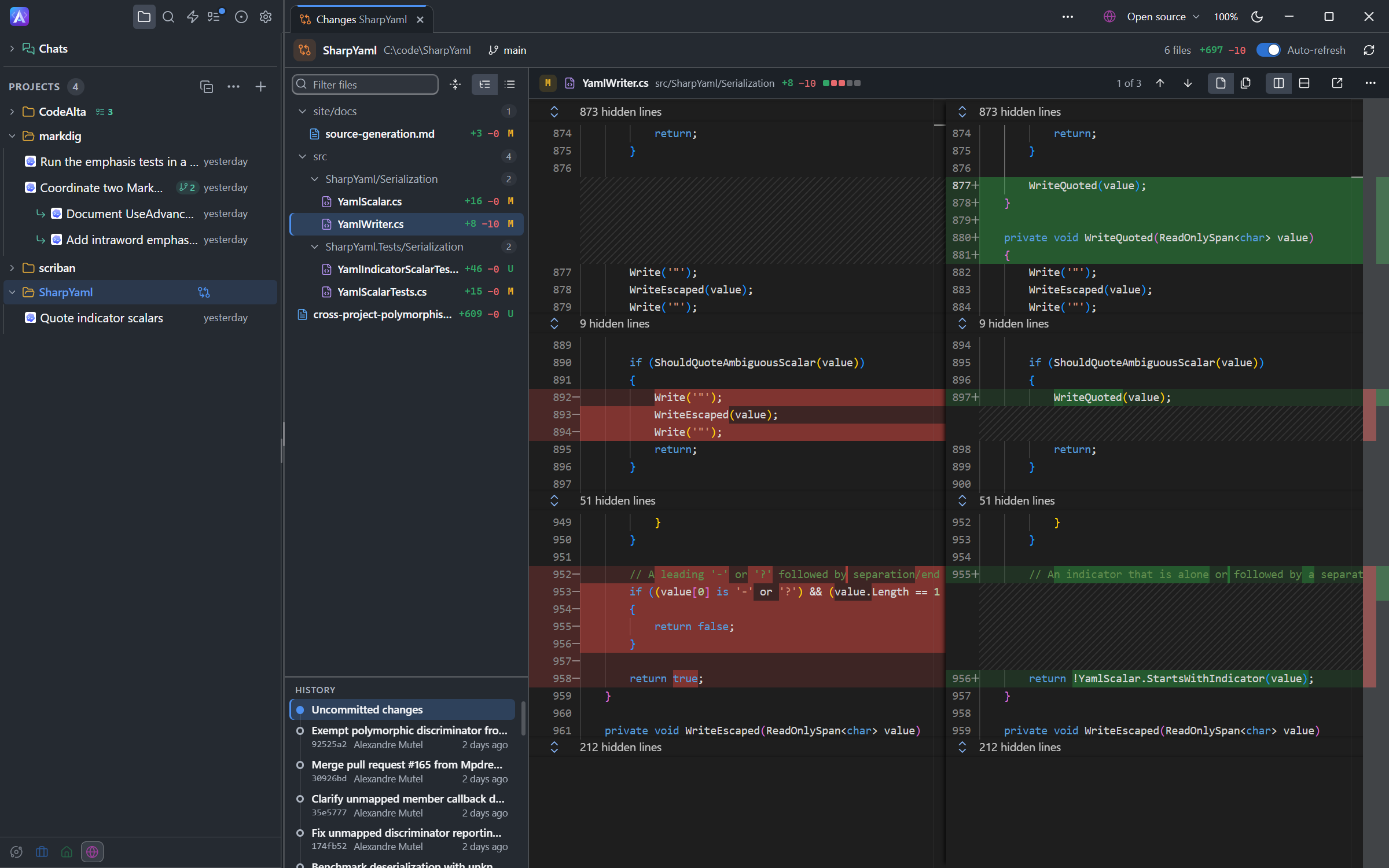
Review changes
The Changes tab of a project lists the changed files and recent commits, with the diff of the selected file. Open it from the + / − numbers of the Workspace chip above the prompt, or the changes button of a project in the sidebar. See Changes.
Review in its header comments on the lines of the diffs as in a pull request and sends your comments to a session with a verdict. With Review before commit, agents wait for your approval before they commit. See Reviews.
Projects at hand
Several projects can stay open in the sidebar, each with its sessions, and CodeAlta shows them the same way at the next start. Favorite projects are listed first. See Projects sidebar.
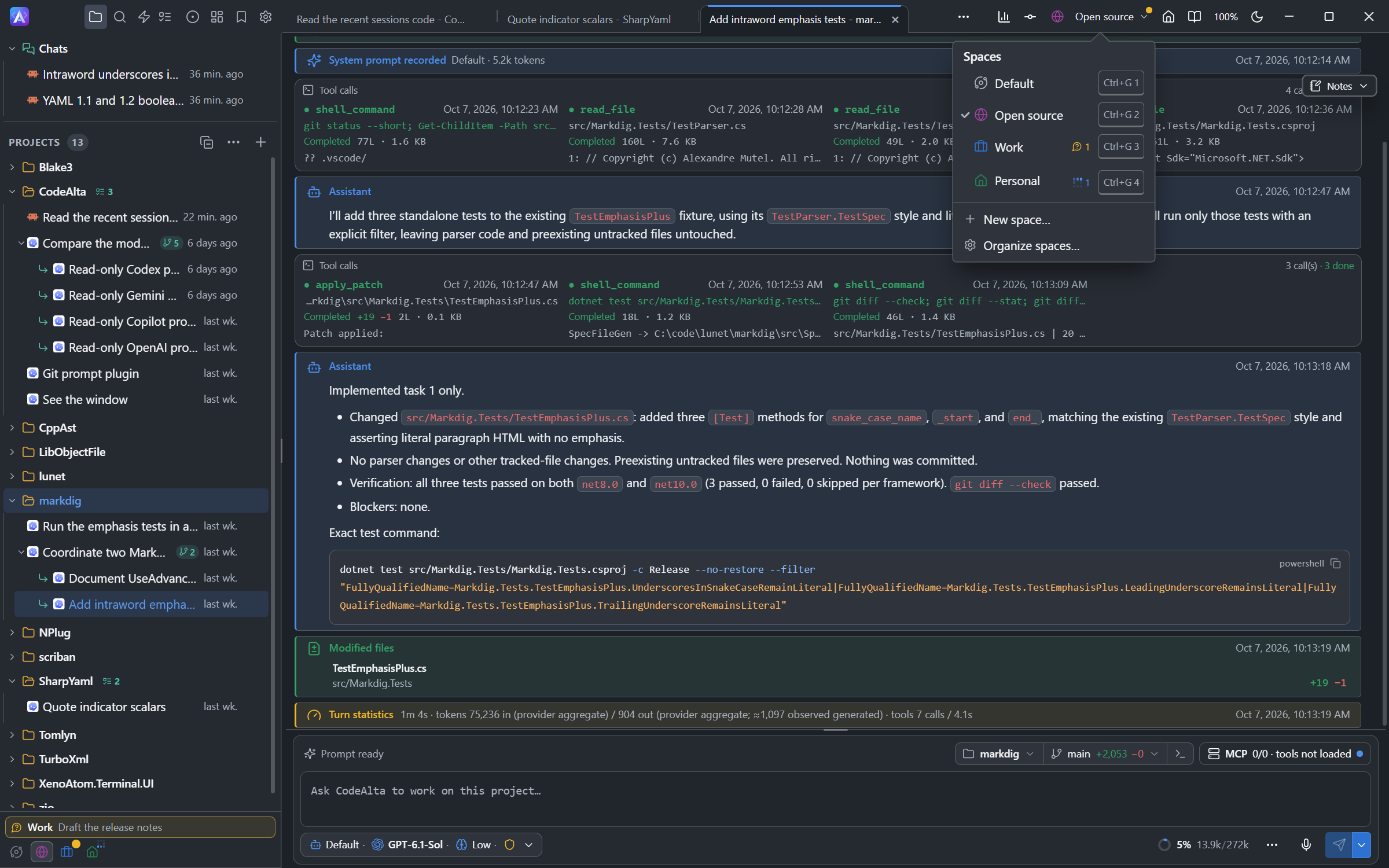
Spaces
A space is a setup for one kind of work, such as Work or Personal: its projects and chats, the providers, MCP servers, skills, agent prompts and plugins of its sessions, and the Git, GitHub, Jira and command line identity they work under. The window shows one space at a time and tells you when a session waits for you in another. CodeAlta TUI has no spaces: it lists every project. See Spaces.
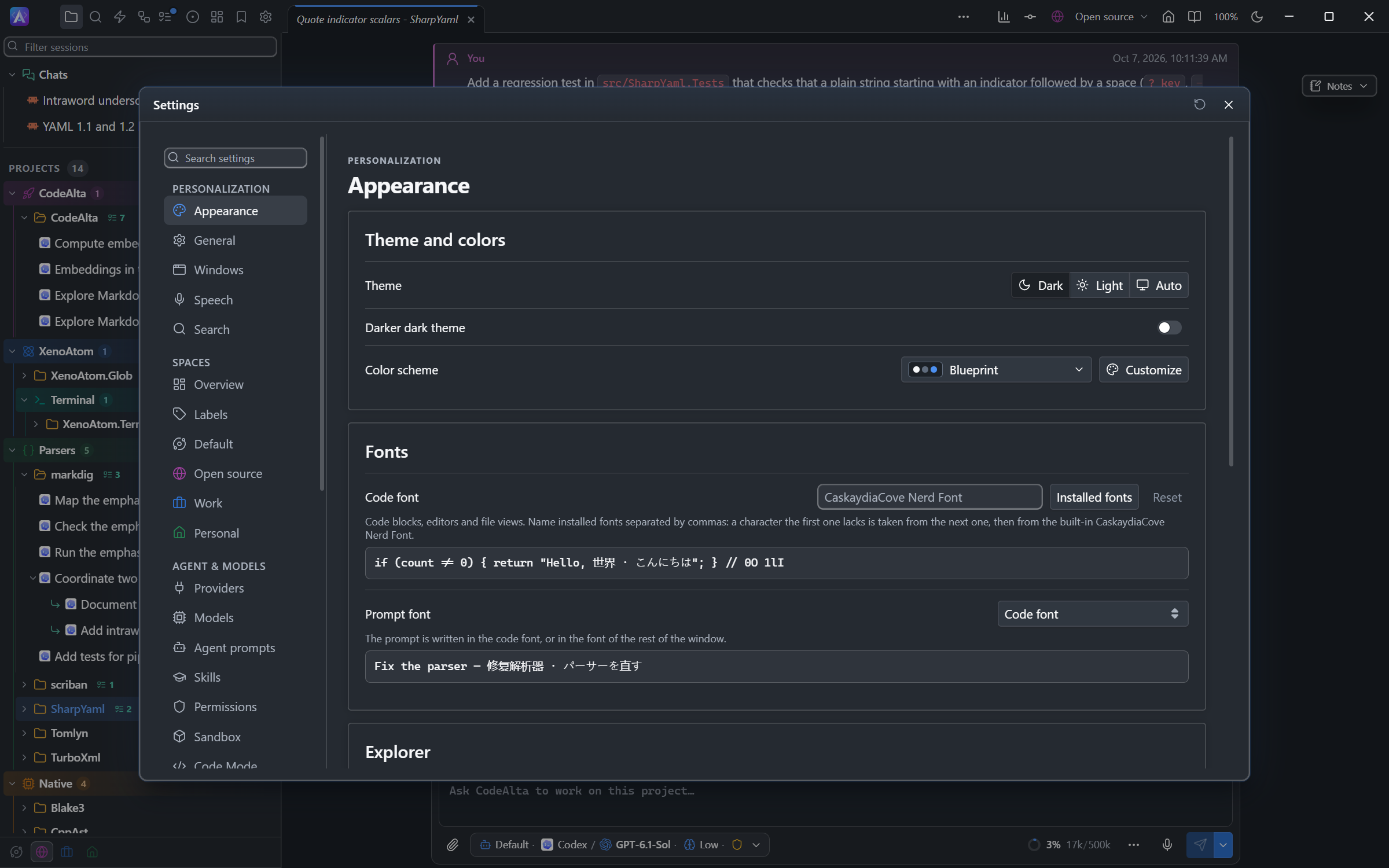
One Settings window
The TUI opens a dialog for each area. The desktop app has them as pages of one window: Appearance (the opening page), General, Windows, Speech, Spaces (a page for each space), Sessions, Permissions, Providers, Models, Agent prompts, Skills, Plugins, MCP Servers, Configuration file, Application Logs and About.
Floating windows
Tool details, file diffs, context usage, session info, the session browser and the Notes of a session open as windows you can move and resize over the workspace. The window of a tool call follows it while it runs: a command shows its output in a terminal, a file its lines or its diff, and a patch a tab per file. See Tool calls.
Runs in the background
Closing the main window can keep CodeAlta running in the notification area, with its sessions. CodeAlta asks whether to keep running or to exit, and remembers the answer with Remember my choice; Settings > General > Startup and closing > When the window is closed changes it.
- The tray icon opens the window again or exits. Exiting while sessions run asks first.
- On Windows, the taskbar button shows progress while a session runs or queued prompts are sent.
- On macOS, CodeAlta started from the Applications folder, Launchpad, Spotlight or the Dock stays in the Dock, without a menu bar icon; its Dock icon opens the window again.
- While CodeAlta runs, the computer does not go to sleep on its own (the display still turns off), so automations and reminders keep going. Keep computer awake when CodeAlta is running, in the same place, turns it off.
On macOS the menu bar has the standard items: Quit CodeAlta (⌘Q), Hide (⌘H), Minimize (⌘M), Close (⌘W), and the Edit menu. ⌘W closes the window as its close button does; ⌘Q exits.
Started by another program
A program that starts CodeAlta Desktop and exits it by itself, such as a bot that restarts it after an update, starts it with alta --automated, or sets CODEALTA_AUTOMATED=1 in its environment. Closing the window, alta --exit, Exit in the notification area and, on macOS and Linux, SIGTERM or SIGINT then ask nothing and never keep CodeAlta running in the background:
- CodeAlta exits once no session is at work. Until then a notice says so, with Exit now, which stops the sessions.
- Files with unsaved edits are not saved.
- Terminals that run a command do not hold the exit.
Updates from the app
The desktop app checks for new versions at startup and every ten minutes, also from the notification area. A new version shows a notice with Update and restart in the bottom-right corner until you dismiss it; Settings > About keeps the update available afterwards. The TUI shows the dotnet tool update command to run.
On macOS, the desktop app warns at startup when it runs on a .NET runtime older than 10.0.13, which can make it crash hours later. Download .NET opens the .NET 10 download page: install the latest .NET 10 runtime, then start CodeAlta again.
Same feature, another name
| Desktop | TUI | |
|---|---|---|
| Command | alta |
altatui |
| Sessions of no project | Chats, first in the sidebar | Global sessions |
| Queue every prompt, also when idle | Enqueue until idle in the Send options | AlwaysQueue checkbox |
Desktop limitations
The --no-plugins and --plugin-safe-mode options belong to the TUI. Set CODEALTA_DISABLE_PLUGINS=1 to start the desktop app without plugins.
A plugin written with terminal controls only shows its plain text or Markdown form on the desktop. See Plugin development.