UI tools and MCP server
An agent can see and drive the window of CodeAlta Desktop: take a screenshot, read what the window shows, click and type. A CodeAlta session does it for its own window; another application, such as Claude Code or Codex, does it through CodeAlta's MCP server.
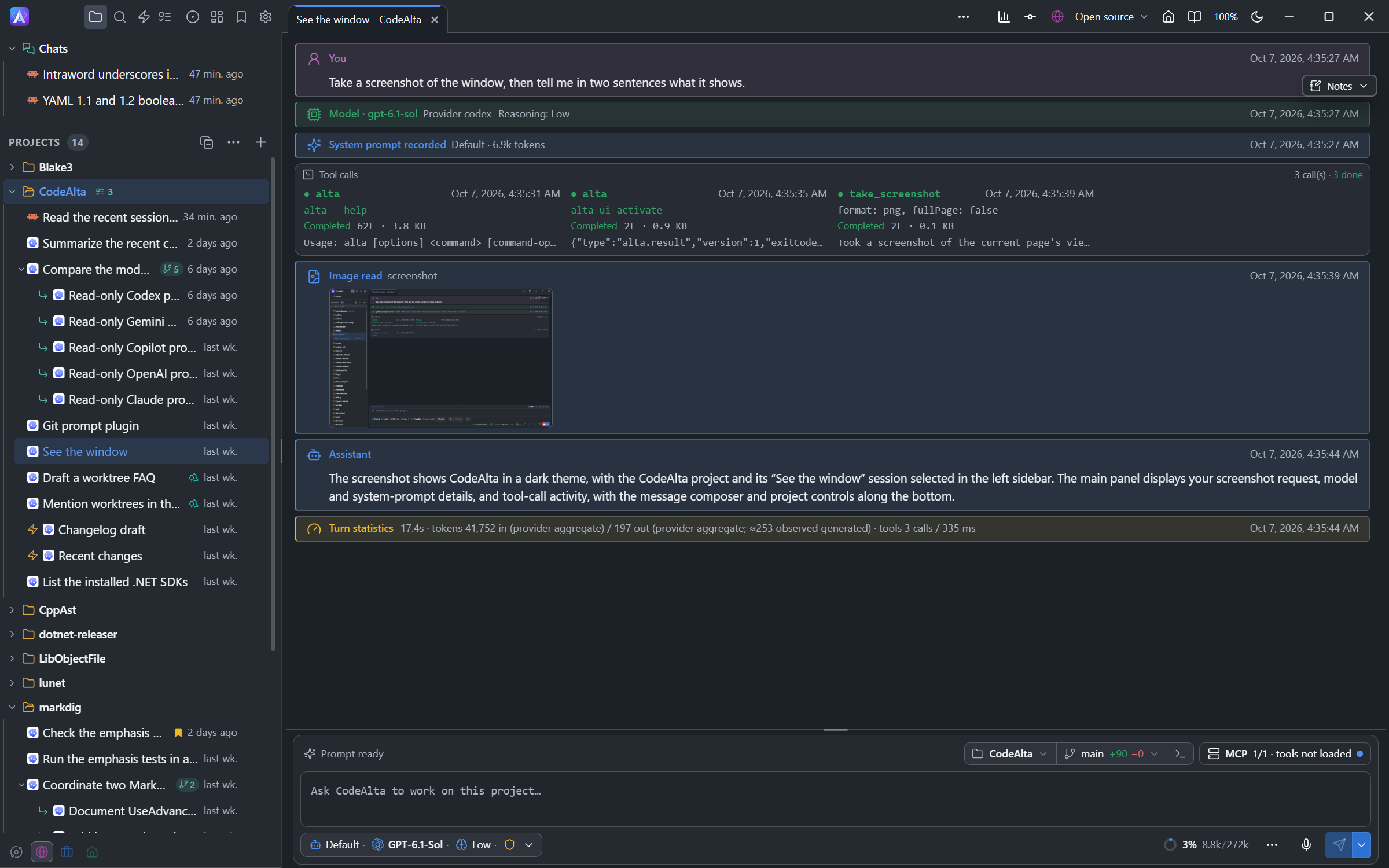
The tools exist in CodeAlta Desktop only, with the names of Chrome DevTools MCP, which agents already know. To drive a web browser (Chrome, Edge, Firefox, Safari) instead, see Browser tools: a session has one set or the other.
Let an agent look at the window
Ask in your own words, in any session:
Take a screenshot of the window and tell me what the Changes tab shows.
Open Settings, go to Appearance and switch to the light theme.
The agent turns the tools on for its session, then uses them. A screenshot appears in the timeline, in an Image read card.
Connect another application
CodeAlta Desktop runs an MCP server on your computer. Open Settings, then CodeAlta MCP.
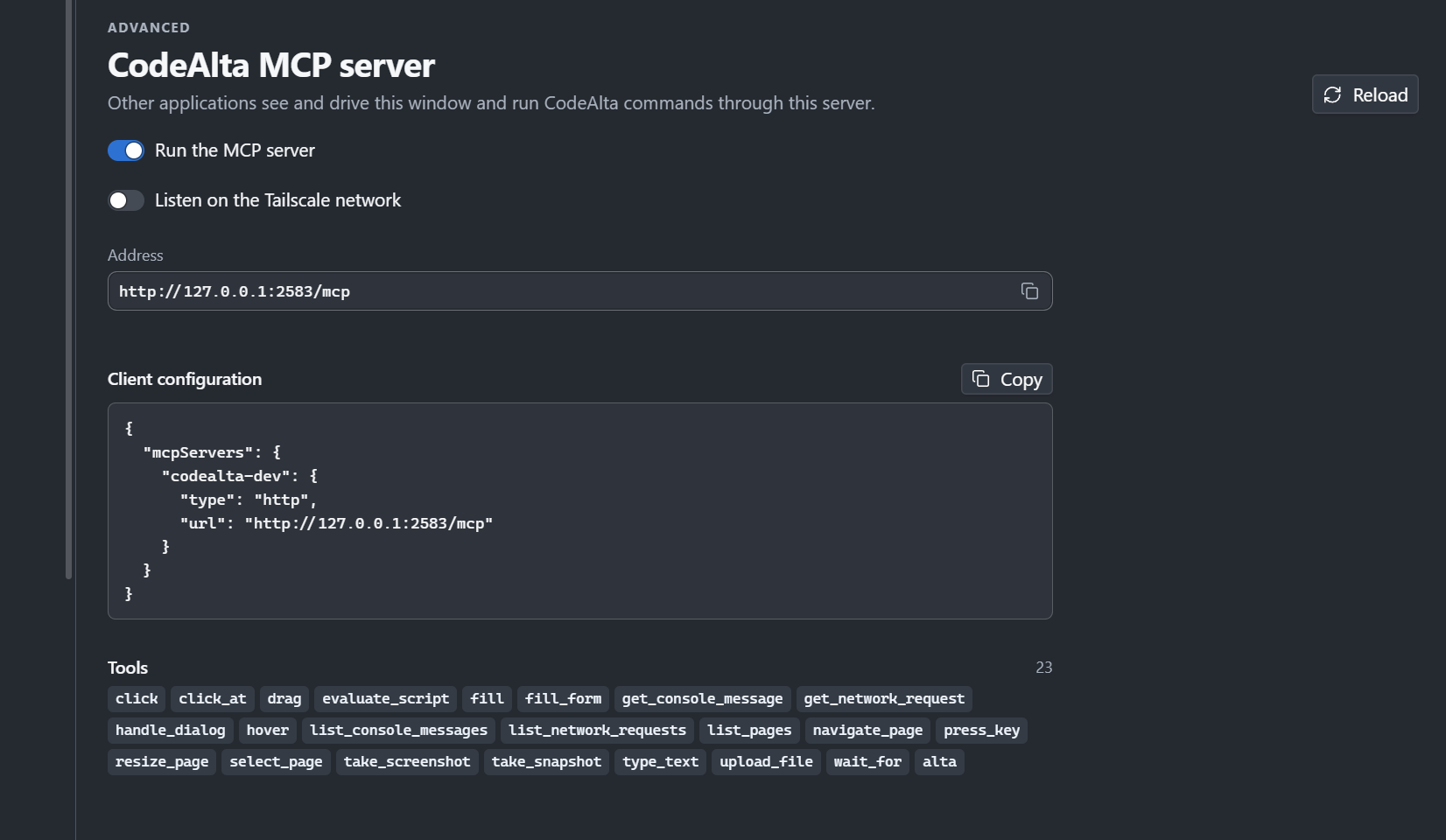
- Click Copy beside Client configuration.
- Paste it into the MCP configuration of the other application, for example the
.mcp.jsonfile of a project for Claude Code.
{
  "mcpServers": {
    "codealta": {
      "type": "http",
      "url": "http://127.0.0.1:2582/mcp"
    }
  }
}
The application then has the tools of the window, and alta, which runs the commands of CodeAlta: list the projects and the sessions, create a session, send it a prompt.
Tools
| Tool | What it does |
|---|---|
take_snapshot |
Lists what the window shows, as text. Each element has an identifier that the other tools take. |
take_screenshot |
Takes a picture of the window or of one element. filePath saves it to a file. |
click, click_at, hover, drag |
Use the pointer. |
fill, fill_form, type_text, press_key |
Write text and press keys. |
wait_for |
Waits for a text to appear. |
evaluate_script |
Runs JavaScript in the page of the window. |
list_console_messages, list_network_requests |
Read the console and the requests of the page. |
resize_page |
Gives the window a size. |
list_pages, select_page |
List the windows of CodeAlta Desktop, and choose the one the other tools act on. |
alta |
Runs a command of CodeAlta. In the MCP server only: a session has it already. |
Several windows
With tabs moved into other windows, each window is a page. list_pages lists them, main window first, and marks the selected one. The other tools act on the selected window: the main one until an agent picks another with select_page.
The selection is shared by every session and connected application. Ask an agent to select the window it needs before acting, and to return to the main window when done. alta window list --tabs tells what each window holds.
Address of the server
- The server listens at
http://127.0.0.1:2582/mcp. Only programs on your computer reach it. alta --mcp-port <port>starts CodeAlta with another port. When the usual port is taken, CodeAlta takes a free one: Settings shows the address, and the file~/.alta/mcp_url.txtholds it.- On a Tailscale network, turn on Listen on the Tailscale network: the other computers of your tailnet reach the server by the name of your computer there, such as
http://my-pc.tailnet-name.ts.net:2582/mcp, and send the access token. The programs of your computer keep reaching it at127.0.0.1. When Tailscale is not running, the server listens on your computer only. The developer instance keeps its own choice. alta --mcp-host <address>listens on another address of your computer, in place of the Tailscale switch. Other computers then reach the server, and send the access token that Settings shows.- The address can be a name of your computer, such as its name on a Tailscale network:
alta --mcp-host my-pc.tailnet-name.ts.net. The server listens on the addresses of that name, and Settings gives the name to clients, for those that do not accept an IP address. - Turn off Run the MCP server to stop it. CodeAlta remembers the choice.
Good to know
- An application connected to the server can do in CodeAlta what you can do. Turn the server off on a computer you share with other people.
- An agent saves a screenshot with
filePath. A session saves in the folder it works in. - To keep sessions from driving the window, turn off the UI tools plugin in Settings, Plugins.
- A session whose permission mode asks before commands does not have the tools: it could answer its own requests in the window.
- The buttons of the title bar are drawn by the system: a screenshot does not show them.