Mobile plugin
The built-in Mobile plugin of CodeAlta Desktop shows the sessions of your computer on a phone. You follow a session as it runs, read its timeline, answer it, steer a turn that runs, stop it, and start a new session, from the phone. The phone reaches the computer through Tailscale, on your own tailnet.
What you need
- CodeAlta Desktop on the computer.
- Tailscale on the computer and on the phone, signed in to the same tailnet.
- On the tailnet, MagicDNS, HTTPS certificates and Tailscale Serve. The DNS page of the Tailscale admin console turns on the first two. The first time the plugin publishes the computer, Tailscale gives a link that turns on Serve: the Mobile tab shows it.
Turn it on
The plugin is off until you turn it on: it publishes your computer on your tailnet.
- Open Settings > Plugins and turn on Mobile.
- Open the Mobile tab with the phone button of the title bar,
Ctrl+G M, or Mobile: connect a phone in the search of the window (Ctrl+P). - Scan the QR code with the camera of the phone.
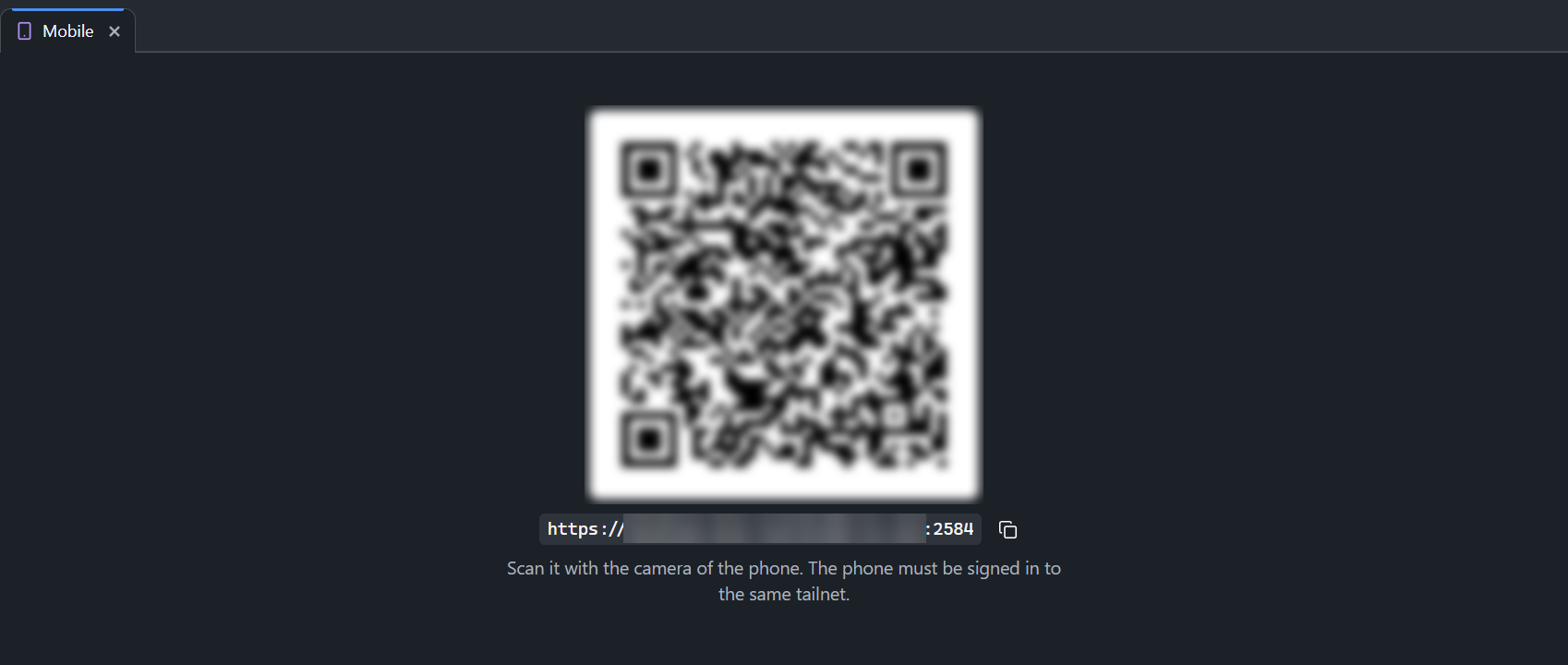
The phone opens the page of the sessions and stays signed in. Add it to the home screen to open it as an app.
When something keeps a phone from connecting, the Mobile tab says what it is and how to fix it: Tailscale is not installed, not signed in, Serve is not enabled on the tailnet, or the port is used by something else. Try again asks Tailscale again once it is fixed.
On the phone
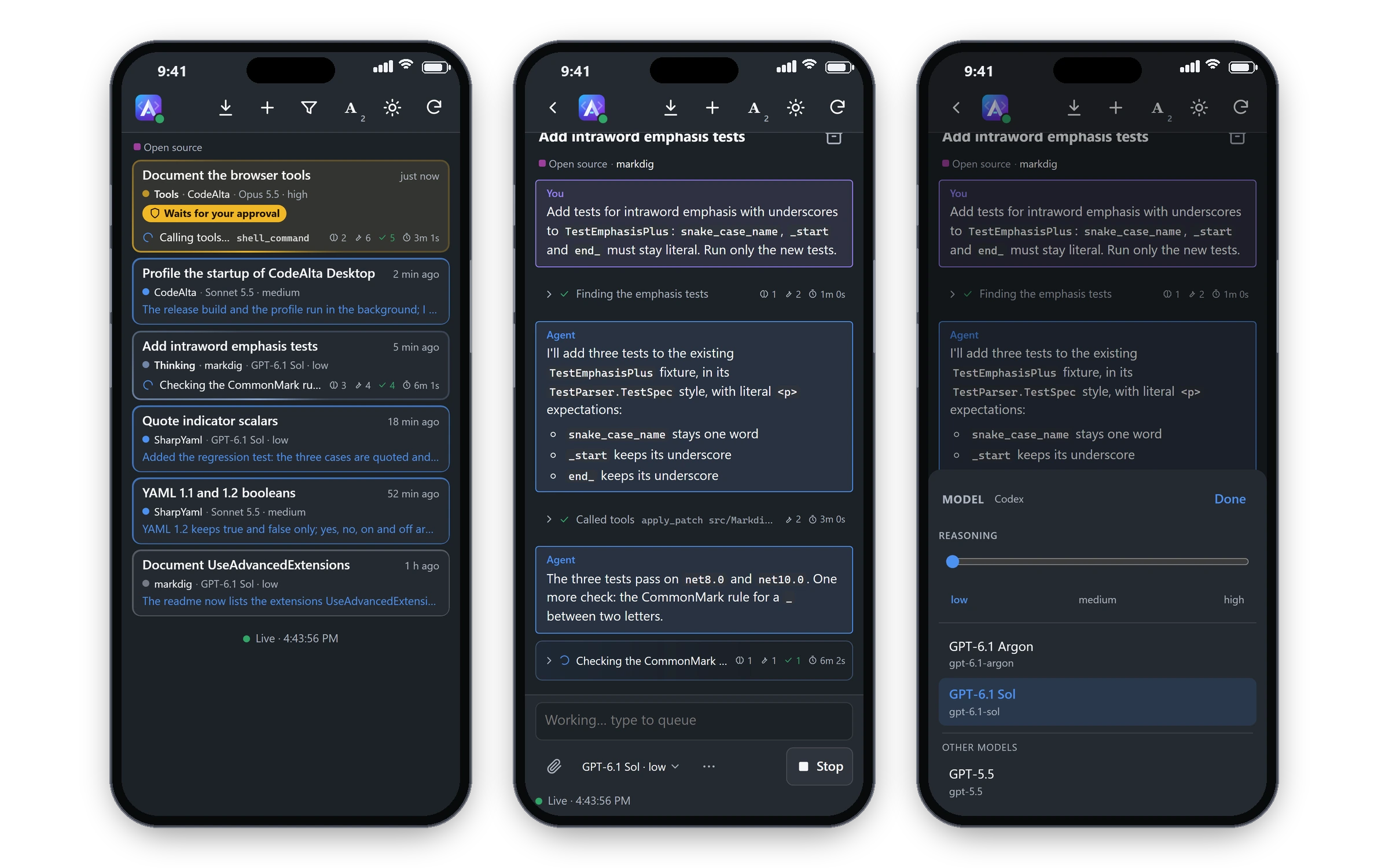
- The sessions, latest activity first, six at a time, each with a dot and a line that show what it does: working, calling tools, thinking, writing. The filter button keeps the list to the projects you check, one or several; the checked ones come first, and All projects shows them all again.
- The order stays still while you look at it. A card changes in place as its session works; the cards slide to their new places a few seconds after the list was last touched or scrolled, never under your finger. Coming back to the list, or the refresh button, puts them in order at once.
- Sub-agents, the sessions a session started, are folded under it: a row at the bottom of its card says how many there are and what they do, such as
3 sub-agents · 1 waits for you · 1 running. Tap it to show them under the card, joined to it by a line, or to fold them again; the phone remembers it. A sub-agent that waits for your answer opens the fold by itself. A sub-agent whose session is not in the list shows on its own, with Sub-agent of and the title of that session. - A session: its timeline, with the messages, the thoughts, the tool calls (without their output) and the diagrams. It opens on the latest messages, and older ones load as you scroll up. Each message shows the time it was written, and a line marks each day. A diagram opens in a tab of its own, where you can zoom. Wide tables scroll sideways.
- What CodeAlta sent, not you, shows as a card of one line that opens on a tap: the end of a background job (its title or command, and a chip with how it ended and how long it ran; its command and output open with a copy button), a message of another agent (the session that sent it, which a tap opens), a reminder, a review round, a model fallback or an automation. The result of a workflow that ended in the background shows open, with what the script presented to you, how it ended, and what it returned folded under Result.
- Images: the photos of a prompt, the images a tool gave the model (under the line of its work) and the pictures an answer shows. A tap shows one full screen: pinch to zoom, swipe sideways to the next one, swipe down or tap × to close.
- Workflows (Code Mode scripts): a card on the work of the turn with the title of the script, its state, how many steps are done and the step it is at (or, for a script without steps, the call it makes), or that it waits for your answer. What the script presents to you shows on it whole, as it goes. A tap lists its steps with their times, the sessions it started, which open on a tap, and the calls it made, such as the files it read. A question of the script is answered in its ask card.
- Questions and review requests of agents, as in the window. A session that waits for you shows Waits for your answer in the list. On its page, once its turn has ended, the ask takes the place of the prompt; a question of a script shows at once, while its turn runs. Pick a choice or write an answer for each question, then Submit. For a review request, read its message, choose Approve, Request changes or Comment, add an overall comment if you like, then Submit review. Comments on lines are written on the computer, and those already written go with the review. Cancel leaves without answering, after asking first.
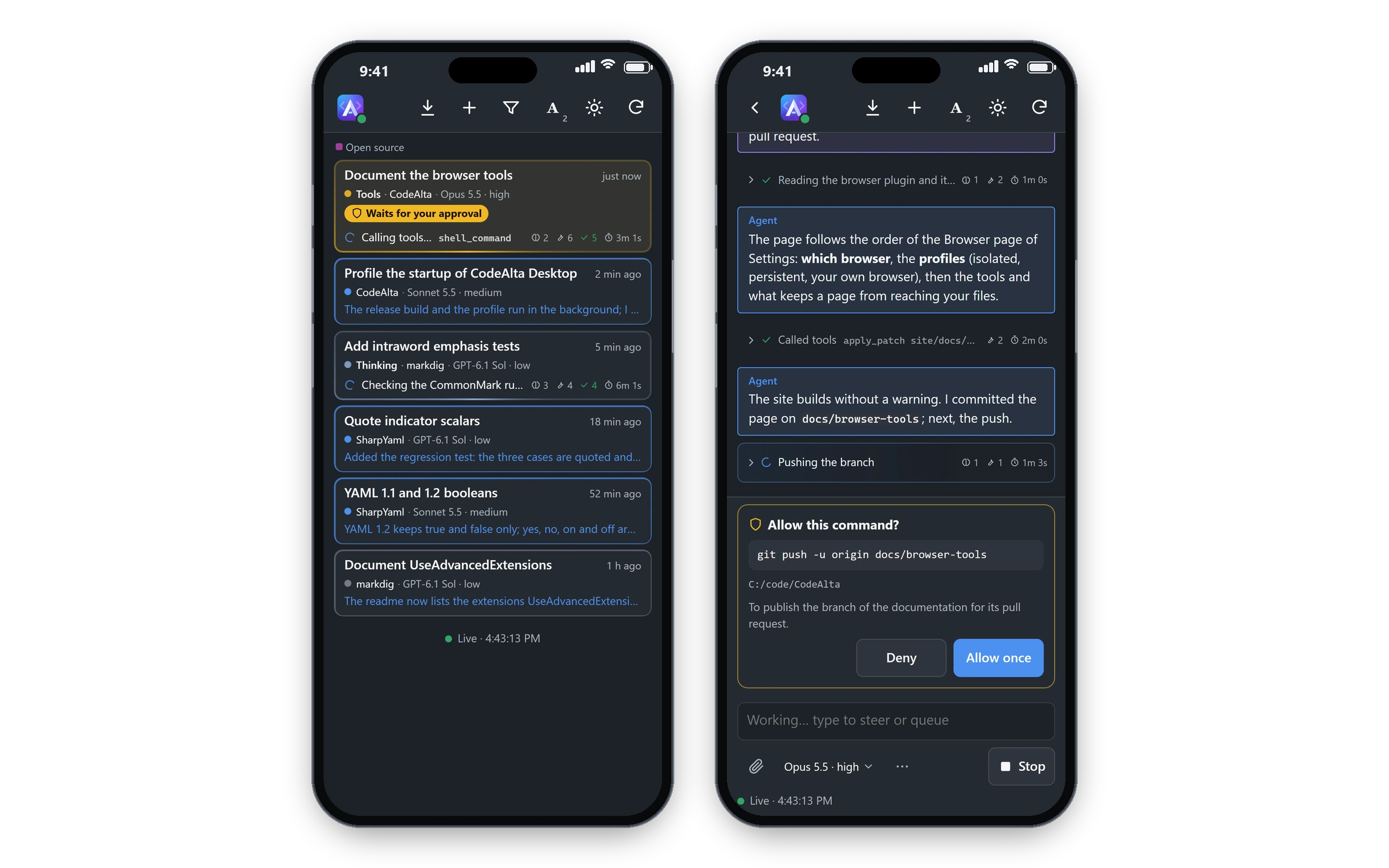
- Permission requests of agents, as in the window. A session that waits shows Waits for your approval in the list. On its page, a card above the prompt shows the command and its folder, the files of a change and the folder that holds them, or the skill to load, with what the agent says of it. Allow once or Deny answers it. A denial does not stop the agent: use Stop, which stays below the card. The choices stay off for a moment when a request shows, so that a tap meant for the one before does not answer it. Allow this skill, which allows a skill for good, is only on the computer. When CodeAlta cannot tell whether the session got your answer, the card says to check the session on the computer. Only a phone you connected can answer, but anyone holding it can allow what agents ask: keep it locked, and use Reset access (below) if you lose it.
- While an answer goes, the card says so. When the session does not take it, the ask comes back with what you wrote, to send again. When CodeAlta cannot tell whether the session got it, the card says to check the session on the computer.
- The prompt sends to an idle session. While a turn runs, Steer sends into that turn, Queue keeps the prompt until the turn ends, and Stop stops the turn.
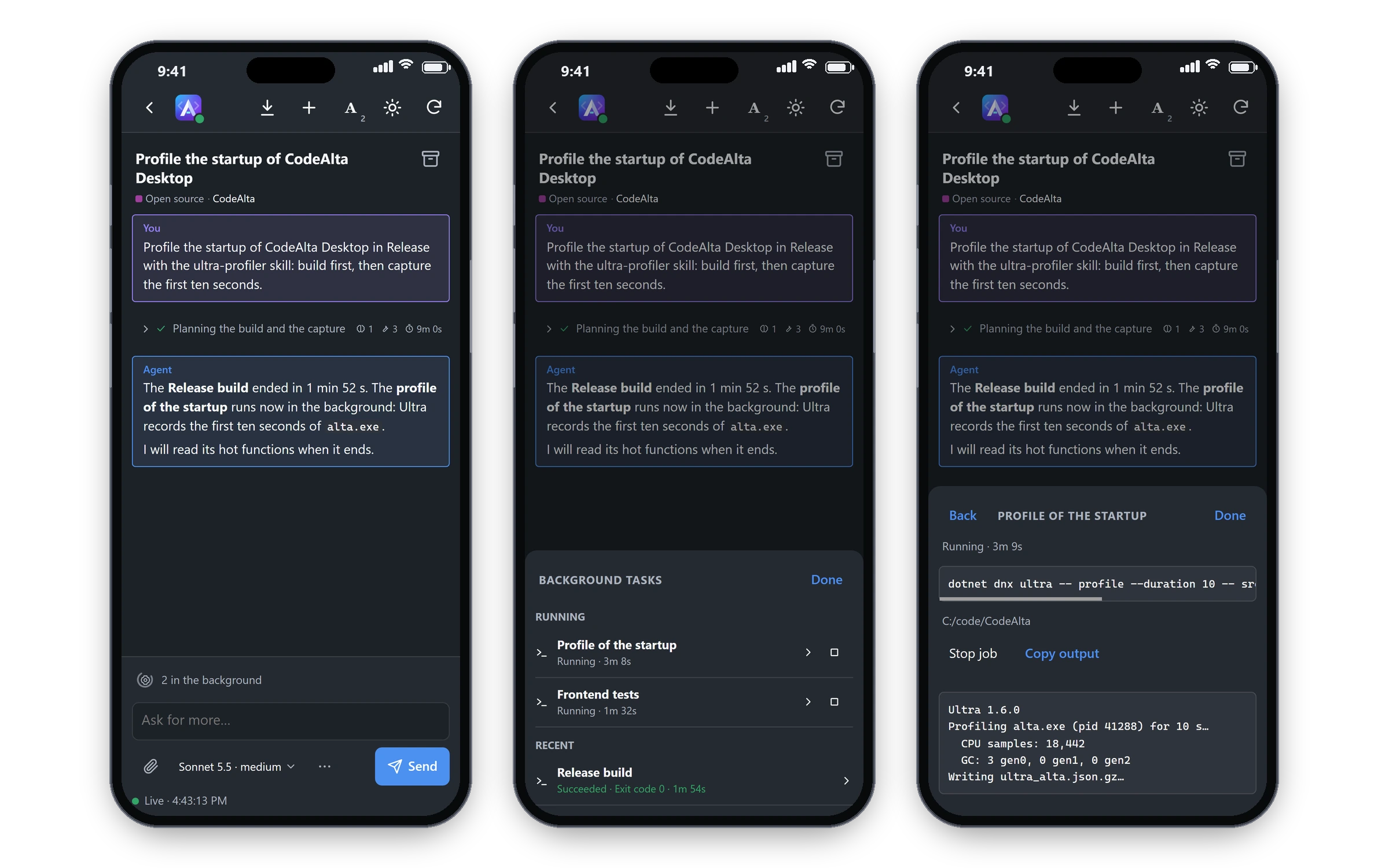
- Background jobs keep their count above the prompt even after the agent's turn ends. Tap N in the background for Running and Recent jobs with their duration and outcome, then tap a job for its command and live output. Stop job stops that command. Ended jobs stay listed for ten minutes, with N ended above the prompt; their results also appear in the conversation.
- Files and photos go with the prompt, from the paperclip beside the prompt buttons (and beside Start for a new session): 64 at most, 20 MB each and 64 MB in all. A photo is scaled down to 2048 pixels on its longest side. Images need a model that reads them. While a turn runs, Queue takes the files with the prompt; Steer sends the text alone, and the files wait for the next Send or Queue.
- The model chip, beside the prompt buttons, shows the session's model and effort, such as
GPT-6.1 Sol · low. Tap it to choose another model of the provider and its effort. ⋯ holds the agent prompt, the permissions (when the provider has modes), and Queue rather than steer while it works, which makes Queue the first button during a turn. A choice shows in blue until the next prompt takes it, and the session keeps it. A steered prompt changes none of these. - A new session: the project and the prompt, then the model chip beside Start: a tier of the settings or a model, and its effort. The project defaults to that of the session you are viewing; from the list, to the last project used, or to the first project the list keeps to when that one is not among them. ⋯ holds the agent prompt, the provider, the permissions and a worktree of its own. The choices are remembered for each project.
- Archive a session by swiping it to the right, or with the archive button of its page; Restore brings it back.
Spaces
With more than the Default space, the Mobile row of Settings > Plugins has a chip with its spaces. The phone then lists, opens and acts on the sessions of those spaces only, and a new session goes to one of them. A plugin in every space shows every session.
Security
- The page is served by CodeAlta on
127.0.0.1only. Tailscale Serve publishes it athttps://<computer>.<tailnet>.ts.net:2584to the devices of your tailnet, with a certificate of Tailscale. No other device of your network reaches it. - The QR code holds a pairing token. A phone that scans it gets a key of its own, which it keeps, and every request needs it. CodeAlta keeps neither on disk, only their fingerprints, so no program of the computer can read them there. After CodeAlta restarts, the Mobile tab shows a new code; the phones already connected stay connected.
- Reset access, in Settings > Extensions > Mobile, disconnects every phone and makes a new code: every phone has to scan it.
- An image reaches the phone by an id, never by its path: a file of a prompt or an image of a tool is read from the files of its session only, and a picture of the disk is read only when an answer of that session shows it, the way CodeAlta Desktop shows it.
- The plugin publishes one port of the computer on the tailnet, 2584 unless you change it, and nothing else. It never changes what you serve with Tailscale Serve on other ports, and when the port already serves something else, it leaves it and says so.
- Turn the plugin off in Settings > Plugins: the page stops, and Tailscale no longer serves it.
Settings
Settings > Extensions > Mobile is there while the plugin is on. The gear button of the Mobile row of Settings > Plugins goes to it too.
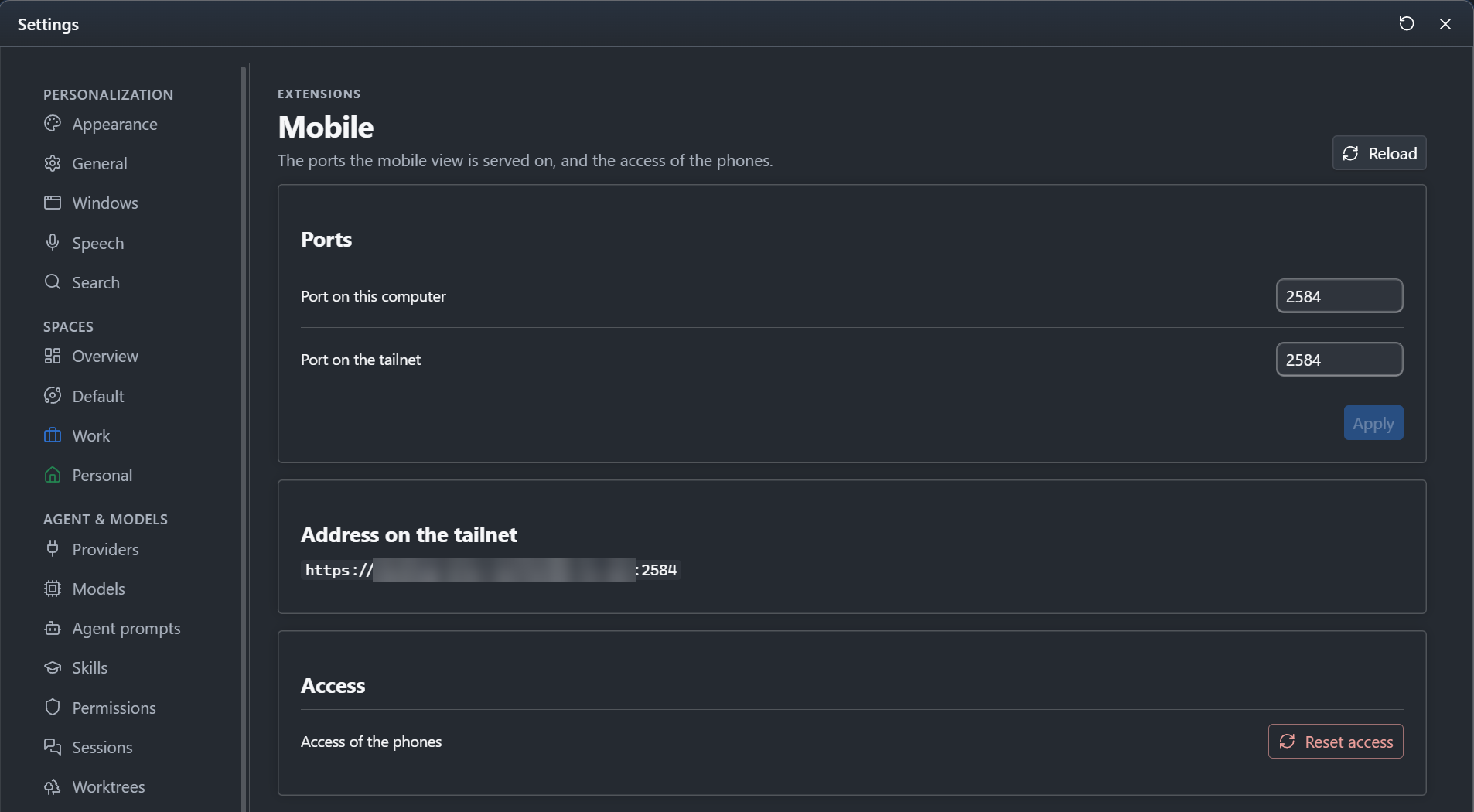
- Port on this computer: the port of the page on
127.0.0.1, 2584 at first. - Port on the tailnet: the HTTPS port Tailscale Serve publishes the page on, 2584 at first.
- Address on the tailnet: the address of the page while Tailscale serves it.
- Reset access: disconnects every phone and makes a new code. Every phone has to scan it.
Apply moves the page to the new ports at once: Tailscale stops serving the old port and publishes the new one, and phones scan the new QR code of the Mobile tab. A port is a number from 1024 to 65535.