Vaults
A secret can keep its value in a vault you already use, such as 1Password, Bitwarden or KeePassXC, instead of on this computer. The secret keeps its name, so the configuration that names it (${secret:NAME}, api_key_secret) does not change. CodeAlta reads the value through the program of the vault, keeps it in memory while it runs, and never writes into the vault.
Each vault is a credential provider. Add as many as you need, several of one kind too: a personal 1Password account for the keys of your providers, a KeePassXC database for a client, a secret manager of your company for deployments.
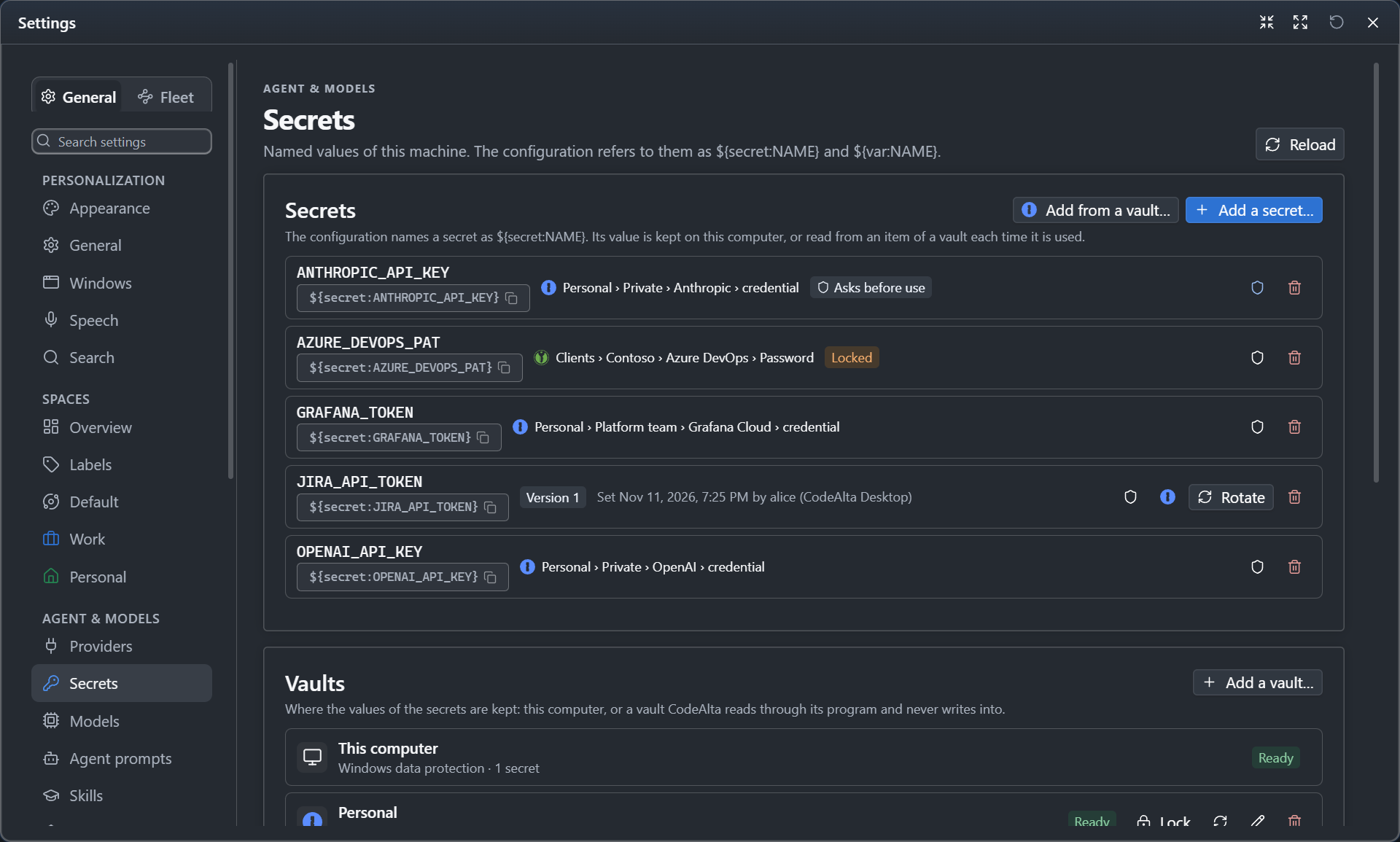
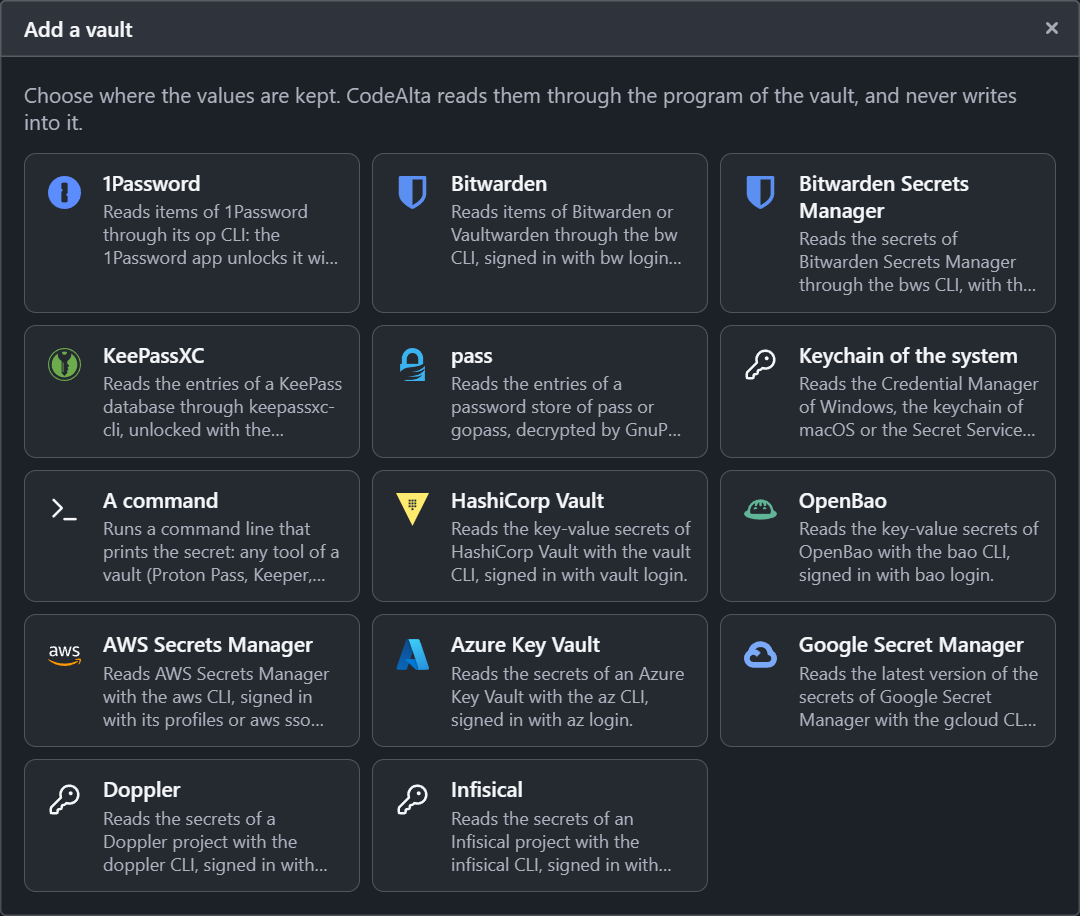
Add a vault
In CodeAlta Desktop, open Settings > Secrets and click Add a vault… under Vaults.
- Choose the vault. The common ones come first, with their logo, then the secret managers of clouds and a command of your own.
- Give it an Id, which the secrets kept in it name (
personalfor a 1Password account), and fill the settings of its kind. A setting that is a token, such as the token of a service account, names a secret of this computer, never a value. - Choose how long Its values stay in memory: until CodeAlta closes (the default), 8 hours, 1 hour or 15 minutes. After that time, a value is read from the vault again at its next use.
- Unlock when CodeAlta starts, on by default, asks the vault to unlock once, after the window shows. A vault that takes its master password in the page waits for you to click Unlock.
When the program of the vault is not found, the provider says so, with How to install it: Run in a terminal opens a terminal of CodeAlta on the command of the package manager of your system (winget on Windows, brew on macOS), which you see run. CodeAlta downloads nothing by itself. A program installed elsewhere is set in the Path setting of the provider.
The row of each provider shows its state and the action it needs:
| State | What to do |
|---|---|
| Ready | Nothing: the secrets kept there are given as they are asked for. Lock forgets the values read from it until it is unlocked again. |
| Locked | Unlock: the vault asks you in its own way, such as Windows Hello for 1Password. A vault that takes its master password asks it in a field of the page; it goes to the program of the vault once, and is never kept. |
| Sign-in needed | Sign in: a terminal of CodeAlta runs the sign-in command of the vault. |
| Not installed | How to install it, as above. |
The edit button of a provider changes its settings, and the trash button removes it, with the secrets kept in it. Nothing changes in the vault.
In the configuration, a provider is a table of ~/.alta/config.toml, only of your own file: the configuration of a project never names a vault.
[credentials.personal]
type = "1password"
account = "my.1password.com"

[credentials.client]
type = "keepassxc"
database = "D:/Clients/contoso.kdbx"
cache = "1h"                 # session (the default), 15m, 1h or 8h
unlock_at_start = false
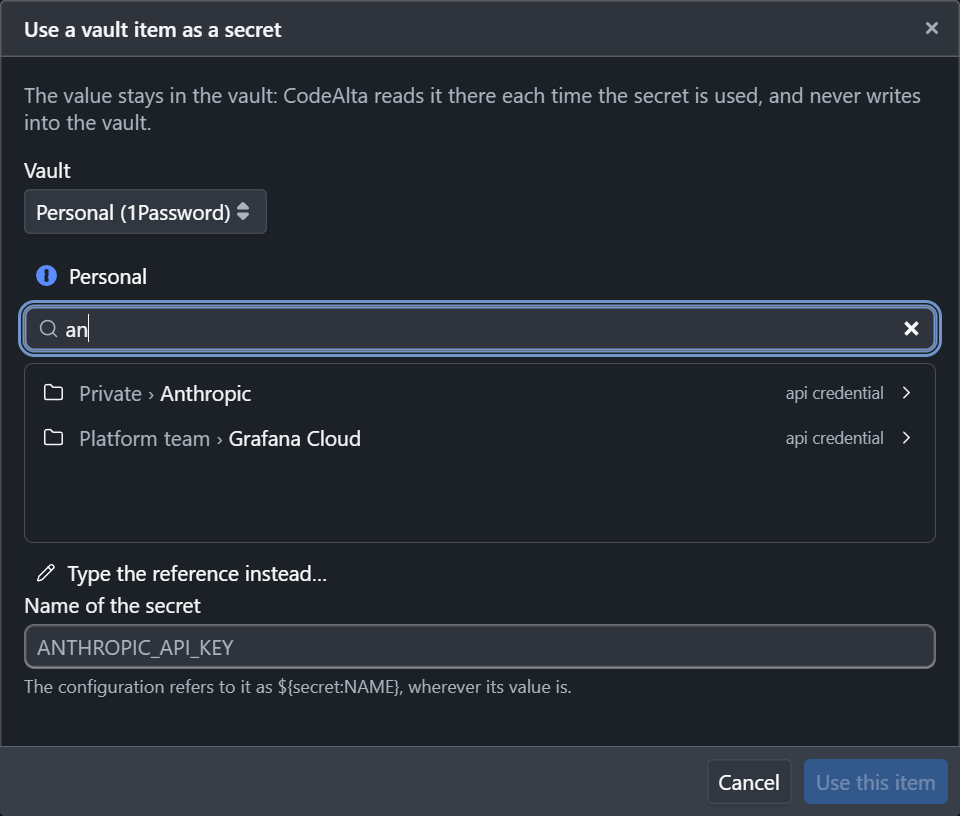
Use a vault item as a secret
A secret kept in a vault is a name of CodeAlta for one field of a vault item: the configuration names the secret, and CodeAlta reads the value from the vault each time the secret is used. The value never leaves the vault for a file of CodeAlta.
- Add from a vault…, at the top of the page, makes a secret of an item of a vault.
- On a secret of this computer, the vault button of its row does the same for that secret: the item of the vault replaces its value. The old value is deleted, and stays masked.
- In Settings > Providers, Use a vault item… under the key of a provider does the same for that key.
Type a few letters of the item in the search field: at the top it looks into every vault, inside a vault or an item it filters the list. Open the item, and its hidden field (the password, the credential) is picked; pick another field if you need it. The name of the secret follows the item, such as GITHUB_PASSWORD, until you type your own. The window shows names only: a value never reaches it.
The row of the secret then shows its vault and its item, and the state of that vault, instead of a version. The record of which item each secret names is ~/.alta/secrets/bindings.json, which holds no value.
When a vault is asked
At start, CodeAlta reads, without a prompt, what each vault gives as it is. Then CodeAlta Desktop asks each locked vault that has its own prompt, such as 1Password, to unlock, once, after the window shows. When the application of the vault is not running yet, as when both start with your computer, CodeAlta waits for it for up to five minutes and asks then. A prompt you dismiss is not shown again until you click Unlock.
While a vault is asked, its row in Settings > Secrets says that it waits for the vault: answer the prompt of the vault, which can be behind the window. A click on Unlock, or a session that needs the vault, waits for that same prompt.
While CodeAlta runs, a value read stays in memory for the time its provider keeps it. Nothing prompts again, and an automation that runs at night still has its values.
altanodenever asks a vault to unlock, andaltacliand the developer instance do not by default. What is locked stays locked, and what needs it says which vault to unlock.altacli --interactive-vaultlets a run ask its vault: see Vault secrets. To test a vault in the developer instance, turn on Let the developer instance unlock the vaults under Vaults, in either instance: the developer instance then shows Unlock, and its click asks your vault for that run, as 1Password asks Windows Hello. It never asks at start, so a developer instance an agent starts shows no prompt by itself.When a session needs it, in CodeAlta Desktop: a session, an automation or a sub-agent that runs on a model provider whose key is in a locked vault asks that vault to unlock, then goes on. Sessions that wait for the same vault share one prompt. A vault that takes its master password in the page, or a prompt you dismissed in the last two minutes, makes the session fail at once with what to unlock. The same goes for a key that asks before use: the session asks you to confirm.
An MCP server or the shell of a session whose secret is in a locked vault does not start, and its diagnostic names the secret and the vault. Once you unlock the vault, the providers start, and an MCP server starts at its next use.
1Password
CodeAlta reads 1Password through its command line tool, op, unlocked by the 1Password app with Windows Hello, Touch ID or the password of your system: CodeAlta never asks your master password.
- Install the CLI:
winget install --id AgileBits.1Password.CLI -eon Windows,brew install 1password-clion macOS. - In the 1Password app, open Settings > Developer and turn on Integrate with 1Password CLI.
- Add a vault of the kind 1Password. With several accounts in the app, set Account to the sign-in address (
my.1password.com) or the id of the account.
When the row of the provider asks you to turn on Integrate with 1Password CLI, do it in the app, keep the app unlocked, then click Unlock: the app asks you to authorize CodeAlta. A sign-in typed in a terminal (op signin) only authorizes that terminal.
The app authorizes each run of CodeAlta on its own, so it asks once after every start. Its authorization ends after ten minutes without a read, or when the app locks. The values already read stay in memory, so nothing asks again until a new secret is read: the row then shows Locked, and Unlock asks the app again.
A reference is the secret reference of 1Password, op://<vault>/<item>/<field>, such as op://Private/Anthropic/credential; the item list writes it for you. The Developer page of the 1Password app lists the reads of CodeAlta.
For a machine without the app, such as a build machine, set Service account token to a secret of this computer that holds the token of a service account. A service account cannot read the Private and Personal vaults.
Bitwarden and Vaultwarden
The kind Bitwarden reads Bitwarden, or a Vaultwarden server, through its command line tool, bw.
- Install it:
winget install --id Bitwarden.CLI -eon Windows,brew install bitwarden-clion macOS. - Sign in once in a terminal with
bw login; for Vaultwarden or a server of your own, firstbw config server https://vault.example.com. - Add the provider. Unlock asks your master password in a field of the page, gives it to
bw unlock, and keeps the session key it answers in memory only, until CodeAlta closes or you click Lock.
Each time the picker opens, it syncs bw first, so an item you just added in the Bitwarden app or the web vault is listed; offline, it lists what bw already has.
A reference is the id of the item and its field: <item id>/password, <item id>/username, <item id>/totp for its one-time code, <item id>/notes, <item id>/uri, or <item id>/field:<name> for a custom field.
Bitwarden Secrets Manager, for the secrets of machines, reads through bws with an access token, set as a secret of this computer in Access token. A reference is the id of the secret. It needs no unlock.
KeePassXC
The kind KeePassXC reads a KeePass database (.kdbx) through keepassxc-cli, which comes with KeePassXC (winget install --id KeePassXCTeam.KeePassXC -e, brew install --cask keepassxc).
- Database is the file of the database, and Key file the key file that opens it, if any. No password is for a database its key file opens alone.
- Unlock asks the password of the database in a field of the page. It is kept in memory, to open the database at each read, until CodeAlta closes or you click Lock.
A reference is the path of the entry and its attribute: Work/GitHub#Password, Work/GitHub#UserName, Work/GitHub#totp for its one-time code. Without an attribute, the password is read.
pass and gopass
The kind pass reads a store of pass or gopass. Program chooses pass or gopass, and Store the folder of the store when it is not the usual one. Unlocking is the work of gpg-agent, which asks your passphrase and keeps it for its own time.
A reference is the name of the entry, such as web/github, for its first line, or web/github#user for the line user: of the entry.
The keychain of the system
The kind Keychain of the system reads the credentials your session already holds, with nothing to install or unlock:
| System | Where | A reference |
|---|---|---|
| Windows | Credential Manager, generic credentials | the name of the credential, such as git:https://github.com |
| macOS | the login keychain | service/account |
| Linux | the Secret Service of the desktop (secret-tool) |
the attributes, such as service=myapp&account=alice |
Secret managers of clouds
These kinds run the command line tool of the service, signed in its own way (vault login, aws sso login, az login, gcloud auth login…). Their row offers Sign in when the tool needs it, and How to install it when it is missing.
| Kind | Tool | Settings | A reference |
|---|---|---|---|
| HashiCorp Vault | vault |
Address, Namespace | secret/myapp#api_key: the path of a key-value secret and its key |
| OpenBao | bao |
Address, Namespace | as for Vault |
| AWS Secrets Manager | aws |
Profile, Region | the name or ARN of the secret, prod/myapp#api_key for a key of a secret that holds JSON |
| Azure Key Vault | az |
Key vault | the name of the secret |
| Google Secret Manager | gcloud |
Project | the name of the secret, whose latest version is read |
| Doppler | doppler |
Project, Config | the name of the secret |
| Infisical | infisical |
Project id, Environment | the name of the secret |
A command of your own
The kind A command reads any vault that has a command line tool: Proton Pass, Keeper, Dashlane, LastPass, Passbolt or a tool of your company.
- Command that prints a secret: one argument a line, where
{ref}is the reference of the secret, and{item}and{field}the parts before and after#. It prints the value on its standard output. - Member of a JSON answer: when the command prints JSON, the member that holds the value, such as
data.value. - Command that says it is unlocked, optional: exits with 0 when the vault can be read without asking anybody.
- Command to sign in, optional: what Sign in runs in a terminal.
For example, Proton Pass through its CLI, pass-cli (winget install --id Proton.ProtonPass.CLI -e, brew install protonpass/tap/pass-cli). Sign in once with pass-cli login: CodeAlta then reads with that session.
[credentials.proton]
type = "command"
display_name = "Proton Pass"
read = ["pass-cli", "item", "view", "{ref}"]
status = ["pass-cli", "info"]
sign_in = ["pass-cli", "login"]
A reference of Proton Pass is pass://<vault>/<item>/<field>, such as pass://Personal/GitHub/password, or pass://Personal/My note/note for the text of a note.
The program is found on the PATH and run without a shell, in a folder of its own, never the folder of a project. Only you add a vault of this kind: agents cannot propose one.
Plugins add other kinds of vaults: see Credential providers.
Sign-ins of websites
A sign-in is the user name, the password and the one-time code of an item, with the sites they are typed on. The browser of a session types them on those sites after you allow it, and the agent never sees them: see Sign in with a vault item. Sign-ins of websites, in Settings > Secrets, adds, changes and removes them, and lists under each one the sites you allowed for 30 days.
Agents and vaults
Agents see the providers and the state of each secret, and propose changes you approve. They never get a value, nor the item a secret names.
| Command | What it does | Who agrees |
|---|---|---|
alta secret list, alta secret test NAME |
the secrets with their provider and state, and whether one can be given now | nobody: it reads |
alta secret uses |
the recent uses of secrets | nobody |
alta credential types, list, status ID |
the kinds of vaults, the providers, their state and what they miss | nobody |
alta credential unlock ID, lock [ID] |
asks a vault to unlock, forgets what was read | the prompt of the vault |
alta secret bind NAME --provider ID --ref REF, unbind NAME |
keeps a secret in a vault, or no longer | you, on a card of the session |
alta credential add TYPE --id ID, remove ID |
adds a provider, or removes one; never A command | you, on the same card |
The card of a change is answered by you only, whatever the permission mode of the session, and is refused where nobody can answer.
Once a vault is configured, a command of an agent that runs the program of that vault (op, bw, bws, keepassxc-cli, pass, gopass) is refused, with a note that tells it to name the secret instead. It is a guard against mistakes, not a wall: a script can still run it. To let agents run these programs, add to ~/.alta/config.toml:
[secrets]
agent_vault_commands = "allow"
A sandboxed session reaches neither the vaults nor these commands: the session keys of bw and op never enter its sandbox.
What it protects
- Values stay out of configuration files, which hold names only, and out of
store.jsononce they are in a vault. A file of a project cannot choose a vault item. - What a vault gives is masked from its first read, in what the tools of CodeAlta return to models, in journals and in logs. An agent that runs its own tools, such as Claude Code, sees a secret its shell prints: see Masking.
- A sandboxed session reaches no vault, and an agent changes nothing without your approval.
A session without the sandbox runs commands as you. It can do what you can do in a terminal, such as run the program of an unlocked vault itself. Use the sandbox, and Ask before use on the secrets that matter most.