MCP plugin
The built-in MCP plugin connects CodeAlta to Model Context Protocol servers, local (stdio) or remote (HTTP/SSE). It gives agents the tools of these servers, the alta mcp commands, and the MCP Servers page.
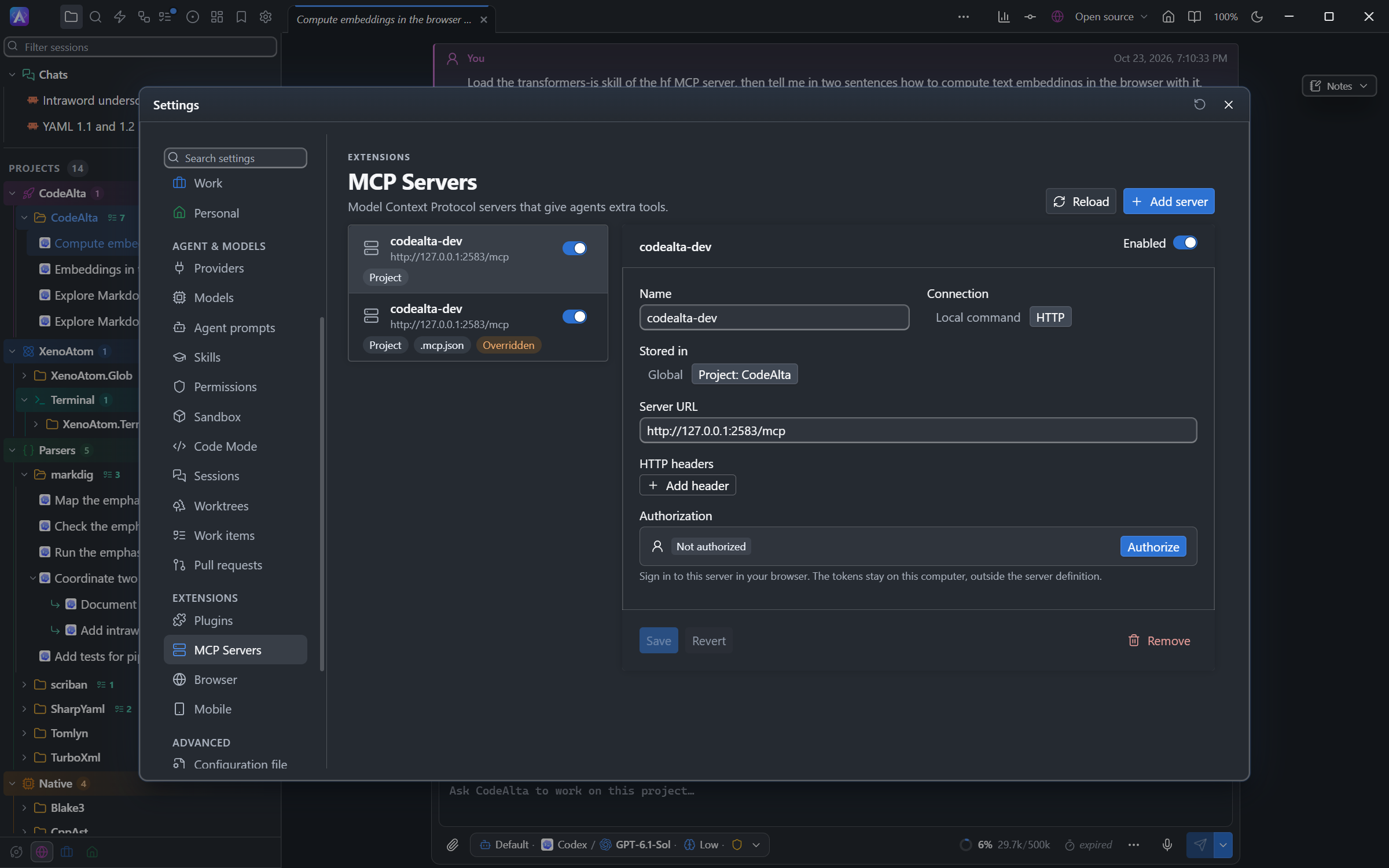
Typical flow
alta mcp is a tool of the agent, not a terminal command. You edit the MCP files, use the MCP Servers page, or ask the agent in a prompt:
Add a server, in
~/.alta/mcp.jsonor<project>/.alta/mcp.json, or by asking:Add a project MCP server named memory that runs npx -y @modelcontextprotocol/server-memory.Check the configuration, without connecting:
Check which MCP servers are configured and show me the config sources.Find tools or call one:
Search the memory MCP server for graph tools.Activate a server and use it, in one prompt:
Activate the memory MCP server and summarize the graph.The tools of an activated server join the running turn, and the server stays active for the session.
Configuration files
CodeAlta keeps server definitions in two JSON files:
| Scope | File |
|---|---|
| Global | ~/.alta/mcp.json |
| Project | <project>/.alta/mcp.json |
Server keys and tool names are case-sensitive. When two files define the same key, one definition is used and the others are shown as overridden and not connected; a project comes before the global file.
New files use the mcpServers root. CodeAlta keeps the format of an existing file, and the fields it does not use, when it edits it.
Servers of other tools
CodeAlta also reads the MCP files of other tools, so a server defined for GitHub Copilot, Visual Studio Code or Claude Code works without being copied:
| Scope | File | Kept by |
|---|---|---|
| Project | <project>/.mcp.json |
GitHub Copilot CLI, Visual Studio Code, Claude Code |
| Project | <project>/.github/mcp.json |
GitHub Copilot CLI |
| Project | <project>/.vscode/mcp.json |
Visual Studio Code |
| Global | ~/.copilot/mcp-config.json |
GitHub Copilot CLI, Visual Studio Code |
These servers are listed with the name of their file, or the Copilot mark for the GitHub Copilot files. You enable, disable, activate and authorize them like any server. CodeAlta never changes these files:
- Such a server has no Remove: disable it, or remove it in its own tool.
- Editing and saving one writes a server of the same name to CodeAlta's file, which is used from then on. Remove yours to go back.
Order of precedence: CodeAlta's file, then .mcp.json, .github/mcp.json and .vscode/mcp.json; project files before global ones.
These files can contain comments and trailing commas. A project server starts in the project folder. Variables:
| Variable | In CodeAlta |
|---|---|
${env:NAME}, ${NAME}, ${NAME:-default} |
The environment variable NAME of CodeAlta, or the default. |
${workspaceFolder}, ${workspaceFolderBasename} |
The project folder, and its name. |
${userHome} |
Your home folder. |
${input:...} |
Not supported: only Visual Studio Code can ask for it. |
A server that uses ${input:...}, an envFile or an unknown variable is listed as Not supported, with the reason. To use it, add a server of the same name to CodeAlta with the value it needs.
The tools list of a GitHub Copilot file is not applied. Limit tools with the TOML policy or the tool switches of the CodeAlta TUI dialog.
Server definitions
A CodeAlta MCP file is a JSON object with one server root (no comments). CodeAlta detects the style of a file and keeps it when it writes:
| Style | Root | Detected by | When CodeAlta writes |
|---|---|---|---|
| CodeAlta (default) | mcpServers |
none of the marks below | Remote servers get type = "http". |
| GitHub Copilot | mcpServers |
a server has tools |
New servers get "tools": ["*"]. |
| VS Code | servers |
the servers root |
Stdio gets type = "stdio"; remote keeps http, else sse. |
| Claude | mcpServers |
a server has type = "stdio" |
Stdio keeps stdio; remote gets http. |
| IntelliJ | mcpServers |
a URL server has no type |
Remote servers get no type. |
A file with both mcpServers and servers is invalid. A server defines exactly one transport: command (stdio) or url (remote).
| Field | Used with | Meaning |
|---|---|---|
command |
stdio | The program to start. |
args |
stdio | Array of strings, passed as separate arguments. |
cwd |
stdio | Working directory. |
env |
stdio | Object of string values: environment of the server. |
url |
remote | Absolute http or https endpoint. |
headers |
remote | Object of string values: static HTTP headers. |
auth |
remote | Browser sign-in settings (below). Tokens are never stored in the file. |
type |
both | stdio, local (Copilot's name for stdio), http or sse. |
tools |
Copilot files | Kept as is; not used by CodeAlta. |
${NAME} and ${NAME:-default} are expanded in command, args, cwd, url, and the values of env and headers. A missing variable without a default is reported (environment_variable_not_found), and the placeholder is never sent.
{
  "mcpServers": {
    "memory": {
      "command": "npx",
      "args": ["-y", "@modelcontextprotocol/server-memory"],
      "env": { "MEMORY_TOKEN": "${MEMORY_TOKEN}" }
    },
    "docs": {
      "type": "http",
      "url": "https://example.test/mcp",
      "headers": { "Authorization": "Bearer ${MCP_TOKEN}" }
    }
  }
}
Sign in to a server
For remote servers that follow the MCP authorization flow, prefer browser sign-in to bearer tokens in JSON. Add an auth block:
{
  "mcpServers": {
    "docs": {
      "type": "http",
      "url": "https://example.test/mcp",
      "auth": { "type": "oauth", "scopes": ["read", "search"] }
    }
  }
}
{ "type": "oauth" } uses dynamic client registration. Add clientId, clientSecret, scopes and redirectUri when the server needs a pre-registered client; set redirectUri only when it requires a fixed callback.
- CodeAlta Desktop: save and enable the server, then use the Authorization block of its form: Authorize opens the browser and shows the address to copy, Cancel stops a stuck sign-in, Sign out removes the tokens.
- CodeAlta TUI: Authorize/Login in the MCP Servers dialog, with Cancel Login (
EscorCtrl+G Ctrl+C) and Logout. - Agents:
alta mcp auth login <server>,alta mcp auth status,alta mcp auth logout <server>.
The browser has 5 minutes to come back; the time left is shown during sign-in. Tokens are stored under ~/.alta/auth/mcp/, never in MCP JSON or TOML. Agent runs use cached or refreshed tokens and never open a browser on their own.
GitHub MCP server
The GitHub MCP server runs as a remote server. In .alta/mcp.json:
{
  "mcpServers": {
    "github": {
      "type": "http",
      "url": "https://api.githubcopilot.com/mcp/",
      "headers": { "Authorization": "Bearer ${GITHUB_PERSONAL_ACCESS_TOKEN}" }
    }
  }
}
Keep the token out of the file. With the GitHub CLI signed in, reuse its token for the CodeAlta process:
$env:GITHUB_PERSONAL_ACCESS_TOKEN = gh auth token
alta      # or altatui
export GITHUB_PERSONAL_ACCESS_TOKEN="$(gh auth token)"
alta      # or altatui
The variable lasts for that shell only. For many GitHub tasks, the gh tool of the Git plugin is simpler; use the MCP server when you want its toolsets.
TOML policy fields
Connections stay in JSON. Enablement, tool filters, timeouts and prompt limits live in config.toml (~/.alta/config.toml, overlaid by <project>/.alta/config.toml), under [plugins.mcp] and [plugins.mcp.servers.<server>]:
[plugins.mcp]
enabled = true
startup_timeout_ms = 30000
tool_timeout_ms = 60000
max_tool_output_chars = 120000
discover_in_prompt = true
prompt_max_servers = 10

[plugins.mcp.servers.memory]
enabled = true
allowed_tools = ["read_graph", "write_graph"]
disabled_tools = ["delete_graph"]
tool_timeout_ms = 30000
| Global key | Default | Effect |
|---|---|---|
enabled |
true |
false turns MCP off. |
startup_timeout_ms |
30000 |
Time for a server to start and list its tools. |
tool_timeout_ms |
60000 |
Time for one tool call. |
max_tool_output_chars |
120000 |
Output budget of a tool call before truncation. |
discover_in_prompt |
true |
Lists active and inactive servers in the prompt. |
prompt_max_servers |
10 |
Most servers listed in the prompt. |
prompt_max_tools |
20 |
Shown in the policy; the prompt lists servers, not tools. |
direct_exposure |
"auto" |
For a model that loads tools on demand (Claude 4.5 or later on the Claude API): which tools stay loaded instead of found by tool search. "all", "none", or "allowlist"/"auto" for direct_tools (else allowed_tools). |
direct_tool_threshold |
40 |
Most MCP tools that stay loaded for such a model. |
| Server key | Effect |
|---|---|
enabled |
false: not connected (server_disabled). |
allowed_tools |
When not empty, only these tools. |
disabled_tools |
Tools to turn off. |
disabled_skills |
Server skills not offered, by address or name. |
startup_timeout_ms, tool_timeout_ms |
Per-server timeouts. |
direct_exposure, direct_tools |
Per-server tool loading for models that load tools on demand. |
spaces |
The spaces whose sessions can use the server; absent for all. Global config.toml only. Other spaces get server_not_in_space. |
required |
true: altacli run and altacli acp start the server first and stop with exit code 2 when it does not start. The apps ignore it. |
Once a session calls a server's tools, the server stays connected for the session, so a tool can rely on an earlier call (a browser snapshot, an opened document). An unused connection closes after fifteen minutes and reopens at the next call.
Agents and servers
Ask for the result you want; the agent uses alta mcp.
Manage servers.
Add a project MCP server named local-docs that runs node server.js from
C:\repo and sets API_TOKEN from ${DOCS_TOKEN}.

Add a project MCP server named docs at https://example.test/mcp with
Authorization set to Bearer ${MCP_TOKEN}.

Disable the memory MCP server in project policy.
- The agent writes to the project when one is active, else globally. Name the scope when it matters.
- Adding and removing change the JSON files; enabling and disabling change only the TOML policy.
- From a project, removing a global server needs an explicit request: "Remove the global MCP server named memory."
- The agent never removes a server of another tool: it disables it or overrides it.
Discover and call tools. Name the server and the tool:
Describe the read_graph tool on the memory MCP server.

Call the read_graph tool on the memory MCP server with an empty JSON
argument object.
Results keep the server's error flag, include text, summarize images, audio and resources, hide likely secrets, and are marked truncated past max_tool_output_chars.
Activate servers. A configured server gives no tools until a session activates it:
Activate the memory and docs MCP servers.
- The tools join the running turn, and every later turn of the session.
- An agent can activate one tool,
alta mcp activate github/create_issue, or load tools it found withalta search loadin CodeAlta Desktop. - Activations stay with the session, also after a restart.
- With a Claude API model that loads tools on demand (Claude 4.5 or later), no activation is needed: the tools of enabled servers already listed are found with
tool_search, and a server starts at its first call. Test in Settings lists a server never listed. - Tools are named
mcp__<server>__<tool>, with other characters than ASCII letters and digits replaced by_. - An image returned by a tool (a screenshot) reaches models that accept images. CodeAlta Desktop shows it in an Image read card.
- A stdio server gets the Git and GitHub identity of the session's space; sessions of two identities each start their own server.
- A server that cannot start, connect, authenticate or list tools gives diagnostics and no tools for that run.
Agent prompts can include activation habits for servers you use often.
Views of MCP Apps
Some servers show a view for their tool calls (a chart, a form, a dashboard), following the MCP Apps extension. CodeAlta Desktop shows the view in the timeline, under the turn that made the call, in its theme colors; its title opens the call.
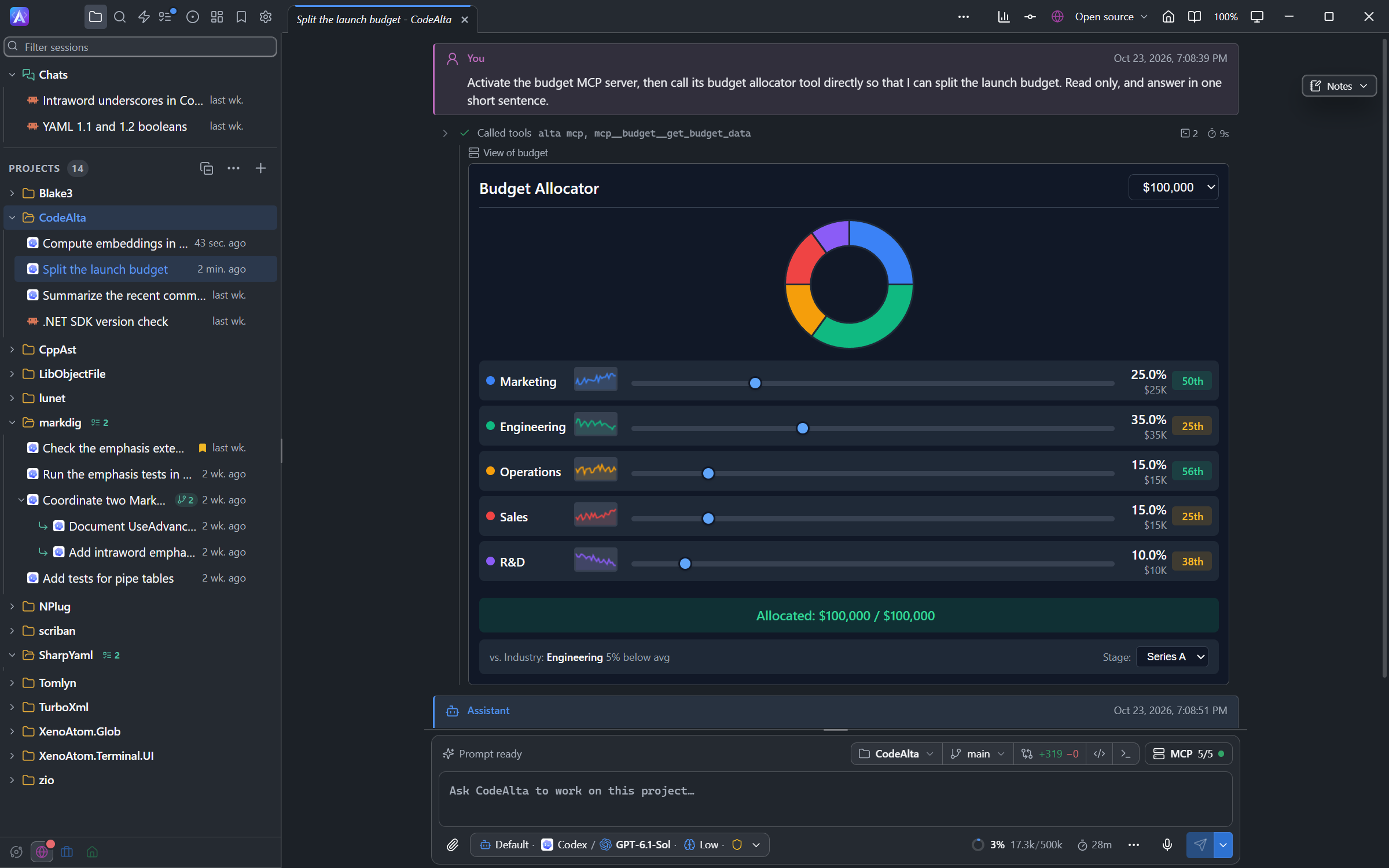
- A view shows for direct calls and for
alta mcp tool call. - A call of the open session shows its view when it scrolls into sight. A call from history shows Show view, which restarts the server if needed.
- A view can call its server's view tools, read its resources, open a link in your browser, and send a message to the session after a press in the view (at most one every two seconds, queued while the agent works).
- A view can ask for a larger window over CodeAlta; closing it returns the view to the timeline.
- A view reaches only its own server, loads only the addresses its server declares, and every request is logged.
- Tools a server keeps for its views are not offered to the agent.
- At most four views are live in a session pane; another sends the oldest back to its button.
CodeAlta TUI shows no views: servers answer it with text. Views of servers the Claude Code CLI runs itself are not shown.
Skills of MCP servers
Some servers publish skills beside their tools, following the MCP Skills extension. CodeAlta Desktop offers them to agents.
Listing. When CodeAlta connects to such a server (activation, run, Test), it lists its skills. The session prompt lists them under their server.
Loading. An agent runs
alta mcp skill activate --server <server> <skill>, and CodeAlta asks you first on the session card, in every permission mode. The card names the skill, its server, its files and their size; Show the skill shows itsSKILL.md.- Allow this skill: from now on, in every session, while its files stay the same.
- Allow once: this load only. The only choice for a skill whose files the server generates.
- Deny: nothing is loaded.
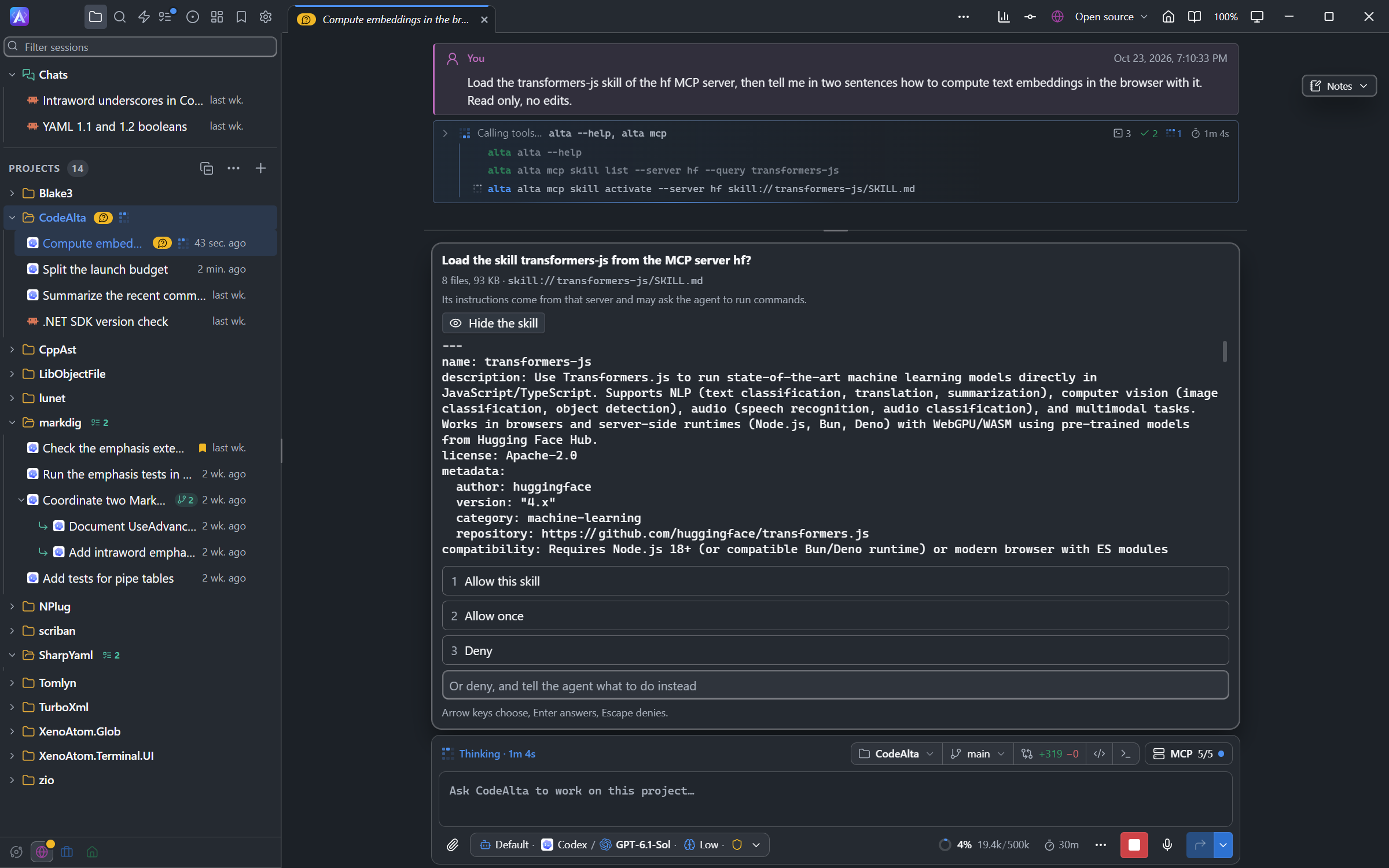
An agent asks to load a skill of the Hugging Face MCP server: Show the skill shows its SKILL.mdbefore you answer.Files. The agent reads skill files with
alta mcp skill read, from the server. Each file is checked against its published size and SHA-256; a mismatch is refused.Limits. A server skill never replaces one of yours, never overrides your instructions, and reads only its server's files.
allowed-toolsand fields that widen permissions are ignored.Settings. The Skills page lists them after your skills, under From the MCP server. A switch turns a skill off (
disabled_skills); its details show its files, its approval with Forget approval, and Show content.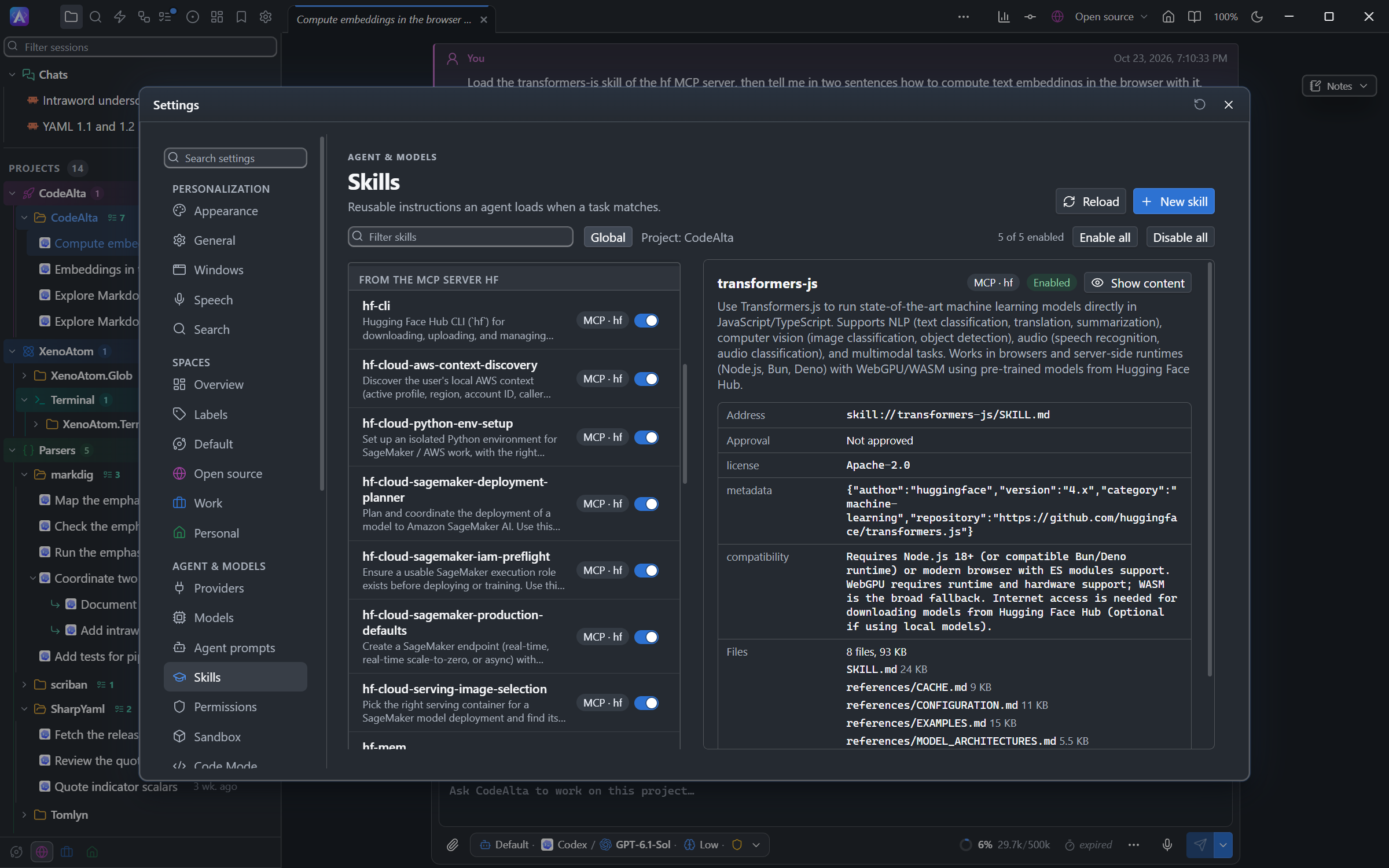
The skills of the Hugging Face MCP server on the Skills page, after the skills of your computer. Compaction. A server skill is not restored after a compaction; the agent loads it again if needed.
CodeAlta TUI does not load server skills, and skills of servers run by the Claude Code CLI are not shown.
Servers and tools of a session
In CodeAlta Desktop, click the MCP status above the prompt (MCP 3/3 · active tools 12) to see what the session has.
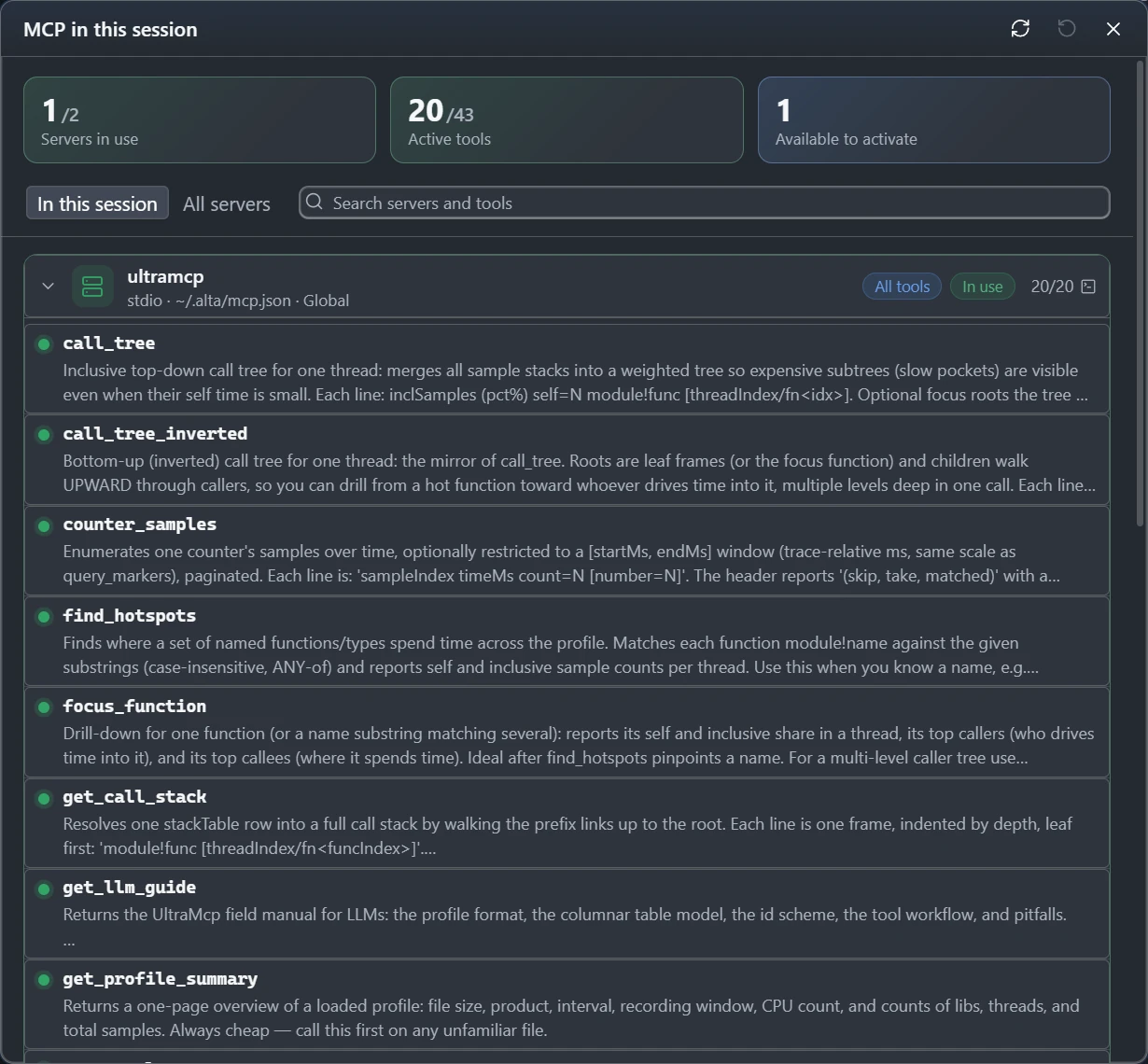
The window shows:
- A summary: the servers the session uses, its active tools, the servers it could activate and those turned off.
- Each server, with its state (In use, Available, Turned off), its transport and the file that defines it. All tools marks a server activated as a whole.
- Its tools, with their descriptions: a green dot for a tool the session has, an empty one for a tool it can activate. Click a tool for its arguments and the name agents call it by.
- In this session keeps what the session has, All servers shows every tool; the search box finds a server or a tool by its name or description.
- MCP settings opens the MCP Servers page.
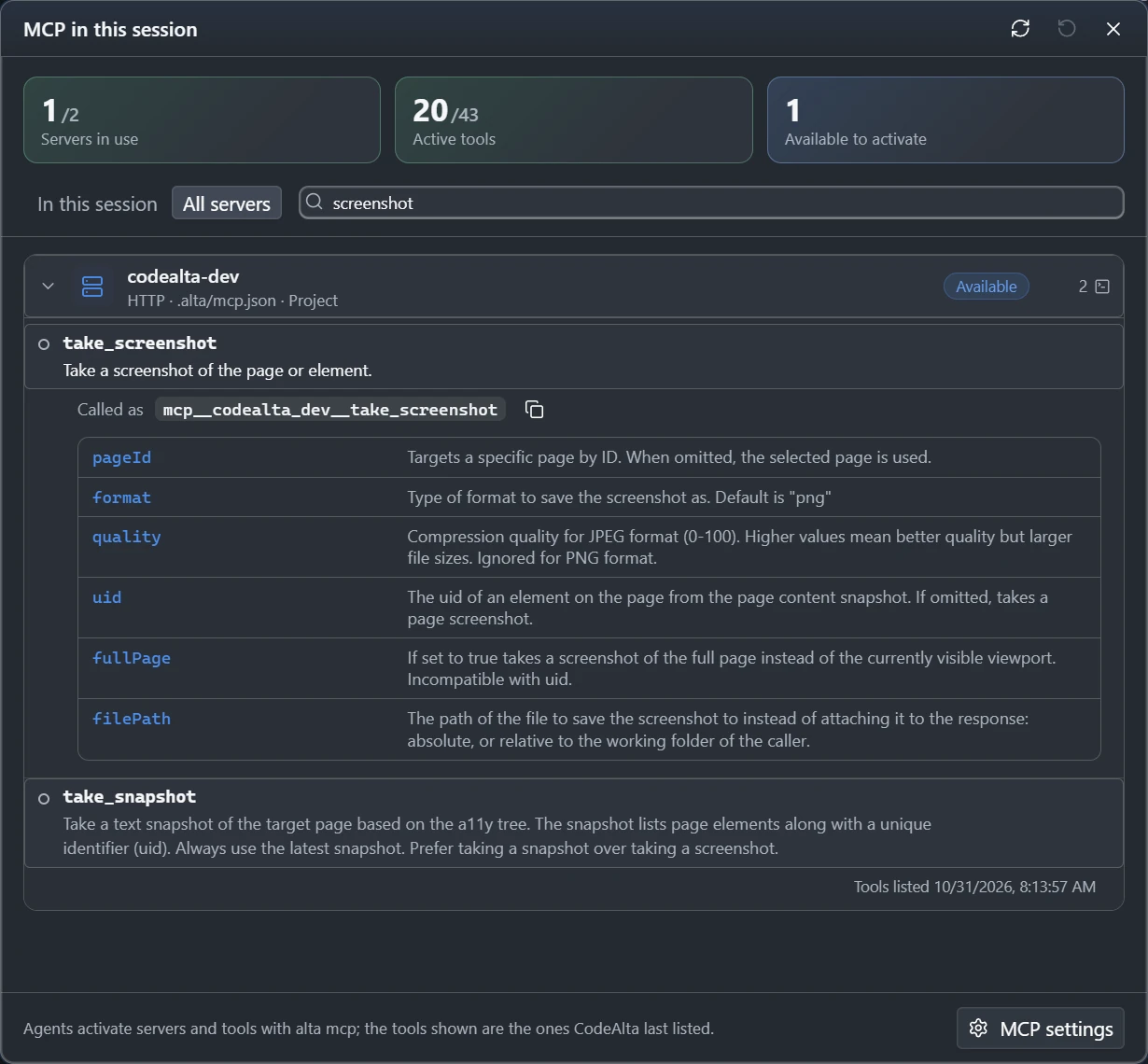
Nothing connects to a server: the tools are the ones CodeAlta listed last, when a session activated the server or Test ran in Settings. A server never listed says so.
MCP Servers page
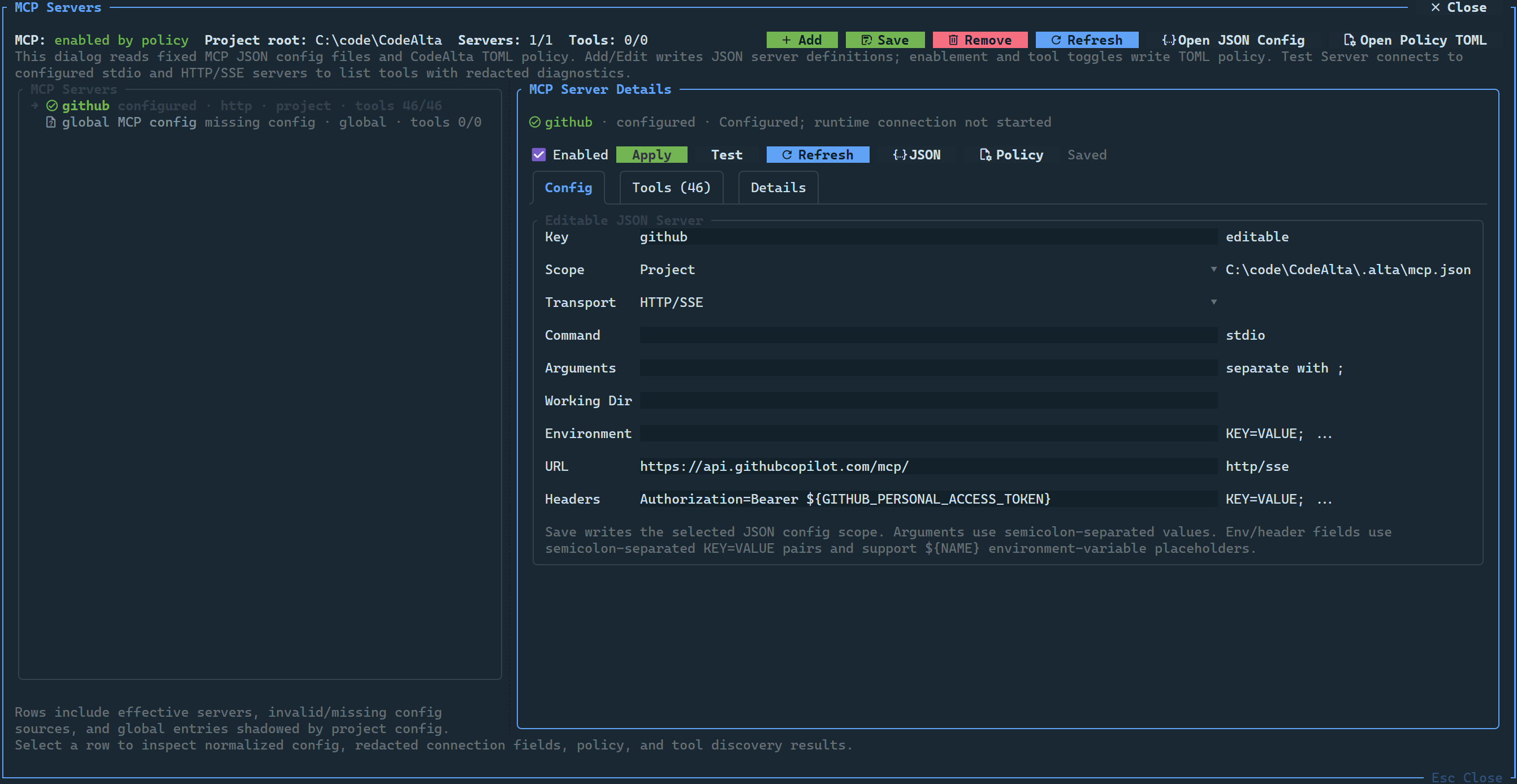
Open it with /mcp, the command MCP Servers, or the MCP settings button of the servers and tools of a session; in CodeAlta TUI also with the MCP status of the prompt. In CodeAlta Desktop it is Settings > MCP Servers (Ctrl+G Ctrl+Y):
- Add, edit, enable and remove global or project servers; authorize or sign out of remote servers.
- The files the servers come from, each with a button to open it in the code editor.
- With more than the Default space, a chip shows and changes a server's spaces; a project server follows its project.
The CodeAlta TUI dialog shows global, project, other-tool and overridden definitions; adds, edits and removes servers in CodeAlta's files; toggles servers and individual tools (disabled_tools); tests a server; discovers tools in the background; and signs in or out. Use Open JSON Config, or ask the agent, for shapes the form does not offer.
Limits and disabling
MCP support covers tools, views of MCP Apps and server skills. Other resources, MCP prompts, elicitation and automatic tool-list refresh are not supported. Diagnostics are redacted before display.
Turn MCP off with:
[plugins.mcp]
enabled = false
The plugin bypasses still apply for startup recovery.