Plugins
Plugins extend CodeAlta with commands, dialogs, status items, timeline cards, agent tools, alta commands and prompt text. CodeAlta ships built-in plugins, and you can write your own source plugins in C#.
A plugin can also hook the tool calls of sessions: check each shell command before it runs, block a call and tell the model why, or change a result. See Tool hooks.
Enable only plugins you trust. A source plugin is built on your machine and loaded into CodeAlta: it has the same risk as running local code.
The plugin API can change between CodeAlta releases.
When to use a plugin
| Need | Prefer |
|---|---|
| A repeatable session workflow or mode | Agent prompts |
| Agents coordinating sessions, questions, notes and reminders | Delegation |
| External tools from a standard protocol | MCP servers |
| Reusable context that runs no code | Skills |
Host UI, runtime, prompt, timeline or alta command extensions, hooks on tool calls |
Source plugins |
A prompt, an MCP server or a skill is easier to inspect and review. Use a plugin when you need .NET code inside CodeAlta.
Built-in plugins
| Plugin | What it adds |
|---|---|
| ACP agents | The coding agents of the Agent Client Protocol registry (GitHub Copilot, Gemini CLI, Cursor…) as model providers, from Add provider in Settings > Providers. |
| Git | Issues and pull requests of GitHub, GitLab, Azure DevOps and Bitbucket, the # lookup in a prompt, and the gh, glab and az agent tools. |
| Jira | The issues of a Jira project, for projects that name one. |
| MCP | Model Context Protocol servers, their tools for agents, alta mcp and the MCP Servers page. |
| Mobile | In CodeAlta Desktop: your sessions on a phone, through Tailscale. Off until you turn it on. |
| Statistics | A statistics card for each turn, alta statistics, and in CodeAlta Desktop the Statistics page. |
| UI tools | In CodeAlta Desktop: tools an agent uses to see and drive the window. |
| Browser | In CodeAlta Desktop and altacli: tools an agent uses to drive Chrome, Edge, Firefox or Safari. |
Manage plugins
Open plugin management with Ctrl+G Ctrl+N, /plugins or /plugin.
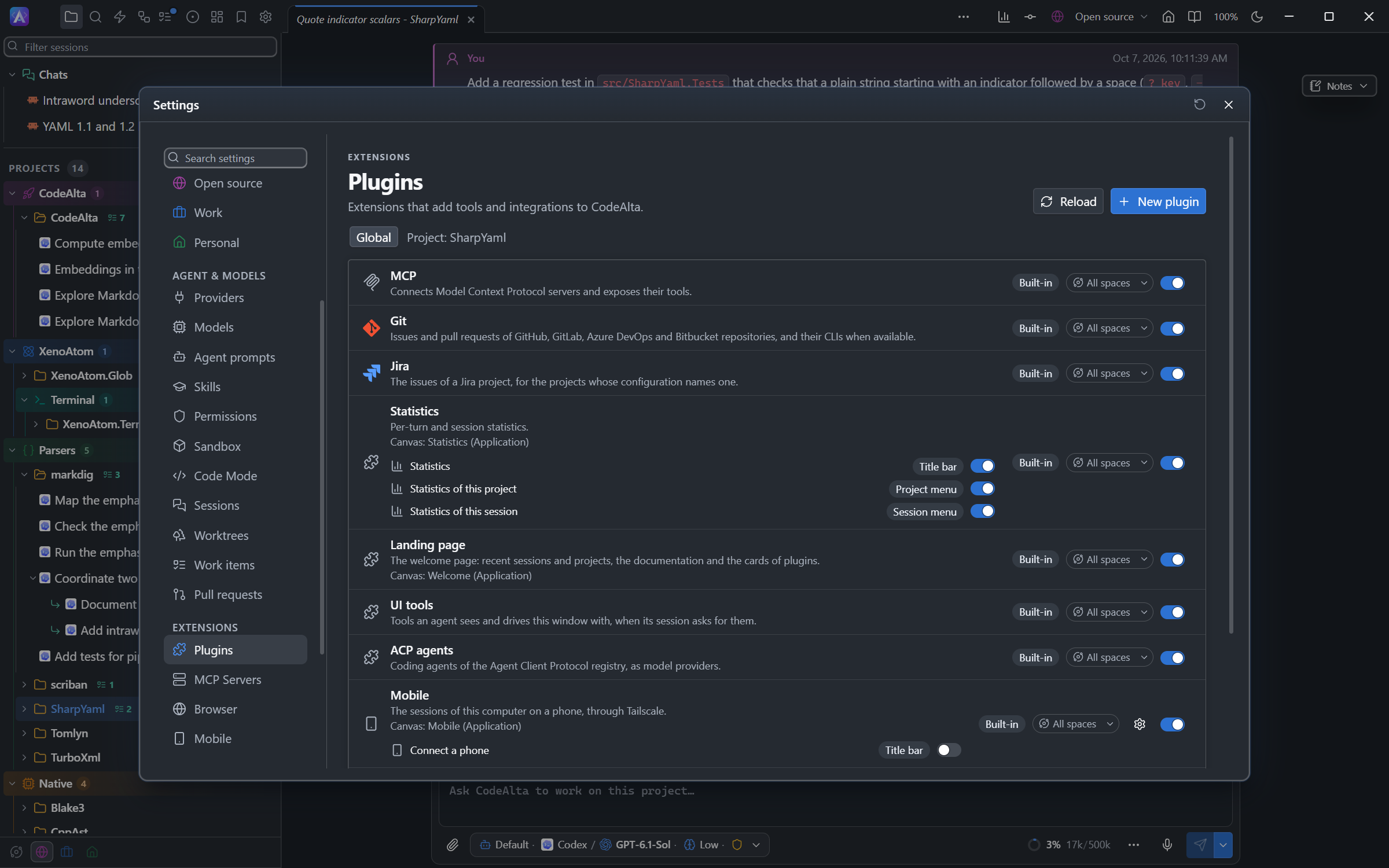
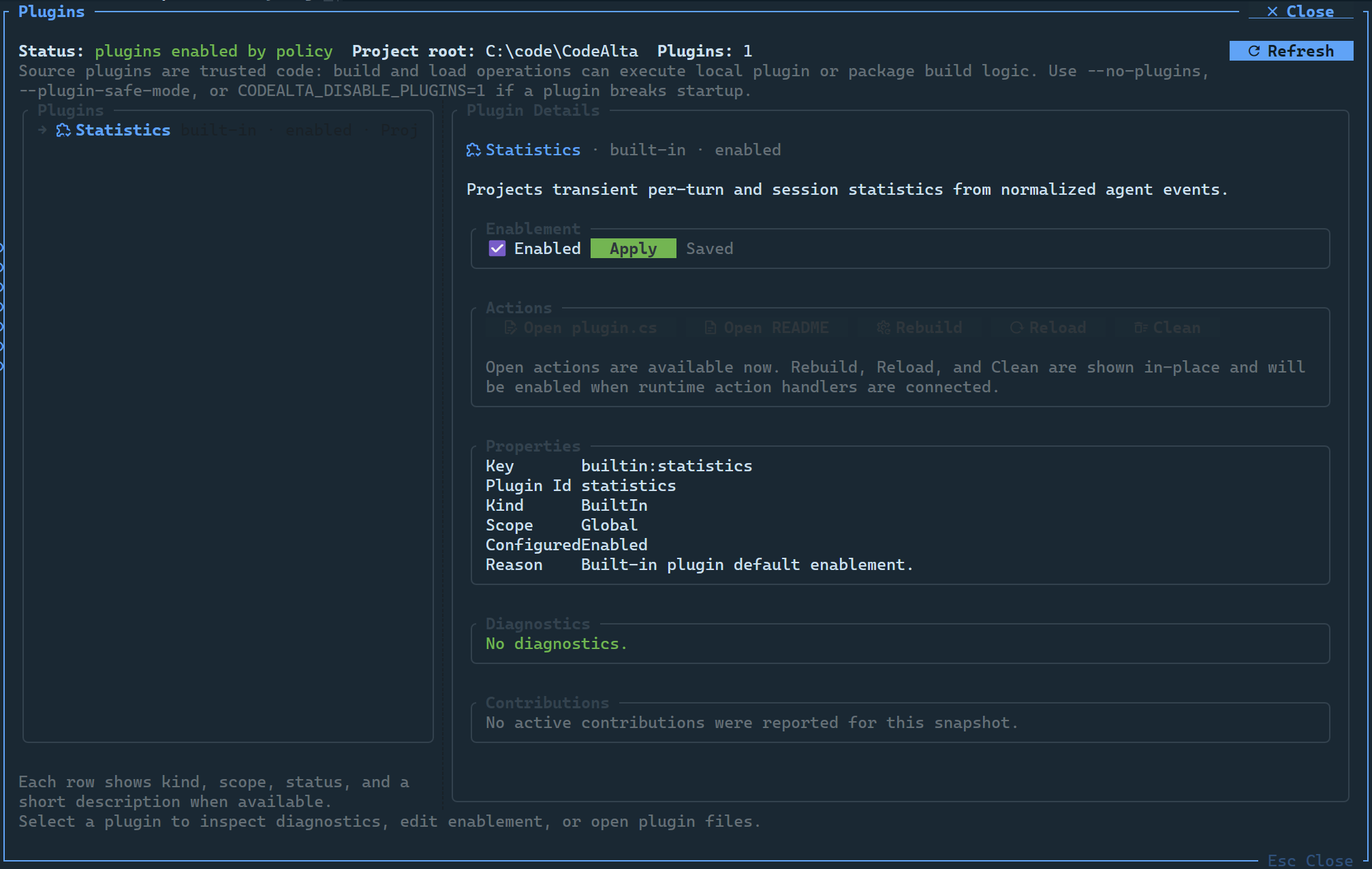
In CodeAlta Desktop, Settings > Plugins lists the plugins:
- A switch starts or stops each plugin at once.
- A source plugin also has Build and reload, Edit in the code editor and a red Remove; New plugin creates one (see Plugin development).
- A failed build shows its compiler errors; a plugin made for the TUI only is marked as not supported.
- Turning off or reloading a plugin whose agents are working (an ACP agent, for instance) asks first: the turns of those sessions stop, and they can go on later.
- With more than the Default space, a user plugin has a chip with its spaces. It adds nothing (tools, buttons, canvases, prompt text) to sessions of other spaces; its background work keeps running. A project plugin follows its project.
- A configuration file that does not parse, an unreadable plugin folder, or a folder whose name is not a plugin id is named in red above the list.
The CodeAlta TUI dialog shows each plugin's scope and state, its diagnostics (discovery, build, load, contributions, unload), what it contributes, unknown config entries, and actions to open its source and README. For a summary without the interface:
altatui --plugins-status
Plugins in both apps
CodeAlta Desktop and CodeAlta TUI load the same plugins. Agent tools, instructions, alta commands, commands, shortcuts, status items, dialogs, prompt pickers and timeline cards work in both. Each app draws plugin UI its own way, and a plugin can target one app only.
Source plugins are built when CodeAlta starts. The desktop start-up screen names the plugin being built; the TUI shows the build in the console. A failed build shows a notice and the error in Settings > Plugins on the desktop, and in the console and /plugins in the TUI. CodeAlta Desktop also rebuilds a plugin while it runs.
Source plugins
CodeAlta finds source plugins in:
~/.alta/plugins/<package-id>/plugin.cs, for all projects;<project>/.alta/plugins/<package-id>/plugin.cs, for one project, loaded when CodeAlta starts in it.
An agent can write a plugin for you. See Plugin development for the workflow and the API, and Plugin UI for what a plugin shows in the window.
Disable or bypass plugins
Plugins are enabled when discovered, except Mobile, which is off until you turn it on. Disable one in config.toml; built-in plugin ids are lowercase:
[plugins.HelloWorld]
enabled = false

[plugins.git]
enabled = false
When a plugin is broken, start without plugins:
- Set the environment variable
CODEALTA_DISABLE_PLUGINS=1. It works for both apps. - Start the TUI with
altatui --no-pluginsoraltatui --plugin-safe-mode.
These bypasses are read before any plugin's command-line options.