Run Your Fleet
With a CodeAlta Server, you look after all your machines from CodeAlta Desktop: update them at once, see what they spend, cap it with budgets, hear of their problems, give them secrets and the events of other tools, and send their telemetry where you watch it.
Update all your machines
- In CodeAlta Desktop, on the owner's computer, open Settings > Fleet > Server. The card of the server shows Updates: the version of the server and the update policy.
- Click Update the fleet…. Leave Version empty for the latest one, or type a version; Feed empty for nuget.org.
- Choose Now, or At a time and the date and the hour, in the time zone of your computer.
- Untick the machines that should not update, then click Update.
The machines update first, two at a time, each when no session is working, then the server updates itself. The card follows the campaign: each machine with its state, and Cancel until the server's turn comes. A machine that is offline updates when it connects again. The Fleet canvas shows the version of each machine.
Your computer signs what the machines install, with the hash of the package of each system: a machine installs only an update that a computer of the owner signed, never an older version unless you named it, and only the package that matches that hash. The server alone cannot make your machines install anything.
Policy… sets how the fleet updates:
| Policy | Effect |
|---|---|
| Manual | Machines update only when you click Update the fleet… |
| Pinned | The fleet stays on one version: an update to another version is refused until you change the policy |
| Automatic | The server reads the feed every day and updates the fleet to its latest stable version at the time of day you choose; each machine checks the package against the hash the feed publishes |
See the statistics of all your machines
Each machine linked to your server counts the statistics of its sessions, a node as CodeAlta Desktop does, and sends them to the server: tokens, active time, runs, tool calls and estimated costs, by provider, model and quarter hour.
- In CodeAlta Desktop, open the Statistics tab.
- At the top, choose My fleet instead of This machine.
- Pick the period: Last 7 days, Last 30 days, Last 90 days or This month.
My fleet shows the totals, then the numbers By machine (with when each machine last sent its statistics, so a machine that stopped sending shows), By project and By model. The days are those of your computer's time zone.
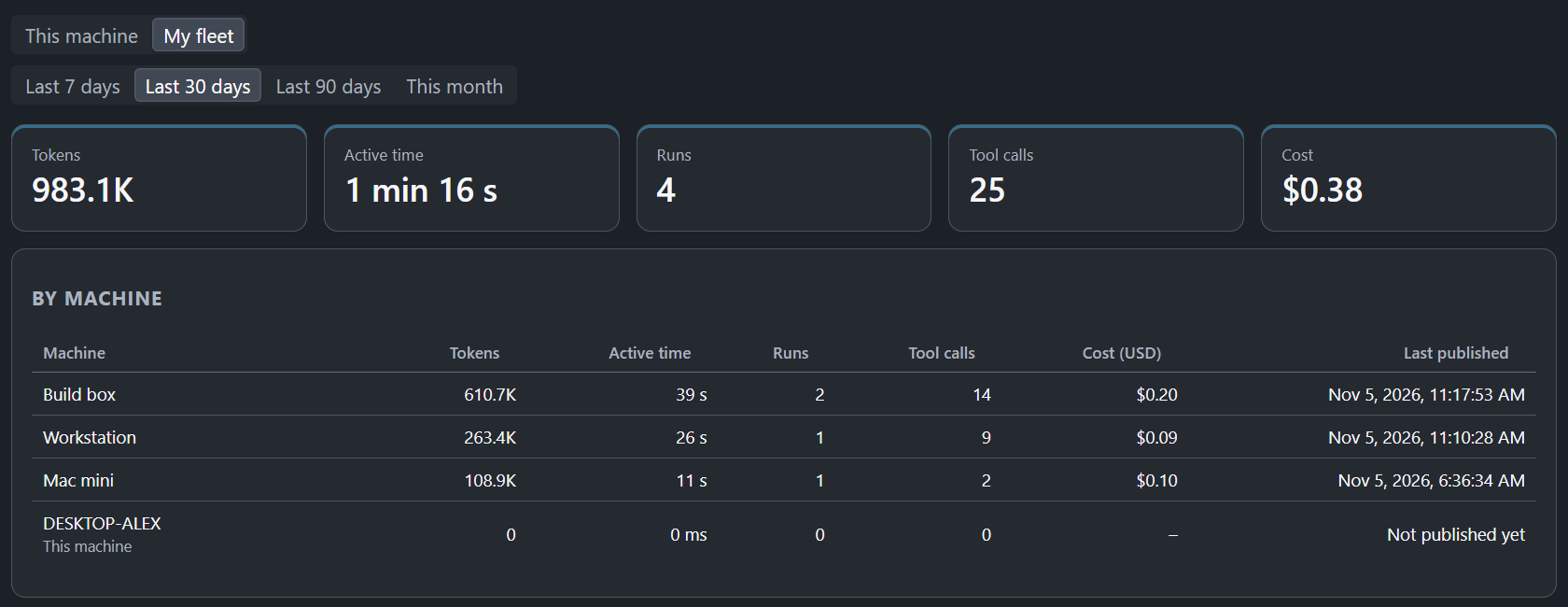
- A machine sends the statistics of the sessions it publishes to the server, from the day it was linked to it. A Private session sends nothing; a session made Private later, or whose space you unlink, has its statistics removed from the server.
- The server receives numbers and the names of providers, models and tools, never prompts, answers or file names. Projects travel as keys made with the key only your computers hold: the server cannot tell which project a key is, and your computer names the projects it has too (the same repository on two machines is one project). A project only another machine has shows as Project and the start of its key.
- A machine that was offline sends what it counted when it comes back, and sending the same statistics again changes nothing.
- My fleet shows the machines of your own fleet. This machine is the full Statistics page, with its filters and comparisons, for this computer.
A node starts counting with the day it first runs.
Set budgets for your machines
A budget limits the tokens or the estimated cost (in US dollars) your machines spend per day, week or month.
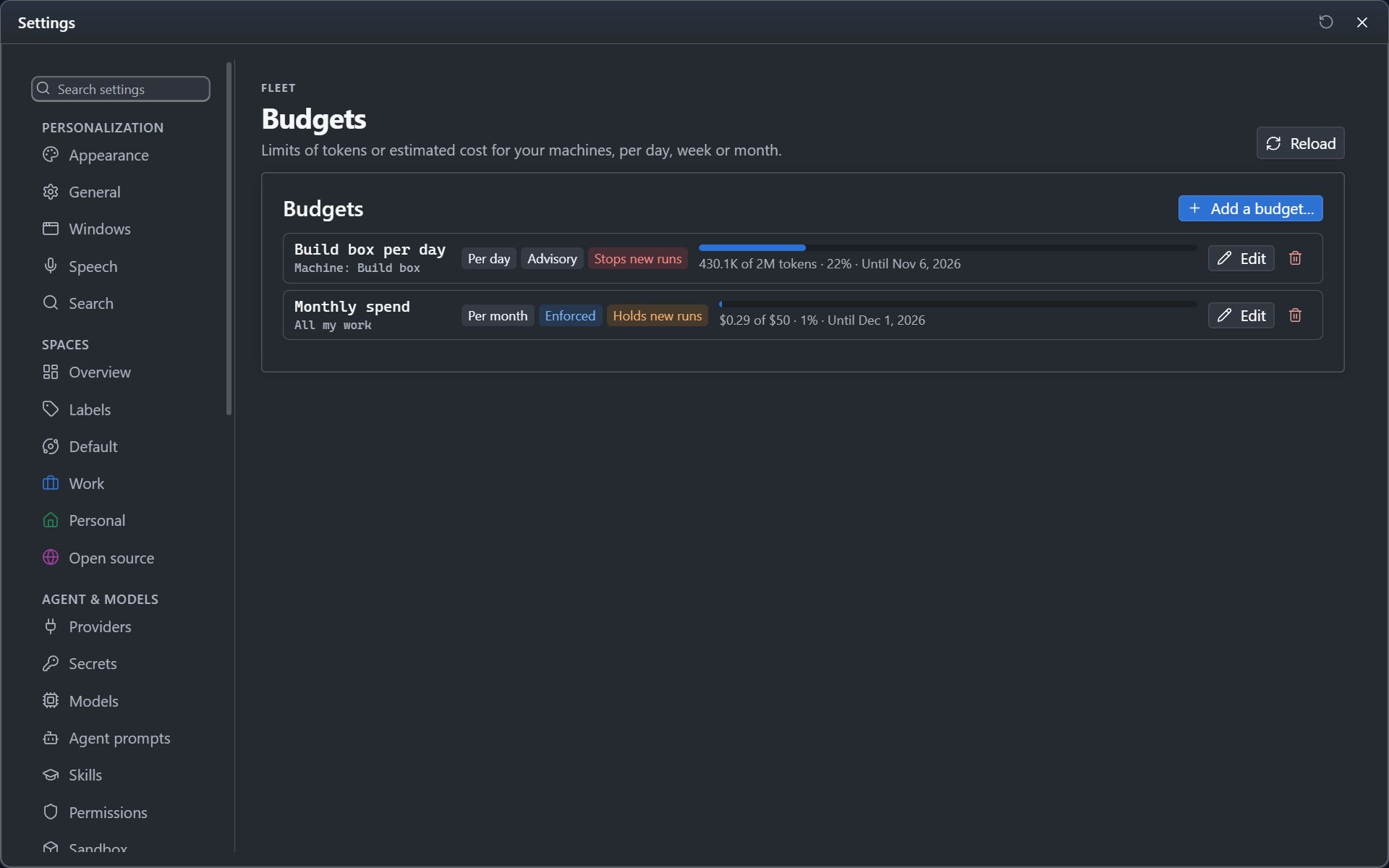
- In CodeAlta Desktop, on the owner's computer, open Settings > Fleet > Budgets and click Add a budget….
- Name it and choose Where it applies: All my work, one machine, a space or a project.
- Choose Tokens or Estimated cost (USD), the Limit and the Period. Periods start at midnight of your computer's time zone, a week on Monday.
- Choose how it holds, and what happens at its limit, then click Add.
| How it holds | Effect |
|---|---|
| Enforced: each machine gets a share | Each machine holds a share of the budget and spends it without asking, also offline. A run starts only when its machine holds enough; a machine that runs out asks for more, and the server never gives more than the limit |
| Advisory: it warns | The budget counts what the machines report; machines working at once or offline can pass it before you hear of it |
| At its limit | Effect |
|---|---|
| Hold new runs for me | A new run in its scope waits; Continue anyway starts it, Stop drops it |
| Stop new runs | A new run in its scope does not start |
Each budget shows a bar of what its scope used in its period, red once it is reached. Edit and the trash button change or remove it, beside its row. You hear of a budget once at 80% and once at 100% of each period: a message you dismiss, or close, is gone from all your computers.
A run that waits comes as a message wherever you are in CodeAlta, with Continue anyway and Stop, and in Runs that wait for a budget at the top of the page. A session you start on a machine whose budget holds new runs starts, and its prompt waits on the machine: the message says so, with Continue anyway. Your computer signs each Continue anyway for that one run: the machine checks it, so the server alone cannot start a run past your budget. A budget you edit while a run waits decides again: when it still holds the run, a Continue anyway given for the budget as it was does not start it: start the run again. Estimated costs come from the prices of the model catalog, as in the Statistics tab.
Hear of problems of your machines
Your nodes tell the server how they are: little disk space left, a provider whose sign-in failed or ends within three days without renewing itself, an automation whose last runs failed, their policy refusing runs. The server also sees a node offline for more than six hours and one that runs an older version than the server. A problem that lasts more than ten minutes comes to you once, as a message with Dismiss, and stays listed under Notifications in Settings > Fleet > Budgets until you dismiss it or it ends. Dismissing it, or closing its message, dismisses it on all your computers. One that comes back later comes again.
Give secrets to your machines
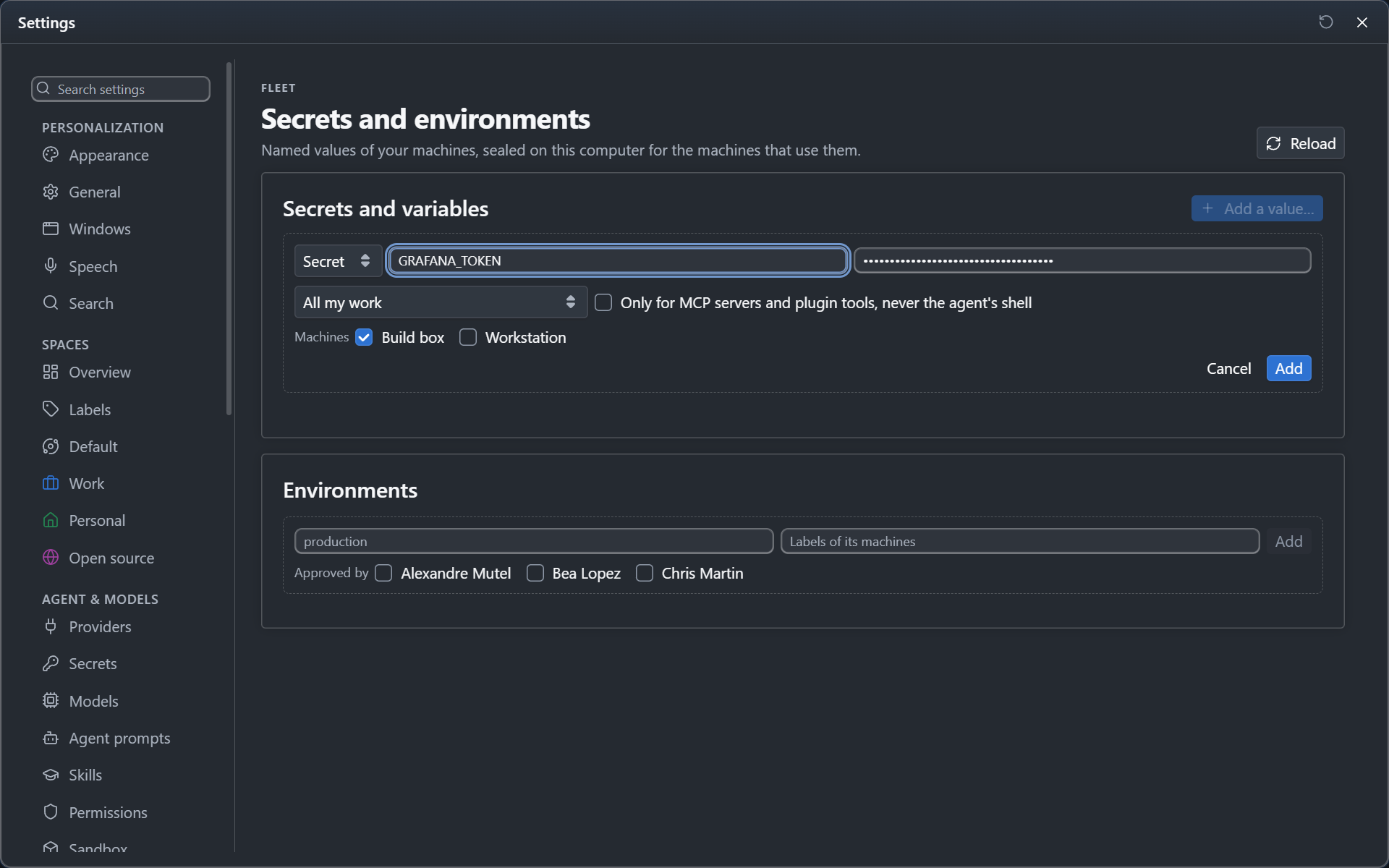
Settings > Fleet > Secrets and environments sets the secrets and variables of your machines from the computer that made the server: for all your work, a space, a project or an environment, for the machines you choose, rotated from there. Environments such as production run only on the machines they name and can wait for your approval before a run starts. See Secrets of your machines with a server.
Receive events of other tools
incident.io and other tools that push signed webhooks send their events to a hook of your server, for one of your machines.
- In an automation that runs on that machine, add an incident.io or Webhook trigger and click Make a hook. Give the address it shows to the tool (in incident.io: Settings > Webhooks). The address stays hidden in the trigger: Show the address reads it again from the server.
- Keep the signing secret of the tool, and for incident.io an API key, in the secrets of that machine.
- Test the connection, then enable the automation.
- The server keeps each event until the machine takes it, for a day at most, and then only when it came and what the machine did with it. A machine that was offline takes the events of that day when it connects. The same event pushed twice runs once.
- An incident that incident.io cannot give back for a while (it does not answer) is tried again later instead of being lost.
- The server keeps the headers of the event and of its signature, never a token or a key the tool sends with it.
- The server has no signing secret: the machine checks the signature of each event, and an event that does not verify starts nothing. An incident is read again from incident.io before it reaches the session.
alta fleet hook listlists your hooks with their addresses;--events <hook>says what the machine did with the latest events.
Send telemetry to a collector
Your server and your nodes can send their traces, metrics and logs to an OpenTelemetry collector (Grafana, Datadog, Azure Monitor, the Aspire Dashboard...), so that you follow their activity and their errors without connecting to them.
- In CodeAlta Desktop, on the owner's computer, open Settings > Fleet > Server. The card of the server shows Telemetry: click Change….
- Turn on Send to a collector and give the address of the collector (
https://otlp.example:4318), its protocol, and the signals to send: Traces, Metrics, Logs. - Choose the route:
- Each machine sends to the collector: each machine needs to reach it; the Headers (an API key, say) go to every machine.
- Machines send through this server: the machines send to the server, which passes everything on to the collector with the headers you give here. They never get these headers and need no other way out. The server keeps nothing of what it passes on.
- Add the Headers the collector asks for and, if you want, an Environment (
production). Click Save.
The server applies the setting at once and sends it to every machine; each machine checks that your computer signed it before it applies it, so the server alone cannot send your machines' telemetry elsewhere. A header you saved shows masked: leave it empty to keep it.
Nothing sent holds your prompts, answers, tool calls or session titles. Logs are the records of CodeAlta itself: they may hold file paths and error messages, so they are sent only when you choose them.
The owner of a machine decides last, with the telemetry.json file of the machine: ~/.alta/fleet/telemetry.json for a node, ~/.altaserver/telemetry.json for the server.
telemetry.json |
Effect |
|---|---|
{ "enabled": false } |
Sends nothing, whatever the fleet says |
{ "fleet": false } |
Ignores the fleet's setting |
{ "endpoint": "http://localhost:4318", "signals": ["traces", "metrics", "logs"] } |
Sends to this collector instead |
The standard OTEL_EXPORTER_OTLP_ENDPOINT and other OTEL_* variables of the service also work, and win over the fleet's setting; OTEL_SDK_DISABLED=true turns telemetry off.