CodeAlta Server
CodeAlta Server (altaserver) is one place your computers connect to, for you alone or for a whole team: your machines are reachable from anywhere, people sign in, and your automations, budgets and policies apply to every machine (overview).
A CodeAlta Server shows the machines of all your computers, whether they are online, and the sessions they publish, in one place. It never reads their content: a session publishes its state, its provider and model, its times and its counts (turns, tool calls, tokens), never its prompts or answers. Its title travels encrypted with a key that only your approved computers and machines hold: the server cannot read it.
Create my server
In CodeAlta Desktop, open Settings > Fleet > Server and click Create my server…. Choose where it runs:
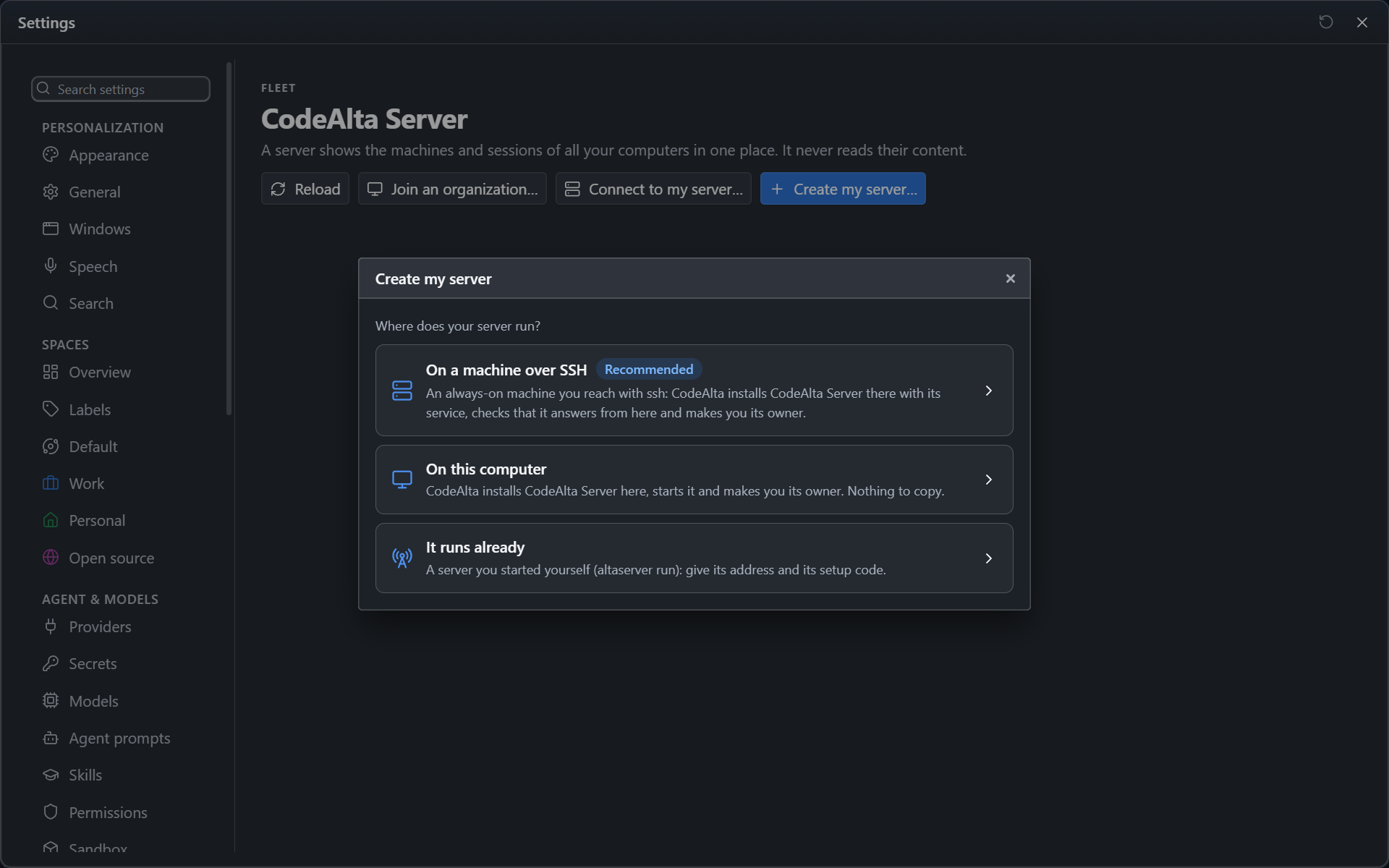
- On a machine over SSH, the usual place: an always-on Linux or macOS machine you reach with
ssh. Give it asuser@host, and how your machines reach it: An address I put in front of it (the default), a domain or Tailscale Serve that forwards to the server over HTTPS, which then stays on the machine's own loopback and trusts the proxy there (--trusted-proxy "127.0.0.1;::1", below); The local network, encrypted with the server's own certificate (https://host:2586), when nothing stands in front of it: the server makes a certificate of its own, CodeAlta reads its fingerprint over SSH, and every device checks it at each connection, so nothing travels in clear and no other machine can pass for the server; or The local network, not encrypted (http://host:2586, plain HTTP), only on a network you trust. CodeAlta checks the system and .NET there, installs CodeAlta Server, starts it as a service withaltaserver install(asystemd --userunit with lingering, or a LaunchAgent), checks that it answers from this computer at that address, then reads its setup code over SSH and makes you its owner. Nothing to copy. - On this computer: CodeAlta installs CodeAlta Server here, runs it as a service with
altaserver install(see Run a server as a service), so that it starts again after a restart, and makes you its owner. - It runs already: a server you started with
altaserver run; give its address, its setup code (altaserver setup-codeprints it on its machine) and your name. A setup code typed in Connect to my server… by mistake is recognized: CodeAlta says the server has no owner yet, and Set it up… opens this form with the address.
Your name starts as the full name of your account on this computer; change it at will. Give an Organization (Home by default). Advanced sets the port (2586), the data folder, the install folder and a folder of packages.
When the server runs but does not answer from here, the step says what blocks it, with what this computer met: a firewall (on Ubuntu, sudo ufw allow 2586/tcp on the machine), a name that does not reach it, a proxy that does not forward to it, or, on a Mac, CodeAlta not allowed in System Settings > Privacy & Security > Local Network. Start over runs every step again from the first and changes only what is missing.
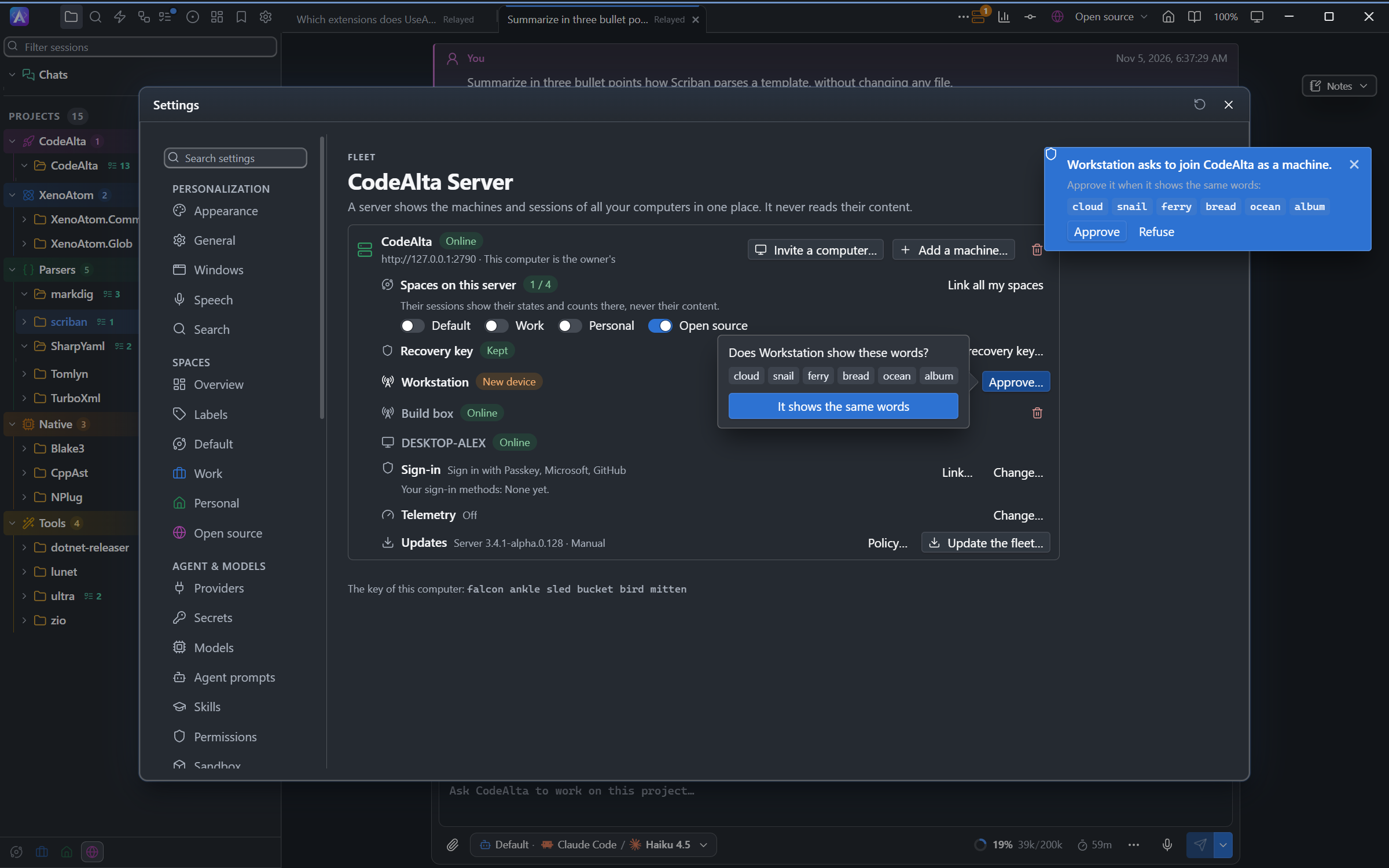
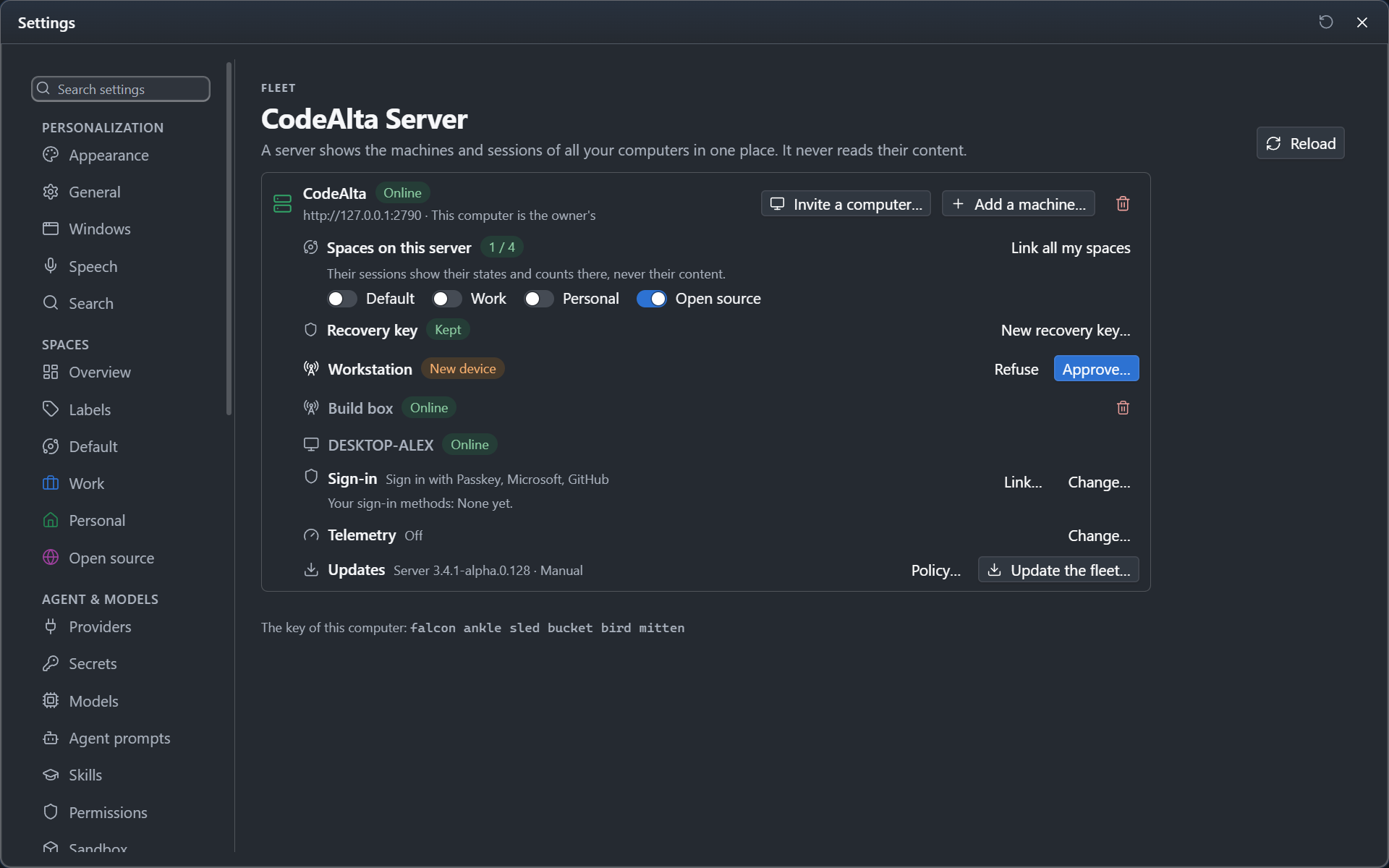
Once you are its owner, Spaces on this server lists your spaces: a server shows the sessions of a linked space only, yours included, so click Link all my spaces or turn on the ones you want. Add your machines lists the machines this computer manages: Add has each join the server from itself, and approves it at once. The six words of each are shown.
When you click Done, CodeAlta shows your recovery key: 32 words, shown once. Write them down or click Copy and keep them somewhere safe, click I wrote them down, and type the two words it asks for.
Run a server as a service
A server you installed yourself (dotnet tool install -g CodeAlta.Server) starts again after a restart once it runs as a service:
altaserver install
It takes the options of altaserver run (--port, --urls, --data-root, --certificate, --own-certificate) and sets up one service per data root. The server listens on http://127.0.0.1:2586: put Tailscale Serve, Caddy or the TLS of your platform in front of it, or give it an https:// address with a certificate, a file of yours (--certificate) or one it makes and keeps (--own-certificate). No browser trusts a certificate of its own: altaserver status prints its pin (Certificate: sha256:…), and devices are given the address with it, https://host:2586#pin=sha256:…, in Join an organization, It runs already or altanode join; the address CodeAlta shows for a machine or a person to join carries it already. A plain http:// address beyond the loopback is refused, unless --allow-insecure-http forces it on a network you trust. Behind Tailscale Serve or Caddy on the same machine, add --trusted-proxy "127.0.0.1;::1": the server then limits the attempts of each caller by the address the proxy forwards, and its audit names them, instead of counting everyone as the proxy; and its passkey page opens at the https:// address the proxy serves.
| System | What altaserver install sets up |
|---|---|
| Windows | A task at your sign-in that runs the server without a window and starts it again if it stops |
| macOS | A LaunchAgent of your account |
| Linux | A systemd --user unit, with lingering turned on so that it starts at boot |
altaserver status tells whether it runs and whether it will start again after a restart. altaserver install --dry-run prints what it would set up, altaserver uninstall stops the server and removes the service: the data root stays. --system --account <name> starts it at boot under an account of its own, with sudo on macOS and Linux. altaserver update keeps working under the service.
altaserver update does the same for CodeAlta Server: it first copies its database to the backups folder of its data root, and puts that copy back if the new version has to be undone. The server keeps the secrets it uses itself (the client secret of your company's sign-in, the headers of your telemetry collector) encrypted with a key of its keys folder: keep that folder with your copies of the database. A copy made by a version before 4.0 may hold them in clear: the server tells you when it starts, and altaserver backups --delete-unsealed deletes those copies.
Add machines and computers
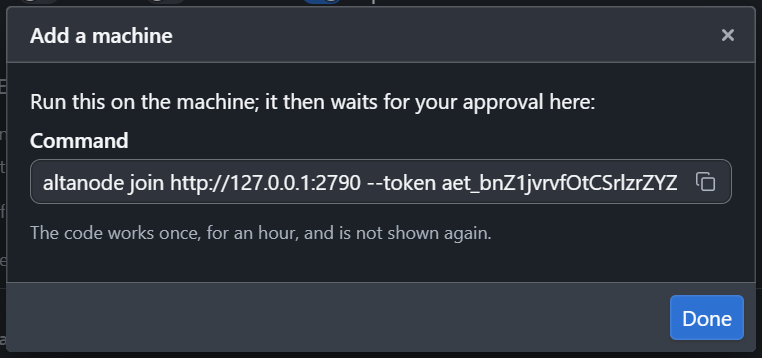
- A machine: in Settings > Fleet > Machines, Add a machine… > Through my server shows the command to run on it,
altanode join <address> --token <code>, which prints the six words of the machine's key. The machines that join list under the command with their words: click It shows the same words beside the one whose words the machine printed. Another one is never approved by itself. The Add a machine… of the server's card shows the same command for a machine that waits for you to approve it: it appears under the server as a New device; click Approve…, check that the machine shows the same six words, and click It shows the same words. - What waits for you: when a machine or a computer asks to join, a message comes wherever you are in CodeAlta, with its six words, Approve and Refuse, and the Fleet button of the title bar counts what waits, with the runs held by a budget, the problems of your machines and the sessions of your machines that wait for you. Approve when the words are the same as on the device.
- Another of your computers: on the server's card, Invite a computer… shows the address of the server and an enrollment code, each with Copy. On the other computer, open Settings > Fleet > Server, click Connect to my server…, give the address and the code (or sign in with a method you linked: a passkey, Microsoft, Google, GitHub), and choose its spaces: all of them by default. It shows six words while it waits, and you approve it the same way from a computer already approved. A computer that joined with the enrollment code is approved once you sign in again with a way you have (Continue with); before you link one, only in the hour after this computer set the server up. Once approved, it can add and approve machines too. A node never approves anything.
- A computer or a machine you no longer trust: the trash button of its row among the devices of the server's card, then Revoke. Every machine refuses it at once, and the server cannot bring it back.
- Entries from a newer version: when computers of your fleet run a newer CodeAlta than this one, the devices of the server's card may say that entries of the device list come from a newer version and were skipped. This computer trusts none of the devices they add until you update CodeAlta here.
Join an organization
To join the server of your company, open Settings > Fleet > Server and click Join an organization…:
- Server: its address, which your administrator gives.
- Sign in: click Continue with a method the server offers: your company's sign-in, a passkey, or a Microsoft, Google or GitHub account you linked. Your browser opens; once you are signed in there, it sends you back to CodeAlta. With GitHub, CodeAlta shows a code instead: click Copy the code and open GitHub, paste the code on GitHub's page and approve, and CodeAlta goes on by itself; Cancel stops the wait. Use an enrollment code instead takes the one-time code your administrator made for you.
- Space: the space that works with the organization, A new Work space by default. Its sessions are published to the server: their states and counts, never their content.
- Approval: another of your computers approves this one, or, for your first computer, an administrator; they see the six words shown here beside it.
To bring someone into your server, the owner or an admin invites them in Settings > Fleet > People and access (People and Access), which also sets their role, teams and the owners of machines.
Signing in proves who you are; it does not let this computer in by itself. A device gets the keys that open your titles only once one of your computers approved it: the server alone cannot add one.
Sign-in methods
The card of the server shows Sign-in: the ways people sign in on a new computer, and the ones linked to you.
- Link… adds a way to sign in to you, from a computer already approved: Add a passkey (the server's page opens in your browser) or Link Microsoft, Google, GitHub (a code to enter at GitHub, as when you join). An account signs nobody in until someone linked it. Your first way to sign in is linked from a computer that joined in the last hour (the one that set the server up or recovered with your recovery key, or the first computer of a person invited, which the owner approved); any other asks you first to sign in again with one you have (Continue with), or to Approve on another of my computers: the Sign-in row of the server's card on your other computer shows the link, with Approve. On your only computer, Use my recovery key approves it with the 32 words of your recovery key, which stay on the computer. When your first way in can no longer be linked from this computer, one of these approvals links it. The server keeps only the id and the name of a GitHub account, never its login or a token. Linking an account again refreshes its name.
- Remove (the small cross on an account or a passkey) stops it signing you in, after a question beside it; there is no sign-out, since the server keeps no session to end. You can also revoke CodeAlta in the security settings of your Microsoft, Google or GitHub account. The server keeps your last way in while you are an owner without a recovery key (only the ways that sign you in now count: while company sign-in is required, a linked Microsoft, Google or GitHub account does not, and a company account counts once it signed in again under the company's provider and the accounts it lets in as they are now), and the break-glass owner's last passkey while company sign-in is required; requiring it needs that owner to have a passkey. A company account has no Remove: it belongs to your organization, and an admin removes a person in People and access.
- On the owner's computer, Change… turns each method on or off and sets the company's sign-in: its Issuer (the OpenID Connect address of Entra ID, Okta, Google Workspace, Keycloak...), the Client id and Client secret you registered there, with the redirect
http://localhost/callback(any port: CodeAlta chooses one at each sign-in; on Entra ID, a Web platform redirect, and the optional claimauth_timeadded to the ID token in Token configuration, without which signing in again with it confirms nothing), and the Groups claim. The secret is never shown again. Email domains let in and Tenant ids let in say whose accounts it accepts: give at least one, and the tenant id for Entra ID (whose issuer may then be its own tenant's or the multi-tenanthttps://login.microsoftonline.com/organizations/v2.0), which does not confirm emails: an email domain would refuse all its accounts. An account of another domain or tenant is refused. People sign in with it the first time without an invitation; their first computer waits for your approval. Saving a change of the company sign-in asks you to confirm it: Continue with a passkey or an account linked to you, or Approve on another of my computers, and approve it there: the Sign-in row of the server's card on your other computer shows what changes, with Approve. - Roles from groups gives a role to the members of a group of your company, by the id of the group in the groups claim: Add a group, then choose Admin, Member, Auditor or Guest. At each company sign-in a person gets the widest role among their groups, or member when they are in none. No group makes an owner, and owners keep their role.
- Require company sign-in leaves only the company's sign-in for a new computer, and your passkey as the owner's way in.
Keep your recovery key
The recovery key lets you get your keys back on a new computer if every computer of yours that holds them is lost. The card of the server shows Recovery key: Kept once you have one. Make a recovery key… makes one for a server you created before; New recovery key… makes another, and the words you kept before stop working. Once you have a way to sign in, making one asks you to sign in again with it first (Continue with). Without your computers and without these words, what was encrypted for them cannot be read again, by you or by the server.
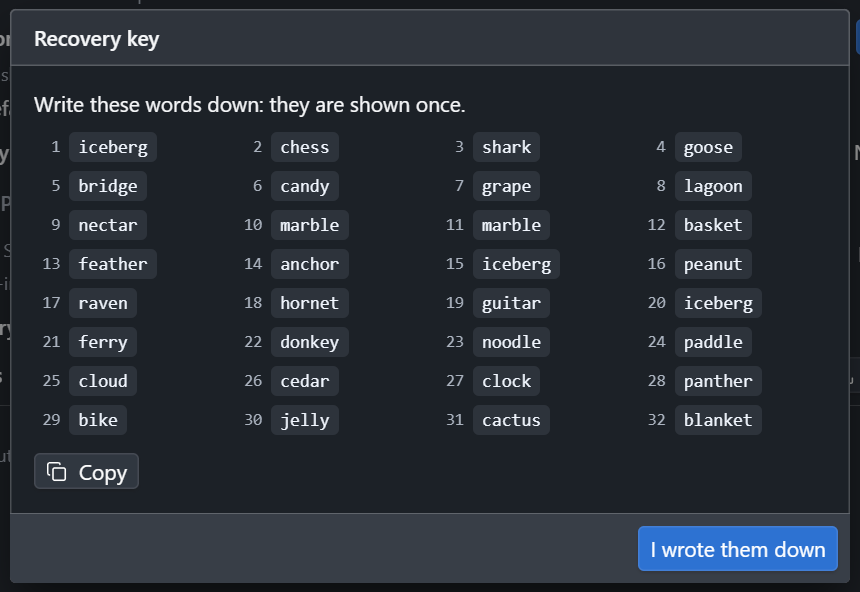
On a new computer, click Recover with the recovery key… on the empty Server page, or in Join an organization…, give the address of the server and type the 32 words: this computer becomes one of yours again, with your keys, without waiting for an approval. A word that is not a word of a recovery key is named by its position (Word 7…), never shown back.
Choose what a server sees
A space publishes to a server only when you choose it: Spaces on this server on the server's card, or Settings > Spaces > the space > General > Server. altanode join links the default space of the node (--space chooses others). A session made Private in its options (the Agent chip, More options) is never published; one made Private later, or whose space you unlink, is removed from the server. Each space has a key of its own, so the titles of one space never open with the key of another. Your computer makes the key of a space your machines publish without linking that space itself: their sessions show their titles, and your own sessions of that space stay unpublished.
Reach machines through the server
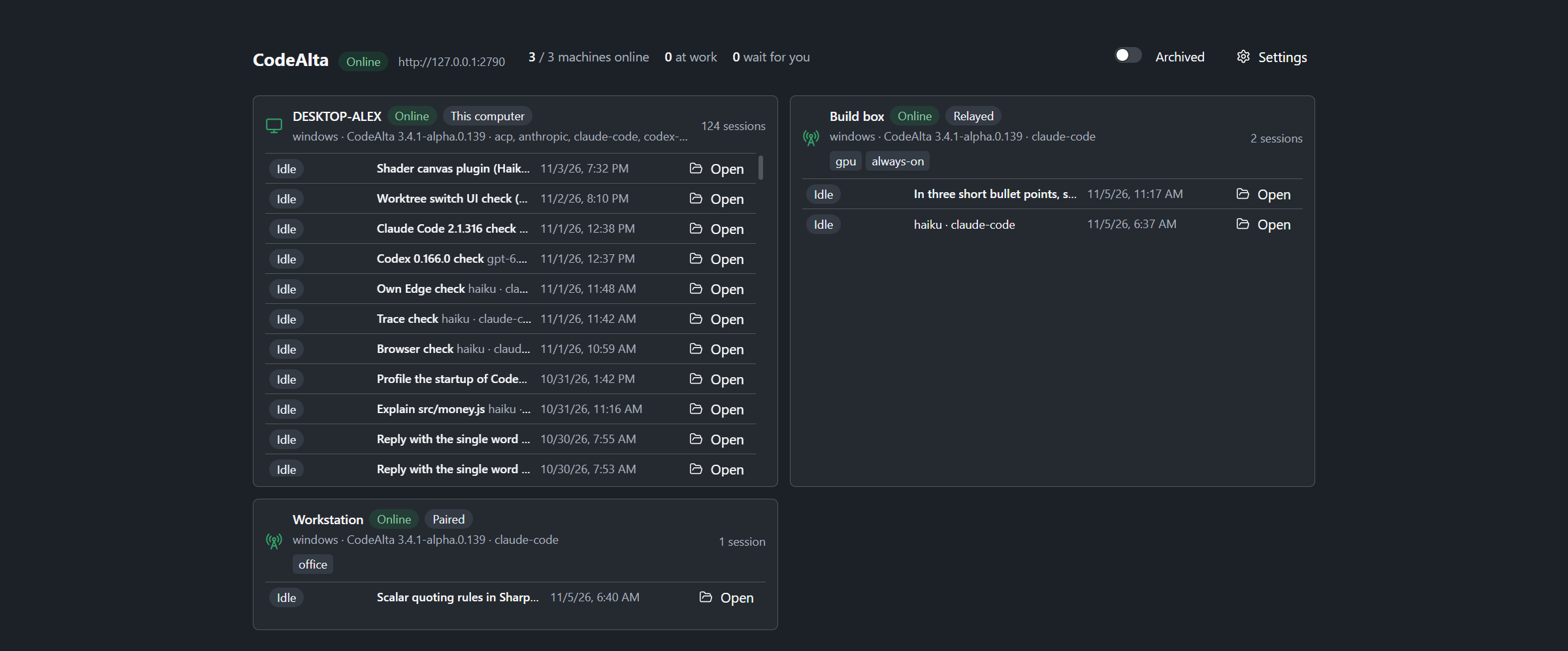
The nodes of your server are reachable from CodeAlta Desktop without pairing and without opening a port on them: each machine only connects out to the server, which relays the session between them. They are listed in the Explorer like paired machines, and their sessions are read, watched and driven the same way. A node joined with altanode join and run with --no-listen has no inbound port at all.
- A paired machine is reached directly when one of its addresses answers, and through the server otherwise (on another network, say).
- The tab of a remote session says Direct or Relayed after its title.
- The connection is encrypted from one computer to the other: the server passes it on without being able to read it, and records only who reached which machine, when and how much data went through.
- Your own computers may see, drive and start sessions on your nodes, as a paired computer does. Other machines of the server may do nothing there yet.
Reach a CodeAlta Desktop through the server
A computer of yours that runs CodeAlta Desktop and is connected to the server can be one of these machines too, without pairing and without opening a port. On that computer, open Settings > Fleet > Machines and, under This computer, turn on Let my other computers reach this one through my server. Your other computers connected to the same server then list it with their machines, marked Through your server: its sessions show in their Explorer, and they see, drive and start them as on a node.
- Your computers only. Only your own computers of the server reach it; another person of the organization, an admin included, does not.
- While CodeAlta runs. It is reached while CodeAlta Desktop runs there; once you quit it, your other computers see it offline.
- Off by default. Turning it off closes the sessions opened through the server at once and refuses new ones. It is apart from Let my other computers pair with this one, which pairs computers directly (Pair two CodeAlta Desktops).
- The policies of the server apply. A stop of the kill switch ends the work your other computers started there.
The Fleet canvas
The Fleet button of the title bar opens the Fleet canvas (/fleet): the machines of the server and their sessions, with their titles, as they change; without a server, the machines paired with this computer. Its Settings button opens Settings > Fleet > Server. A session of this computer, of a paired machine or of a node of the server opens with Open; the others are shown only. The name of a machine this computer reaches opens its page. altanode status says whether the node is connected to its server.
Leave a server
To leave a server, click the trash button of its card, then Leave: the server removes what this computer published there (its sessions, their titles, its statistics), its copies of your keys and the automations given to it through that server, and its spaces are unlinked. When the server does not answer, this computer leaves anyway and the page says that what it published stays there.