Work on Your Machines
The sessions of a paired machine, or of a machine of your server, are listed in CodeAlta Desktop beside yours. You read them, answer them and drive them as your own, start new ones there, move a session from one machine to another, and let your automations and your agents use your machines.
See and drive its sessions
The sessions of a paired machine are listed in the Explorer with your own, with a chip that names their machine:
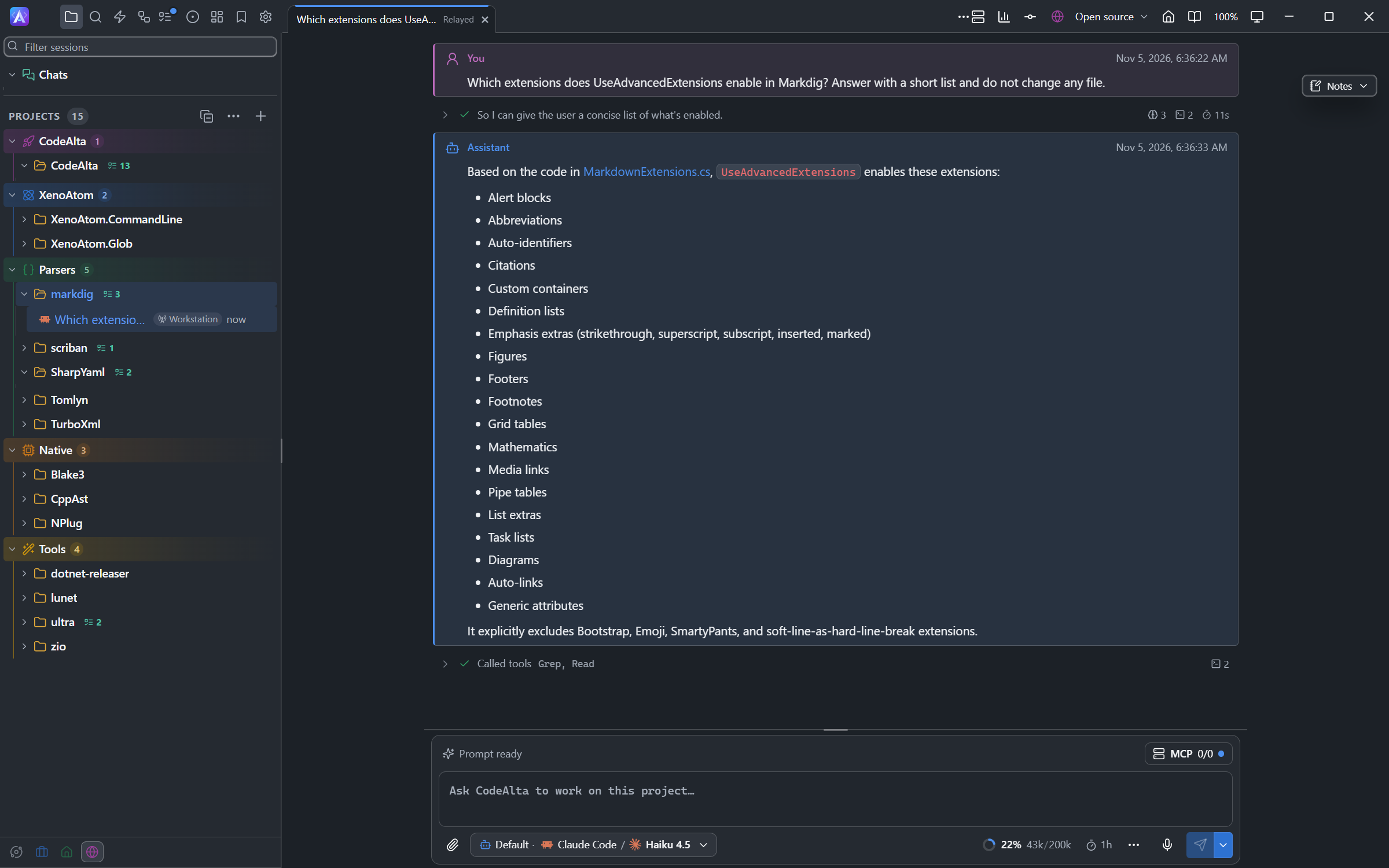
- A session in a project you also have here, a checkout of the same git repository, is listed under that project, whatever its folder and its name on each computer.
- The other sessions of the machine are listed under a row named after the machine. That row is there as soon as the machine is paired, sessions or none, and is dimmed while the machine is offline; its tooltip says its state.
Open one: its tab is the tab of any session. You read its timeline as it works, answer its questions and permission requests, send it prompts, steer it and stop it. The provider and the model are the ones the machine gives it, named as the machine names them.
A session of a machine that asks a question, or waits for you to allow a command or a change, is marked as waiting within a few seconds: its row in the Explorer, wait for you on the Fleet canvas, and the mark of the Fleet button of the title bar.
What works on the files of a project (the code editor, Changes, terminals, worktrees) is not offered for a session of another machine: its folder is on that machine. Renaming, forking, archiving and deleting it are not offered either. Pictures and files attached to a prompt are not sent to another machine.
While a machine is offline, its sessions stay listed with what was last known of them, and CodeAlta connects again by itself.
Start a session on it
- Open a new session in a project, or in Chats.
- Beside the agent chip above the prompt, click Run on (it shows This machine) and choose the machine. Only machines that are online are offered.
- Choose the project of that machine: when the machine has a checkout of the same repository as the project you are in, it is already chosen. Chat (no project) starts a session in no project.
- Choose the provider and the model among the ones ready on that machine.
- Write your prompt and send it. The session starts on the machine and opens in its tab.

The + of the row of a machine in the Explorer opens the same prompt, already set to run on that machine.
Let agents start sessions on it
An agent of a session on this computer can hand part of its work to a session on a machine ("run the iOS tests on the Mac"), and get its final answer back as it does from a session of this computer.
- Allow it for the spaces you want: on the page of the machine in Settings > Fleet > Machines, turn on the space under Agents of other machines (or, on the machine,
altanode agents allow --space default). It is off until you do, andaltanode agentsshows what is allowed. - Ask the agent to do it. It runs
alta session create --machine <name> --stdin(or, in a script,agent(prompt, { machine: "<name>" })).alta fleet machine listlists the machines, with which ones take a session now (Let agents use the fleet).
The session starts in the project of the same repository on the machine, as a child of the session of the agent: it shows under it in the Explorer and among its child sessions, with the name of the machine, and opens like any session of the machine. Its final answer, or its failure, comes back to the parent, also when this computer was closed meanwhile: the machine keeps it until this computer takes it. The agent can send it more prompts with alta session send.
What the session may do:
- At most what the session of the agent has: its space, the tools it does without, its permission mode and its sandbox. The agent cannot give it more. A sandbox goes with what it allows on this computer: the machine runs the session in a profile at least as strict, or refuses it, even when its own profile of that name allows more (see sandbox).
- It never bypasses permissions on the machine unless you allow it there: Bypass permissions under Agents of other machines, which asks first (or
altanode agents allow --bypass). When it asks before a command, or asks a question, its parent and its row show that it waits for you, with a notice. - Sandbox under Agents of other machines (or
altanode agents allow --sandbox strict) makes the sessions of agents run in that sandbox at least; the machine refuses one it cannot sandbox. - Each request is signed by this computer: neither a server nor anyone else can start a session in its name. The machine limits how many sessions and prompts agents send it, and logs each one with the session and the computer that asked.
Turning the space off, or altanode agents deny --space <id> (or --all), turns it off again. A Private session never starts a session on another machine.
Run your automations on it
An automation of yours can run on a paired machine, or on a machine of your server, by its triggers, while this computer is closed.
- Let this computer give the machine automations: on its page in Settings > Fleet > Machines, turn on Automate for This computer (or, on the machine,
altanode permissions <device> --allow automate). - In the Automations tab, edit the automation and choose the machine in Runs on. It is offered for an automation kept in your configuration, once a machine is paired or your server lists one.
- Save. CodeAlta copies the automation to the machine: its card says On and the name of the machine, and its details say Copied to that machine. A machine that is offline gets it when it answers.
The machine fires its schedules and starts its sessions; Run now runs it there too. When a budget of the machine holds new runs, Run now says at once that the run waits, with Continue anyway, and the run is listed as Waits for Continue anyway until you decide. Its runs are listed with the automation, as the machine reports them, and their sessions are those of the machine. Choose This computer to bring it back: the machine no longer has it.
- The automation keeps its definition here; edit it here, and the machine gets the change.
- Moved to another machine, or brought back to this computer, while the machine it ran on is offline, an enabled automation waits: its card says Waits for the machine it left until that machine takes its copy away, so that both never run it. A machine that refuses to take it away (its copy could not be deleted there) keeps it waiting, and the card says why. Start anyway… starts it at once where it is now; both machines may then run it until the old one answers, and it still takes its copy away then.
- Turning off Running in the Automations tab pauses the automations on machines too: they get them disabled until you turn it on again.
- Its project is found on the machine by its git repository: the machine needs a checkout of it (
altanode projects clone <url>). An automation of no project runs as a chat there. - Runs with lists the providers and models of the machine once you choose it in Runs on, paired or reached through your server, named as the machine names them (a machine that does not answer leaves the providers of this computer); leave it to the defaults for the machine's default provider. Runs in lists the projects of this computer: the machine finds its own checkout of the project.
- A command trigger runs on this computer only, and an automation kept in the configuration of a project runs on the machines that have the project.
- An automation with autonomy waits for you on the machine. Through your server, a run that waits comes as a message to the owner of the automation (for a team's, its members) and to the people granted to approve it, with Take over. Your computer signs it and the machine checks it: someone else than who placed the automation takes it over once an admin signed the access document that names them (People and access). Then answer in its session.
A machine of your server that is not paired with this computer gets the automation through the server, with no permission to give on the machine: it must be one of your machines. The server keeps it sealed, so it cannot read nor change it, and the machine gets it when it connects. Its details say whether the machine took it or refused it, and why. Run now asks the machine through the server while it is online; its triggers run it either way, also while the server is away.
On the machine, what it runs is up to it: altanode automations policy off turns automations off (on again), and altanode automations policy credentials account limits them to account credentials (API keys and local models, never a personal plan; any again). A node that runs applies the change at its next run. altanode automations lists what the devices gave the machine, and altanode automations runs their latest runs. A run the machine refuses is listed with its reason. A computer that loses the permission, or is revoked, no longer gets its automations run.
Move a session
A session can move to another machine and go on working there: its conversation, and the work of its branch.
Moves are off until you allow them on the side that receives the session:
- To a node: on the page of the machine in Settings > Fleet > Machines, turn on Move for the computer (or, on the machine,
altanode permissions <device> --allow move). The same permission lets that computer take sessions of the node back. - To this computer: in Settings > Fleet > Machines, turn on Receive moved sessions on this computer.
To move a session:
- In the menu of the session, click Move to machine….
- Choose the machine: a session of another machine can also come back to This computer.
- Read what the move meets: a session at work moves once it is idle, a question waits for your answer, and the machine needs a project of the same git repository (Clone the repository there offers to make one).
- Click Move. The session opens where it runs now.
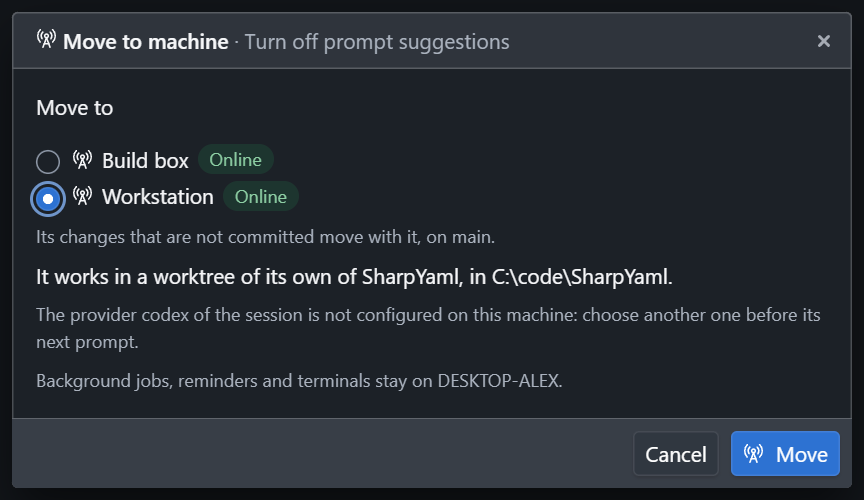
Only a session of a project in a git repository with a remote moves. On the machine, it works in a worktree of its own, on its branch: its commits that are not pushed and its changes that are not committed go with it.
What stays behind: its background jobs, reminders and terminals, and the files that look like secrets (the dialog names them). A move that a lost connection stopped goes on when the machine is back.
Let agents use the fleet
Ask an agent of CodeAlta Desktop to work with your machines: "run the iOS tests on a Mac that is free", "move this session to the build box", "run the nightly review on the server machine", "how many tokens did my machines use this month". It follows the built-in codealta-fleet skill and the alta fleet commands:
| The agent | With |
|---|---|
| Lists the machines with their state, version, labels, readiness and load, and picks one | alta fleet machine list, alta fleet machine show <machine> |
| Starts a session on a machine and gets its answer back | alta session create --machine <machine> |
| Lists the sessions of a machine | alta fleet machine sessions <machine> |
| Sees what a move would meet, and moves a session | alta fleet move status, alta fleet move start |
| Says where your automations run, places one, runs one now | alta fleet automation list, place, run, runs |
| Reads the statistics, the updates and the health of the fleet | alta fleet statistics, alta fleet update status, alta fleet health |
| Reads the devices of a machine you manage | alta fleet machine devices <machine> |
| Checks which secrets a machine has, by name only | alta fleet secret list <machine> |
| Reads people, roles, teams, grants and owners, and proposes a change for you to apply | alta fleet access show, people, owners, propose |
| Reads the policy of your organization and whether its kill switch holds | alta fleet policy show |
| Reads and checks the audit log | alta fleet audit list, alta fleet audit verify |
An agent works with your access and never more:
- It reads devices, permissions, roles, teams and grants, and does not change them: you do, on the page of the machine or in People and Access, where its proposals wait for you.
- It creates automations disabled, enables none, and places a disabled one only: you enable them in the Automations tab. You start an update campaign.
- Its sandbox and permission mode go with what it starts or drives on another machine. A sandboxed session reads the fleet, and starts, moves or places nothing elsewhere; one whose sandbox does not allow the fleet does not read it either.