Policies and Audit
A CodeAlta Server keeps the rules of your organization for the work of the fleet, the kill switch that stops it, and an audit log of who did what. In CodeAlta Desktop, open Settings > Fleet > Policies and Settings > Fleet > Audit.
The kill switch
The kill switch stops the work of the fleet at once: the sessions started from another device, the sessions of agents of other machines, and the runs of automations. What a person does at a machine goes on.
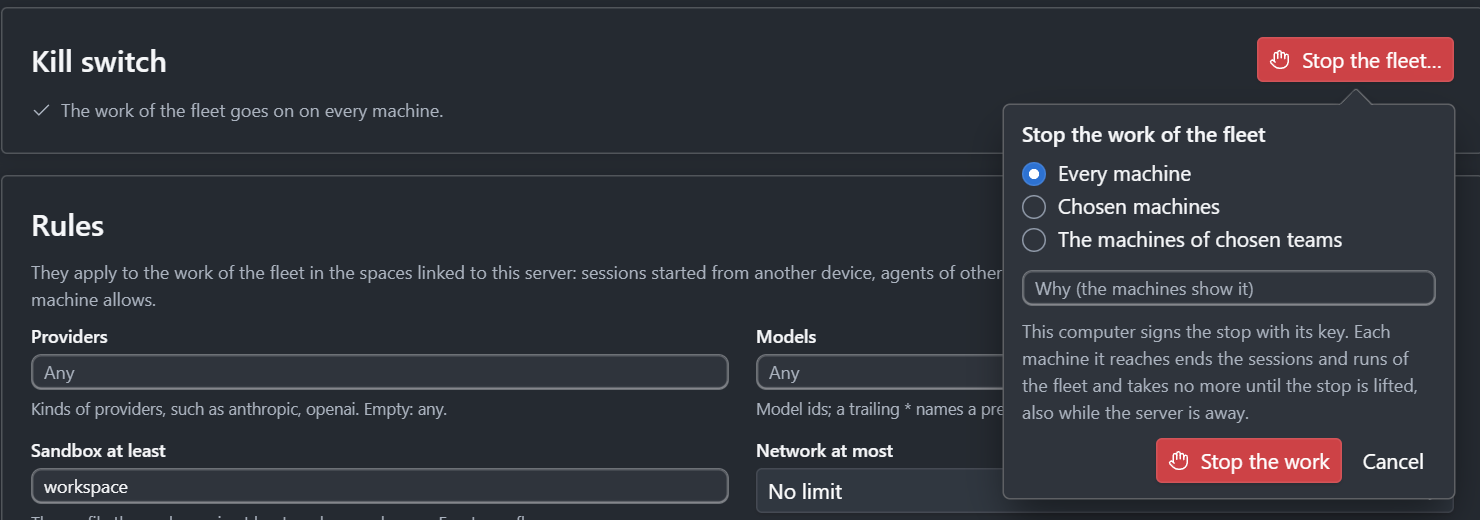
- Open Settings > Fleet > Policies and click Stop the fleet….
- Choose Every machine, Chosen machines or The machines of chosen teams, and say why: the machines show it.
- Click Stop the work.
Each machine it reaches ends that work as soon as it reads the stop and refuses more, with your reason. A machine keeps the stop it read: it holds while the server is away and after a restart. While a stop holds, the title bar of every CodeAlta Desktop of your organization shows Fleet stopped; click it to open the page.
To let the work go on, click Let the work go on…, then Let the work go on. Machines take work again once they read it.
Owners and the admins who sign the access document set and lift the kill switch. Others see whether it holds.
Rules of your organization
The rules apply to the work of the fleet in the spaces linked to the server. A rule only narrows what a machine allows; an empty one says nothing.
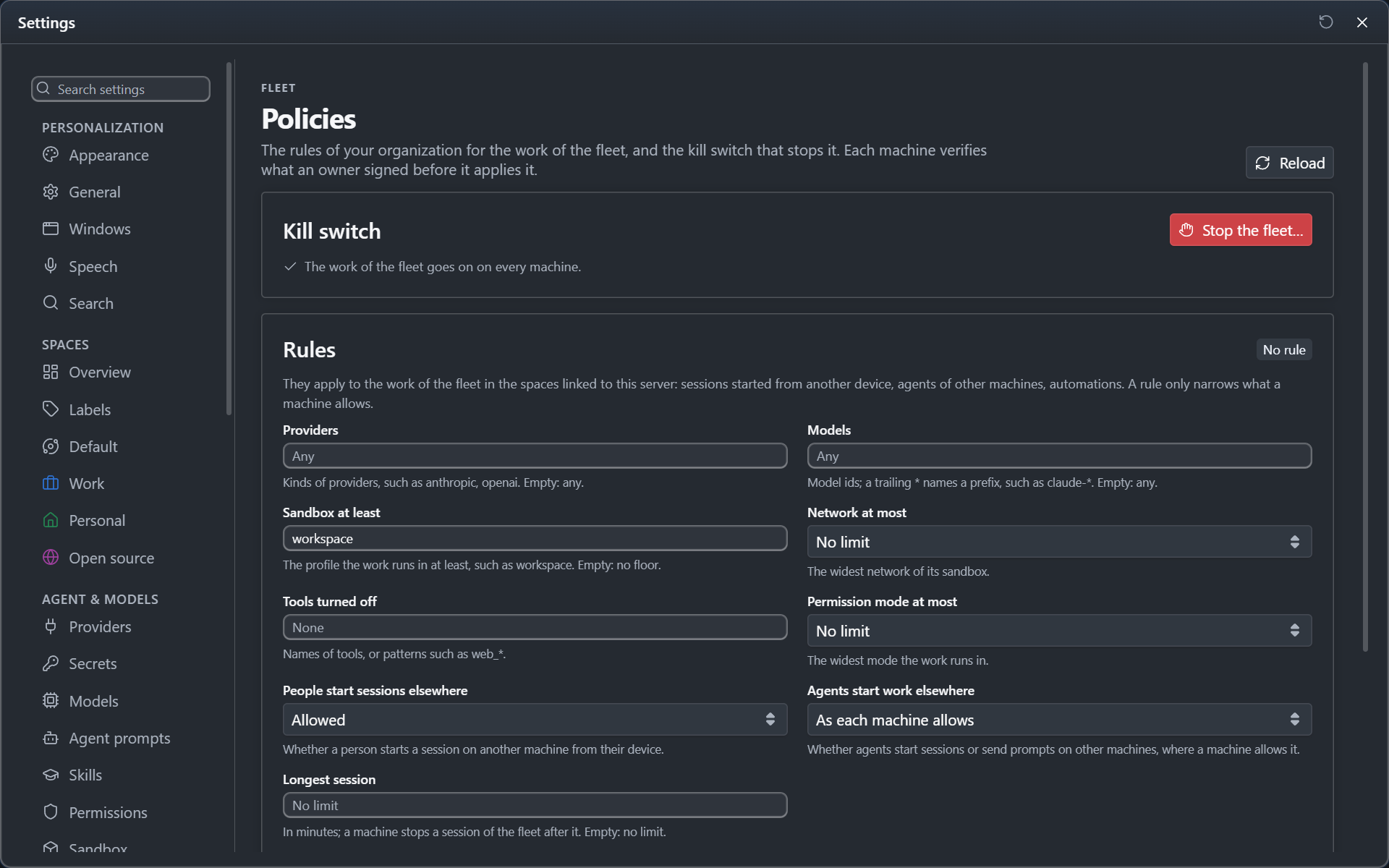
| Rule | What a machine does |
|---|---|
| Providers, Models | Refuses a session or an automation that uses another kind of provider or another model (claude-* names a prefix) |
| Sandbox at least, Network at most | Runs the work in that sandbox profile at least, with that network at most, or refuses it |
| Tools turned off | Starts the session without them |
| Permission mode at most | Starts the session in that mode or a narrower one |
| People start sessions elsewhere | Refuses a session started from another device when it is Not allowed |
| Agents start work elsewhere | Refuses the sessions and prompts of agents of other machines when it is Not allowed |
| Longest session | Stops a session of the fleet or a run of an automation that runs longer |
| Team machines publish the facts… | A team machine publishes the facts (never the content) of every session of your spaces, Private ones included |
| Every automation runs with account credentials | Refuses an automation that would use a personal plan |
Change the fields, click Review and sign…, read the changes and click Sign. Versions lists every signed version and what it changed.
Why machines can trust it
Each version is signed with the key of the computer of an owner or an admin who signs, and names the version before it. Every machine verifies the signature and the chain against the list of devices your computers signed, before it applies anything: the server keeps and passes the versions, and cannot write, change or take one back. A version that does not verify is refused, and the machine keeps the last one it verified; the page says so.
Read the audit log
Settings > Fleet > Audit shows who did what, newest first, by day: the action, the person and their device, and how it ended. A refused attempt is marked Refused with its code. Click a record to see its target, the address it came from, its request and its hashes.
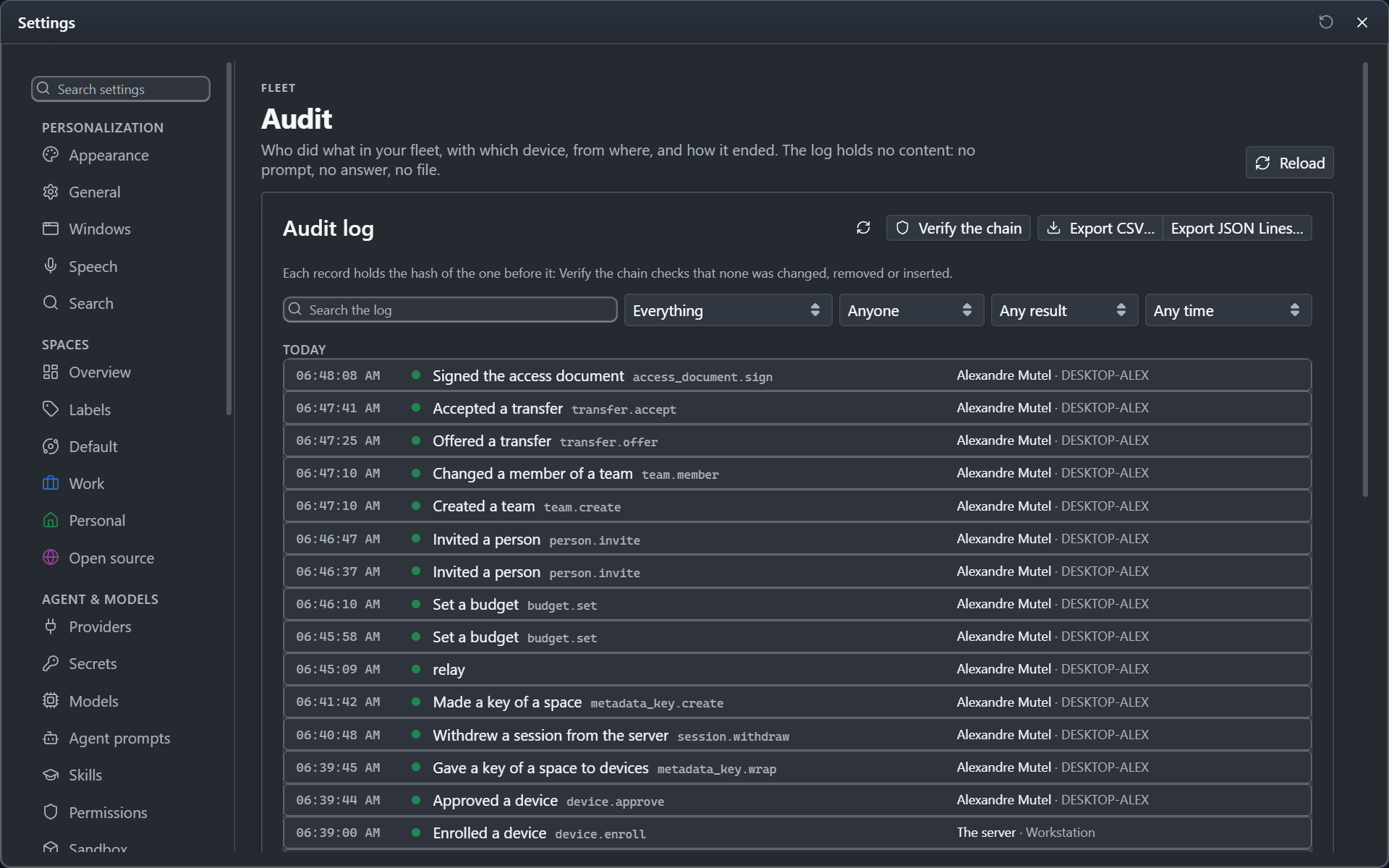
Narrow it with the search box and What, Who, Result and Period (Between two days… takes two days). Show older records reads the next page.
The log holds no content: no prompt, no answer, no file. Owners, admins and auditors read it.
Check the chain
Each record holds the hash of the one before it. Click Verify the chain: the page says that the chain holds, with the number of records and the last hash, or the first record where it breaks, which means a record was changed, removed or inserted.
Export it
Click Export CSV… or Export JSON Lines… and choose where to save the file. The export holds what the filters select, oldest first; Show in folder opens its folder.
- CSV opens in a spreadsheet. A cell a spreadsheet would read as a formula starts with an apostrophe.
- JSON Lines keeps every field as recorded: an export of the whole log verifies elsewhere, record by record, with its hashes.
Each export is itself in the log. Exporting takes the export capability of the audit log, which owners, admins and auditors have.
Agents
Agents read the policy with alta fleet policy show and the log with alta fleet audit list and alta fleet audit verify, with your access. They sign nothing and write no file: you change the policy, stop the fleet and export the log.