Your Machines
A machine is another computer of yours that runs sessions for you: your other laptop or desktop, a Mac mini that stays on, a build machine, a small cloud server. It runs CodeAlta Desktop, or CodeAlta Node (altanode) when it must run without a window, and you pair it with CodeAlta Desktop once. Its sessions are then listed beside yours (Work on your machines).
Two computers that both run CodeAlta Desktop pair in a minute, with nothing to install: see Pair two CodeAlta Desktops.
Each machine keeps its own sessions, providers and sign-ins. Nothing is copied from one computer to another, and no server is needed: your computers talk to each other directly. A CodeAlta Server adds machines you reach from anywhere.
Add a machine
In CodeAlta Desktop, open Settings > Fleet > Machines and click Add a machine…. Choose how this computer reaches the machine:
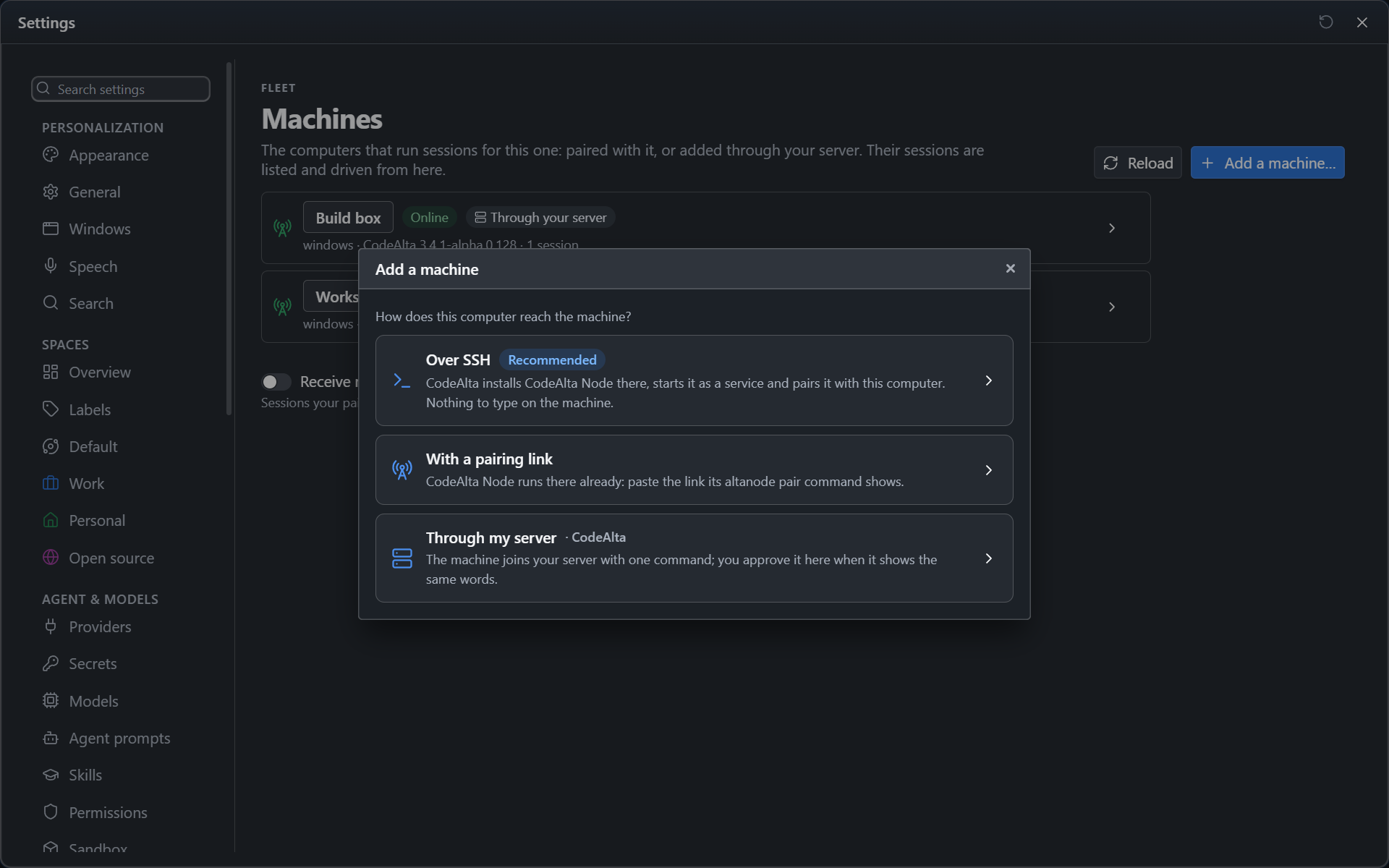
| Choice | When |
|---|---|
| Over SSH | A Linux or macOS computer you reach with ssh. CodeAlta does everything there; nothing to type on the machine |
| With a pairing link | CodeAlta Desktop runs there: paste the link of its Pair another computer… (see Pair two CodeAlta Desktops). Or CodeAlta Node runs there: paste the link of altanode pair (see Pair it with CodeAlta Desktop) |
| Through my server | The machine joins your CodeAlta Server with one command, and you approve it when it shows the same six words (see Connect to a CodeAlta Server) |
Pair two CodeAlta Desktops
Your laptop and your desktop at home, a Windows PC and a Mac: each runs CodeAlta Desktop, and each can be a machine of the other. Nothing else is installed.
- On the computer whose sessions you want to reach, open Settings > Fleet > Machines. Under This computer, turn on Let my other computers pair with this one.
- Click Pair another computer…. CodeAlta shows a pairing link, six words, and waits.
- On the other computer, open Settings > Fleet > Machines > Add a machine… > With a pairing link, and paste the link (Copy link copies it; send it to yourself as you like).
- Check that the other computer shows the same six words, then click Pair. The first computer says which computer paired.
The link works once and expires after 10 minutes. The first computer is then listed as a machine of the second: its sessions show in the Explorer, and you read, answer, steer and start them as on any machine (Work on your machines). Do the same the other way round to reach the second computer from the first.
- Through your server. Two computers connected to the same CodeAlta Server need no pairing: turn on Let my other computers reach this one through my server instead, and the other computer reaches this one through the server, from anywhere and with no port open (see Reach a CodeAlta Desktop through the server).
- While CodeAlta runs. A desktop is reached while CodeAlta Desktop runs there; once you quit it, the other computers see it Offline. A computer that must stay reachable runs CodeAlta Node.
- Away from home. On a computer of a Tailscale network, the link names it on the tailnet first, so your laptop reaches it from anywhere. This computer shows that name. Without Tailscale, the link names its addresses on your local network.
- What each computer may do. Computers paired with this one lists them, with a switch per permission: View, Drive and Start are on after pairing. Turn on Move to let a computer move its sessions here (see Move a session). Revoke refuses a computer at once; pairing again trusts it again.
- Off by default. Until you turn it on, this computer listens on no network and makes no key. It listens on port 2587 of its networks (2585 and 2586 stay free for a node and a server of the same computer); the first time, Windows or macOS may ask whether CodeAlta may accept connections: allow it. Turning it off stops listening; the paired computers stay listed, and reach it again once you turn it back on.
Over SSH
- Type the computer as you would after
ssh:user@host,user@host:port, or a host of your SSH configuration. Name is optional: the machine's own name by default. Tick Manage it from this computer to change its devices, projects, secrets and updates from here. - Click Add the machine. CodeAlta signs in with your SSH keys and agent (the OpenSSH client of your system, without asking for a password), then shows each step as it goes:
- Connect over SSH, and Check the system and .NET: Linux or macOS, x64 or Arm64, and .NET 10 there;
- Install CodeAlta Node: the .NET tool in
~/.dotnet/tools, or the package of its system where only the .NET runtime is; - Start it as a service:
altanode install --listen-all, asystemd --userunit (with lingering) on Linux, a LaunchAgent on macOS; - Pair it with this computer: the node makes a pairing link for this computer, which pairs at once (and manages the machine, when you ticked it). The six words of its key are shown.
- Click Open its page to give it projects and look at its providers (see Manage a machine from CodeAlta Desktop).
When a step fails, it says why and what to do: add your key to the SSH agent (ssh-add) or copy it to the machine (ssh-copy-id), install .NET 10 there, open the port of the node in its firewall. On a Mac, macOS asks once to let CodeAlta reach your local network, and keeps it from your machines until you allow it (System Settings > Privacy & Security > Local Network). Start over runs every step again from the first and changes only what is missing. A computer whose SSH key this one does not know yet shows the fingerprint of that key (SHA256:…): compare it with the one of the machine, then click Trust it and start over.
Where CodeAlta Desktop runs on the machine too, the node gets a profile of its own, ~/.alta-node. Advanced sets the port of the node (2585), its profile, the folder it is installed in, and a folder of this computer to install the packages from.
Install CodeAlta Node by hand
On the machine that will run the sessions, install .NET 10, then the node:
dotnet tool install -g CodeAlta.Node
altanode --help
The package runs on Windows, macOS and Linux (x64 and Arm64, Alpine included). altanode update updates it (see Update it).
On a machine without the .NET SDK, publish a self-contained altanode from a checkout of CodeAlta on a computer that has it, for the system of that machine (win-x64, win-arm64, osx-arm64, osx-x64, linux-x64, linux-arm64, linux-musl-x64, linux-musl-arm64), and copy the folder:
dotnet publish src/CodeAlta.Node -c Release -r linux-x64 --self-contained -o altanode-linux-x64
The node uses the same profile as CodeAlta Desktop and TUI, ~/.alta: its providers, prompts, skills and projects. Set up its providers as you would for the desktop app (see Model Providers): the sessions of a machine run with the accounts of that machine. Only one CodeAlta runs on a profile at a time, so on a computer where you also use CodeAlta Desktop, run the node only while the desktop app is closed, or give it a profile of its own with --data-root <folder> (a full path).
The projects a session can start in on the machine are the projects of that profile: add them with altanode projects (see Give it projects).
Run it
altanode run --listen-all
The node runs in the foreground and writes its log to the console. Ctrl+C stops it: running turns get a moment to finish.
| Option | What it does |
|---|---|
--listen-all |
Listens on every network of the machine (your LAN, a Tailscale network) |
--bind <address> |
Listens on one address only, such as the machine's Tailscale address |
--port <port> |
Another port than 2585 |
--name <name> |
The name your other computers see (the machine name by default) |
--no-listen |
Runs sessions without any connection from other computers |
Without --listen-all or --bind, the node listens on the machine itself only (127.0.0.1), and other computers cannot reach it.
altanode status tells whether the node runs and whether it will start again after a restart. altanode logs prints the end of its log; altanode logs --follow keeps printing it.
Run it as a service
To have the node start by itself, install it as a service with the options it runs with:
altanode install --listen-all
| System | What altanode install sets up |
|---|---|
| Windows | A Task Scheduler task at your logon, without administrator rights |
| macOS | A LaunchAgent in ~/Library/LaunchAgents |
| Linux | A systemd --user unit, with lingering so that it runs without a login |
The service runs as you, with your sign-ins. Run altanode install again to change its options, and altanode uninstall to remove it: your profile and sessions stay. altanode install --dry-run prints what it would set up without changing anything.
For a machine that should start the node at boot under an account of its own (one that uses deploy keys and tokens only), use altanode install --system --account <name>, with sudo on macOS and Linux.
Update it
altanode update
The node downloads its latest version from NuGet and switches to it as soon as no session is working: meanwhile it takes no new work, for ten minutes at most, then waits for the next quiet moment. It restarts by itself as the new version, whether it runs as a service or in a terminal: nothing else to do on the machine, and no .NET SDK needed, only the .NET runtime (a self-contained copy is updated by copying a new one).
| Option | What it does |
|---|---|
--check |
Only tells whether an update is available |
--version <version> |
Installs that version, an older one too |
--now |
Switches without waiting: running turns stop and can be resumed |
--source <feed> |
Another NuGet feed, or a folder of packages |
If the new version does not start and connect within two minutes, the node goes back to the previous one by itself and does not take that version again unless you name it with --version. altanode status shows the version that runs and how the last update went.
dotnet tool update works too: once the tool is newer than the version altanode update installed, the tool's version runs from the next start of the node.
To allow only some feeds on a machine, list them in fleet/update.json of the profile (update.json of the data root for the server): { "source": "https://my-mirror/v3/index.json", "allowedSources": ["https://my-mirror/v3/index.json"] }. Add "fleet": false to update that machine only by hand.
From CodeAlta Desktop, the page of a machine you manage updates it with Check for updates (see Manage a machine from CodeAlta Desktop). With a CodeAlta Server, update all your machines at once: see Update all your machines.
Give it projects
The sessions of a node run in the projects of its catalog. In CodeAlta Desktop, on a computer that manages the machine (see Manage a machine from CodeAlta Desktop), open its page and, under Projects, type a repository URL and click Clone, or the full path of a folder of the machine and click Add the folder. The trash button of a project removes it from the machine's projects; its files stay.
On the machine of the node:
| Command | What it does |
|---|---|
altanode projects |
Lists its projects |
altanode projects add <path> |
Adds a folder of the machine |
altanode projects clone <url> |
Clones a repository into ~/code/<host>/<owner>/<repo> and adds it; a checkout already there is added as it is |
altanode projects remove <project> |
Removes a project (its id, slug or name) from the catalog; its files stay |
--space <space> with add or clone puts the project in a space too. While the node runs, it makes the change, and keeps a project that still has sessions; otherwise the commands change the catalog of the profile directly.
Label your machines
Labels such as gpu, prod or always-on say what a machine is for. Its page in CodeAlta Desktop shows them under Labels: type one or more, separated by commas or spaces, and Add; the cross of a label removes it. On the machine itself, altanode labels lists them, altanode labels add gpu prod and altanode labels remove gpu change them, and altanode labels set replaces them all.
A machine linked to a CodeAlta Server publishes its labels there: the Fleet canvas shows them on its card, agents find the machines with alta fleet machine list --label gpu, and an environment that names labels runs only on the machines with one of them. A label is letters, digits, -, _, . and :.
Pair it with CodeAlta Desktop
- On the machine of the node, while it runs, type
altanode pair. It prints a pairing link,codealta-pair://…, and six words, then waits. - In CodeAlta Desktop, open Settings > Fleet > Machines, click Add a machine…, then With a pairing link.
- Paste the link. CodeAlta shows the name of the machine and six words: check that they are the words
altanode pairprinted. - Click Pair.
altanode pairsays which device paired, and the machine is listed as Online.
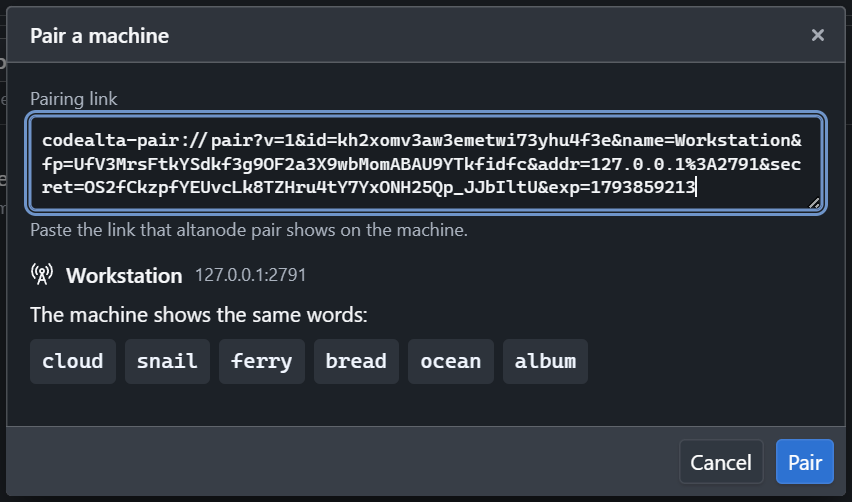
The link works once and expires after 10 minutes (altanode pair --minutes <n> gives it more). Pairing again with a new link replaces the machine, for example after its address changed.
A paired computer may see the sessions of the machine, drive them and start new ones. Moving sessions to the machine stays off (see Move a session). A computer also manages the machine only when you ask, the first one included: altanode pair --manage makes a link for that, and Add a machine… > Over SSH has Manage it from this computer (off until you tick it). Its row then says Managed from here (see Manage a machine from CodeAlta Desktop).
Manage a machine from CodeAlta Desktop
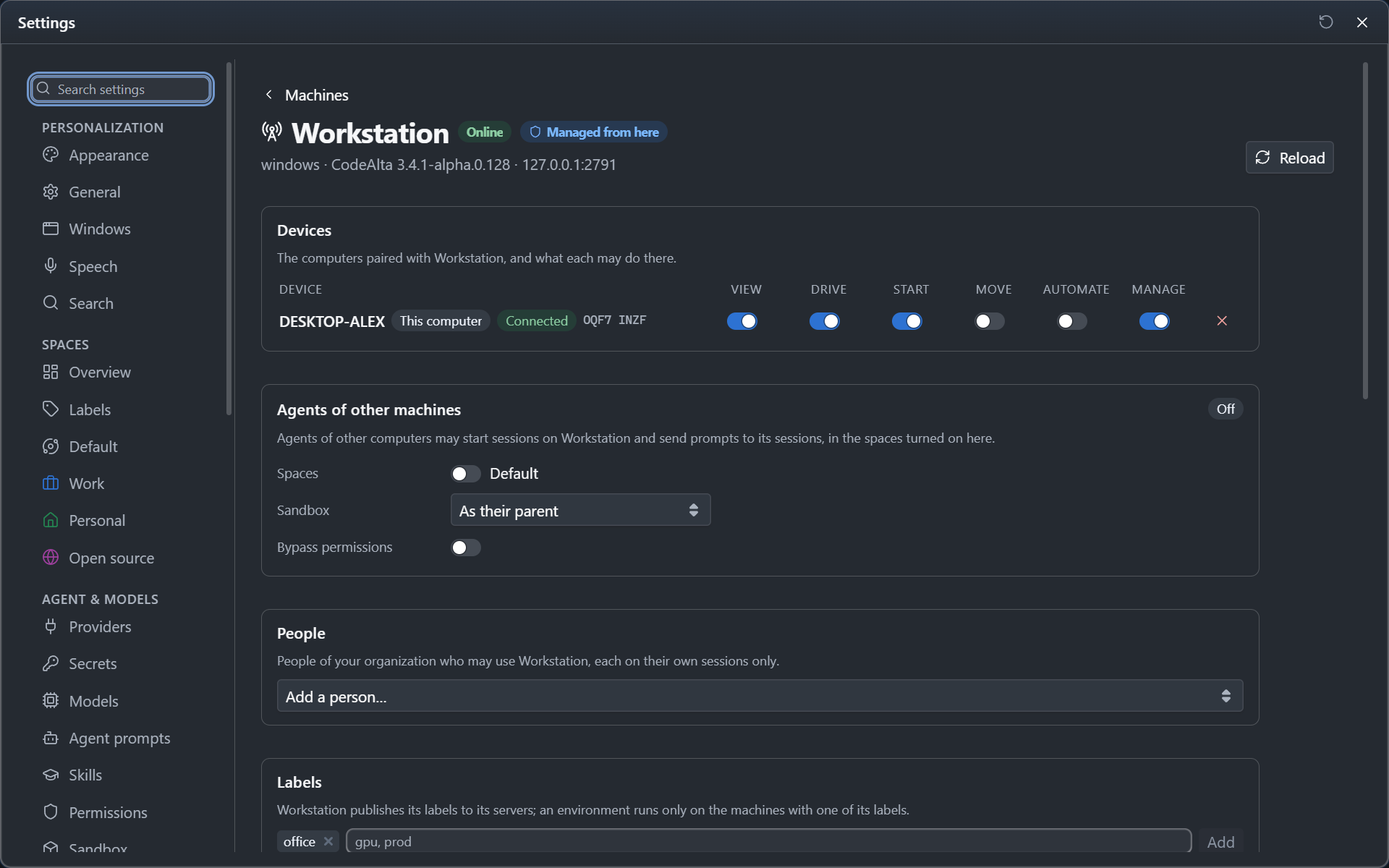
In Settings > Fleet > Machines, click the name of a machine to open its page. A computer that manages the machine changes everything there, without a terminal on the machine:
| Section | What you do |
|---|---|
| Devices | Each computer paired with the machine, with a switch per permission: View, Drive, Start, Move, Automate and Manage. Revoke (the cross at the end of the row, then Revoke) refuses that computer there at once. |
| Agents of other machines | The spaces where agents of other computers may start sessions there and send prompts to its sessions, the sandbox their sessions run in at least, and whether they may bypass permissions (Let agents start sessions on it) |
| People | The people of your organization who may use it, each on their own sessions, and who asked to (People and Access) |
| Labels | Its labels, which it publishes to its servers: add them, or remove one with its cross |
| Projects | Clone a repository there, add a folder, remove a project |
| Providers | Each provider of the machine and whether it is ready; when it is not, why: no key, the secret of the machine it waits for, not signed in. Add a provider… and Add its key… take its key here: it goes to the machine encrypted from end to end and is kept in its secrets (PROVIDER_<KEY>_API_KEY), never in its configuration. Sign in… signs in a provider such as GitHub Copilot or xAI on the machine: its code shows here with Copy; enter it on the provider's page in your browser. A provider with its own login on the machine (Codex, Claude Code) is signed in there |
| Secrets | Its secrets and variables, as Settings > Secrets shows those of this computer: Add a secret…, Rotate and Delete a secret, edit or delete a variable. A value goes to the machine and is never shown back |
| Updates | The version it runs. Check for updates, then Update to the version found: it switches once no session works |
| Log | Show the log reads its last lines |
Settings > Fleet > Machines lists all your machines, whatever the way this computer reaches them: those paired with it, and those added through your server, marked Through your server. Both open their page; a machine of the server has nothing to forget here.
A computer manages a machine when its pairing asked for it (altanode pair --manage, or Manage it from this computer over SSH). Give another computer the Manage switch on its row to let it manage the machine too; turning it off for This computer asks first, since only the owner can give it back. A computer that does not manage the machine sees its providers, and how its owner gives it the permission. A machine this computer reaches only through your server is not paired with it: to manage it, run altanode pair --manage on it and paste the link in Pair a machine….
On the machine itself, the same is done with:
| Command | What it does |
|---|---|
altanode devices |
Lists the computers paired with the node |
altanode revoke <device> |
Revokes a computer and disconnects it at once |
altanode permissions <device> |
Shows what a computer may do |
altanode permissions <device> --deny start |
Takes a permission away: view, drive, start, move, automate or manage (--allow gives one) |
altanode pair --manage |
A pairing link whose computer manages the node |
altanode agents allow --space <id> |
Lets agents of other computers start sessions in a space (deny stops them; --sandbox and --bypass as on the page) |
Forget on the row of a machine removes it from this computer; its sessions go on there. To make sure a lost or replaced computer can no longer reach a node, revoke it on the page of the machine, from a computer that manages it.
From a terminal, altanode connect <link> pairs another profile with a node, and altanode remote <machine> sessions, history, send, create and watch read and drive the sessions of a paired machine. altanode remote <machine> move <session> moves one of them to the node of that profile.