Model Servers
CodeAlta runs local models with llama.cpp on this computer and on your machines: it installs the build of llama.cpp that suits their GPUs, downloads models from Hugging Face, starts llama-server with them, keeps them up to date, and gives your sessions a provider for each server. Your sessions use a model on another machine as if it ran here.
Open Model servers
In CodeAlta Desktop, open Settings > Fleet > Model servers. The page has three tabs, each a table of this computer and of the machines it manages:
- Servers: each server, its state, its machine, its models, its GPUs, the requests it works on and its speed, its build of llama.cpp. Click a row for its address, its models one by one (Load, Unload), Start, Stop, Restart, Test, Change… and the end of its log.
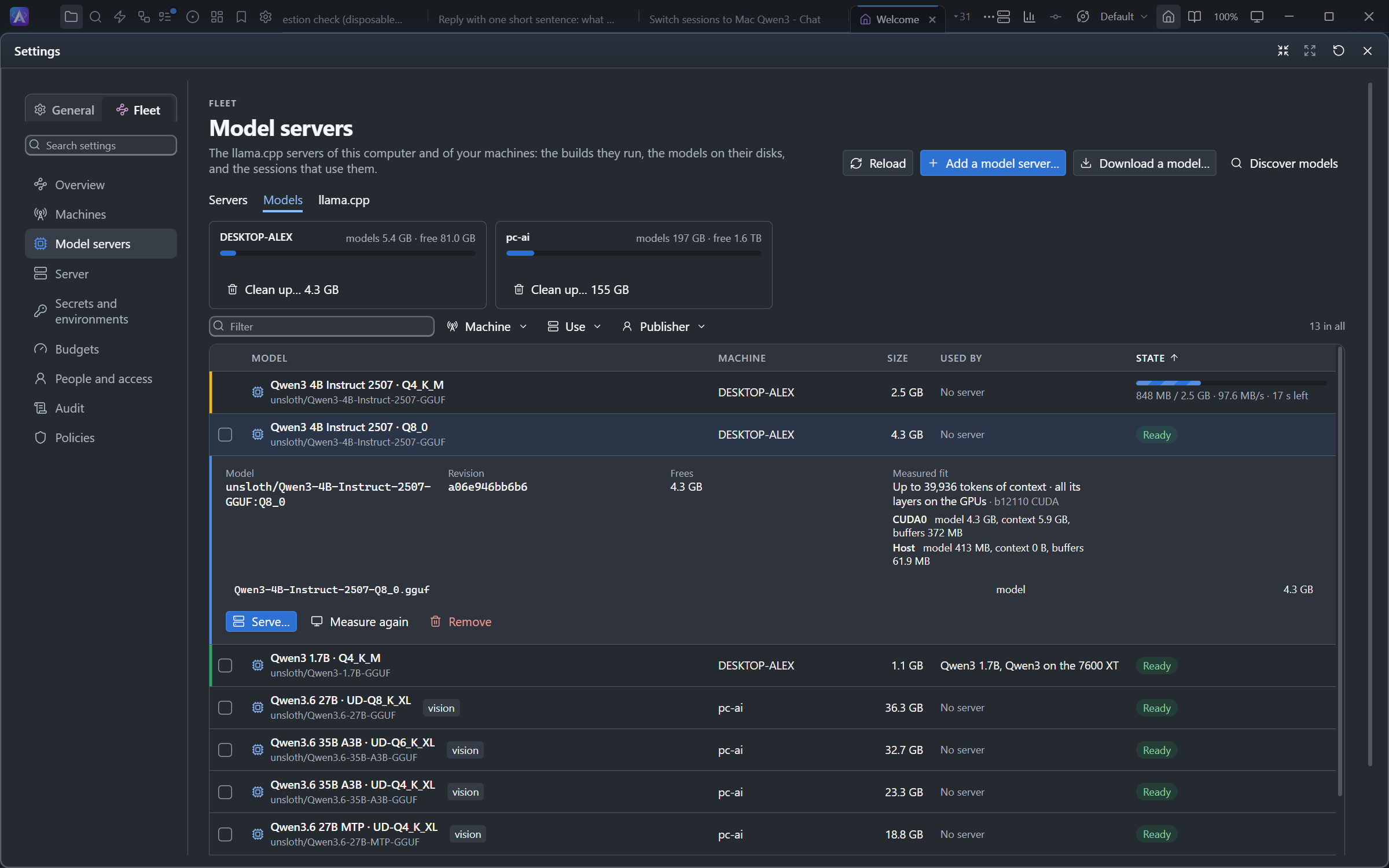
- Models: the models on the disk of each machine, their size, the servers that use them, the downloads under way. Above the table, the disk of each machine: what the models take, what is free, and Clean up… for the models no server uses.
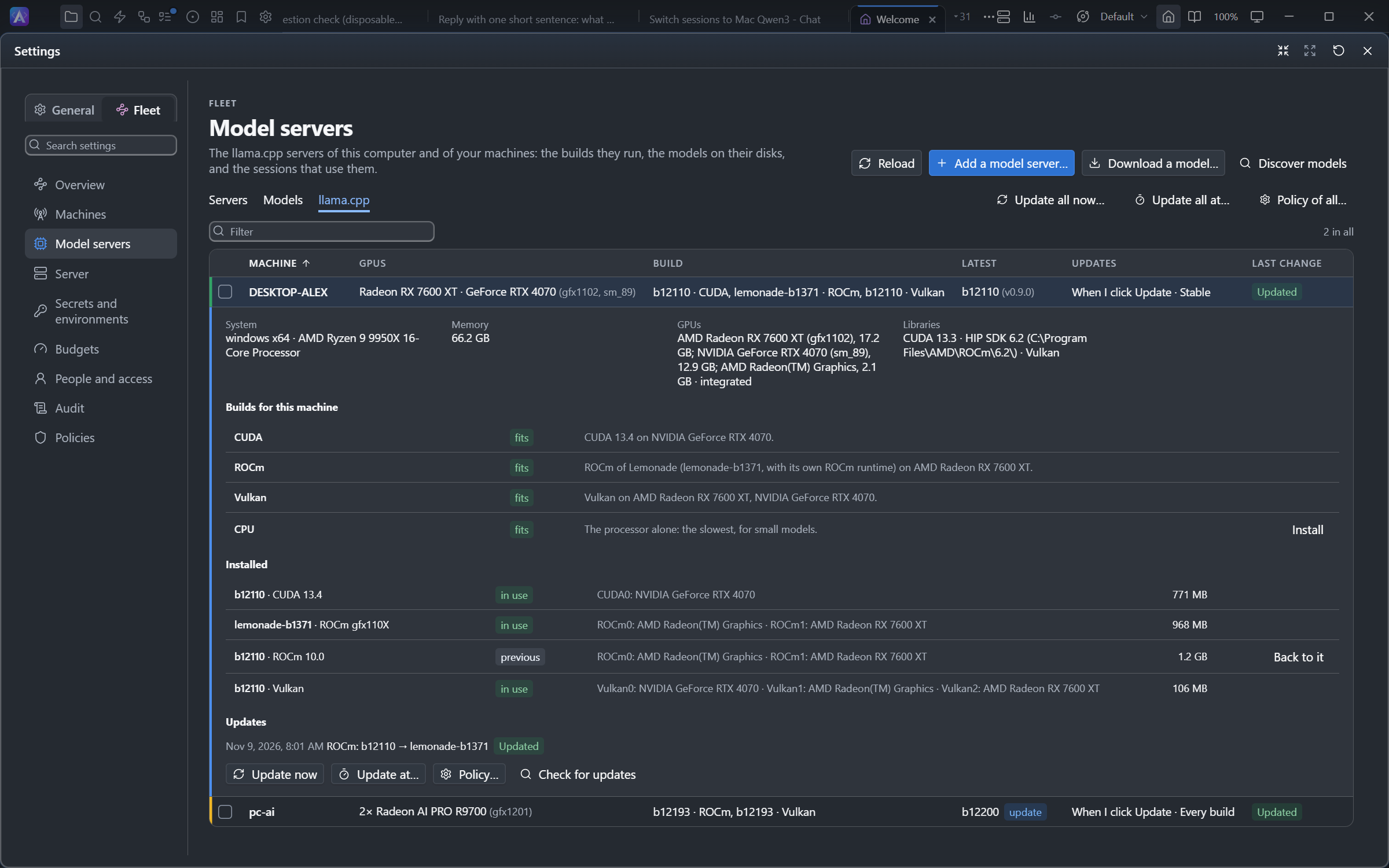
- llama.cpp: each machine with its GPUs, its build, the latest build and its update policy. Click a row for the builds that fit the machine and why, the builds installed, and the last updates.
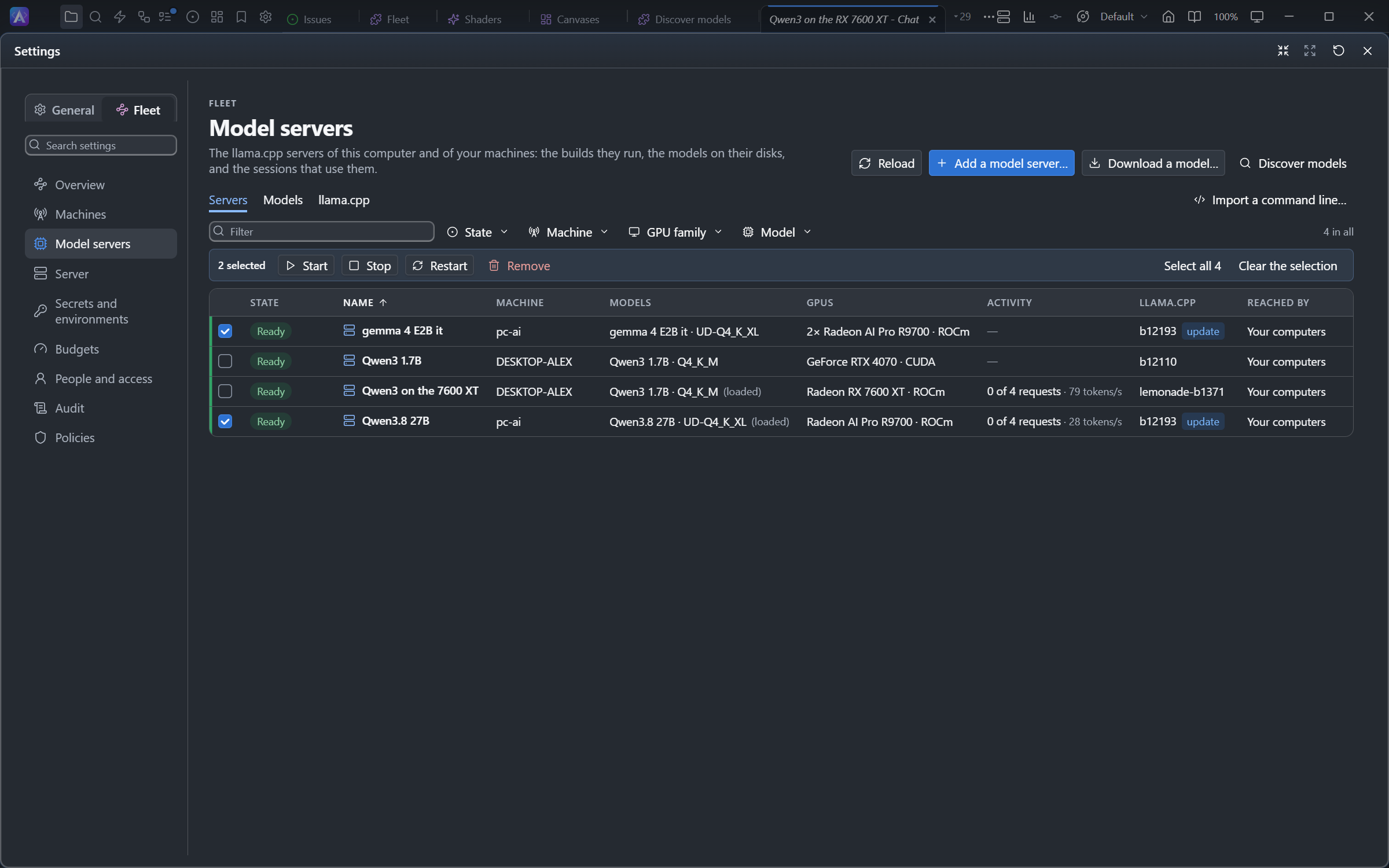
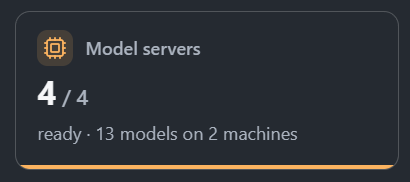
Tick the box at the start of rows to act on several at once: Start, Stop, Restart or Remove servers, Download to… another machine or Remove models, Update now…, Update at… or Policy… of machines. The Model servers tile of Fleet > Overview counts the servers ready and opens this page.
A machine you paired shows when it runs CodeAlta 4.2 or later. A machine whose Manage permission this computer has is changed from here; one where it has Models only is used, not changed.
Install llama.cpp
Open the llama.cpp tab, click the machine, then Install llama.cpp. CodeAlta chooses the build of the latest stable release of llama.cpp that fits the machine:
| GPUs | Build |
|---|---|
| NVIDIA | CUDA, the version the driver supports |
| AMD on Windows or Linux | ROCm when the GPU and the system support it, else Vulkan |
| Apple silicon | Metal |
| Intel, or other GPUs | Vulkan |
| No GPU | CPU |
The details of a machine list each build with why it fits or not (driver too old, GPU not supported...) and Install for another one. Each build is checked against the digest GitHub gives, then tested: a build that sees none of the GPUs of its kind is refused.
Where the official ROCm build cannot run (Windows without the AMD HIP SDK, an older Linux, a GPU it has no code for), tick Use Lemonade's ROCm builds in Policy…: Lemonade builds llama.cpp for each family of AMD GPUs with its own ROCm runtime. Its builds are named lemonade-b1371, and Update now takes the newest of them.
Download a model
- Click Download a model…, or open Discover models (below).
- Choose the machine and type the repository of Hugging Face, such as
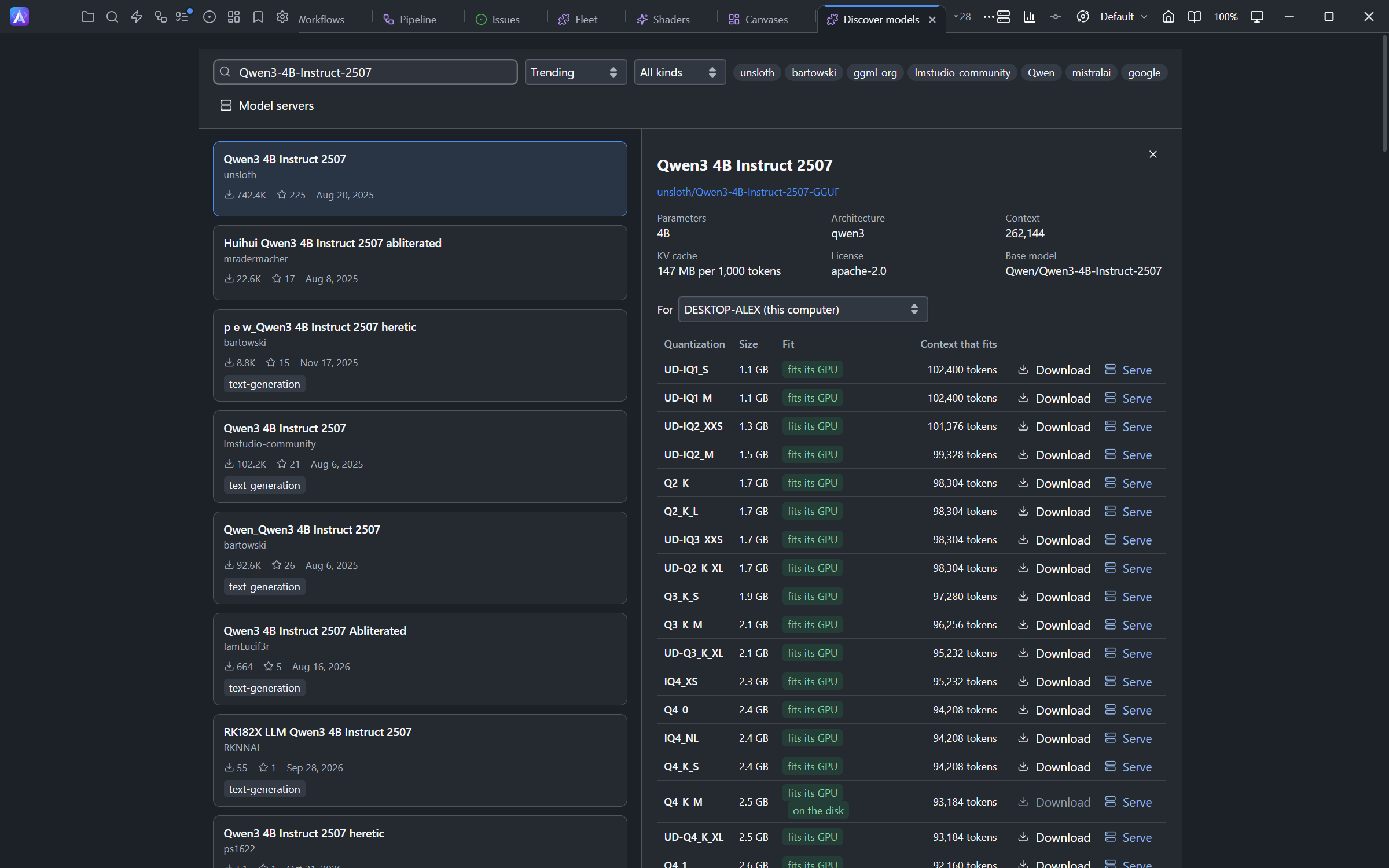
unsloth/Qwen3-8B-GGUF, or paste its address. - Choose a quantization: each says its size and whether it fits its GPU, fits its GPUs (split across them), runs partly on the GPU (slowly, in the memory of the system), or is too large, with the largest context that fits.
- Click Download.
The model goes into the Hugging Face cache of the machine, where llama.cpp and other tools find it too. A download uses several connections, resumes after a break or a restart, and is checked when it ends. A toast says when the model is on the disk.
The fit before the download is an estimate, read from the header of the model: the memory its architecture takes for each token of context. Once the model is on the disk, the machine measures it with llama.cpp: its row in Models says the context that fits and what each GPU takes, and Measure again measures it after a change of GPUs or build.
Discover models
Discover models is a tab of its own: open it from the page, or with Discover models in the command palette. Search the GGUF models of Hugging Face, sort them by trend, downloads, likes or date, and narrow them by kind and publisher. Click a model for its facts (its KV cache per 1,000 tokens among them), its card, and its quantizations with their fit and the context that fits on the machine you choose: Download puts it on the disk, Serve downloads it and starts a server with it.
Add a model server
- Click Add a model server….
- Choose the machine and name the server.
- Choose its kind:
- Several models, loaded on demand: a model loads at its first request; when the GPU needs room, the model used least is unloaded.
- One model, always loaded: the fastest answers; its GPU stays taken.
- Add its models: one on the disk, or
publisher/repository:QUANTof Hugging Face, downloaded when you save. For each, the context (empty for what fits the GPU) and the requests it serves at once. - Leave Use in the sessions of ticked: your sessions get a provider for the server.
- Click Add.
More settings chooses the build, the GPUs, the port, how many models stay loaded at once, who reaches it (This machine and your computers or This machine only), whether it keeps running when CodeAlta exits, and other options of llama-server.
The server starts once its build and its models are there; until then it shows Waiting. Its provider lists the models as soon as the server serves them, even when you added it while the server was waiting. Changes to its models appear automatically; you do not need Test provider.
A server that fails is restarted a few times, then shows Failed with the reason: read the end of its log in its details.
Already running a llama-server by hand? Import a command line… reads its command, its models, GPUs and options, into a new server for you to check and add.
Copy to… in the details of a server adds the same server to another machine: on that machine's build, GPUs and first free port. Its models are downloaded there first.
Use a model server in sessions
A server added with Use in the sessions of is a provider of this computer, named after the server: choose it in the composer as any other. Its models are listed with the context they run with, and those with a vision projector take images.
A server of another machine is reached through the encrypted connection to that machine: it needs no open port, and its key never leaves the machine. Only a server that your computers may reach is offered to them.
In the configuration, such a provider names its server instead of an address:
[providers.llama-coder]
type = "llama-cpp"
name = "Coder"
server = "local/coder"        # this computer's server "coder"; "<machine>/<server>" for one of a paired machine
A model serves as many requests at once as its slots (Requests of its server, such as 2/2). Beyond them, the requests of this computer and of your other machines wait on the machine of the server, in the order they came: a session says Waiting for a free slot with its place in the queue, such as pc-ai/coder (2 before it), and Model servers shows how many wait, such as 2 of 2 requests, 3 waiting. Such a provider has no Requests at once of its own: the slots decide.
Update llama.cpp
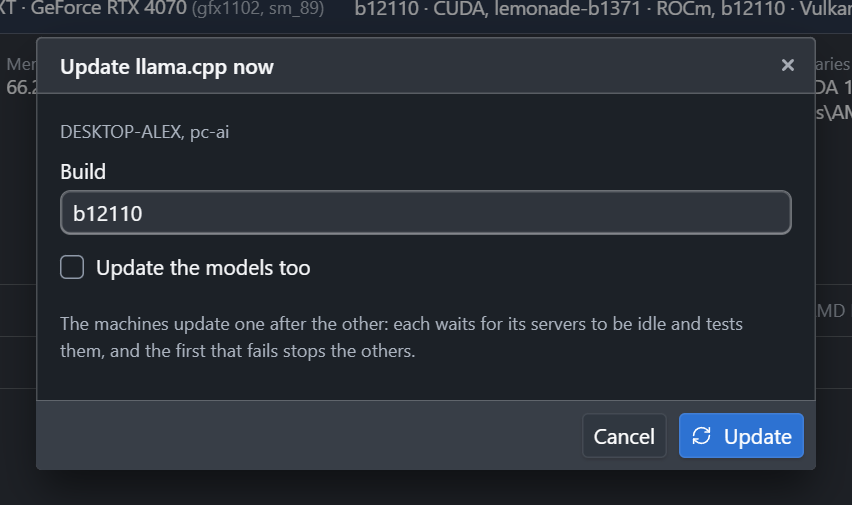
llama.cpp publishes builds every day and a stable release every few weeks. In the llama.cpp tab, a machine with a newer build shows update. Click the machine, then:
- Update now: the machine waits for its servers to be idle, tests each one with the new build, and goes back to the previous build when a test fails.
- Update at…: one update at a date and a time. The machine keeps it, and updates then even when this computer is off.
- Policy…: which builds (Stable, Every build, or This build to stay on one) and when: When I click Update, Every day or Every week at a time of the machine, with or without its models.
With several machines, Update all now… updates them one after the other and stops at the first that fails; Update all at… and Policy of all… set them all at once, as do the same actions on the machines you tick. Both updates take one build for all, such as b12110: an older one takes the machines back to it. A planned update shows on the row of its machine; Cancel the planned update drops it. Back to it in the details of a machine returns its servers to the previous build.
Let agents manage model servers
Agents manage all of this with the alta llama commands: read what each machine runs, choose a model that fits, download it, add and test a server, make the sessions use it, and plan updates. Ask a session, for example: "Serve a coding model that fits the GPUs of pc-ai and use it here". A download, an install or an update tells the session its end.
An agent removes a model or a server, or changes the update policy, only when you ask. A session whose commands you review, or that does without the shell, reads but installs, updates and starts nothing.
Machines without CodeAlta Desktop
A machine that runs CodeAlta Node runs its model servers too: they keep running while the node updates, and its sessions manage them with alta llama. Manage it from CodeAlta Desktop on a computer paired with it; on the machine, altanode llama status says its GPUs, its builds and their update policy, its models and downloads, and what each server runs.
A machine stays awake while one of its servers answers or loads a model, or a download or an update runs, and a few minutes after: it sleeps again as its system decides.
Where things are
| What | Where |
|---|---|
| Models | The Hugging Face cache of the machine (HF_HUB_CACHE, else ~/.cache/huggingface/hub) |
| Builds of llama.cpp, settings | ~/.alta/llama |
| Servers, their keys and logs | the state folder of CodeAlta on the machine, under llama |
A server listens on loopback only, with a key of its own: other programs of the machine reach it with that key, other computers through CodeAlta.